
Convert PDF to Word free in your browser and get an editable .docx file that keeps the original layout: text with its fonts and colours, real Word tables, images, columns and page sizes. Plain .txt text is there too when you only need the words. Your PDF is never uploaded: it is converted on your own device, with no sign-up, no watermark and no daily limit.
Merge PDF files
Combine PDFs and images into one PDF, in the order you choose.
Up to 25 files, 1 GB in total on this device.
Split PDF
Extract the pages you need, or split a PDF into one file per page or per group of pages.
One PDF up to 1 GB on this device. Several files download as one ZIP file.
Compress PDF
Reduce PDF file size by re-compressing images and cleaning up the file. Text stays sharp and searchable.
One PDF up to 1 GB on this device.
PDF to Word
Turn a PDF into an editable Word document (.docx) that keeps its tables, images and formatting, or into plain text (.txt).
One PDF up to 200 MB and 2,000 pages.
PDF to PNG or JPG
Save every page, or the pages you pick, as PNG or JPG images.
One PDF up to 1 GB on this device. Several pages download as one ZIP file.
PNG or JPG to PDF
Combine images into one PDF. JPGs keep their original quality.
Up to 25 images, 1 GB in total on this device.
HEIC to PDF
Turn iPhone HEIC photos into one PDF. JPG, PNG and WebP images can go in the same PDF.
Up to 25 photos, 1 GB in total on this device.
Your files stay on this device. They are processed in your browser and never uploaded or stored.
How to convert PDF to Word for free
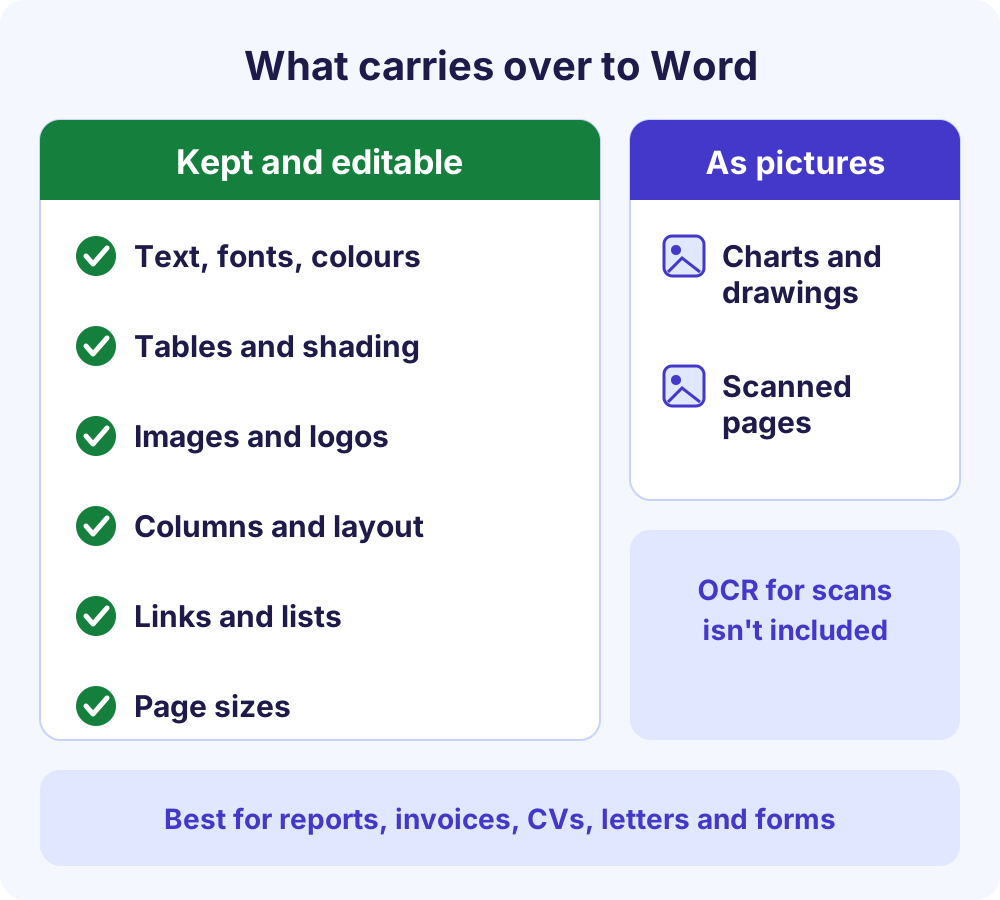
To convert PDF to Word for free, open the Soft Learn Hub PDF to Word tool above, choose your PDF, pick Word (.docx) or plain text (.txt), set a page range if you need one, then convert and download. It runs in your browser, so nothing is uploaded. Text, fonts, colours, tables, images and columns carry over as editable Word content; charts become pictures, and scanned pages come across as pictures because OCR isn’t included.
- Price
- Free, no watermark, no ads inside the tool
- Account
- None needed
- Uploads
- None: conversion runs in your browser
- Output
- Word document (.docx) or plain text (.txt)
- Max size
- 200 MB or 2,000 pages; about 150 MB on phones and tablets
- Keeps
- Text, fonts, colours, tables, images, columns, links, page sizes
- As pictures
- Charts, drawings and scanned pages
- Scanned PDFs
- Kept as page pictures; OCR not included
On this page
PDF to Word step by step
- Choose your PDF.
Drag the file onto the drop area, or click it to pick a PDF from your device. Files up to 200 MB or 2,000 pages work, and the tool shows the limit for your device.
- Pick the output and pages.
Choose Word (.docx) for an editable document or plain text (.txt) for the words only. Add a page range if you need just part of a long PDF.
- Convert the PDF.
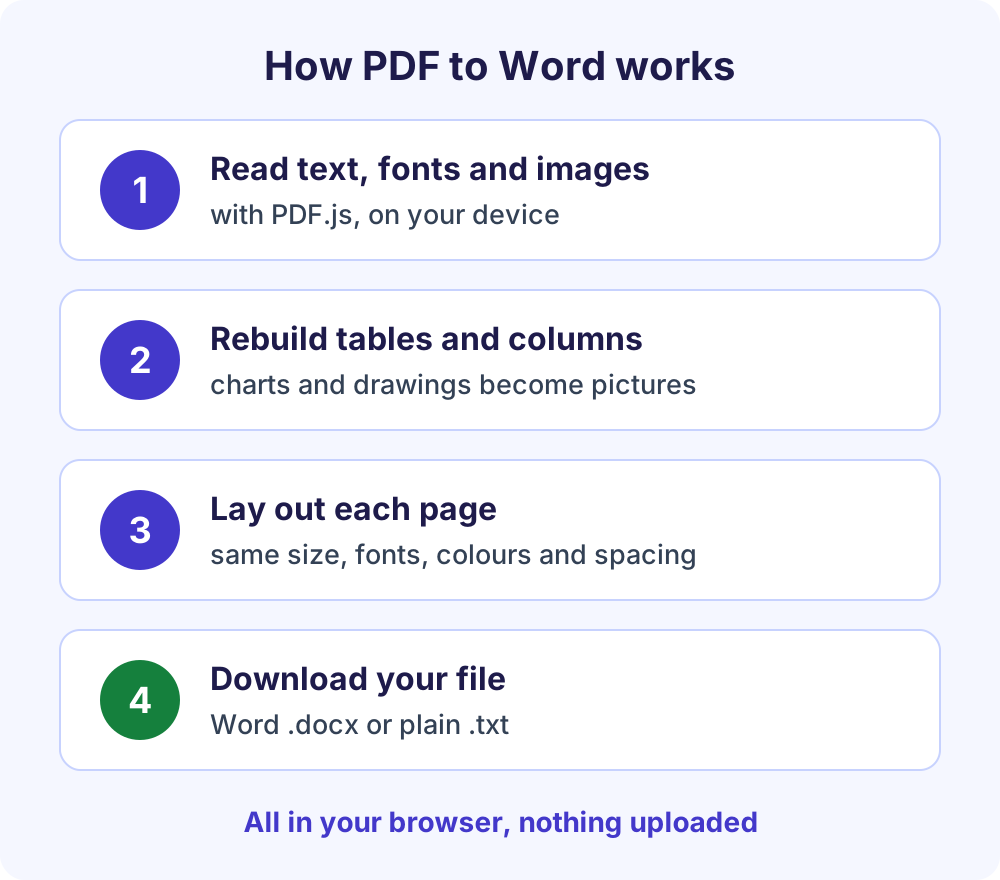
Select Convert to Word (or Convert to text). PDF.js reads the file in a background worker, so the page stays responsive. Tables, images and columns are rebuilt on your device, and the tool tells you if any page had to be kept as a picture, such as a scanned page.
- Download and review.
Save the file and open it in Word, Google Docs or LibreOffice Writer. Give it a quick read before you share it: fonts that aren’t installed on your device are swapped for similar ones, so a line can wrap differently.
What carries over to Word, and what doesn’t
This PDF to Word converter rebuilds each page as real, editable Word content, so you can change text, table rows and pictures without retyping anything. Here is what to expect:
| In your PDF | In the Word file |
|---|---|
| Text | Kept and fully editable, with its size, bold, italic, underline and colour |
| Paragraphs | Kept, with their alignment, indents and line spacing |
| Headings | Kept as Word heading styles, detected from text size |
| Tables | Rebuilt as real Word tables, with borders, shading and merged cells |
| Images and logos | Kept at their original resolution, cropped as shown on the page |
| Columns and side-by-side blocks | Kept side by side in a borderless layout table |
| Links and lists | Web and email links stay clickable; bullets and numbers are kept |
| Pages | Each PDF page becomes a Word page of the same size and orientation |
| Fonts | Same font names; any not installed on your device are swapped for a similar font |
| Charts and drawings | Kept as pictures, exactly as they look in the PDF |
| Form fields | Their filled-in values come across as text |
| Right-to-left text | Arabic and Urdu keep their right-to-left direction |
Best for: reports, invoices, CVs, letters, contracts, price lists, forms and other digital documents. Less suited to: scanned pages, which need OCR first, and posters or slides that are mostly artwork, where much of the design comes across as pictures.
How the PDF to Word converter works without uploading
A digital PDF stores text as characters placed at exact positions on each page, with lines, shapes and pictures drawn around them. Unless the file is tagged, it doesn’t record which lines form a paragraph, which cells form a table or where a column ends, so a converter has to work that out from position, size and the lines on the page.
The tool reads the text, fonts, colours, lines and images with PDF.js by Mozilla. It then finds table grids and columns, joins lines into paragraphs, marks larger text as headings and lays out each page in Word at the same size, with charts and drawings kept as pictures. PDF.js reads the file in a background Web Worker, and the finished .docx or .txt is offered as a download. The libraries are hosted on softlearnhub.com and load only when you use the tool.
Why no upload matters
- Privacy: contracts, HR letters and medical reports are not copied to a server or stored.
- Speed: no upload or download wait for long documents; your device does the work.
- No caps to dodge: no account, no watermark and no daily task limit.
Check it yourself: press F12 (Cmd+Option+I on a Mac), open the Network tab and convert a file. No request carries your PDF. The site has normal page analytics, described in its privacy policy, but they never include your files.
Scanned PDFs need OCR first
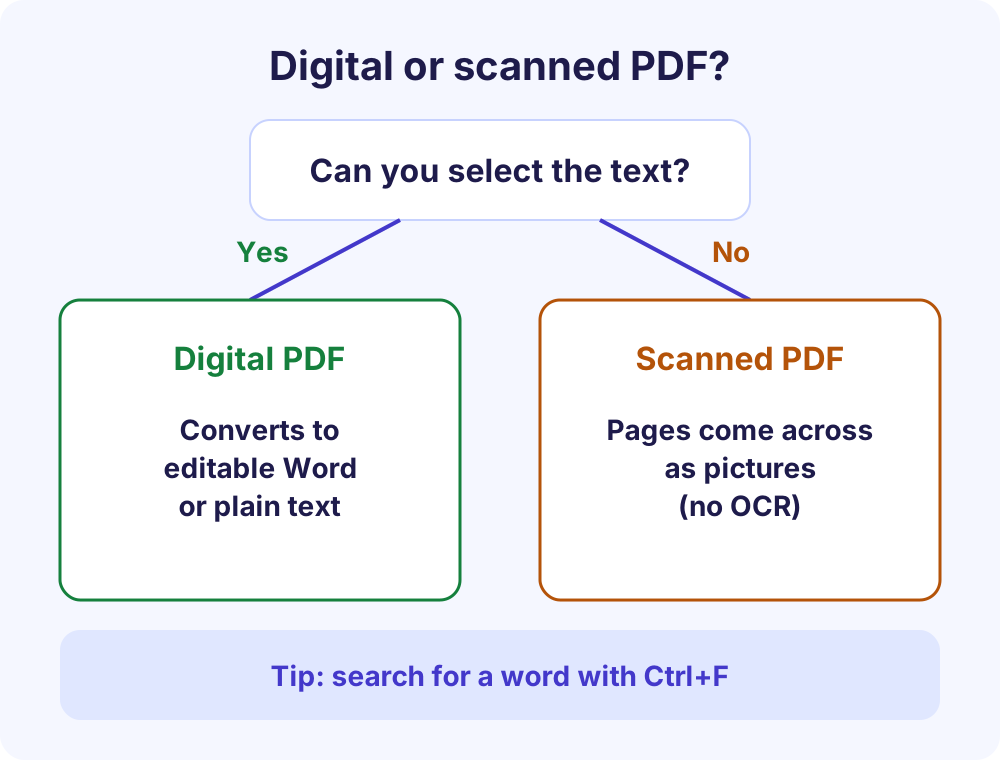
A scanned PDF is a picture of each page. As Digital.gov notes, a PDF created from a scan is often an image without embedded text, and optical character recognition (OCR) is what turns it into text. With no text layer there is no text to edit, so in Word mode each scanned page is added as a picture and the tool tells you; OCR is not included. If the scan already has a hidden OCR text layer (a searchable PDF), that text is converted into editable Word text.
How to tell if your PDF is scanned
Open it and try to highlight a sentence, or search for a word with Ctrl+F (Cmd+F on a Mac). If nothing highlights or the search finds nothing, the page is an image.
What to do with a scanned PDF
If you have the original document, export it again as a regular PDF or simply edit the original. Otherwise, run the scan through an OCR program first, proofread the result (OCR is never perfect), then convert it here.
Word (.docx) or PDF to text (.txt)?
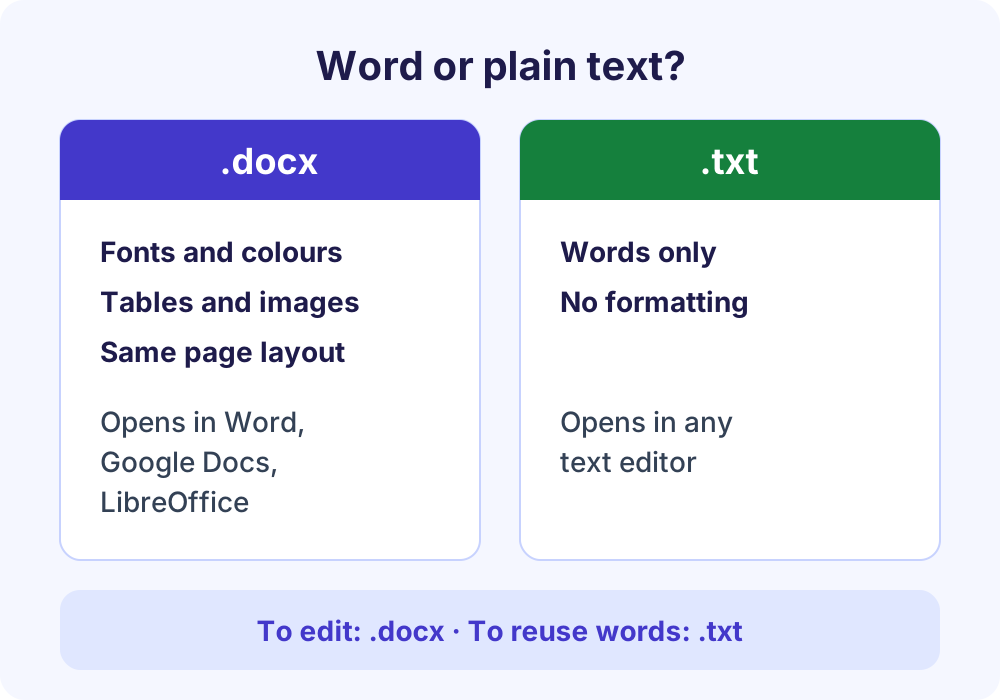
| What you get | Word (.docx) | Plain text (.txt) |
|---|---|---|
| Formatting, tables and images | Yes, with the same page layout | No, words only |
| Opens in | Word, Google Docs, LibreOffice Writer | Any text editor on any device |
| Best for | Editing and reformatting a document | Copying text into email, a website, notes or another app |
DOCX is the XML-based Word format, standardized as ECMA-376 and ISO/IEC 29500, and Word’s default since Word 2007, according to the Library of Congress format description. Choose PDF to text when you only need the words, for example to paste a contract clause into an email.
This tool vs typical upload-based PDF websites
| What matters | Soft Learn Hub PDF to Word | Typical upload-based site |
|---|---|---|
| Where the file is processed | In your browser, on your device | Usually on the site’s servers |
| Upload needed | No | Yes |
| Account, watermark, daily limit | None | Often one or more on free plans |
| Tables, images and layout | Rebuilt as editable Word content | Varies by site |
| OCR for scans | Not included | Some offer it, sometimes on paid plans |
One difference to know: the Word file names the PDF’s fonts but doesn’t embed them, so a font that isn’t installed on your device is swapped for a similar one and a line may wrap differently. For contracts, payslips and other private documents, converting locally keeps the file in your hands.
Tips for a cleaner Word document
- Convert only what you need. A page range keeps long reports quick and the output tidy.
- Install missing fonts for the closest match. If the PDF uses a font you don’t have, install it (if its licence allows) before you open the Word file.
- Edit tables like any Word table. Add rows or change borders and shading. Charts come across as pictures, so update them from their original data if the numbers change.
- Use the headings. Larger titles become Word heading styles, so you can add a table of contents or restyle them all at once.
- Remove passwords first. Password-protected PDFs are not supported; unlock the file in the app you normally use, then convert.
- Combine before converting. Use Merge PDF, then Continue with another tool to send the merged file here without selecting it again.
Frequently Asked Questions
Can I convert PDF to Word for free without signing up?
Yes. The tool is free with no account, no watermark, no daily task limit and no ads inside the tool. Choose your PDF, pick Word (.docx) or plain text (.txt), convert and download. Files up to 200 MB or 2,000 pages work on computers; phones and tablets handle about 150 MB.
Is it safe to use a free PDF to Word converter online?
With this one, your PDF never leaves your device. It is converted in your browser and is not uploaded or stored, which matters for contracts, payslips and medical letters. You can confirm it by opening developer tools (F12), selecting the Network tab and converting a file: no request carries your document.
Does PDF to Word keep tables, images and formatting?
Yes. Tables are rebuilt as real Word tables with their borders, shading and merged cells, images and logos keep their original resolution, and text keeps its font, size, colour, alignment and spacing. Each PDF page becomes a Word page of the same size. Charts and drawings come across as pictures, and fonts that aren’t installed on your device are swapped for similar ones, so a line may wrap differently.
Can I convert a scanned PDF to Word?
Yes, but its pages come across as pictures. A scanned PDF is a picture of each page with no text layer, and OCR (text recognition) is not included, so the tool adds each scanned page to the Word file as a picture and tells you. For editable text, run the scan through an OCR program first, proofread the result, then convert it here.
How do I convert PDF to text?
Choose your PDF, select plain text (.txt) as the output, add a page range if you need one, then convert and download. You get the words without formatting, ready to paste into an email, a website or notes. PDF to text only works on PDFs that contain real text, not scans.
Can I convert PDF to DOC instead of DOCX?
The tool creates .docx, Word’s default format since Word 2007. The older .doc format was the default from Word 97 to 2003. Current Word, Google Docs and LibreOffice all open .docx. If a system insists on .doc, open the file in desktop Word and use Save As to choose Word 97-2003 Document.
Does PDF to Word work on iPhone and Android?
Yes. It works in current Safari, Chrome, Edge and Firefox on phones and tablets as well as computers, with nothing to install. Mobile devices handle PDFs up to about 150 MB, and the tool shows the limit for your device. Open the .docx afterwards in a mobile Word or Google Docs app.
More free PDF tools
Every tool below runs in your browser with the same no-upload approach, and tabs switch without reloading the page:
- Compress PDF: make a PDF smaller for email or upload forms.
- PDF to PNG or JPG: save pages as images at 72, 150 or 300 DPI.
- PNG to PDF: combine up to 25 images into one PDF.
- Split PDF: extract the pages you need as a new PDF.
- HEIC to PDF: turn up to 25 iPhone photos into one PDF.
- All free PDF tools: all seven tools in one place.
Writing business letters? The letterhead maker exports PDF, PNG and Word files, and the free invoice generator creates invoices as PDF. See every free tool on the Soft Learn Hub tools page.