
Use this free PNG to PDF converter to turn screenshots, scans, phone photos and graphics into one tidy PDF without leaving your browser. Add up to 25 PNG, JPG, JFIF, WebP, GIF, BMP or HEIC images, put them in order, choose Fit to image, US Letter or A4 pages, and download. Nothing is uploaded or watermarked, and you don’t need an account.
Merge PDF files
Combine PDFs and images into one PDF, in the order you choose.
Up to 25 files, 1 GB in total on this device.
Split PDF
Extract the pages you need, or split a PDF into one file per page or per group of pages.
One PDF up to 1 GB on this device. Several files download as one ZIP file.
Compress PDF
Reduce PDF file size by re-compressing images and cleaning up the file. Text stays sharp and searchable.
One PDF up to 1 GB on this device.
PDF to Word
Turn a PDF into an editable Word document (.docx) that keeps its tables, images and formatting, or into plain text (.txt).
One PDF up to 200 MB and 2,000 pages.
PDF to PNG or JPG
Save every page, or the pages you pick, as PNG or JPG images.
One PDF up to 1 GB on this device. Several pages download as one ZIP file.
PNG or JPG to PDF
Combine images into one PDF. JPGs keep their original quality.
Up to 25 images, 1 GB in total on this device.
HEIC to PDF
Turn iPhone HEIC photos into one PDF. JPG, PNG and WebP images can go in the same PDF.
Up to 25 photos, 1 GB in total on this device.
Your files stay on this device. They are processed in your browser and never uploaded or stored.
How to convert PNG to PDF for free
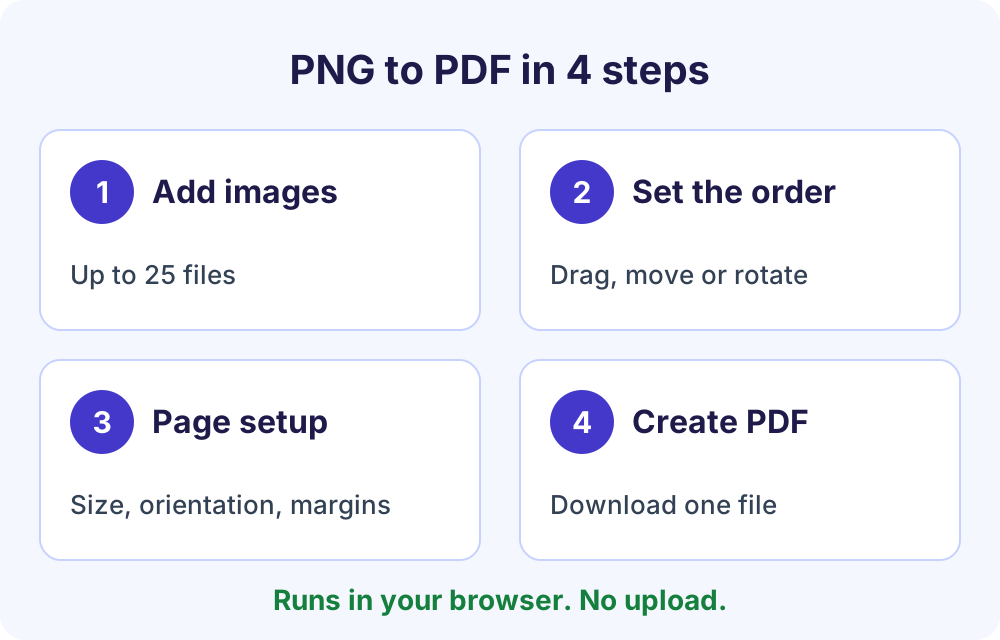
To convert PNG to PDF for free, open Soft Learn Hub’s PNG to PDF converter, add up to 25 images (PNG, JPG, JFIF, WebP, GIF, BMP or HEIC), drag them into order, choose a page size, orientation and margins, then create the PDF and download it. Everything runs in your browser, so your images are never uploaded; HEIC photos are converted to high-quality JPEG on your device.
- Price
- Free, no watermark
- Account
- None needed
- Uploads
- None, it runs in your browser
- Input
- JPG/JPEG, JFIF, PNG, WebP, GIF (first frame), BMP, HEIC/HEIF
- Images per PDF
- Up to 25
- Page size
- Fit to image, US Letter or A4
- Layout
- Auto, portrait or landscape; no, small or large margins; rotate 90°
- HEIC photos
- Converted in your browser to high-quality JPEG (92%)
On this page
Convert PNG to PDF step by step
- Add your images.
Select up to 25 images from your computer or phone. JPG, JPEG, JFIF, PNG, WebP, GIF, BMP and HEIC files all work; HEIC photos are converted to JPEG as you add them, and an animated GIF contributes its first frame.
- Put them in order.
Drag the images into the order you want, or use the Move buttons. Each image becomes its own page in the PDF.
- Rotate any sideways image.
Turn an image 90° if it needs it. Phone photos are already turned the right way up using their camera orientation data.
- Choose the page setup.
Pick Fit to image, US Letter or A4; orientation Auto, Portrait or Landscape; and margins None, Small or Large.
- Create and download the PDF.
Select Create PDF and save the finished PDF. To shrink it or add other files, use Continue with another tool.
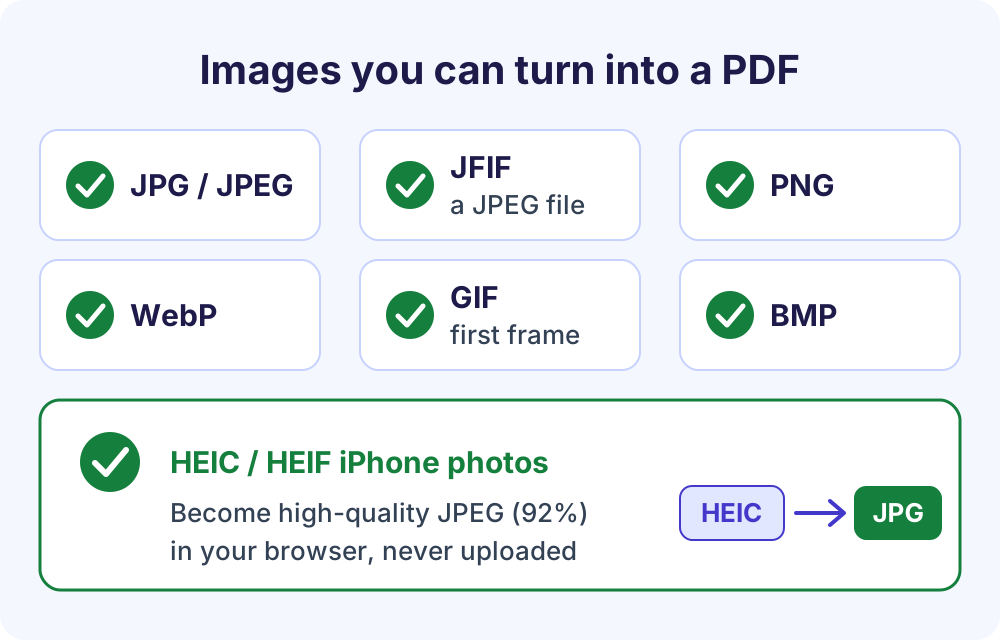
Supported formats: JPG to PDF, JFIF to PDF and more
The converter accepts the image types you are most likely to have: JPG and JPEG, JFIF, PNG, WebP, BMP and GIF, plus HEIC and HEIF. For an animated GIF, the first frame becomes the page. That covers screenshots, phone photos, scans and images saved from web pages.
A .jfif file is a JPEG image. The Library of Congress describes JFIF (JPEG File Interchange Format) as a minimal file format that lets JPEG bitstreams be exchanged between platforms, and lists .jfif next to .jpg and .jpeg among its extensions. So JFIF to PDF works exactly like JPG to PDF, with no renaming or converting first.
HEIC and HEIF photos from iPhone and iPad
HEIC is the space-saving format iPhones and iPads use for photos when the camera’s Formats setting is High Efficiency, as Apple’s support guide explains. Add HEIC and HEIF photos like any other image and mix them with JPGs and PNGs in one PDF.
A PDF can’t store HEIC images directly, so each HEIC photo becomes a high-quality JPEG (quality 92%) in your browser as soon as you add it, with its saved rotation applied and its colors preserved. The tool uses your browser’s own HEIC decoder when it has one, or else heic-rs, an open-source decoder (MIT or Apache-2.0 licence) compiled to WebAssembly and hosted on softlearnhub.com. For photo-only jobs, the dedicated HEIC to PDF tool does the same conversion.
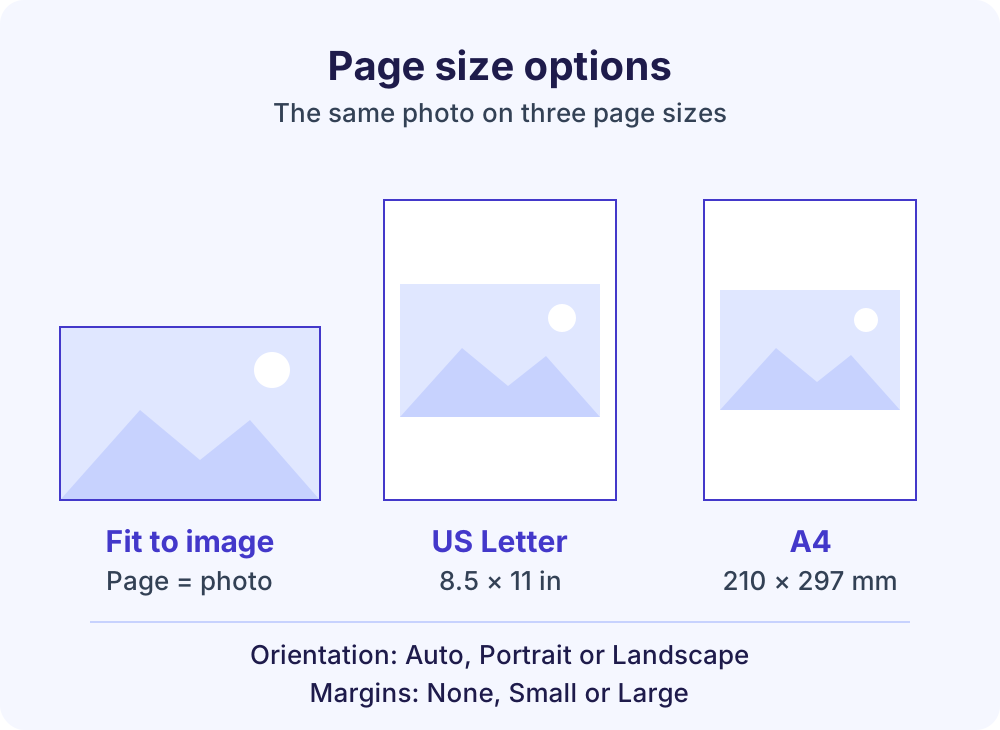
Page size, orientation and margins
These settings decide how each picture sits on its page. Here is when to use each one:
| Setting | Choices | When to use it |
|---|---|---|
| Page size | Fit to image | Each page takes the shape of its image; good for screenshots, graphics and reading on screen |
| Page size | US Letter (8.5 × 11 in) | The standard US paper size; use it for anything you will print or submit in the US |
| Page size | A4 (210 × 297 mm) | The ISO 216 paper size; use it for recipients who print on A4 |
| Orientation | Auto, Portrait, Landscape | Portrait or Landscape sets every page the same way; Auto suits a mix of tall and wide images |
| Margins | None, Small, Large | None for edge-to-edge images; Small or Large adds a white border that looks tidy in print |
| Rotate | 90° per image | Fixes sideways scans and screenshots |
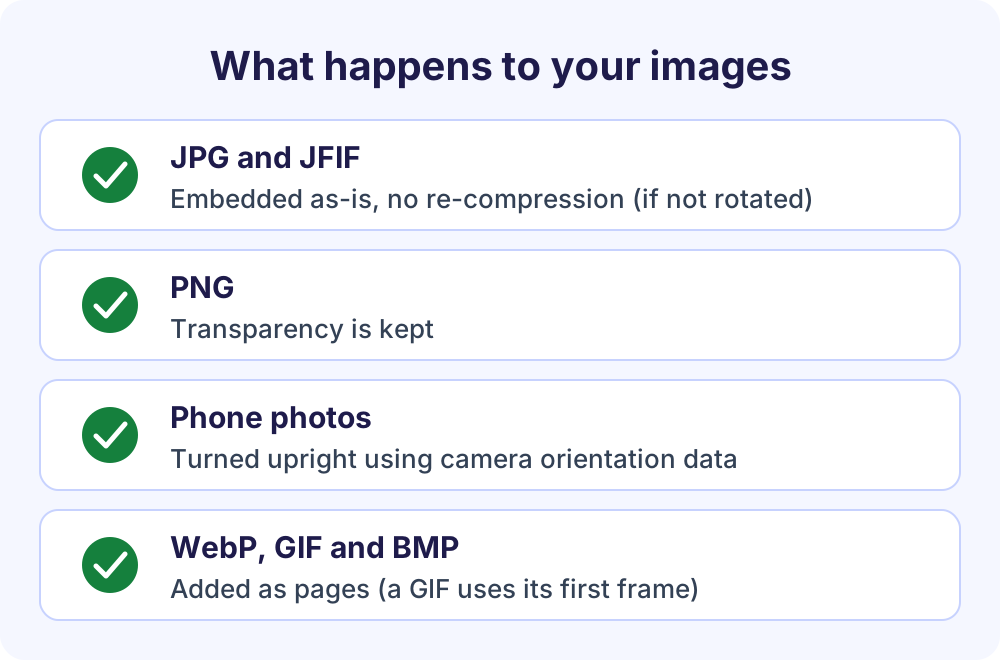
Does PNG to PDF reduce image quality?
Not for JPGs you leave unrotated: JPG and JFIF images are embedded in the PDF without re-compression, so there is no quality loss. PNG transparency is kept, and phone photos are turned the right way up using the orientation data the camera saved, so you don’t have to fix them by hand.
HEIC photos are the exception: each one is re-encoded once, as a high-quality JPEG (quality 92%). Because HEIC is such a compact format, the PDF is usually larger than the HEIC files you added.
Because JPGs go in untouched, a PDF made from them is roughly as large as the photos combined, and a batch of full-resolution phone photos can produce a big file. If it needs to go by email, run it through Compress PDF first: Gmail Help puts the attachment limit for personal accounts at 25 MB.
Private by design: images never leave your device
The converter runs 100% in your browser, using pdf-lib (MIT licence), an open-source library hosted on softlearnhub.com that loads only when you use the tool. The heavy work runs in a background Web Worker, so the page stays responsive while your PDF is built.
Your images are read into the browser’s memory, assembled into a PDF and offered as a download. They are never uploaded to Soft Learn Hub or anyone else, and nothing is stored. To check, open developer tools (F12), go to the Network tab and create a PDF: no image is sent.
That matters for photos of IDs, receipts, signed forms and client work. It also means no account, no watermark, no daily task limit and no ads inside the tool. The site’s normal page analytics, described in its privacy policy, never include your files.
Size limits follow your device’s memory: up to 1 GB per file on computers with 8 GB or more memory, about 400 MB on 4 GB devices and about 150 MB on phones and tablets, and the tool shows your limit. It works in current Chrome, Edge, Firefox and Safari on desktop and mobile, with keyboard and screen-reader support.
This tool vs typical upload-based PDF websites
| Question | Soft Learn Hub PNG to PDF | Typical upload-based PDF sites |
|---|---|---|
| Where your images go | Stay in your browser | Uploaded to the site’s servers |
| Account | Never needed | Often required for bigger batches or more tasks |
| Daily limits | No daily task limit | Many free plans limit tasks per day |
| Watermark | None | Some add one on free plans |
| JPG quality | Embedded without re-compression unless rotated | Varies by service |
| HEIC photos | Converted to JPEG in your browser, never uploaded | Where accepted, usually converted on the site’s servers |
Because HEIC photos are converted on your device too, iPhone photos become a PDF without any image leaving your phone or computer, which keeps receipts, IDs and family photos off third-party servers.
Tips for a clean image PDF
- Scanning paper with your phone? Shoot in good light, fill the frame, and choose US Letter or A4 so every page prints at the same size.
- Mixing tall and wide images? Try Auto orientation, or Fit to image so each page takes its picture’s shape.
- Want a clean product shot or logo? Remove the background first with the free background remover, then add the PNG here; its transparency is kept.
- Adding images to an existing PDF? Merge PDF combines PDFs with JPG, PNG and WebP images in one go.
- More than 25 images? Make two PDFs, then merge them into one.
- A HEIC photo won’t convert? Bursts, image sequences and some layered HEIF files can’t be converted, and the tool names the file. Share that photo from your iPhone as a JPG and add it again.
Frequently Asked Questions
How do I convert a PNG to PDF?
Open the PNG to PDF converter on this page, add your PNG files (up to 25), drag them into order, choose Fit to image, US Letter or A4 pages, and create the PDF. The file downloads straight to your device. It is free, adds no watermark, needs no account and runs entirely in your browser, so nothing is uploaded.
How do I convert JPG to PDF for free?
Add your JPG or JPEG files to the same tool, set the order and page size, then create the PDF. JPGs you don’t rotate are embedded without re-compression, so the photos keep their original quality. Phone photos are turned upright automatically using their camera orientation data. There is no sign-up, watermark or daily limit.
How do I convert a JFIF file to PDF?
Add the .jfif file just like a JPG. JFIF (JPEG File Interchange Format) is a file format for JPEG images, so the converter handles it the same way as any other JPG. You don’t need to rename the file or convert it to another format first, and you can mix JFIF, JPG and PNG files in one PDF.
Can I combine multiple images into one PDF?
Yes. Add up to 25 images in one go and they become a single PDF, one image per page, in the order you set by dragging or with the Move buttons. You can mix formats, such as screenshots in PNG and photos in JPG. For more than 25 images, create two PDFs and join them with Merge PDF.
Does converting PNG to PDF reduce quality?
JPG and JFIF images you don’t rotate go into the PDF without re-compression, so there is no quality loss, and PNG transparency is kept. The trade-off is file size: a PDF of full-resolution photos can be large. If you need a smaller file for email or an upload form, run the result through Compress PDF.
Can I convert HEIC iPhone photos to PDF?
Yes. Add HEIC or HEIF photos just like JPGs and PNGs. Each one is converted to a high-quality JPEG (quality 92%) in your browser as soon as you add it, with its saved rotation applied and its colors preserved, and nothing is uploaded. For a page dedicated to iPhone photos, use HEIC to PDF, which works the same way.
What page size should I use for an image PDF?
Choose Fit to image when the PDF will mostly be read on screen, because each page takes the shape of its picture. Choose US Letter for documents you will print or submit in the US, or A4 for recipients who use that paper size. Add Small or Large margins when you want a white border around each image.
Are my images uploaded when I convert PNG to PDF?
No. The conversion runs in your browser, so your images are read into memory, turned into a PDF and downloaded without being sent to Soft Learn Hub or anyone else. Nothing is stored. You can verify this by opening developer tools (F12), selecting the Network tab and creating a PDF.
More free PDF tools
Every Soft Learn Hub PDF tool works the same private, in-browser way. When a tool creates a PDF, Continue with another tool passes it to the next tab without selecting the file again.
- Compress PDF: shrink an image-heavy PDF before you email or upload it.
- PDF to PNG: turn PDF pages back into PNG or JPG images.
- PDF to Word: turn a text-based PDF into an editable .docx or .txt file.
- Split PDF: extract pages or cut a long PDF into smaller files.
- HEIC to PDF: turn up to 25 iPhone photos into one PDF.
- All free PDF tools: all seven PDF tools on one page.
- Free business tools, including the invoice generator, letterhead maker and profit and loss statement generator.