
Use this free PDF to PNG converter to turn PDF pages into sharp images right in your browser. Convert every page or just a range, choose PNG or JPG at 72, 150 or 300 DPI, and download one image or a ZIP. It suits slides, social posts, website graphics and upload forms that only accept pictures, and your file never leaves your device.
Merge PDF files
Combine PDFs and images into one PDF, in the order you choose.
Up to 25 files, 1 GB in total on this device.
Split PDF
Extract the pages you need, or split a PDF into one file per page or per group of pages.
One PDF up to 1 GB on this device. Several files download as one ZIP file.
Compress PDF
Reduce PDF file size by re-compressing images and cleaning up the file. Text stays sharp and searchable.
One PDF up to 1 GB on this device.
PDF to Word
Turn a PDF into an editable Word document (.docx) that keeps its tables, images and formatting, or into plain text (.txt).
One PDF up to 200 MB and 2,000 pages.
PDF to PNG or JPG
Save every page, or the pages you pick, as PNG or JPG images.
One PDF up to 1 GB on this device. Several pages download as one ZIP file.
PNG or JPG to PDF
Combine images into one PDF. JPGs keep their original quality.
Up to 25 images, 1 GB in total on this device.
HEIC to PDF
Turn iPhone HEIC photos into one PDF. JPG, PNG and WebP images can go in the same PDF.
Up to 25 photos, 1 GB in total on this device.
Your files stay on this device. They are processed in your browser and never uploaded or stored.
How to convert PDF to PNG for free
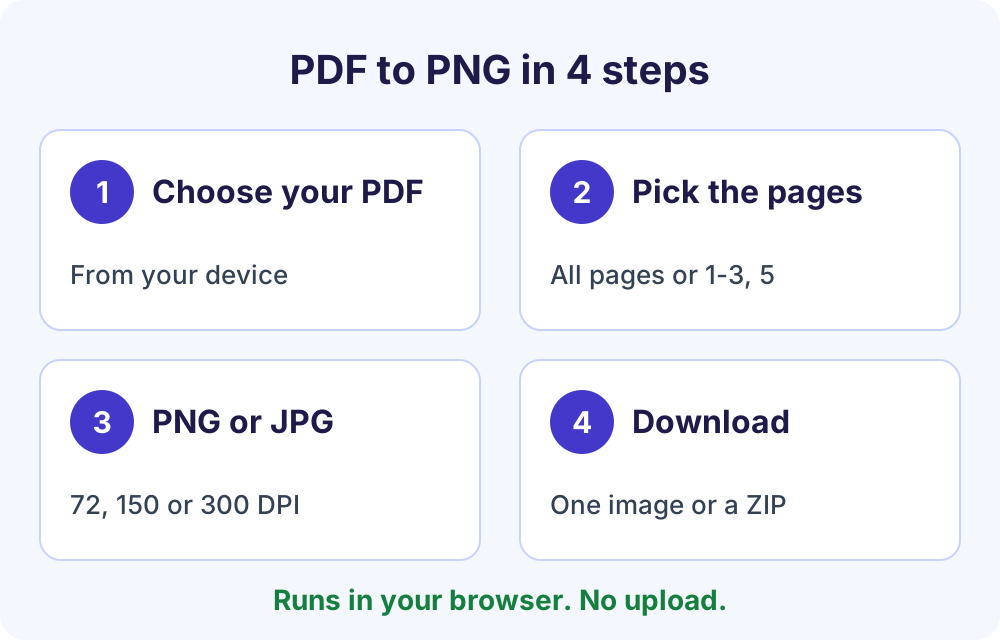
To convert PDF to PNG for free, open Soft Learn Hub’s PDF to PNG converter, select your PDF, keep every page or enter a range such as 1-3, 5, choose PNG or JPG at 72, 150 or 300 DPI, and select Convert to images. One page downloads as an image; several pages download as one ZIP. Files are processed in your browser and never uploaded. Password-protected PDFs must be unlocked first.
- Price
- Free, no watermark
- Account
- None needed
- Uploads
- None, it runs in your browser
- Output
- PNG (lossless) or JPG (smaller)
- Resolution
- 72, 150 (default) or 300 DPI
- Pages
- All, or a range like 1-3, 5
- Download
- One image, or a ZIP for several pages
- Max size
- Up to 1 GB on computers with 8 GB+ memory; about 150 MB on phones
On this page
Convert PDF to PNG or JPG step by step
- Choose your PDF.
Select the file from your computer or phone. The tool shows the size limit for your device, and a password-protected PDF needs its password removed first.
- Pick the pages.
Convert every page, or type a range such as 1-3, 5 to get only the pages you need.
- Choose PNG or JPG.
PNG keeps every pixel and suits text, charts and line art. JPG makes smaller files and suits photos and scans.
- Set the resolution.
Pick 72, 150 or 300 DPI. The default of 150 DPI works for screens and documents; choose 300 DPI for print.
- Convert and download.
Select Convert to images. A single page downloads as one image file, and several pages arrive together in one ZIP file.
PNG or JPG: which format to choose
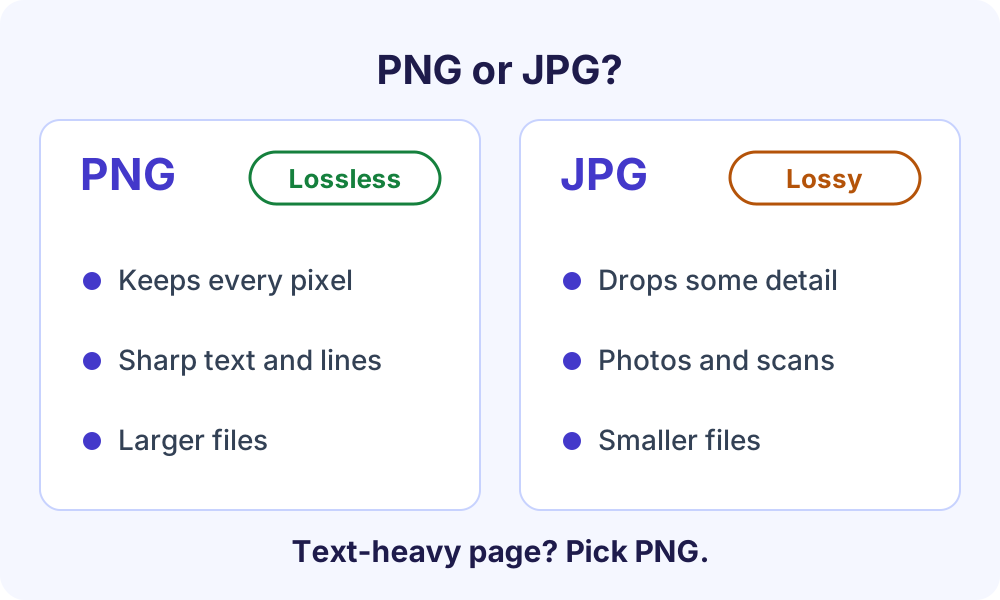
PNG uses lossless compression. The W3C PNG specification defines lossless as compression that lets the original data be rebuilt exactly, bit for bit. That makes PNG the safer pick for pages with text, tables, charts, logos and diagrams, where crisp edges matter. The trade-off is larger files.
JPG is lossy: JPEG.org describes the original JPEG standard as a DCT-based lossy image format. It drops some fine detail to make files smaller, so it suits photo-heavy pages, scanned documents and upload forms with a file size cap.
| If you want to | Format | DPI |
|---|---|---|
| Share a slide or page on social media or in a chat | PNG | 150 |
| Insert a page into a Word file, Google Doc or slide deck | PNG | 150 |
| Upload a scanned form to a portal with a size cap | JPG | 150 |
| Print a page, flyer or poster | PNG | 300 |
| Make thumbnails or quick previews | JPG | 72 |
What DPI means and which setting to pick
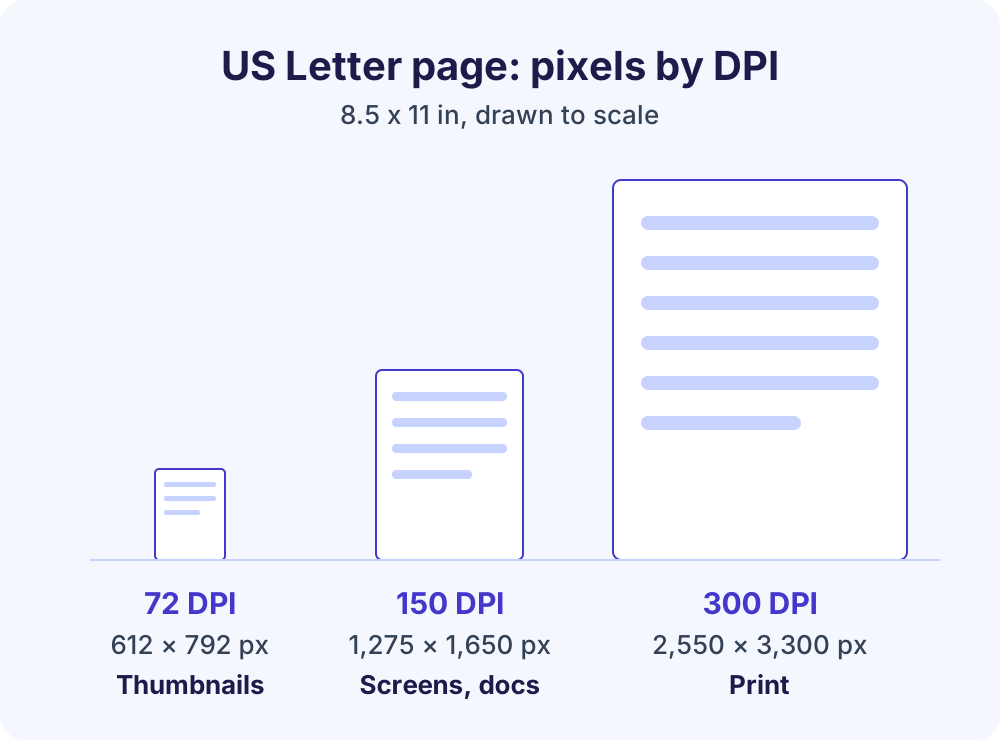
DPI (dots per inch) sets how many pixels the converter draws for each inch of the page. Adobe notes that DPI is a print term and PPI (pixels per inch) the digital one, but the two are often used interchangeably. PDF pages are measured in units of 1/72 inch, according to Adobe’s PDF documentation, so at 72 DPI one PDF unit becomes one pixel.
Doubling the DPI doubles both the width and the height, so the image holds four times as many pixels and the file grows with it. Adobe calls 300 PPI a go-to option for print material and says web images are often standardized at 72 PPI. Here is what each setting produces:
| DPI | US Letter (8.5 × 11 in) | A4 (210 × 297 mm) | Good for |
|---|---|---|---|
| 72 | 612 × 792 px | about 595 × 842 px | Thumbnails and previews |
| 150 (default) | 1,275 × 1,650 px | about 1,240 × 1,754 px | Screens, slides and documents |
| 300 | 2,550 × 3,300 px | about 2,480 × 3,508 px | Printing and zooming into detail |
How this PDF to PNG converter works without uploading
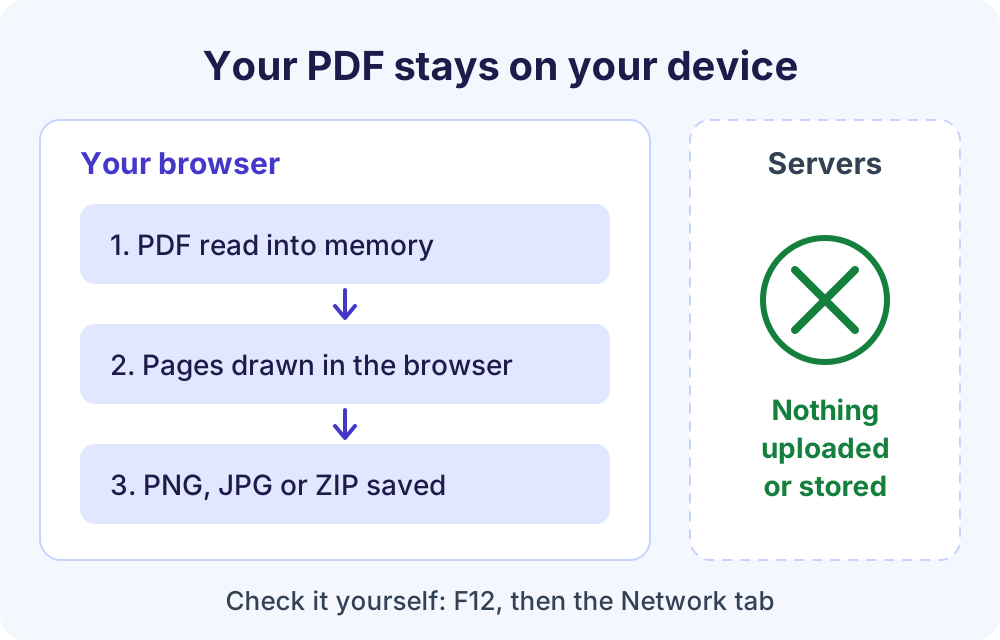
Everything happens on your device. When you start, the page loads PDF.js by Mozilla (Apache 2.0), an open-source library hosted on softlearnhub.com. PDF.js reads your file in a background Web Worker, which MDN describes as a way to run scripts in background threads without interfering with the user interface, and your browser then draws each page one at a time.
Your PDF is read into the browser’s memory, each page is drawn as an image, and the result is offered as a download. Nothing is sent to Soft Learn Hub or anyone else, and nothing is stored. To check, open your browser’s developer tools (F12), choose the Network tab and convert a file: no file is sent.
Skipping the upload also means no wait for a big file to travel to a server and back, no account, no watermark, no daily task limit and no ads inside the tool. The site’s normal page analytics, described in its privacy policy, never include your files.
Limits worth knowing
- File size follows your device’s memory. Up to 1 GB per file on computers with 8 GB or more memory, about 400 MB on 4 GB devices and about 150 MB on phones and tablets. The tool shows the limit for your device.
- Very large pages are scaled down. Browsers cap the size of a single image canvas, and MDN notes that the cap depends on the browser and device and is notably lower on iOS. If a page at your chosen DPI would exceed it, the tool scales the image down and tells you.
- Password-protected PDFs aren’t supported. The tool says so and asks you to remove the password first.
- High DPI means big files. A long document at 300 DPI produces large images and a large ZIP, so start with 150 DPI unless you need print quality.
- Works on desktop and mobile. Current Chrome, Edge, Firefox and Safari are supported, and the tool works with a keyboard and screen reader.
This tool vs typical upload-based PDF websites
| Question | Soft Learn Hub PDF to PNG | Typical upload-based PDF sites |
|---|---|---|
| Where your PDF goes | Stays in your browser | Uploaded to the site’s servers |
| Account | Never needed | Often required for bigger files or more tasks |
| Daily limits | No daily task limit | Many free plans limit tasks per day |
| Watermark | None | Some add one on free plans |
| What sets the speed | Your device; no upload or download wait | Upload speed, server queue and download time |
| File size | Up to 1 GB on 8 GB+ computers, about 150 MB on phones | Often capped on free plans |
On a very old or low-memory device, an upload-based service may cope better because its servers do the work. For private files, converting locally means no third party ever gets the document.
Tips and troubleshooting
- Text looks soft? Convert again at 300 DPI, or switch from JPG to PNG.
- ZIP too big to share? Choose JPG, convert only the pages you need, or drop to 150 DPI.
- Need a smaller PDF rather than images? Compress the PDF instead; its text stays selectable.
- Need some pages as a PDF, not images? Split PDF extracts them into a new PDF, with the text still selectable.
- Want a logo or signature without the white page behind it? Save that page as PNG, then clean it up with the free background remover.
- Converting a scanned PDF? Each page is already a picture, so JPG at 150 DPI usually gives a readable image at a modest size.
- Need the images back in one PDF? Use PNG to PDF to combine up to 25 images into a single file.
Frequently Asked Questions
How do I convert a PDF to PNG?
Open the PDF to PNG converter on this page, select your PDF, choose every page or a range, pick PNG and a resolution (150 DPI is the default), then select Convert to images. One page downloads as a PNG and several pages as a ZIP. It is free, needs no account and runs in your browser.
How do I convert a PDF to JPG?
Use the same tool and choose JPG instead of PNG before you convert. JPG files are smaller because JPEG is a lossy format, which makes them a good fit for photos, scans and upload forms with size caps. Pick 150 DPI for screens or 300 DPI for print, then download one image or a ZIP of all pages.
Is PNG or JPG better for a PDF page?
PNG is better for pages with text, tables, charts or line art, because its lossless compression keeps every pixel and edges stay sharp. JPG is better when file size matters more than pixel-perfect detail, such as photo-heavy pages or scanned documents. If you are unsure, try PNG at 150 DPI and switch to JPG if the files are too large.
What DPI should I use to convert PDF to PNG?
Use 150 DPI, the default, for reading on screen, slides and documents. Choose 300 DPI when you plan to print or need to zoom into fine detail; Adobe calls 300 PPI a go-to option for print. Use 72 DPI for thumbnails and quick previews, where small files matter more than sharpness.
Can I convert only certain pages of a PDF to images?
Yes. Type a range such as 1-3, 5 and the tool converts only pages one to three plus page five. Choose every page to convert the whole document. Several pages are bundled into one ZIP file, so everything arrives in a single download.
Is it safe to convert a PDF to PNG online?
With this tool, your PDF is processed inside your browser and never uploaded to Soft Learn Hub or anyone else, and nothing is stored. You can confirm it by opening developer tools (F12), selecting the Network tab and converting a file. That makes it a sensible choice for contracts, invoices, statements and other documents you would rather not upload.
Why was my image scaled down?
Browsers limit how large a single image canvas can be, and the limit differs between browsers and devices. If a very large page, such as a poster at 300 DPI, would exceed it, the tool scales the image down so it can still be created and tells you. A lower DPI avoids this.
Can I convert a password-protected PDF to PNG?
Not directly. Encrypted, password-protected PDFs are not supported, and the tool tells you when you select one. Open the file in a PDF reader with the password, save an unprotected copy, then convert that copy. The same applies to every PDF tool on this site.
More free PDF tools
Every Soft Learn Hub PDF tool works the same private, in-browser way. When a tool creates a PDF, Continue with another tool passes it to the next tab without selecting the file again.
- Merge PDF: combine up to 25 PDFs and images into one file.
- PDF to Word: turn a text-based PDF into an editable .docx or plain .txt file.
- Split PDF: split a PDF into ranges, single pages or every N pages.
- HEIC to PDF: turn up to 25 iPhone photos into one PDF.
- All free PDF tools: all seven PDF tools on one page.
- Free business tools, including the invoice generator, letterhead maker and profit and loss statement generator.