
Use this free HEIC to PDF converter to turn iPhone and iPad photos into one PDF right in your browser, whether you’re on Windows, Mac, iPhone or Android. Add up to 25 HEIC photos, mix in JPG, PNG or WebP images, set the order, choose US Letter, A4 or Fit to image pages, and download. Nothing is uploaded, installed or watermarked.
Merge PDF files
Combine PDFs and images into one PDF, in the order you choose.
Up to 25 files, 1 GB in total on this device.
Split PDF
Extract the pages you need, or split a PDF into one file per page or per group of pages.
One PDF up to 1 GB on this device. Several files download as one ZIP file.
Compress PDF
Reduce PDF file size by re-compressing images and cleaning up the file. Text stays sharp and searchable.
One PDF up to 1 GB on this device.
PDF to Word
Turn a PDF into an editable Word document (.docx) that keeps its tables, images and formatting, or into plain text (.txt).
One PDF up to 200 MB and 2,000 pages.
PDF to PNG or JPG
Save every page, or the pages you pick, as PNG or JPG images.
One PDF up to 1 GB on this device. Several pages download as one ZIP file.
PNG or JPG to PDF
Combine images into one PDF. JPGs keep their original quality.
Up to 25 images, 1 GB in total on this device.
HEIC to PDF
Turn iPhone HEIC photos into one PDF. JPG, PNG and WebP images can go in the same PDF.
Up to 25 photos, 1 GB in total on this device.
Your files stay on this device. They are processed in your browser and never uploaded or stored.
How to convert HEIC to PDF for free
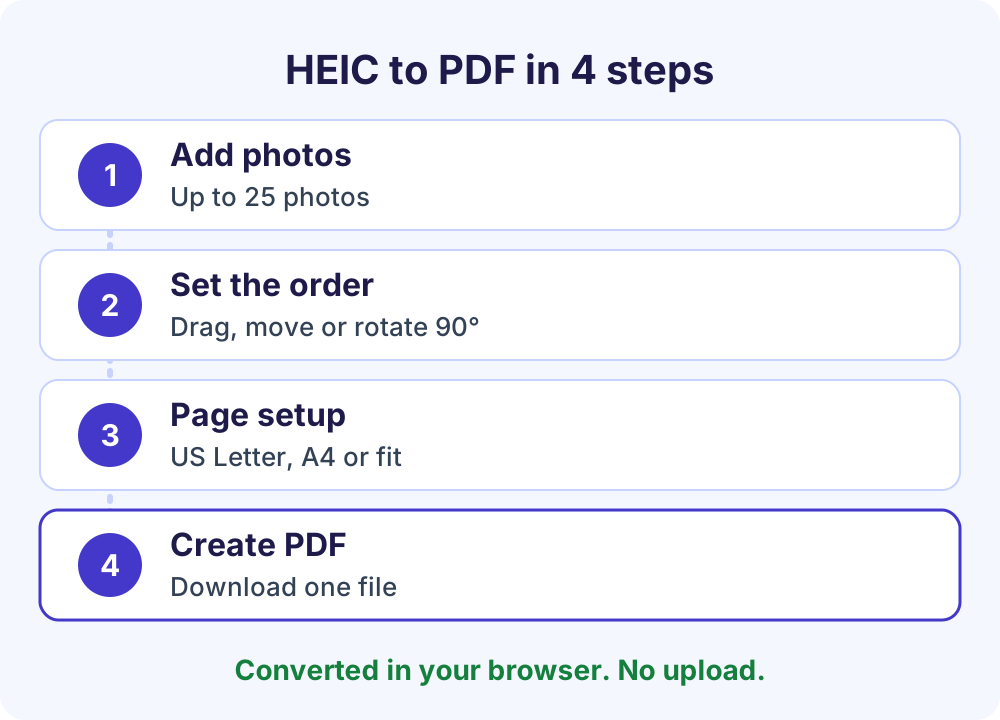
To convert HEIC to PDF for free, open Soft Learn Hub’s HEIC to PDF converter, add up to 25 HEIC or HEIF photos (JPG, PNG and WebP work too), put them in order, choose US Letter, A4 or Fit to image pages, then select Create PDF and download. Photos are converted inside your browser, so nothing is uploaded and you don’t need to install anything on Windows.
- Price
- Free, no watermark
- Account
- None needed
- Uploads
- None, it runs in your browser
- Input
- HEIC and HEIF, plus JPG, PNG and WebP
- Photos per PDF
- Up to 25, one per page
- Page size
- US Letter (default), A4 or Fit to image
- Layout
- Auto, portrait or landscape; no, small or large margins; rotate 90°
- Output
- One PDF; HEIC photos stored as high-quality JPEG (quality 92%)
On this page
Convert HEIC to PDF step by step
- Add your photos.
Select up to 25 HEIC or HEIF photos, or drop them on the tool. JPG, PNG and WebP images can join them. Each HEIC photo shows “converting…” for a moment, then a thumbnail.
- Put them in order.
Drag the photos into order, or use Move up and Move down. Each photo becomes one page.
- Rotate any sideways photo.
Turn a photo 90° if it needs it. The rotation saved in a HEIC file is applied for you, so most photos are already upright.
- Choose the page setup.
Keep US Letter or pick A4 or Fit to image, then set the orientation (Auto, Portrait or Landscape) and margins (None, Small or Large).
- Create and download the PDF.
Select Create PDF and save the file. To shrink, merge or split it next, use Continue with another tool.
What is a HEIC file, and why won’t it open?
HEIC is the photo format your iPhone or iPad uses when the camera is set to High Efficiency, the setting Apple recommends. Apple’s support guide says iOS 11 introduced HEIF (High Efficiency Image File Format) and that it compresses better than JPEG, so photos take less storage at the same visual quality. HEIF photos compressed with HEVC usually carry the .heic extension.
The catch is compatibility. Microsoft’s Photos help page says Windows needs both the HEIF Image Extensions and the HEVC Video Extensions from the Microsoft Store to show these photos, and lists the HEVC package as a paid download. And forms, expense systems and print shops that ask for a PDF won’t take a HEIC photo as it is.
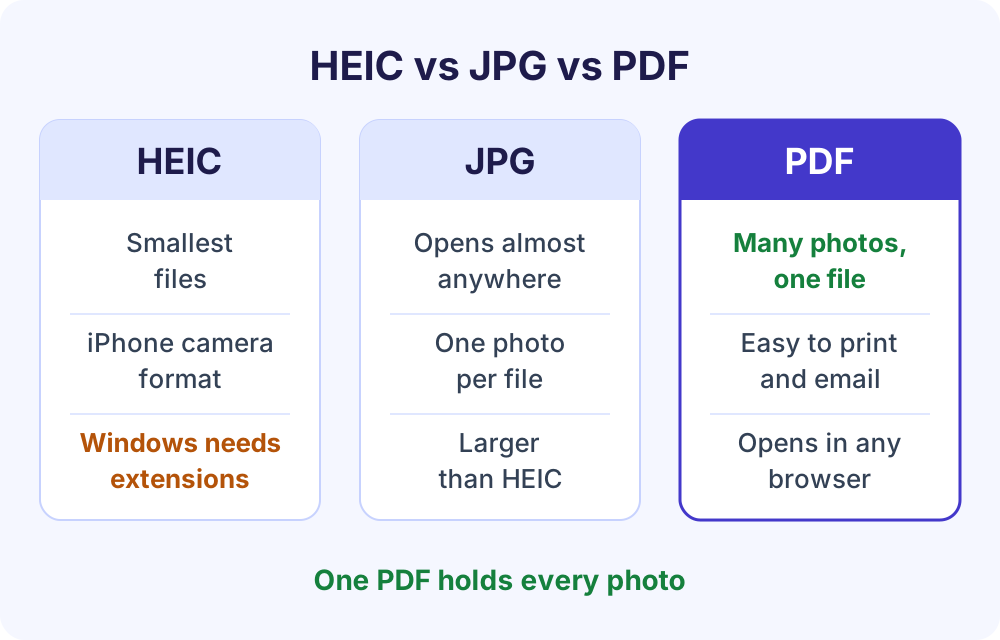
HEIC vs JPG vs PDF at a glance
| Question | HEIC | JPG | |
|---|---|---|---|
| Use it for | Storing photos on Apple devices | Sharing one photo | Sending several photos as one document |
| File size | Smallest | Larger than HEIC | Grows with the photos inside |
| Opening on Windows | Needs two Store extensions | Built in | Opens in any current browser |
| Photos per file | Usually one | One | Up to 25 with this tool |
HEIC to PDF on Windows, Mac, iPhone and Android
The steps are the same on every device; a few details differ:
- Windows: no HEIF or HEVC extensions needed. Copy the photos from your iPhone, then add them in Chrome, Edge or Firefox. Apple notes that photos imported to a PC over USB might arrive as JPEG; those work here too.
- Mac: use current Safari, Chrome, Edge or Firefox with photos saved in a folder.
- iPhone and iPad: open this page in your browser, choose the photos and create the PDF on the spot, up to about 150 MB per PDF.
- Android: save the iPhone photos you were sent, then add them. Photos up to about 25 megapixels, including the 24-megapixel photos recent iPhones take, convert on phones; larger ones work better on a computer.
What happens to a HEIC photo inside the PDF
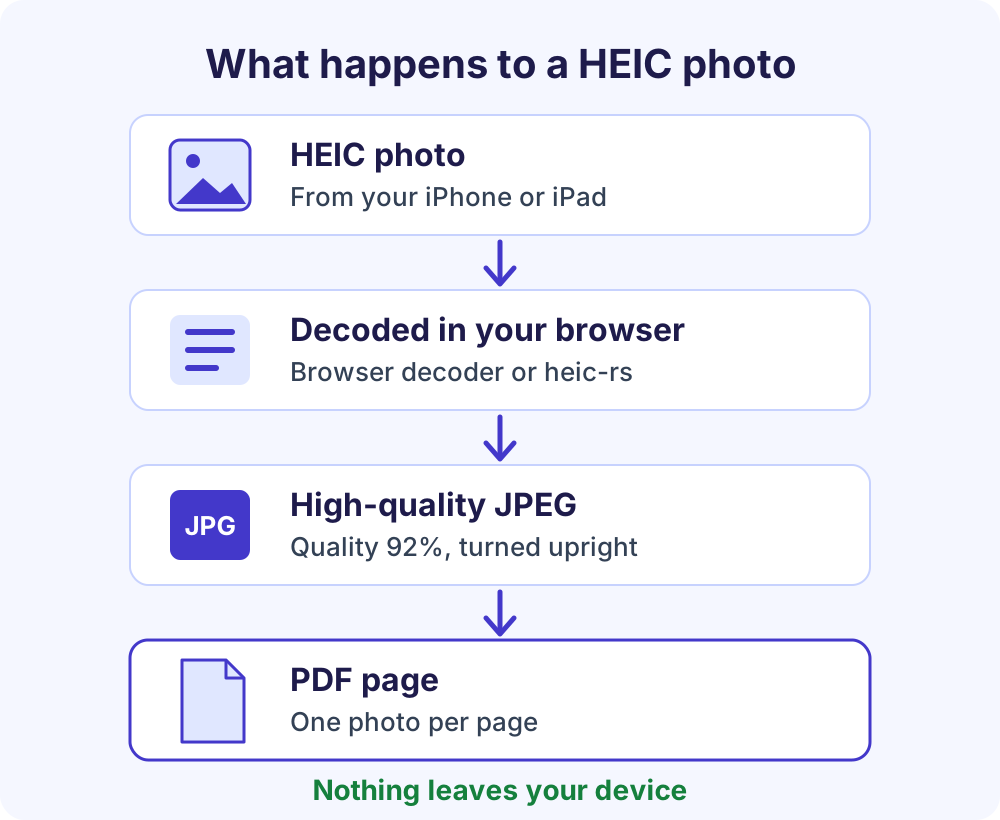
A PDF can’t hold HEIC images as they are. The image compression filters PDF supports, listed by the Library of Congress, include JPEG, JPEG 2000, JBIG2, CCITT fax and Flate, but nothing for HEVC. So each HEIC photo becomes a high-quality JPEG (quality 92%) on its own page.
Decoding starts as soon as you add a photo. If your browser can read HEIC itself, the tool uses that. Otherwise it loads heic-rs, an open-source HEIC decoder written in Rust (MIT OR Apache-2.0 licence), compiled to WebAssembly and hosted on softlearnhub.com. The PDF is then built with pdf-lib (MIT licence) in a background Web Worker, so the page stays responsive.
The rotation and mirroring saved in the HEIC file are applied, so photos appear the right way up. When heic-rs decodes a photo with a color profile, the profile is embedded with the image, so color-managed PDF viewers show the colors as shot. That matters because iPhones capture in wide color, which Apple tags with the Display P3 profile; a browser that decodes the photo itself applies its own color management instead.
This is why the PDF is usually larger than the photos you added: HEIC is built to be compact, and a JPEG of the same photo needs more bytes. If it must fit an email or upload limit, run it through Compress PDF. JPG images you add are embedded without re-compression unless you rotate them.
What the converter can’t do (yet)
Standard iPhone photos convert without trouble on a computer. The honest exceptions:
- Transparency in a HEIC file isn’t kept.
- Live Photos become a still photo; the video part is a separate file and isn’t used.
- HDR effects, depth and portrait data aren’t used; you get the standard photo.
- Bursts, image sequences and some layered HEIF files can’t be converted. The tool names the file and suggests sharing it as JPG.
- Very large photos: above about 60 megapixels on computers, or about 25 megapixels on phones and tablets, heic-rs can’t decode a photo. Very large photos may be scaled down slightly to fit the browser’s canvas limit, and the tool says so.
- Batch size: up to 25 photos, within your device’s limit: up to 1 GB on computers with 8 GB or more memory, about 400 MB on 4 GB devices, about 150 MB on phones and tablets.
Private by design: your photos stay on your device
Your photos are read into the browser’s memory, converted and offered as a PDF download. They are never uploaded to Soft Learn Hub or anyone else, and nothing is stored. To check, open developer tools (F12), go to the Network tab and create a PDF: no photo is sent.
That matters for receipts, IDs, signed forms and insurance photos. It also means no account, no watermark, no daily task limit and no ads inside the tool; the site’s page analytics, described in its privacy policy, never include your files. It also works with a keyboard and screen readers.
This tool vs typical upload-based converters
| Question | Soft Learn Hub HEIC to PDF | Typical upload-based converters |
|---|---|---|
| Where your photos go | Stay in your browser | Uploaded to the site’s servers |
| Account | Never needed | Often required for bigger batches |
| Daily limits | No daily task limit | Many free plans limit tasks per day |
| Watermark | None | Some add one on free plans |
Tips and troubleshooting
- Photo too large on your phone? Phones decode photos up to about 25 megapixels here, which covers the 24-megapixel photos recent iPhones save by default. For larger photos, such as 48-megapixel shots, use a computer or share the photo as JPG.
- More than 25 photos? Make two PDFs and join them with Merge PDF, which accepts HEIC photos directly too.
- PDF too big for email? Compress it; Gmail’s limit for personal accounts is 25 MB.
- Sending receipts with an invoice? Create it with the free invoice generator, then merge both PDFs into one file.
Frequently Asked Questions
How do I convert HEIC to PDF?
Open the HEIC to PDF converter on this page, add up to 25 HEIC or HEIF photos, put them in order, choose US Letter, A4 or Fit to image pages, and select Create PDF to download it. It’s free, adds no watermark and needs no account, and the photos are converted in your browser, so nothing is uploaded.
How do I convert an iPhone photo to PDF on Windows?
Copy the photos to your PC, open this page in Chrome, Edge or Firefox and add them to the converter. You don’t need to install the HEIF Image Extensions or HEVC Video Extensions, because the conversion runs in the browser. Photos that arrived as JPG, which can happen when you import over USB, work too.
Can I convert HEIC to PDF on my iPhone or Android phone?
Yes. Open this page in your phone’s browser, choose the photos and create the PDF. Phones and tablets handle about 150 MB of photos per PDF, and typical 12-megapixel photos convert fine. Photos up to about 25 megapixels convert on a phone, including the 24-megapixel photos recent iPhones take; for larger ones, use a computer or share the photo as JPG.
Why is my PDF bigger than my HEIC photos?
HEIC compresses photos more efficiently than JPEG, and a PDF can’t store HEIC images directly, so each photo is saved in the PDF as a high-quality JPEG. That usually makes the PDF larger than the photos you added. If it needs to fit an email or upload limit, run it through Compress PDF afterwards.
Does converting HEIC to PDF reduce photo quality?
Each HEIC photo is stored as a high-quality JPEG (quality 92%) at full size, with its saved rotation applied and, when heic-rs decodes it, its color profile embedded. Only very large photos may be scaled down slightly to fit the browser’s limits, and the tool tells you when that happens.
How do I stop my iPhone from saving photos as HEIC?
Open Settings, tap Camera, tap Formats and choose Most Compatible. Apple says all new photos and videos then use JPEG or H.264. Photos you already took stay HEIC, so convert those here. Apple also notes that photos you share may automatically be sent in a more compatible format, such as JPEG.
Are my photos uploaded when I convert HEIC to PDF?
No. Your photos are converted and turned into a PDF inside your browser, then downloaded, without being sent to Soft Learn Hub or anyone else. Nothing is stored. To check, open developer tools (F12), select the Network tab and create a PDF; you’ll see that no photo is sent.
More free PDF tools
Every Soft Learn Hub PDF tool works the same private, in-browser way, and Continue with another tool passes your new PDF along without choosing it again.
- Compress PDF: shrink a photo-heavy PDF for email.
- Merge PDF: combine PDFs and images, HEIC included.
- Split PDF: keep only the pages you need.
- PNG / JPG to PDF: turn screenshots, GIF and BMP images into a PDF.
- All free PDF tools: all seven on one page.
- Free business tools, including the letterhead maker and background remover.