
Reduce PDF file size for free, right in your browser, so a scan, report or invoice fits an email, an upload form or a shared folder. Choose Light, Recommended or Strong compression, or aim for under 1 MB, 500 KB or 200 KB. Your file is never uploaded: it is processed on your own device, and you download the smaller copy with no sign-up and no watermark.
Merge PDF files
Combine PDFs and images into one PDF, in the order you choose.
Up to 25 files, 1 GB in total on this device.
Split PDF
Extract the pages you need, or split a PDF into one file per page or per group of pages.
One PDF up to 1 GB on this device. Several files download as one ZIP file.
Compress PDF
Reduce PDF file size by re-compressing images and cleaning up the file. Text stays sharp and searchable.
One PDF up to 1 GB on this device.
PDF to Word
Turn a PDF into an editable Word document (.docx) that keeps its tables, images and formatting, or into plain text (.txt).
One PDF up to 200 MB and 2,000 pages.
PDF to PNG or JPG
Save every page, or the pages you pick, as PNG or JPG images.
One PDF up to 1 GB on this device. Several pages download as one ZIP file.
PNG or JPG to PDF
Combine images into one PDF. JPGs keep their original quality.
Up to 25 images, 1 GB in total on this device.
HEIC to PDF
Turn iPhone HEIC photos into one PDF. JPG, PNG and WebP images can go in the same PDF.
Up to 25 photos, 1 GB in total on this device.
Your files stay on this device. They are processed in your browser and never uploaded or stored.
How to reduce PDF file size for free
To reduce PDF file size for free, open the Soft Learn Hub Compress PDF tool above, choose your PDF, pick Light, Recommended or Strong (or a target such as under 1 MB), compress it and download the smaller copy. It runs entirely in your browser, so the file is never uploaded. Scanned and photo-heavy PDFs shrink the most; mostly-text PDFs may barely shrink, and you never get a bigger file back.
- Price
- Free, no watermark, no ads inside the tool
- Account
- None needed
- Uploads
- None: the PDF is processed in your browser
- Levels
- Light, Recommended, Strong
- Size targets
- Under 1 MB, 500 KB or 200 KB
- Max size
- Up to 1 GB on computers with 8 GB+ memory; about 400 MB on 4 GB devices; about 150 MB on phones and tablets
- Output
- A PDF with the same pages, links and layout; text stays selectable
On this page
Compress PDF step by step
- Choose your PDF.
Drag the file onto the drop area, or click it to pick a PDF from your device. The tool shows the size limit for your device.
- Pick a compression level.
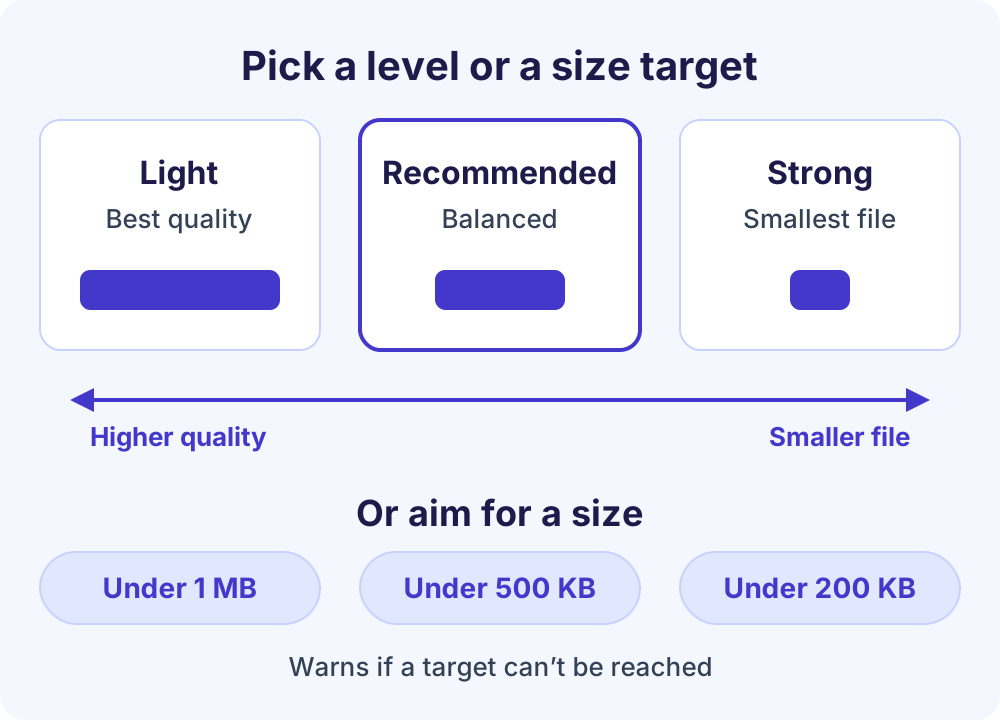
Light keeps the best image quality, Recommended balances quality and size, and Strong makes the smallest file. Start with Recommended if you are not sure.
- Set a size target if you need one.
Choose under 1 MB, under 500 KB or under 200 KB when a form or inbox has a cap. The tool tries progressively stronger settings and tells you if the target cannot be reached.
- Compress the PDF.
Select Compress PDF. The work runs in a background Web Worker, so the page stays responsive while your file is processed.
- Check the result and download.
Compare the new size with the original, then download the smaller PDF. If the file could not be made smaller, the tool tells you and keeps your original.
How Compress PDF reduces PDF file size
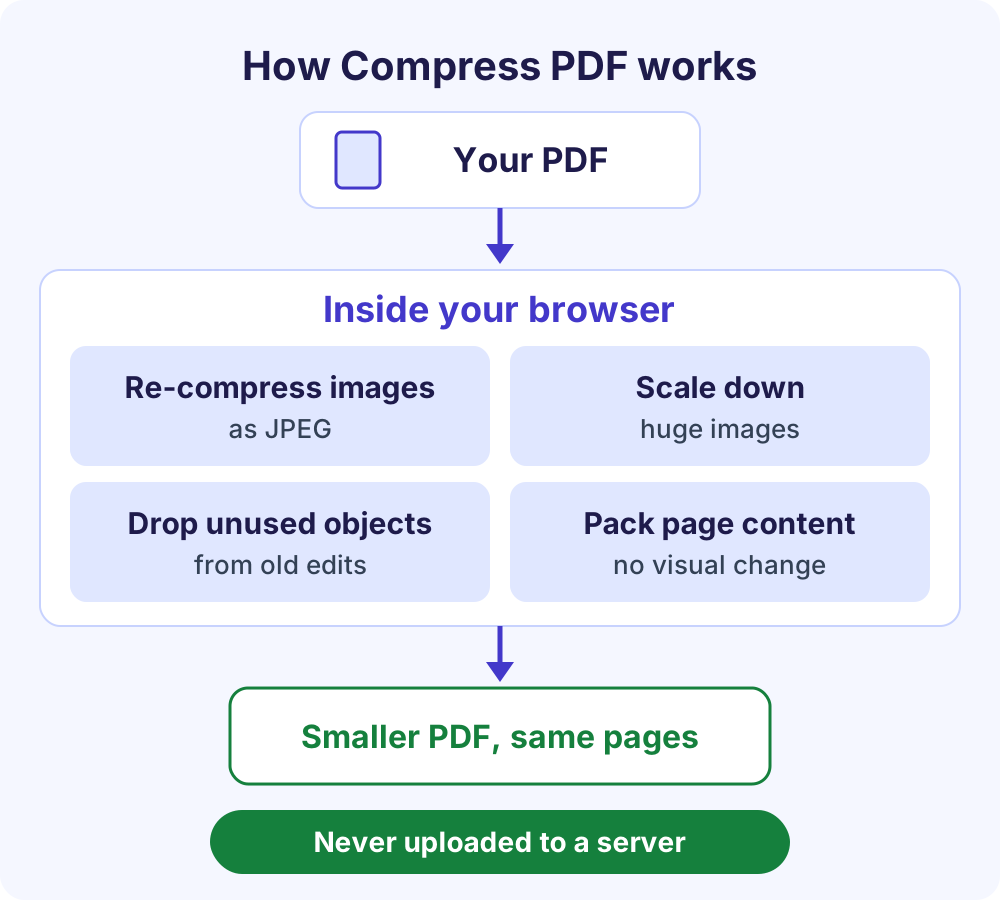
Besides text, a PDF can hold photos, scanned page images and leftover data from earlier edits. The tool works only on parts that can shrink without changing what you see:
- Re-compresses photos and scans as JPEG. JPEG is a lossy format that discards fine detail; the quality setting decides how much. Light uses the highest quality of the three levels, Strong the lowest.
- Scales down images with very high resolution, which cuts their weight sharply while keeping them readable.
- Removes unused objects. The PDF format lets editors save changes by appending them to the end of the file, so replaced or deleted content can stay inside. The rebuilt file drops objects no page uses.
- Compresses uncompressed page content, saving space with no visual change.
Text remains selectable and searchable, and your pages, links and layout are unchanged. Nothing is flattened into a picture.
What DPI and JPEG quality mean
DPI (dots per inch) and PPI (pixels per inch) describe how many pixels cover each inch of a page, and scanner settings often label resolution in DPI. A US Letter page scanned at 300 DPI is 2,550 × 3,300 pixels, roughly 8.4 million pixels. Double the DPI and the pixel count quadruples, which is why high-resolution scans create heavy PDFs.
JPEG quality is a dial between size and detail. Stronger compression makes smaller files, but edges can turn soft or blocky, and sharp diagrams and small print show it first. Use Light for documents you will print or zoom into.
Why your file never leaves your device
Many online compressors upload your file to a server and send it back. This free PDF compressor skips that round trip. It uses pdf-lib, an open-source library (MIT licence) hosted on softlearnhub.com, and reads your PDF into the browser’s memory. Nothing is stored.
- Privacy: contracts, payslips, medical forms and ID scans stay on your device.
- No upload wait: a large file never travels to a server and back; speed depends on your device.
- No artificial caps: no daily task limit, no sign-up and no watermark. The libraries load only when you use the tool, so the page opens quickly.
Check it yourself: press F12 (Cmd+Option+I on a Mac), open the Network tab and compress a file. No request carries your PDF. The site has normal page analytics, described in its privacy policy, but they never include your files.
What affects how much a PDF shrinks
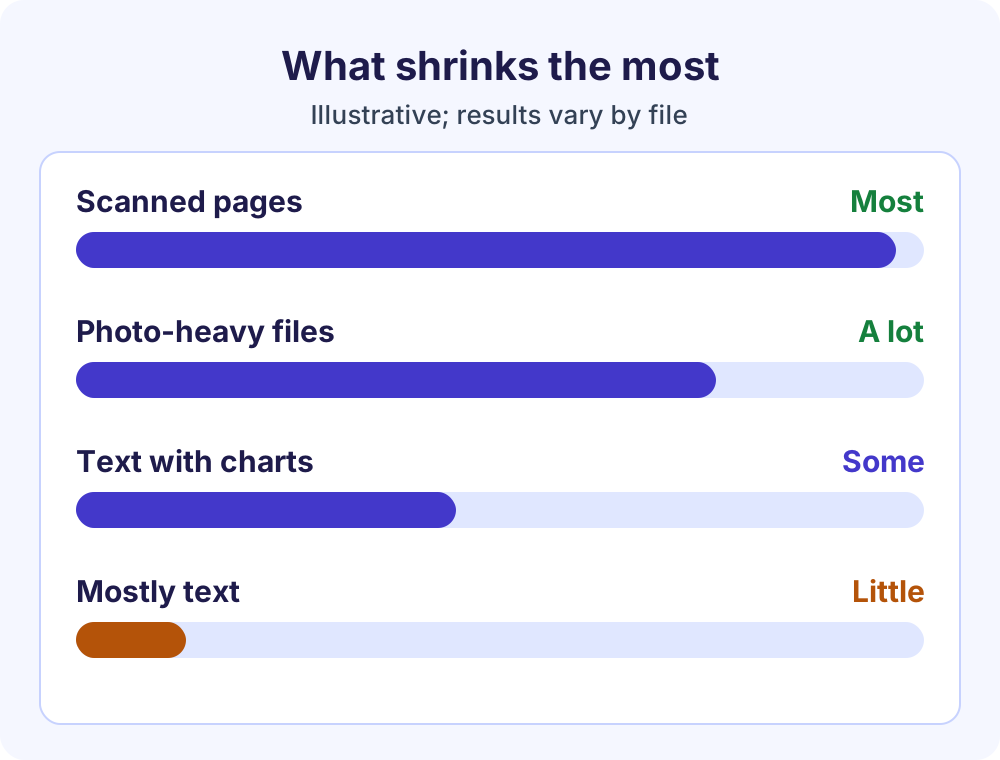
Savings depend on what is inside the file more than on the level you pick:
- Scanned documents shrink the most, because every page is a picture, often saved at high resolution.
- Photo-heavy files such as brochures and portfolios usually shrink a lot.
- Text with some charts or logos shrinks a little to a fair amount.
- Mostly text, such as a letter exported from a word processor, may barely shrink. Its text is stored as characters, not pictures, so there is little to squeeze.
Images the tool leaves alone
Images with a transparency mask keep their size and are only re-encoded. CMYK images (often found in print-ready files), JPEG 2000 images and black-and-white fax-style images (CCITT or JBIG2) are left untouched, so files built from them shrink less.
Which compression level should you choose?
| Level | Good for | Trade-off |
|---|---|---|
| Light | Files you will print, zoom into or archive | Smallest saving, best image quality |
| Recommended | Email, sharing and most everyday uploads | Balanced quality and size |
| Strong | Strict upload caps where size matters most | Smallest file; photos look softer |
| Size target | A form that states a maximum, such as 1 MB | Tries stronger settings until it fits, or tells you it can’t |
If Recommended still leaves the file too big, run the original again with Strong or a size target.
Shrink PDF files to fit email limits
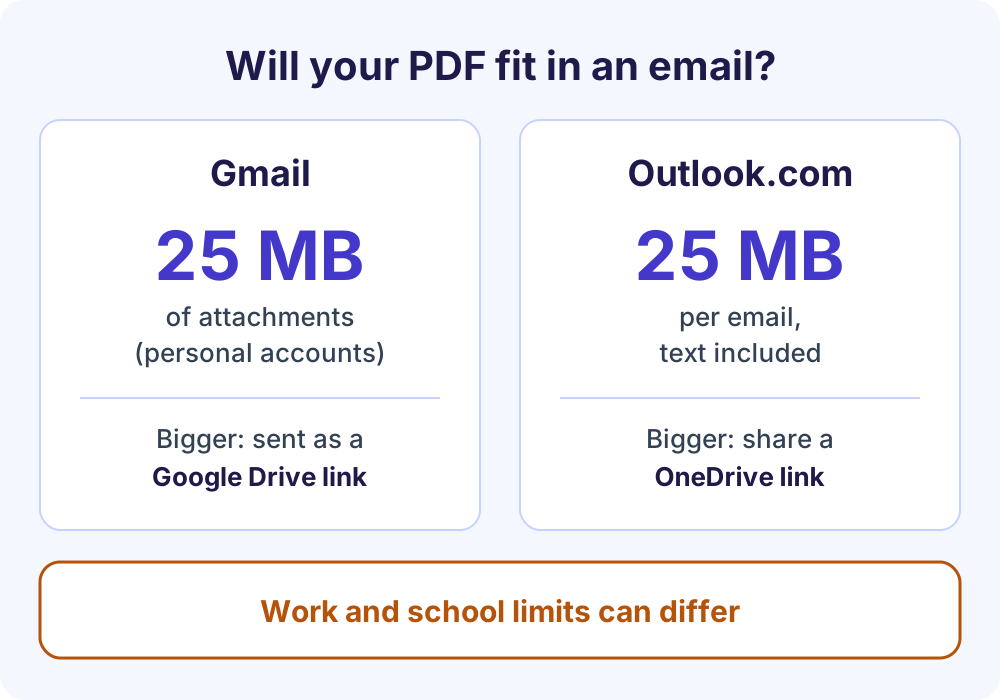
Attachment caps are a common reason to reduce PDF file size. Gmail lets personal accounts send up to 25 MB in attachments and automatically swaps anything bigger for a Google Drive link. Outlook.com caps a whole email at 25 MB, text included, and suggests OneDrive links for larger files.
Work and school accounts can have different limits set by an administrator. Close to a limit? Use a size target so the file fits before you send it. Still too big after Strong? Split the PDF into smaller parts, such as every 10 pages, and send them in separate emails.
This tool vs typical upload-based PDF websites
| What matters | Soft Learn Hub Compress PDF | Typical upload-based site |
|---|---|---|
| Where the file is processed | In your browser, on your device | Usually on the site’s servers |
| Upload needed | No | Yes |
| Account | Never | Often required for larger files or more tasks |
| Watermark or daily limit | Neither | Some free plans add one or both |
| File size limit | Set by your device’s memory, up to 1 GB | Often capped on free plans |
| Wait time | No upload or download wait | Depends on your connection |
Upload-based services may offer extras such as cloud storage, but for a private document, local processing is simpler.
Troubleshooting: when a PDF won’t shrink
The PDF barely got smaller
The file is probably mostly text, or its images were already compressed well. Try Strong once. If the tool still can’t beat the original, it keeps your file unchanged rather than handing you a bigger one.
The size target can’t be reached
The tool says so when even its strongest settings miss the target. For scans, the best way to reduce PDF file size further is to rescan at a lower resolution, or in grayscale instead of color.
The PDF is password-protected
Encrypted PDFs are not supported, so the tool asks you to remove the password first. If you know it, unlock the file in the app you normally use to open it, then compress that copy.
You want one small file from several PDFs
Combine them with Merge PDF first, then choose Continue with another tool to send the merged file straight to Compress PDF without selecting it again.
Frequently Asked Questions
How do I reduce PDF file size without losing quality?
Choose Light. It re-encodes images at the highest quality of the three levels, removes unused objects and compresses page content that was stored uncompressed. Text, links and layout never change. Re-compressing photos always trades a little detail for size, but Light keeps that minimal. Mostly-text PDFs may not shrink much at any level.
How do I compress PDF files to 1 MB?
Choose your PDF, then set the size target to under 1 MB before you compress. The tool tries progressively stronger settings until the file fits, and tells you if it can’t reach the target. Scanned and photo-heavy PDFs are the easiest to bring under 1 MB. The same option offers under 500 KB and under 200 KB.
Is it safe to compress a PDF online for free here?
Yes. Your PDF is processed on your own device, so it is never uploaded or stored. You can confirm this by opening developer tools (F12), selecting the Network tab and compressing a file: no request contains your document. There is no sign-up, no watermark and no daily limit.
Why didn’t my PDF get smaller?
Most likely it is mostly text, or its images were already well compressed. CMYK, JPEG 2000 and black-and-white fax-style images are also left untouched. When the tool can’t make a file smaller, it says so and keeps your original, so you never download a bigger version by mistake.
Can I shrink PDF files on a Mac, iPhone or Android phone?
Yes. The tool works in current Chrome, Edge, Firefox and Safari on desktop and mobile, with nothing to install. On a Mac with 8 GB or more memory you can compress files up to 1 GB. Phones and tablets handle about 150 MB, and the tool shows the limit for your device.
What is the largest PDF I can compress?
It depends on your device’s memory, which keeps the browser from crashing. Computers with 8 GB or more memory can handle files up to 1 GB, devices with 4 GB about 400 MB, and phones and tablets about 150 MB. The tool shows the exact limit for the device you are using.
More free PDF tools
Like this free PDF compressor, every tool below runs in your browser, and tabs switch without reloading the page:
- PDF to Word: turn a text PDF into an editable .docx or plain text file.
- PDF to PNG or JPG: save pages as images at 72, 150 or 300 DPI.
- PNG to PDF: combine up to 25 images into one PDF.
- Split PDF: extract the pages you need, or split a long PDF into smaller files.
- HEIC to PDF: turn up to 25 iPhone photos into one PDF, then shrink it here.
- All free PDF tools: all seven tools in one place.
Sending business documents? Create a PDF invoice with the free invoice generator or a branded letterhead with the letterhead maker, then shrink the PDF here. Browse every other free tool on the Soft Learn Hub tools page.