
Here is how to change your name on Facebook: open Settings and privacy, then Settings, then Accounts Centre. Choose Profiles, pick your account, click Name, type the new name and select Review change, then Save changes. You can only do this once every 60 days, and the name must follow Meta’s rules, so check the spelling before you save.
This guide explains how to change your name on Facebook on a computer, in the app and in a mobile browser, using the steps in Meta’s Help Center as we checked them in November 2026. You’ll also see which names get refused, how to add a nickname without touching your main name, and what to do when the Name option won’t work.
In this guide
Key Takeaways
- The name setting lives in Accounts Centre, not on your profile page, which is why so many people can’t find it.
- You can change your name on Facebook once every 60 days, so a typo can leave you stuck for two months.
- Your name should match a name on an accepted ID. Titles, numbers, symbols and phrases aren’t allowed.
- A nickname can go in as an “other name”, which leaves your main name as it is.
- A profile name and a Page name are separate. Changing one doesn’t change the other.
How to change your name on Facebook on a computer
This is the easiest way to change your name on Facebook, because the menus are all visible at once.
- Click your profile picture in the top right of Facebook.
- Select Settings and privacy, then click Settings.
- Click Accounts Centre.
- Click Profiles, then click your account.
- Click Name.
- Enter your name and click Review change.
- Click Save changes.
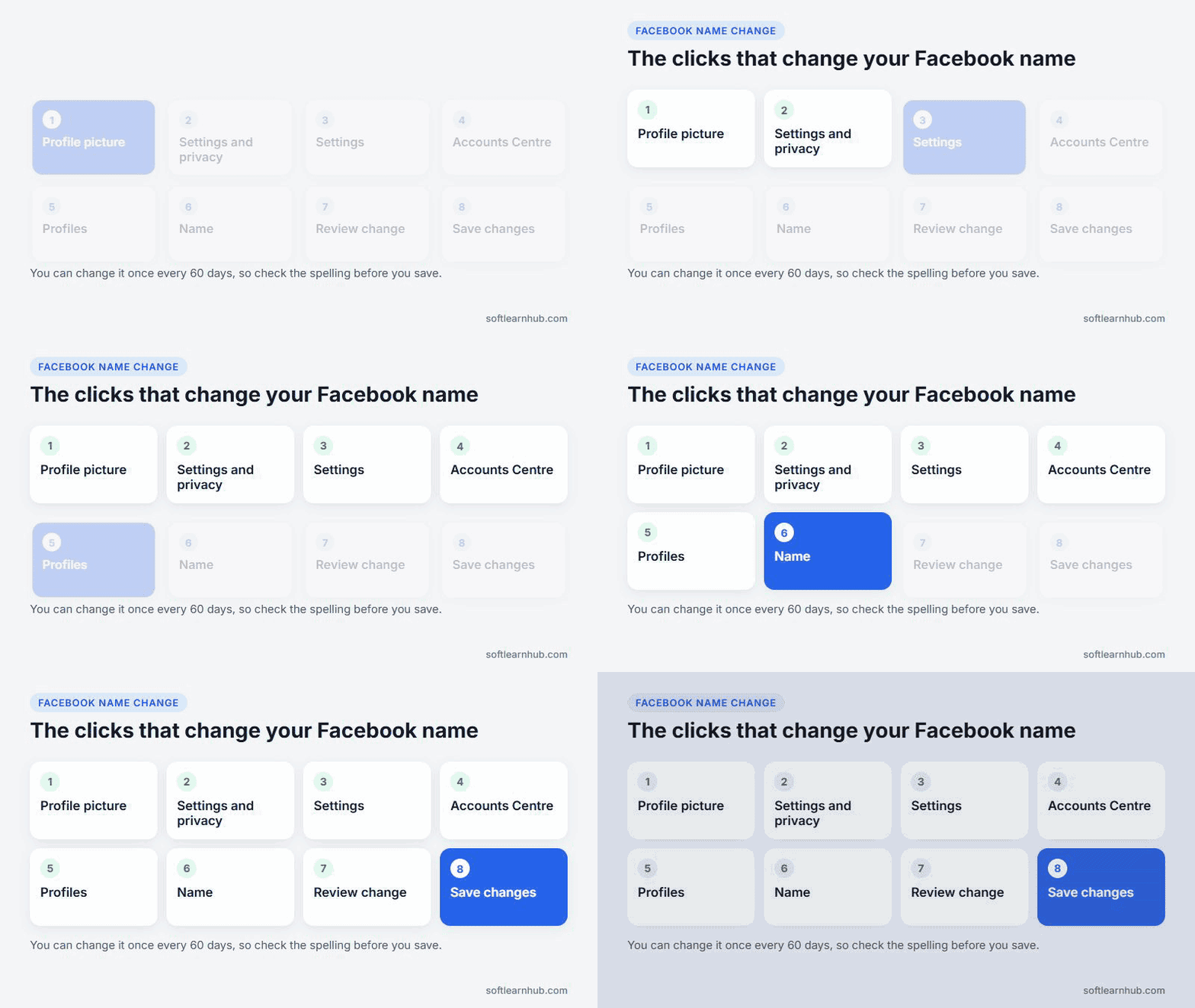
Facebook shows the label as “Accounts Centre” or “Accounts Center” depending on your language setting. They’re the same place. If you’d like a refresher on the rest of your profile, our guide to setting up your Facebook profile covers photos, your bio and privacy.
How to change your name on Facebook in the mobile app
The steps in the app are almost the same. The only real difference is where the Menu button sits.
- Tap Menu. On Android it’s in the top left of Facebook; in the iPhone app it’s in the bottom right.
- Scroll down and tap Settings & privacy, then tap Settings.
- Tap Accounts Centre.
- Tap Profiles, then tap your account.
- Tap Name.
- Enter your name and tap Review change.
- Tap Save changes.
Change your name in a mobile browser
If you use Facebook in Chrome or Safari on your phone, the same path works. Meta’s mobile browser steps start with the Menu in the top right, and everything after that matches the app.
How often can you change your name on Facebook?
You can change your name on Facebook every 60 days. Once you save, you can’t change it again until those 60 days have passed. Meta doesn’t publish a lifetime maximum, but it does say you can’t change your name too often, so treat each change as one you’ll live with for a while.
Three quick checks before you press Save changes:
- Read the name letter by letter. The review screen is your last chance.
- Look at the capitals. Unusual capitalisation is one of the things Meta refuses.
- Decide whether you need a new name at all. If you only want a nickname to show, an other name is the safer choice.
What names does Facebook allow?
Facebook wants your authentic name, and the names policy says it should match a name on an accepted ID. Most refused changes break one of the rules below.
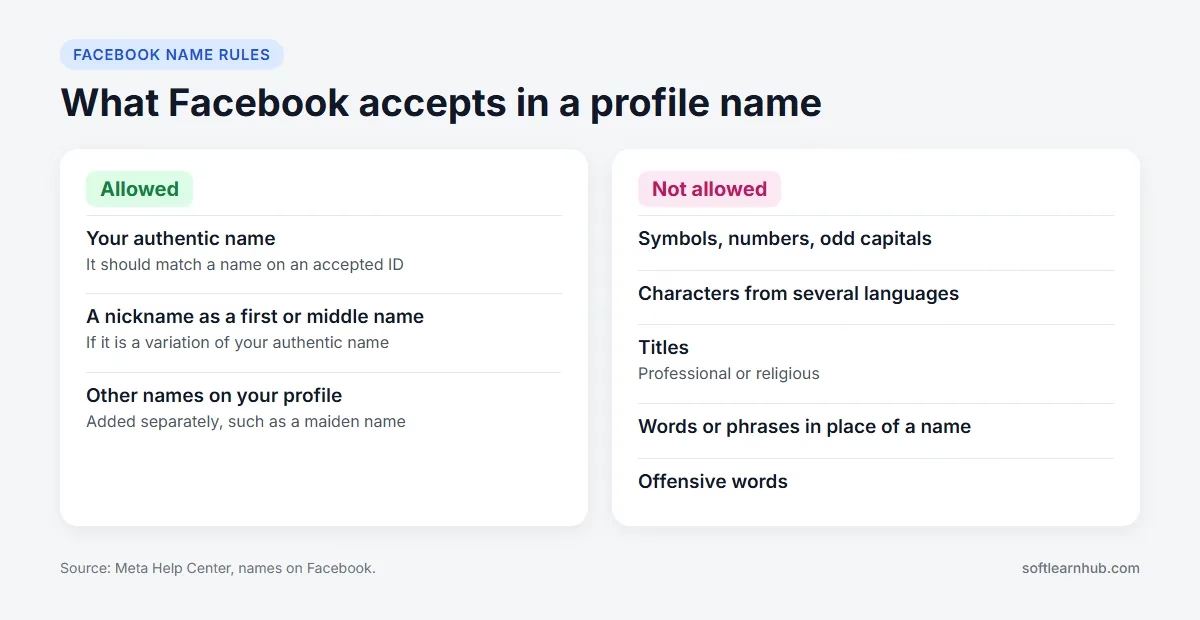
| Name idea | Likely result | Why |
|---|---|---|
| Your authentic name | Accepted | It matches who you are |
| A nickname as a first or middle name | Accepted if it’s a variation of your authentic name | Meta allows close variations |
| A professional or religious title in the name | Refused | Titles aren’t allowed |
| Letters mixed from two languages | Refused | Characters from several languages aren’t allowed |
| J0hn or John!!! | Refused | Numbers, symbols and repeated characters aren’t allowed |
| Your shop or company name | Refused | Profiles are for people; a business needs a Page |
That last row catches a lot of small business owners. If you want your business name on Facebook, create a Facebook business Page and keep your personal name on your profile.
How to add a nickname or other name
Adding an other name lets people find you by a second name without changing your main one. The steps in Meta’s guide to other names are short:
- Click your profile picture, then your name, to open your profile.
- In your Intro section, open the name options.
- Under Other names, click Add another name.
- Choose the type of name and enter it.
- Tick the box if you want it shown at the top of your profile, then click Save.
Other names can appear in your Intro and in search, even if you leave that box unticked. To remove one later, click the edit pencil beside it, then Remove.
Why you can’t change your name on Facebook
When the Name option won’t save, the cause is usually one of the problems below. Meta’s page on reasons you can’t change your name covers the same ground.
| What you see | Likely cause | What to do |
|---|---|---|
| The change won’t go through | You changed your name within the last 60 days | Wait until the 60 days are up |
| Review change shows an error | The name breaks a naming rule | Remove titles, numbers, symbols and extra words |
| Facebook asks you to verify your name | It needs to check the name is authentic | Follow the prompts and use the name on your ID |
| You can’t find Name at all | You’re on your profile page, not in settings | Go through Accounts Centre, then Profiles |
| You still can’t change it | A problem the steps above don’t solve | Use the contact link in Meta’s help article |
Be wary of any site or video that promises a trick to skip the 60-day limit. Meta’s help pages don’t offer one, and giving your login to a third party is a far bigger risk than waiting.
Profile name vs Page name: which one are you changing?
Searches for “change my Facebook name” often mean one of two different things. Your profile is you as a person. A Page is a business or brand, and it has its own name and its own process.
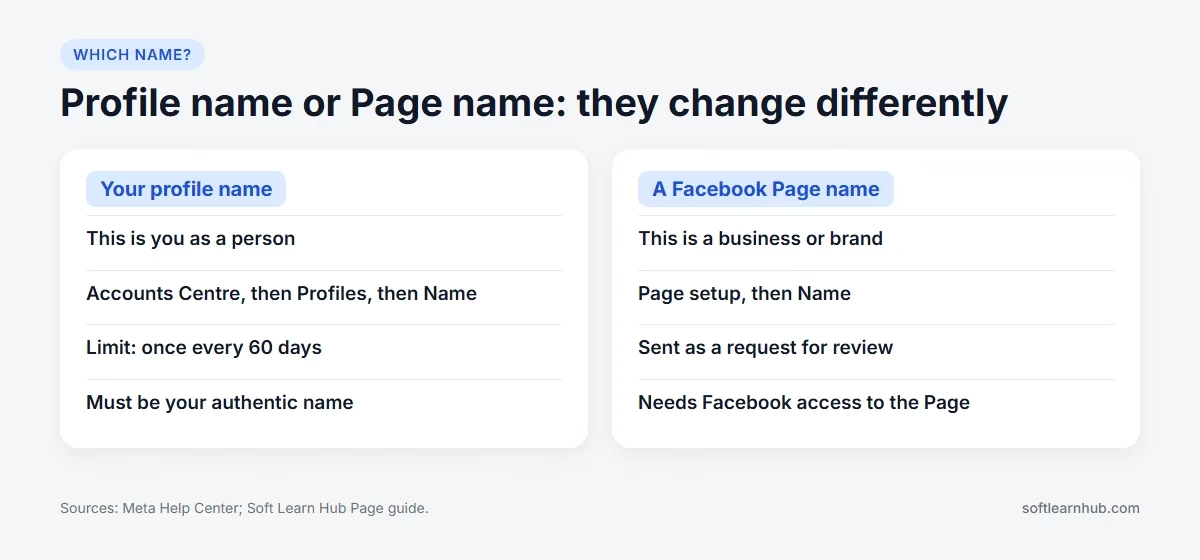
To rename a business, follow our guide on how to change a Facebook Page name. That change goes to Meta as a request and needs Facebook access to the Page. If someone else manages your Page, they may have to do it, or they can add you as an admin first.
What to do before and after you change your name
The change itself is quick, but a little planning helps you avoid surprises.
Before you change it
- Make sure you can log in and know your password.
- Keep your ID to hand in case Facebook asks you to verify the new name.
- Choose a name you’ll be happy with for at least the next two months.
After you change it
- Check how the name looks on your profile from a phone as well as a computer.
- Update any work or bio lines on your profile that mention your old name.
- If you manage Pages or groups, tell your co-admins so they recognise the new name.
How to change your name on Facebook after marriage or divorce
A change of surname is one of the most common reasons to update a Facebook name, and it’s also where the other names feature helps most. Use the steps above to change your main name to your new surname. Then add your previous surname as an other name, so old friends can still find you in search.
Your new Facebook name should match the name on your ID if Facebook asks you to verify it. If your documents haven’t been updated yet and you’re asked to confirm your name, it can help to wait until they have. Going back to a previous name works the same way, with the same 60-day limit.
Common mistakes when you change your name on Facebook
Most Facebook name problems come from a few small errors. Avoid these and the change usually goes through the first time.
- Changing the wrong name. Editing your Page when you meant your profile, or the other way round, is the most common mix-up.
- Adding extras to the name box. A title, a job, an emoji or a business name in your Facebook name will be refused.
- Rushing the review screen. A typo in your Facebook name can’t be corrected until the 60 days are up.
- Using a fake name. Meta says you may not pretend to be someone or something, and it may ask you to verify your name.
- Changing it again and again. Meta says you can’t change your Facebook name too often, so settle on a name first.
- Sharing your password. No outside service needs your login to change your name on Facebook. You can do it yourself in a few taps.
When changing your Facebook name makes sense
The most common reasons are marriage or divorce, a legal name change, correcting an old typo, or moving to the name you use every day. All of these fit the rules as long as the new name is authentic. The ones that tend to fail are the creative ones, such as adding a slogan or a job title. If you’re building a public presence, a Page gives you more freedom, along with Page settings that a personal profile doesn’t have.
If you’re starting fresh rather than renaming, see our guide to creating a Facebook personal account.
Frequently Asked Questions
How do I change my name on Facebook?
Open Settings and privacy, then Settings, then Accounts Centre. Choose Profiles, select your account and tap Name. Enter the new name, choose Review change, then Save changes. The same path works on a computer, in the app and in a mobile browser.
How many times can you change your name on Facebook?
You can change it every 60 days. Meta doesn’t publish a total limit, but it says you can’t change your name too often.
Why can’t I change my name on Facebook?
The usual reasons are that you changed it within the last 60 days or that the new name breaks a rule, such as containing a title, number or symbol. Facebook may also ask you to verify your name.
Can I change my name on Facebook before 60 days?
Meta’s help pages don’t describe a way to skip the limit. If you have a genuine problem with your name, use the contact option in Meta’s article on why you can’t change your name.
Can I use a nickname on Facebook?
Yes. A nickname can be your first or middle name if it’s a variation of your authentic name, or you can add it as an other name, which leaves your main name as it is.
Does changing my profile name change my Facebook Page name?
No. Your profile and your Pages have separate names. A Page name is changed from the Page itself, as a request to Meta.
Can I use my business name as my Facebook profile name?
No. Profiles are for individual people, and Meta says businesses and organisations need a Page. Keep your own name on your profile and put the business name on a Page.
Featured photo by Julio Lopez on Unsplash.