

Your Facebook personal account is the login that belongs to you as an individual, and every Page, group or Marketplace listing you manage hangs off it. This guide walks through sign-up on a computer and in the app, checked against Facebook’s current Help Center, then covers the sign-up problems people hit most often and the settings worth changing on day one.
How Do You Create a Facebook Personal Account?
To create a Facebook personal account, go to facebook.com or open the Facebook app and choose Create new account. Enter your name, date of birth, gender, mobile number or email and a password, then submit the form. Facebook sends a code or link to that phone or email; confirm it and your free account is ready.
Key Takeaways
- Sign-up asks for your name, date of birth, gender, a mobile number or email address and a password, followed by a confirmation step.
- You must be at least 13. Since May 2026 Meta has used AI to flag Facebook accounts that may belong to under-13s, and flagged accounts are deactivated until age is proven.
- Facebook’s Terms allow one personal account per person. Use a Page for a business, brand or club.
- Turn on two-factor authentication, and a passkey where your device supports it, before you start adding friends.
- Facebook is gradually moving people from Accounts Center to a Meta Account, so some menu names may differ from the ones shown here.
What You Need Before You Start
- A mobile number or email address you can open right now. Facebook sends the confirmation code to it, and it becomes your login and recovery contact. If you use a phone number, include your country code.
- The name you go by in everyday life. Facebook’s name rules block symbols, numbers, unusual capitalisation, repeated characters, titles and words used in place of a name. Nicknames and maiden names can be added later as other names.
- Your real date of birth. The Facebook Help Center sets the minimum age at 13, and the birthday you enter decides whether you get a standard account or a Teen Account.
- A strong, unique password. Use one you have never used on another site. You can add a passkey later, but the sign-up form still asks for a password.
Completely new to the platform? Our overview of what Facebook is and how it works explains the feed, friends, groups and Pages in plain language before you sign up.
How to Create a Facebook Personal Account on a Computer
The screenshots below were taken in a desktop browser on an earlier version of the sign-up screens. Facebook now shows some people a form headed “Get started on Facebook with a Meta Account”. The fields are the same; where the wording differs, the text below tells you what to look for.
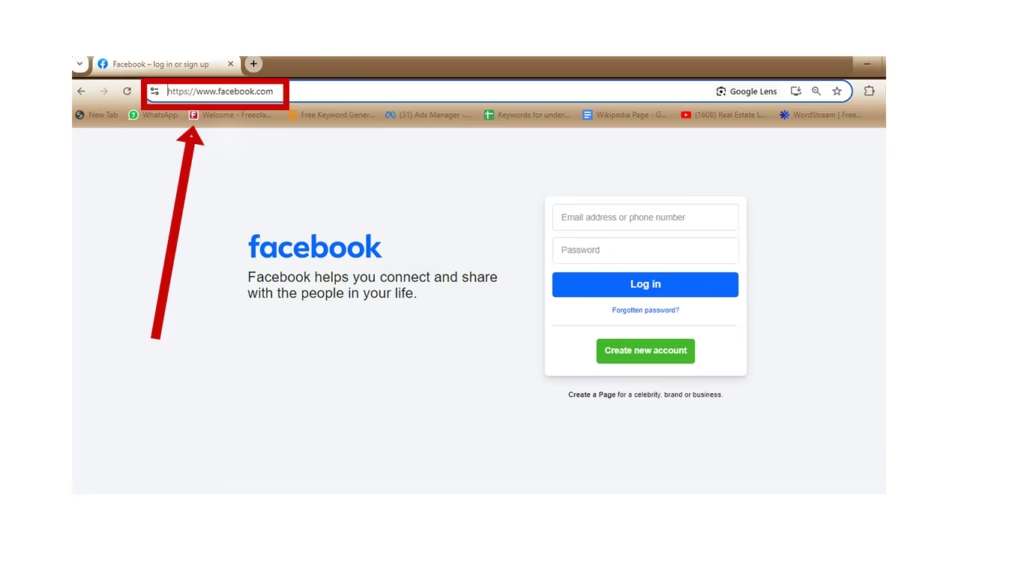
Step 1: Visit facebook.com
Open any browser and type facebook.com into the address bar. Type the address yourself rather than following a link from an email or advert, so you know you are on the real site and not a look-alike page built to steal passwords.
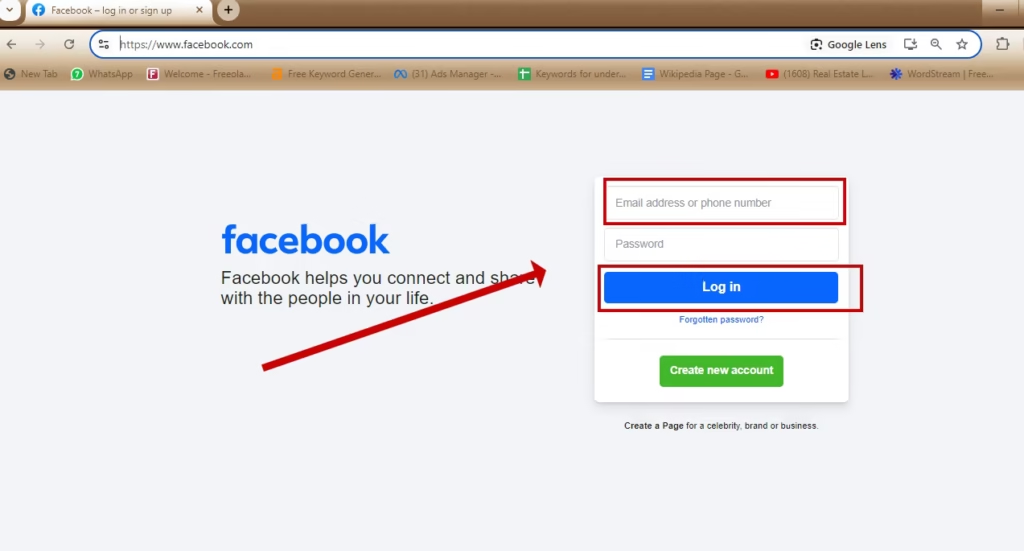
Step 2: Click Create New Account
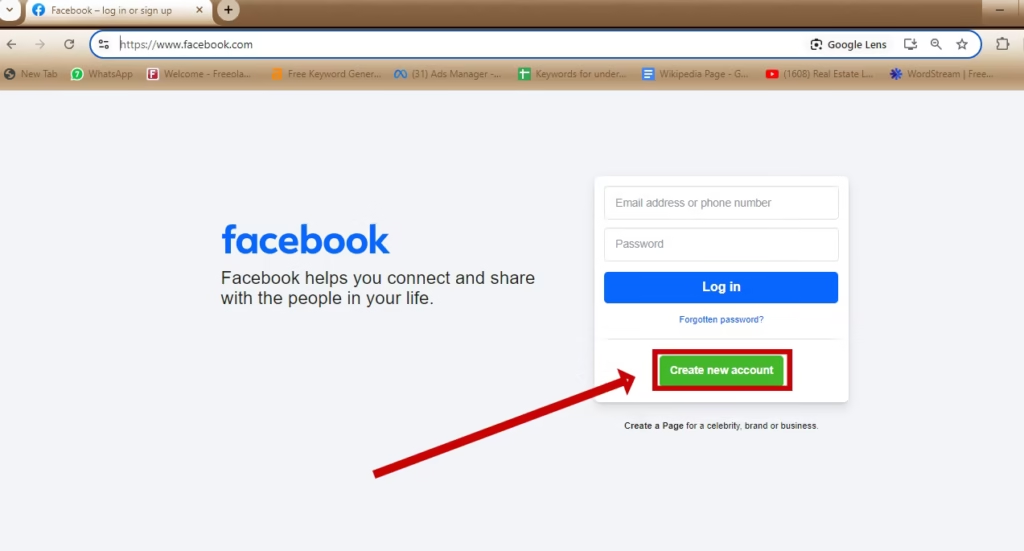
Ignore the email and password boxes at the top of the page; those are for people who already have an account. Your button is Create new account, underneath the login form.
Clicking it opens the sign-up form. Depending on your region and account rollout, it appears either as a pop-up over the login page or as a full sign-up page.
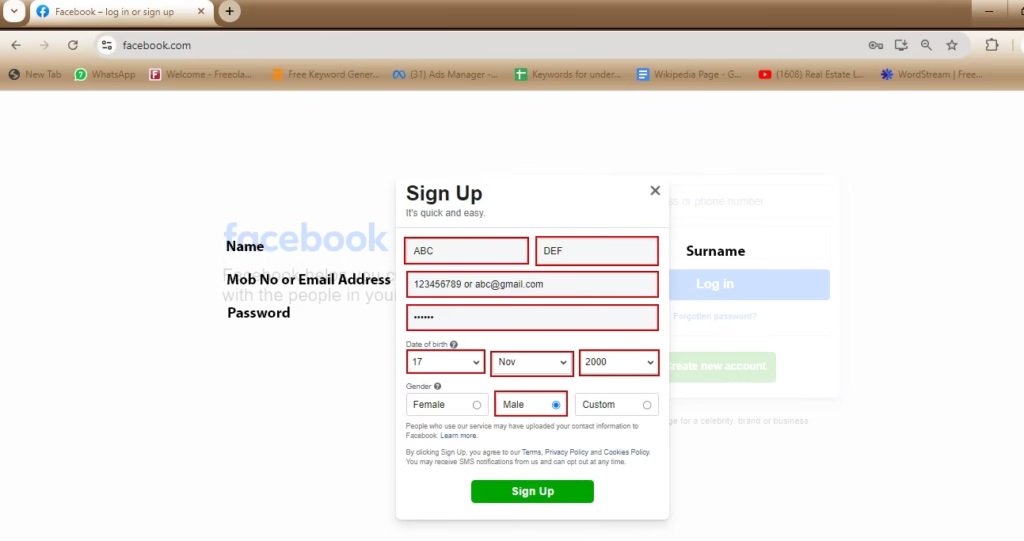
Step 3: Fill Out the Sign-Up Form
The current form asks for these details, in this order:
- First name and last name. Use your everyday name, ideally matching a form of ID.
- Birthday. Enter it accurately. Meta’s identity policy lists giving a false date of birth among behaviours it reviews.
- Gender. Choose Female, Male or Custom.
- Mobile number or email. Either works. A phone number makes recovery easier; email keeps your number off the platform. You can add the other later.
- Password. Long, unique and not reused anywhere else.
Click the button at the bottom of the form. Older layouts, like the one in the screenshot, label it Sign up; the newer Meta Account form labels it Submit. Either way, clicking it means you agree to Facebook’s Terms, Privacy Policy and Cookies Policy, which are linked just above the button.
Step 4: Confirm Your Email or Mobile Number
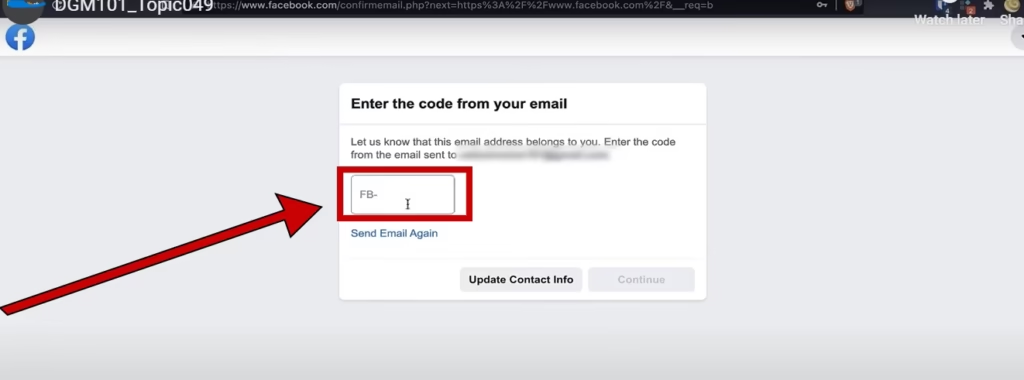
Facebook now asks you to prove the contact detail is yours. If you signed up with a phone number, type the code from the text message into the confirmation box. If you used email, open the message from Facebook and enter the code or select the confirmation link. Then click Continue.
Do not leave this for later. Facebook’s Help Center says you may not be able to use the account until it is confirmed. If nothing arrives, use the troubleshooting table further down.
Step 5: Finish and Open Your Feed
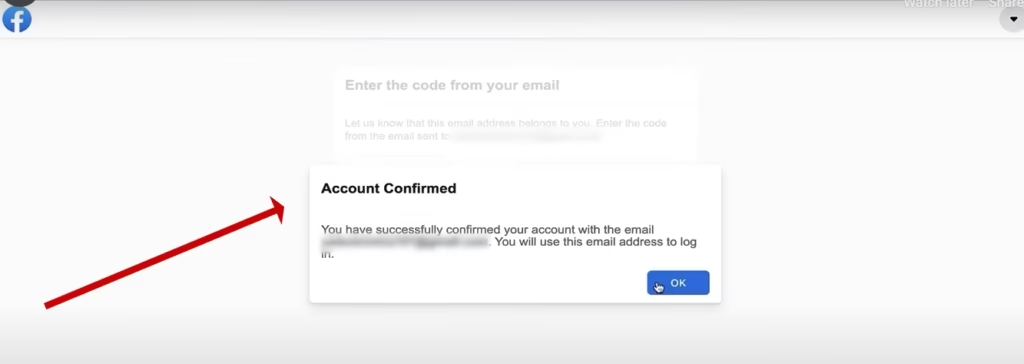
Once the code is accepted, Facebook confirms your account. Click OK to continue. From now on you log in with the email or phone number and password you chose, or with a passkey once you set one up.
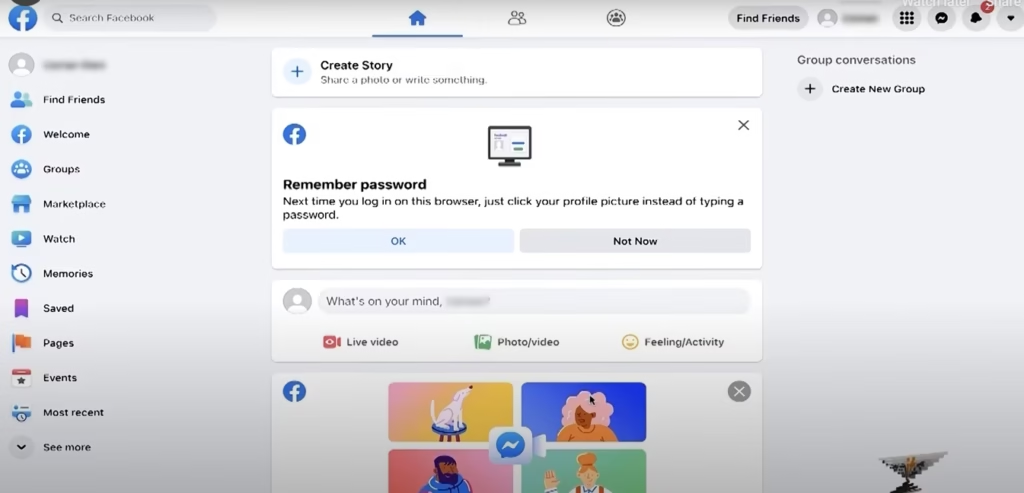
You land on a nearly empty home feed. Facebook will prompt you to add a profile picture and find people you know; both can be skipped and done later from your profile.
How to Create a Facebook Account on Android or iPhone
The app collects the same details as the website, one screen at a time. Install Facebook from Google Play or the App Store, then:
- Open the app, tap Create new Facebook account, then tap Next.
- Enter your name, then your date of birth, then your gender, tapping Next after each.
- Enter your mobile number, or tap Sign up with email address to use email instead.
- Create a password, tap Next, then Sign up.
- Enter the confirmation code sent to your phone or inbox.
Already on Instagram? Facebook’s Help Center says you can use your Instagram account to create a Facebook account. The two then share login details, and you choose whether to sync profile information such as your name and photo. On older or low-storage Android phones, Facebook Lite is a lighter app that also lets you sign up, though its screens look different.
Sign-Up and Verification Problems: Quick Fixes
Most failed sign-ups come down to a handful of causes. This table pulls together the fixes from Facebook’s separate help articles so you can find yours quickly.
| Problem | Likely cause | What to do |
|---|---|---|
| Text message code never arrives | Mistyped number, missing country code, or the message is filtered | Check the number on the confirmation screen and choose Send SMS again. If it still fails, choose Update contact info and confirm with an email address instead. |
| Confirmation email missing | Spam or Promotions folder, or a typo in the address | Search your inbox and spam for Facebook, then choose Send email again. Use Update contact info to fix a wrong address. |
| Mobile number not accepted | Wrong format, or the number is already linked to another account | Re-enter it with your country code. If the number is in use, wait a few days or sign up with an email address. |
| Sign-up logs you into an old account | Same or similar phone number and password as an existing account | Use that account instead of creating a duplicate. Reset the password if you have forgotten it. |
| Name not accepted | Symbols, numbers, titles, mixed scripts or a phrase instead of a name | Enter the name you use every day. If it is still rejected, or you have only one name, follow Facebook’s name troubleshooting steps. |
| Account deactivated soon after sign-up | Meta’s age checks suspect the user is under 13 | Follow the on-screen steps to provide proof of age. Entering your real birthday at sign-up avoids this. |
For the official wording, see Facebook’s article on what to do if you did not receive the confirmation code.
Secure Your New Account: A 10-Minute Checklist
A new account has no login history, which makes it an easy target for takeovers. Work through this list before you add friends or join groups. Security settings live under Settings and privacy > Settings > Accounts Center > Password and security; if your account has moved to a Meta Account, look for Meta Account at the top of Settings instead.
- Turn on two-factor authentication. Choose Two-factor authentication, then an authentication app or a security key. Text message codes are offered too, but are weaker because a phone number can be hijacked. Facebook’s 2FA guide covers each method.
- Save your recovery codes. Facebook can give you 10 recovery login codes. Write them down or store them in a password manager, not in your email.
- Create a passkey. A passkey logs you in with your fingerprint, face or device PIN, so there is no password to type into a fake site. Facebook may prompt you to create one when you log in, or find it under Password and security > Passkey.
- Add a second contact. Add whichever of email or phone you did not use at sign-up, so you have a backup route for account recovery.
- Run Privacy Checkup. Open Settings and privacy > Privacy Checkup. It walks you through who can see your posts and contact details, who can send you friend requests or find you by phone or email, and alerts for logins from unrecognised places.
Meta introduced passkeys on Facebook for iOS and Android in June 2025 and extended them to Messenger that September; the same passkey works in both apps. Meta says the fingerprint, face scan or PIN never leaves your device. For computers, Facebook’s passkey help page lists the supported operating systems and browsers.
Complete Your Profile
A finished profile helps friends recognise you and makes your account look less like a fake one. Add a clear photo of your face, a cover image, your city and any work or school details you are happy to share. Each detail has its own audience selector, so you can show your city to everyone and your workplace only to friends.
For a cleaner profile picture, run your photo through our free background remover and swap in a plain colour. Our guide to setting up your Facebook profile covers every field, and the Facebook cover photo size guide gives the dimensions that keep your banner from being cropped on mobile.
Why You Should Stick to One Personal Account
Facebook’s Terms ask you to create only one account, your own, using the name you go by in everyday life. The Help Center is blunter: it is against Facebook’s Community Standards to maintain more than one personal account. Meta’s Authentic Identity Representation policy lists creating or maintaining multiple accounts, and sharing one account between several people, among the behaviours it reviews.
The official alternatives cover the usual reasons for a second profile. Go by a different name with some people? Open your profile, click About > Names > Add other names and add a nickname or maiden name. Want to represent a business, club or brand? Create a Page from your personal account. Facebook used to let people add extra profiles under one account, but its Help Center now says new additional profiles can no longer be created.
Personal Account vs Page vs Business Portfolio
People searching for a “Facebook business account” usually mean a Page, a business portfolio, or both. Here is how they differ from the personal account you just created.
| Feature | Personal account | Facebook Page | Business portfolio |
|---|---|---|---|
| Who it is for | One real person | A business, brand, creator or organisation | Teams managing Pages, Instagram accounts and ad accounts together |
| How you create it | facebook.com or the app > Create new account | From your account: Pages > Create Page | business.facebook.com > menu under Home > Create a business portfolio |
| Audience | Friends and followers | Followers | None of its own; it holds Pages and other assets |
| Built for advertising | No | Yes, with Page insights | Yes, with shared access to ad accounts |
| What you need | Email or mobile number, age 13+ | A Facebook account | A Facebook profile (or managed Meta account) and a business email |
| How many per person | One | You can create several | You can create up to 2 and join others |
Once your personal account is confirmed, follow our guide on how to create a Facebook business Page. If other people will help run it, see how to add an admin to a Facebook Page, and set up a business portfolio only when you need shared ad accounts or team permissions.
Age Rules, Teen Accounts and the Free Verified Badge
What happens if Facebook thinks you are under 13
In May 2026 Meta announced AI age-assurance tools that look for clues such as birthday posts or mentions of school grades, plus visual signals in photos. The rollout reached Facebook in the US first, with the UK and EU following from June 2026. Meta says this is not facial recognition. If the system decides an account may belong to a child under 13, the account is deactivated and the holder must provide proof of age to keep it.
Signing up at 13 to 17
Teenagers are placed in a Teen Account with stricter defaults. On Facebook, the 13+ default content setting hides content unsuitable for teens in places like Feed and Reels, and teens cannot switch to the looser More Content setting without a parent’s permission. Meta says an even stricter Limited Content setting is coming to Facebook and Messenger later in 2026. Teens can follow every step in this guide.
Facebook Verified vs Meta Verified
In July 2026 Meta introduced a free, grey Facebook Verified badge. You record a short video selfie, which Facebook checks against your existing profile photos. It is for users aged 18 and over in good standing, not for Pages or professional mode accounts, and is rolling out in phases. The badge shows on your profile, Marketplace, Groups and Dating. It is separate from Meta Verified, the paid subscription with a blue badge. Because the check uses existing photos, add a clear photo of your face first.
Frequently Asked Questions
How do I create a new Facebook account on my phone?
Install the Facebook app, open it and tap Create new Facebook account. Enter your name, date of birth, gender, mobile number or email and a password on separate screens, tap Sign up, then enter the confirmation code sent to your phone or inbox.
Can I create a Facebook account without a phone number?
Yes. The form accepts an email address instead of a mobile number; in the app, tap Sign up with email address. You need at least one of the two, and adding the other later makes account recovery easier.
How old do you have to be to create a Facebook account?
At least 13, according to Facebook’s Terms and Help Center. Users aged 13 to 17 get a Teen Account with stricter content defaults, and accounts Meta suspects belong to under-13s are deactivated until the holder proves their age.
Can I have two personal Facebook accounts?
No. Facebook’s Terms allow one personal account per person. For a shop, side project or community, create a Page from your existing account. If you go by another name, add it under About > Names on your profile instead.
Is creating a Facebook account free?
Yes. Creating and using a personal Facebook account costs nothing, and the Facebook Verified badge is free too. Meta Verified is an optional paid subscription that you never need in order to use Facebook.
How do I delete a Facebook account I no longer want?
In Settings, open Accounts Center or Meta Account and choose Deactivation or deletion, found under Personal details > Account ownership and control on most accounts. You can usually cancel within 30 days. Messages you sent stay in your friends’ inboxes, so download your information first if you want a copy.

1 Comment
Informative blog