
Once your account exists, a few minutes of setup decides how you appear in search results, comments and friend requests. This guide covers what happens after sign-up: your profile and cover photos, bio and Intro, the About tab, professional mode and the privacy settings worth checking first. If you still need an account, start with our walkthrough on how to create a Facebook personal account, then come back here to set up Facebook profile settings step by step.
New to the platform? Start with what Facebook is and how it works.
How Do You Set Up Your Facebook Profile?
To set up your Facebook profile, open it from your profile picture, add a clear square profile photo and a cover photo at least 720 pixels wide, write a short bio, pick the details shown in your public Intro, fill in the About tab with an audience for each item, then run Privacy Checkup before adding friends.
The steps below use the labels Facebook shows on a computer, with app differences noted where they matter. Meta renames menus from time to time and is moving some people from Accounts Center to Meta account settings, so if a label on your screen differs slightly, look for the closest match.
Step 1: Open Your Profile
On a computer, click your profile picture in the top right of Facebook, then click your name. In the Facebook app, tap Menu or your profile picture (where it sits depends on your device and app version), then tap your name. Every setting in this guide starts from that profile page.
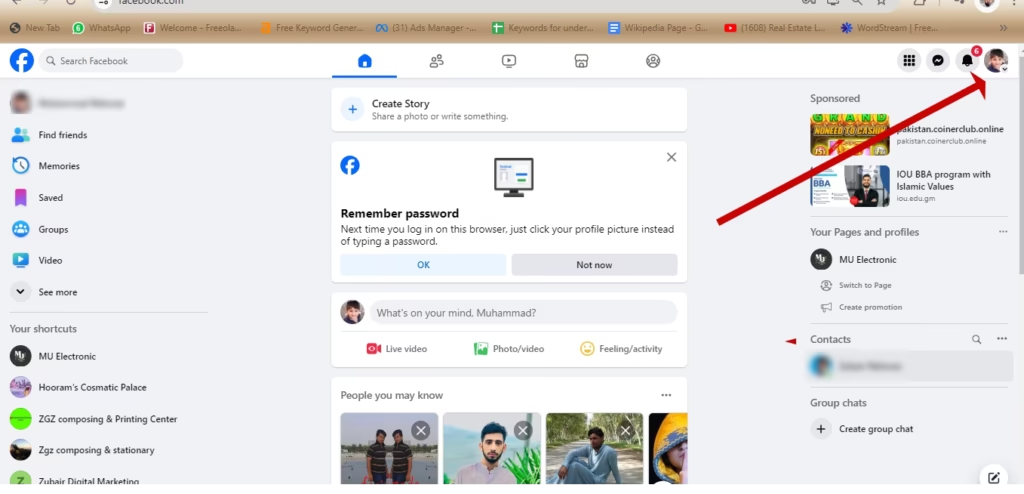
Facebook adjusts its top bar now and then, so your screen may look slightly different from this screenshot, but the profile picture is still the way in.
Step 2: Add a Profile Picture and Cover Photo
Your name, profile picture and cover photo are always public, according to Facebook’s page on public information. Choose images you are happy for anyone to see: ideally a clear, well-lit photo of your face that friends will recognise even at thumbnail size.
How to add your profile picture
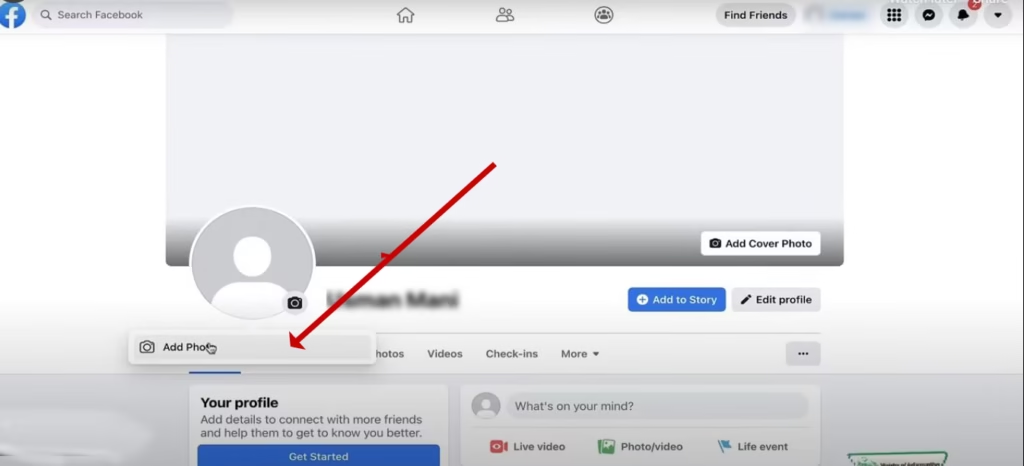
- On your profile, click the camera icon at the bottom right of your profile picture.
- Select a photo you have already uploaded, upload a new one, or choose Add a frame to decorate your current picture.
- Adjust the crop if prompted, then follow the on-screen steps to save.
In the app, open your profile, tap your profile picture and choose a photo or frame. You can also change it through Accounts Center: Settings and privacy > Settings > Accounts Center > Profiles, pick your profile, then Profile picture. Both routes are described in Meta’s profile picture help.
How to add your cover photo
- Click the camera icon at the bottom right of the cover area. It is labelled Edit cover photo; on a brand-new profile the button may read Add Cover Photo, as in the screenshot below.
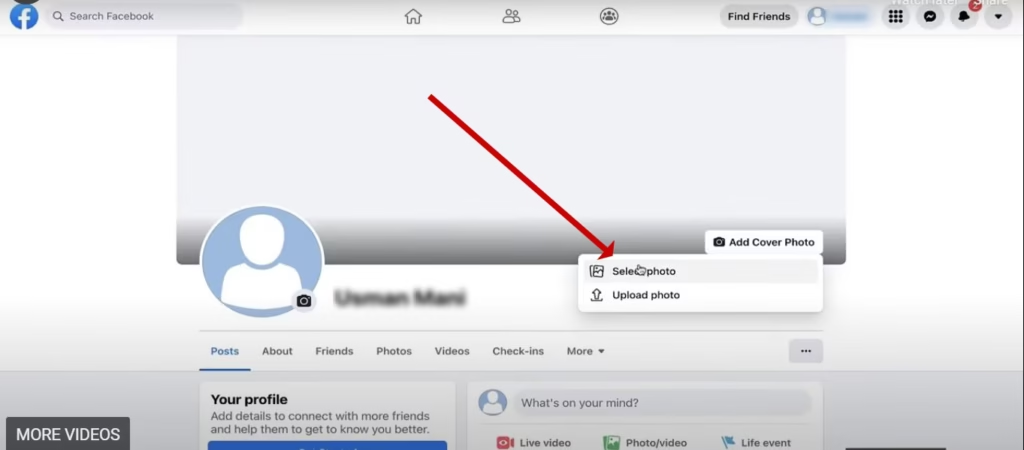
- Choose Upload Photo to use an image from your computer, or Select Photo to pick one already on Facebook.
- Drag the image up or down until the important part is in view.
- Click Save Changes.
In the app, tap your cover photo, choose Upload Photo or Choose cover photo, drag to adjust and tap Save. Meta’s cover photo help says the image has to be at least 720 pixels wide and reminds you that cover photos are public.
Facebook profile image sizes at a glance
Meta publishes full dimensions only for Pages; for personal profiles it states just a minimum cover width. This table shows both, with the source of each figure, so you know which numbers are official for your profile and which are borrowed best practice.
| Image | What Meta states | Source | Practical tip |
|---|---|---|---|
| Profile picture | Shown at 176×176 px on computers and 196×196 px on smartphones, cropped to a circle; 320×320 px for best quality | Page image specs (no separate figure for profiles) | Use a square photo with your face centred; the corners are cut off |
| Cover photo | At least 720 px wide | Personal profile cover photo help | Keep faces and text away from the edges, which crop differently on phones and computers |
| Cover photo file | An 851×315 px sRGB JPG under 100 KB loads fastest; PNG for logos or text | Page image specs | Works for a personal cover too and clears the 720 px minimum |
| Picture over cover (mobile) | The profile picture overlaps the cover by about 40 px | Page image specs | Leave the area behind your profile picture free of key detail |
Blurry results are usually an upload-size problem, so start from a large original rather than a screenshot. Our Facebook cover photo size guide goes deeper on cropping, and the free background remover tool cleans up a messy background behind a headshot right in your browser.
Step 3: Get to Know Your Profile Layout
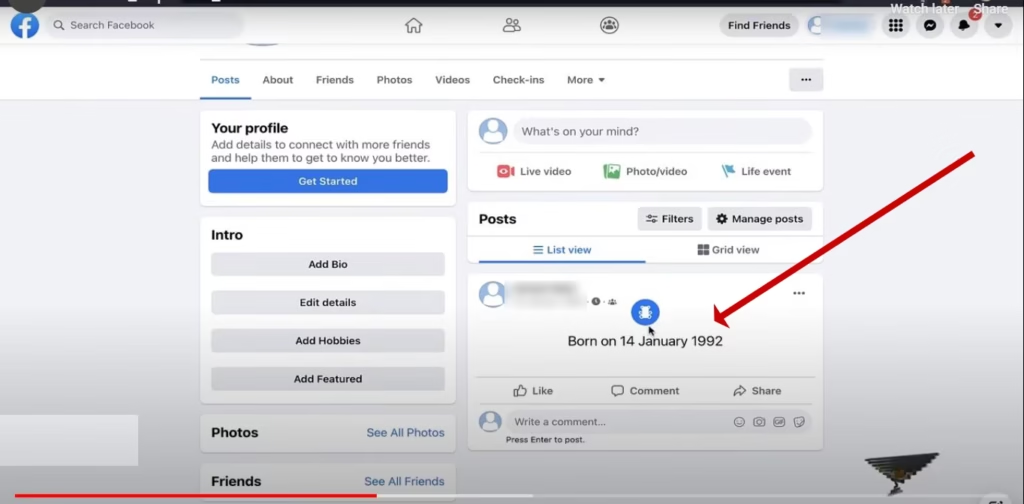
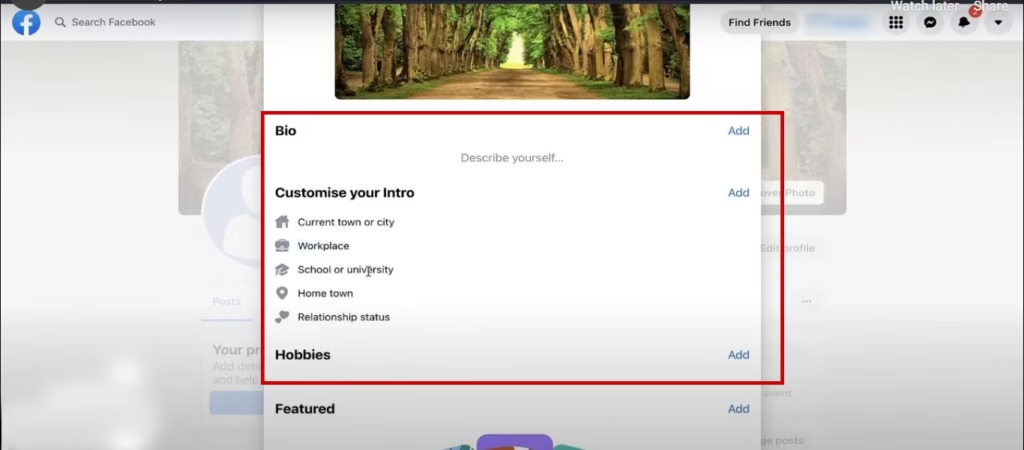
With both photos in place, your profile on a computer splits into two columns. The left column holds the Intro card (bio, details and Featured items) followed by previews of your Photos and Friends; the right column shows your posts. In the app, the same sections stack in a single column.
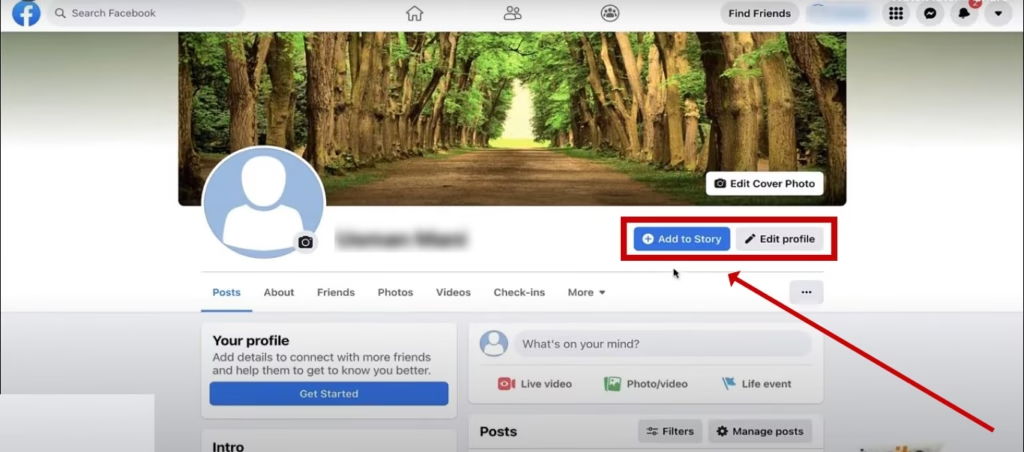
Below your name are three controls you will use often:
- Add to story: shares a photo or video that your chosen audience can see for 24 hours.
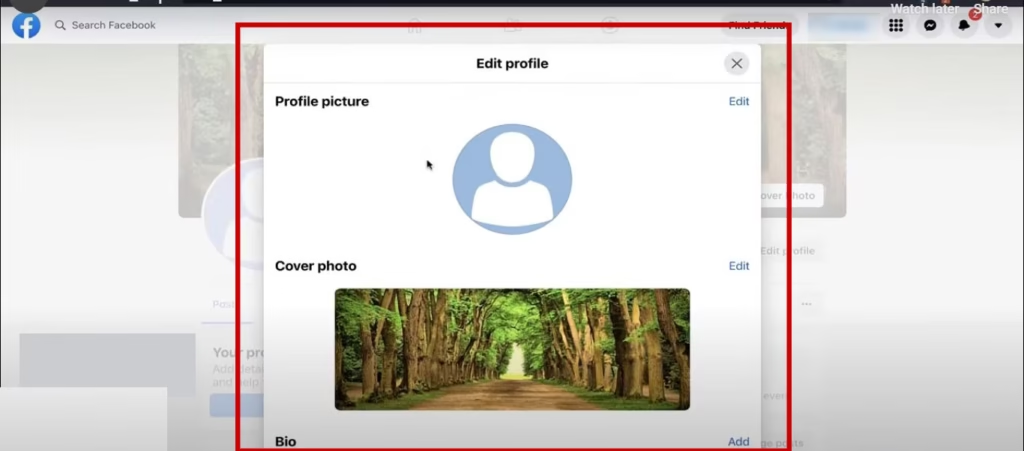
- Edit profile: one place to change your pictures, bio and the details shown in your Intro.
- Options (three dots): holds View as, which shows your profile the way the public sees it, and Turn on pro mode.
Step 4: Write Your Bio and Choose Your Intro Details
The Intro card is the first thing visitors read, and Meta’s Intro help page notes that the information in it is always public, even though you choose what goes in. On a computer, click Edit details in the Intro card, change what is shown, then click Save. In the Android app, tap your profile picture at the top right, then the pencil icon labelled Edit profile.
Keep the bio to one line that tells a stranger who you are and why they might connect. A simple pattern is what you do, where you are and one interest, for example: “Bakery owner in Leeds. Sourdough nerd. Weekend cyclist.” Short lines also read better on a phone screen, where most people will first see your profile.
The Featured section sits in the same Intro card and lets you pin photos and stories near the top of your profile. Pick a few images that back up your bio, such as your work, a project or a cause you support, and assume anyone who opens your profile can see them.
Step 5: Fill In the About Tab
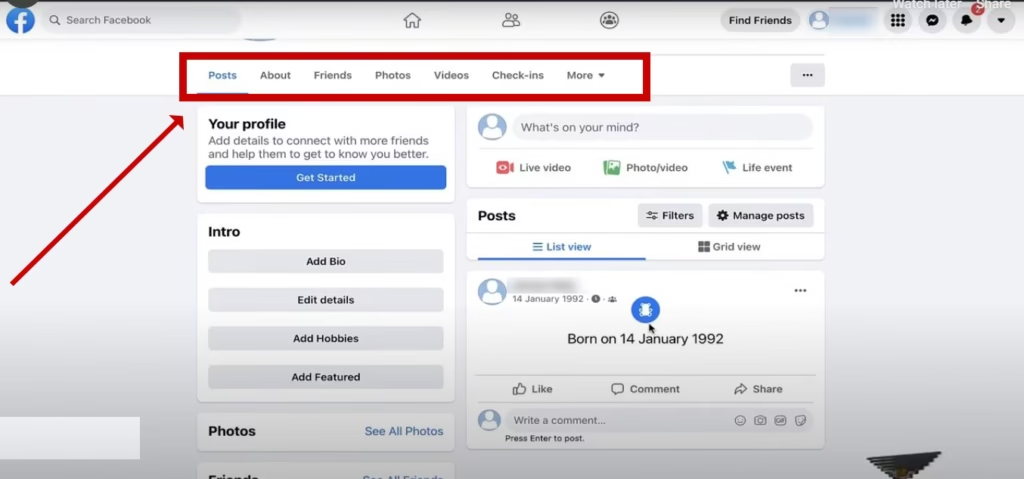
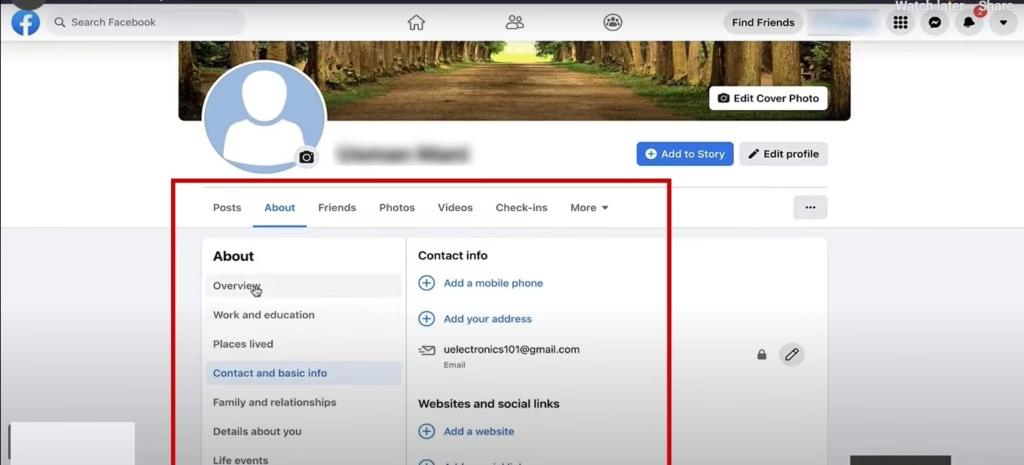
Click About below your cover photo to add longer details. Unlike the Intro, each item here has its own audience selector: click the options next to an item, choose Edit, then pick who can see it. That lets you show your workplace to everyone while keeping your phone number to yourself. The sections shown in the screenshots below are:
- Overview and Work and education: employer, job title and dates (tick “I currently work here”), plus schools and universities.
- Places lived: current city, hometown and other places you have lived.
- Contact and basic info: phone, email, website and social links, languages, gender and birthday.
- Family and relationships: relationship status and family members who are on Facebook.
- Details about you: a longer description, name pronunciation, nicknames and favourite quotes.
- Life events: milestones such as a new job, a move or graduating.
Section names can shift slightly between app versions, but the rule stays the same: add what helps people recognise you and keep contact details on a narrow audience.
Should You Turn On Professional Mode?
Professional mode, shortened to pro mode in Facebook’s menus, adds creator tools to your personal profile without building a separate Page. According to Meta’s pro mode help article, your friends and existing content stay as they are, while you gain content and audience insights, safety features such as Moderation Assist, a chance to be considered for discovery opportunities, and monetisation products if you are eligible. The Who can follow me setting switches to Public, which you can change later. Anyone can turn pro mode on or off.
To turn it on from a computer, open your profile, click Options (the three dots below your cover photo), click Turn on pro mode, then Turn on. In the app, open your profile, tap Options, then Turn on pro mode and Turn on.
Switching it off later is not free of side effects: followers who are not your friends are removed (they return if you turn pro mode back on), Who can follow me goes back to Friends, and your insights and Moderation Assist disappear. If you were earning, pending payouts are paid but future ones are paused.
- Turn it on if you are a freelancer, creator, coach or small-business owner who wants public followers and reach numbers under your own name.
- Leave it off if the profile is for friends and family. Meta treats your follower count and whether you use pro mode as public information.
Want a brand presence separate from your own name? A Facebook Business Page lets several people help manage it and run ads. If you do switch on pro mode, our guide to getting more followers on Facebook covers what to post.
Privacy Checkup: Settings to Review Before You Add Friends
A new profile is easiest to lock down before you start posting. On a computer, open Privacy Checkup by clicking your profile picture, then Settings and privacy > Privacy Checkup. In the app, tap Menu > Settings & privacy > Settings > Privacy Checkup. It groups the key controls into five topics:
- Who can see what you share: profile details such as phone number, email, birthday and relationship status, the audience for future and past posts, and your blocked list.
- How to keep your account secure: updating your password and turning on alerts for logins from places Facebook doesn’t recognise.
- How people can find you on Facebook: who can send you friend requests and who can look you up by phone number or email address.
- Your data settings on Facebook: apps and websites from other companies that you have logged into with Facebook.
- Your ad preferences on Facebook: which profile information advertisers can use to reach you, and who can see your social interactions next to ads.
Suggested privacy settings for a new profile
Privacy Checkup does not cover everything. These are cautious starting choices for a personal profile; loosen any of them later if you want more reach.
| Setting | Where to find it (computer) | Suggested start |
|---|---|---|
| Audience for future posts | Privacy Checkup > Who can see what you share, or Settings > Posts | Friends |
| Who can see your friends list | Settings > Audience and visibility > How people find and contact you | Friends (it is public by default) |
| Friend requests and look-up by email or phone | Privacy Checkup > How people can find you on Facebook | The narrowest option you are comfortable with |
| Phone, email and birthday | About tab, audience selector beside each item | Only me or Friends |
| Older public posts | Settings > Posts > Limit past posts | Use once if needed; it can’t be undone in one click |
| Two-factor authentication | Settings > Accounts Center > Password and security | On, plus login alerts from Privacy Checkup |
Two more tools are worth a minute. View as, under Options on your profile, shows exactly what a stranger sees; click Exit view as to return. In some countries you can also lock your profile: your photos, posts, stories and full-size profile and cover pictures become friends-only, previously public posts switch to friends-only, profile and tag review turn on, and only your Intro stays visible to everyone.
Set Up Facebook Profile Checklist
Run through this list once and your profile is ready for friend requests:
- Profile picture: square, face centred, at least 320×320 px.
- Cover photo: at least 720 px wide, with key detail away from the edges.
- Bio: one short line that says who you are.
- Intro details: only what you are happy to make public.
- Featured: a few photos or stories that support your bio.
- About tab: work, education and city added; phone, email and birthday set to Only me or Friends.
- Future posts set to Friends and your friends list limited.
- Two-factor authentication and login alerts switched on.
- Pro mode decided: on for public reach, off for a private circle.
- View as checked to confirm what strangers can see.
Frequently Asked Questions
What size should a Facebook profile picture and cover photo be?
Meta’s published specs, written for Pages, show profile pictures at 176×176 pixels on computers and 196×196 on smartphones and recommend 320×320 for best quality. For personal profiles, Meta says the cover photo must be at least 720 pixels wide; an 851×315 pixel sRGB JPG under 100 KB loads fastest.
Is the Intro section on my Facebook profile public?
Yes. Meta states that information in the Intro section is always public, although you decide what to include. Your name, profile picture and cover photo are always public too. Keep private details such as your phone number and birthday in the About tab and limit their audience there.
Can I create a second profile on my Facebook account?
Not any more. Meta’s help page on additional profiles says you can no longer create them, although existing additional profiles were not affected. If you want a public presence separate from your personal life, turn on pro mode or create a Facebook Page instead.
How often can I change my name on Facebook?
Once every 60 days, according to Meta’s name change guide. Go to Settings and privacy, Settings, Accounts Center, Profiles, choose your profile and click Name, then Review change and Save changes. Facebook asks you to use the name you go by in everyday life.
Does turning on professional mode remove my friends?
No. Your friends and existing posts stay the same when you turn pro mode on; you simply gain followers, insights and extra safety tools. Only turning it off removes something: followers who are not your friends are dropped until you switch pro mode back on.
How do I make my Facebook profile private?
Where it is available, use Lock profile, which limits your posts, photos and stories to friends. Otherwise, run Privacy Checkup, set future posts to Friends, limit past posts, restrict your friends list and narrow who can find you by email or phone. Then confirm the result with View as.

2 Comments
Real Learning Blog
thank you brother