Facebook Page settings decide who can manage your Page, who can find and message it, what appears in its comments and what happens when you need to take it offline. Meta has moved these menus several times, so this guide gives the current desktop paths from Meta’s own Help Center, a checklist of every setting worth changing, and fixes for the options people most often cannot find.
Where Are the Settings on a Facebook Page?
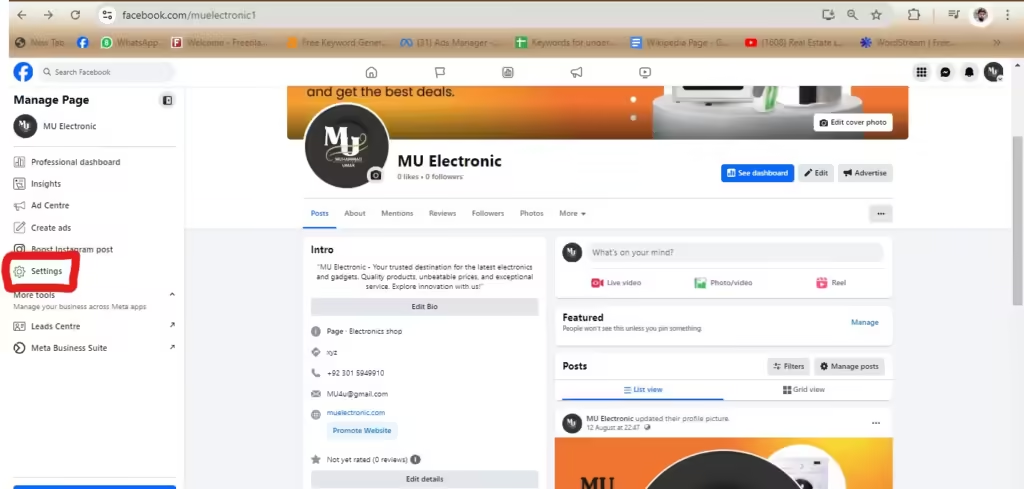
To open Facebook Page settings on a computer, click your profile photo in the top right, choose See all profiles and select your Page. Then click the Page’s profile photo, choose Settings & privacy and click Settings. The left-hand menu holds the Page’s name, access, privacy, linked accounts and deactivate or delete options.
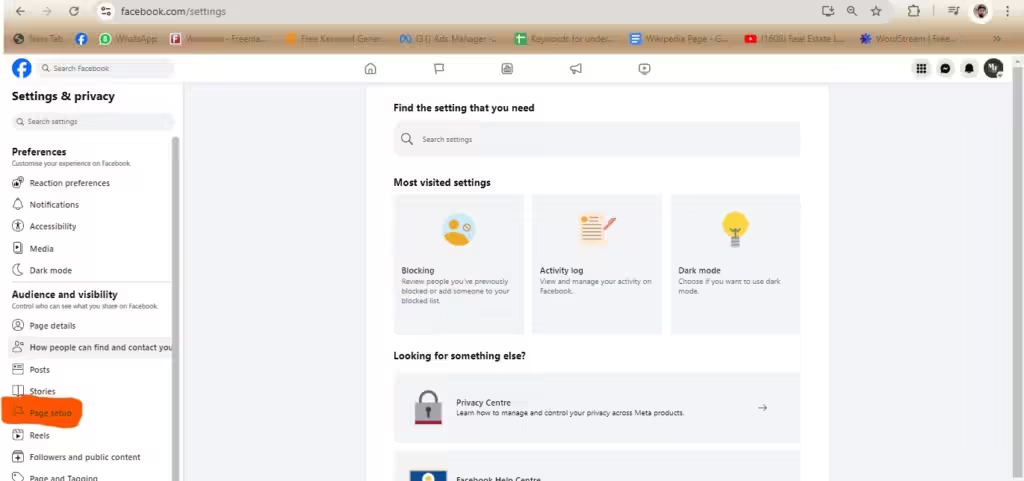
Switching into the Page is the step people miss. Open Settings from your personal profile and you see your account settings, not the Page’s. People with task access cannot switch into the Page at all; they manage it from Meta Business Suite or Ads Manager. Meta’s help articles currently use these labels in the Page settings menu: Page setup (name, username and Page access), How people find and contact you, Followers and public content, Page and tagging, Blocking, Linked accounts and Access and control.
Two other places hold Page tools. Meta Business Suite (business.facebook.com) handles posting, the inbox, ads and insights for your Page and a linked Instagram account. Page insights also appear in the Professional dashboard, which Meta says now shows as Business Dashboard or Creator Dashboard. The screenshots in this guide come from an earlier version of the Pages layout, so some labels differ; when your screen does not match, follow the paths in the text.
Facebook Page Settings Checklist: Basic vs Advanced
Use this table as a one-pass setup list. Basic settings shape what visitors see; advanced settings control privacy, moderation and who can run the Page. The last column shows whether any Facebook access is enough or whether you need full control. Paths assume you have already switched into the Page and opened Settings & privacy > Settings.
| Setting | Where to find it (desktop) | Level | Access needed |
|---|---|---|---|
| Page name | Page setup > Name > Edit next to the Page name | Basic | Facebook access |
| Username and web address | Page setup > Name > Edit next to the username (computer only) | Basic | Facebook access |
| Category | On the Page: About > Category > Edit | Basic | Facebook access |
| Address and hours | On the Page: About > Details | Basic | Facebook access |
| Action button | On the Page: Options > Add or Edit action button | Basic | Facebook access |
| Messaging on or off | How people find and contact you | Advanced | Full control |
| Country and age restrictions | Followers and public content | Advanced | Full control |
| Blocked words and profanity filter | Followers and public content | Advanced | Facebook access |
| Tag review and who sees tagged posts | Page and tagging | Advanced | Full control for tagged-post visibility |
| Blocked profiles and Pages | Blocking | Advanced | Facebook access |
| Who can manage the Page | Page setup > Page access | Advanced | Full control |
| Instagram and WhatsApp | Permissions > Linked accounts | Advanced | Facebook or task access (Instagram) |
| Message automations | Meta Business Suite > Inbox | Advanced | Access to the Page’s messages |
| Deactivate or delete | Access and control | Advanced | Full control |
Starting from scratch? Build the Page first with our guide on how to create a Facebook business page, and check the Facebook cover photo size guide so your header images are not cropped, then work through the table.
Basic Facebook Page Settings
Page name
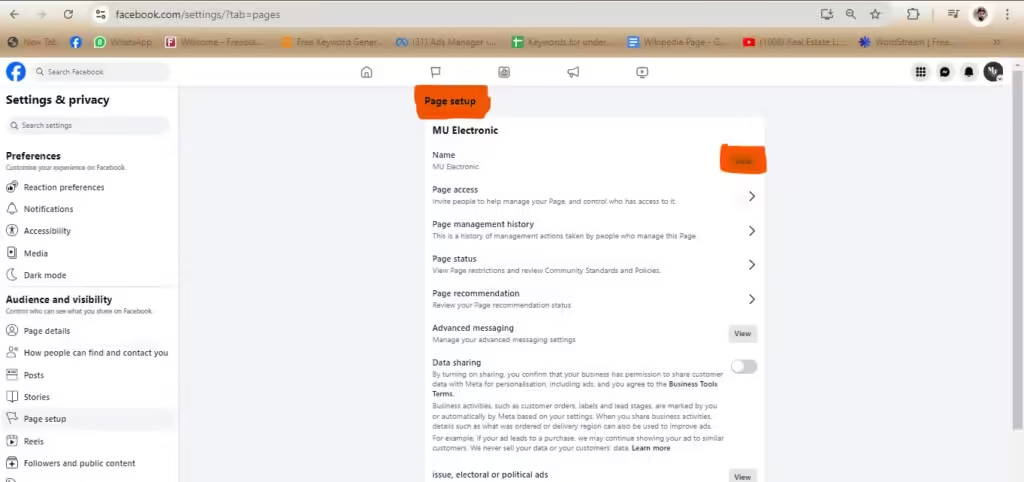
Meta’s name-change instructions use this path: Settings & privacy > Settings > Page setup > Name, then Edit next to your Page name under General Page settings. Update the name, click Review change, enter your password and click Request change. You need Facebook access; task access cannot request a name change. A request can be blocked if someone recently changed the name, if the Page has limits on it, or if it is a regional Page inside a global Page. Our guide on how to change a Facebook page name covers naming rules and rejected requests.
Username and Page URL
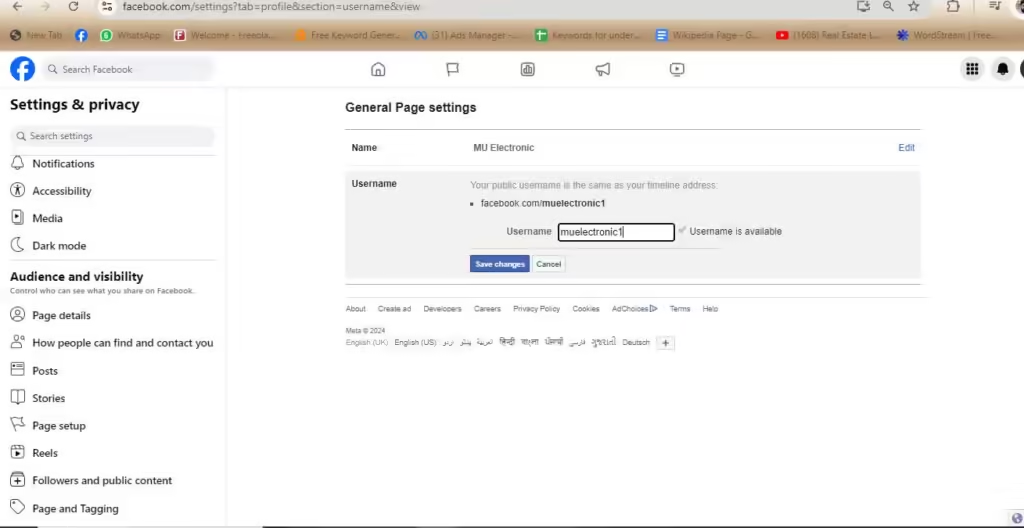
A new Page starts with a long numeric web address. A username replaces it with a short handle that appears under the Page name and in the URL, so a Page called “MU Electronic” with the username MUElectronic1 lives at facebook.com/MUElectronic1. Changing the Page name never changes the username; they are separate fields.
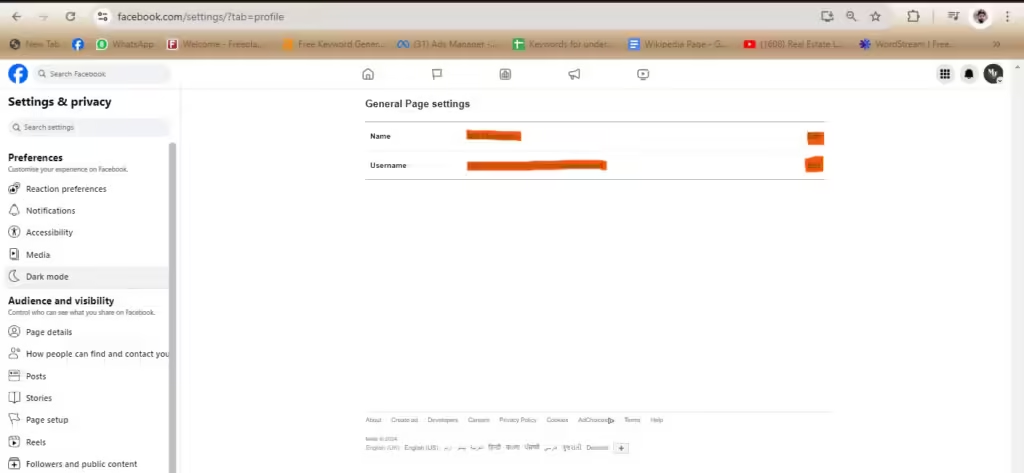
Per Meta’s username article, go to Page setup > Name, click Edit next to your username, enter the new one and click Save changes. It has to be done on a computer by someone with Facebook access. If your choice is taken or not approved, pick another that fits Meta’s custom username guidelines. Newly created Pages may not be able to claim a username straight away, and a username can be removed if the Page goes inactive.
Action button
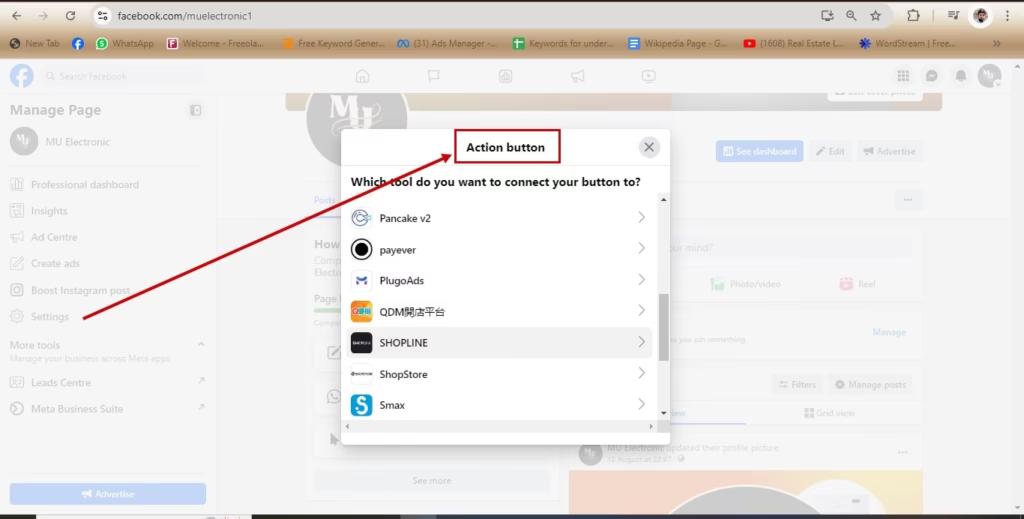
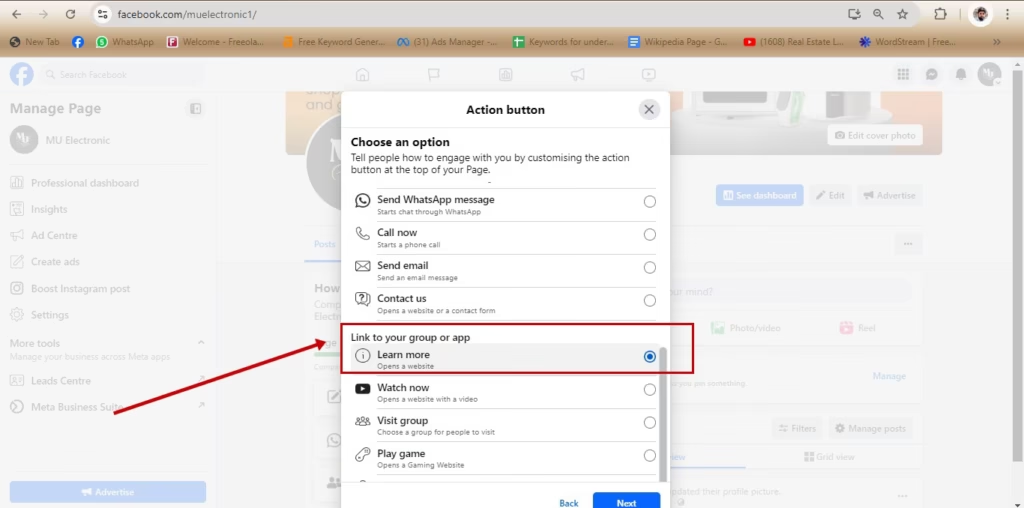
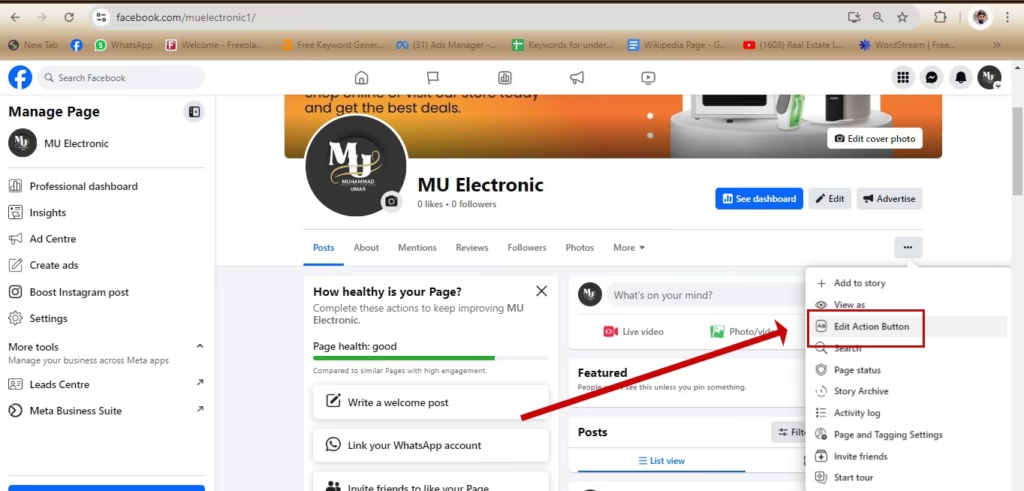
The action button sits in your Page header and gives visitors one clear next step, such as calling, messaging, booking or visiting your website. The buttons offered depend on your Page. Following Meta’s action button steps:
- Switch into your Page and open it from the left menu.
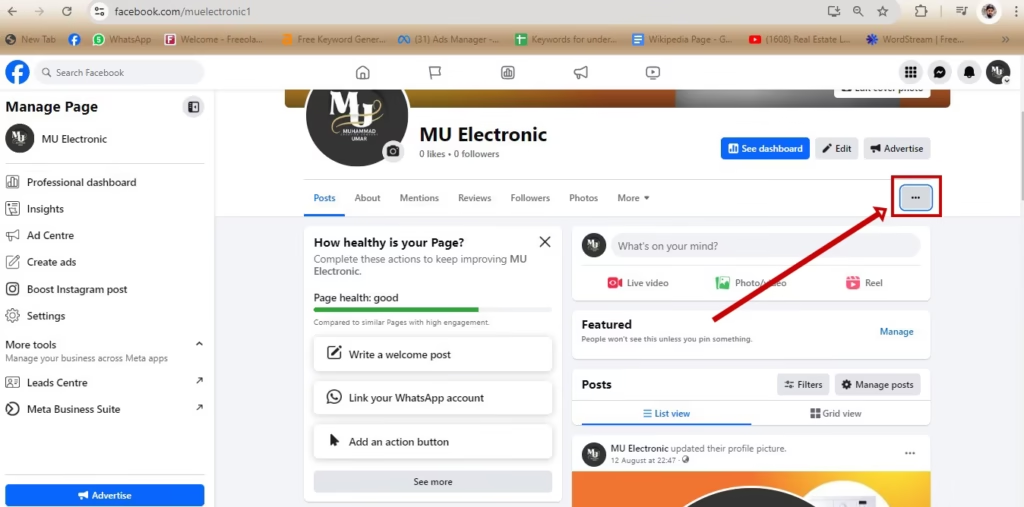
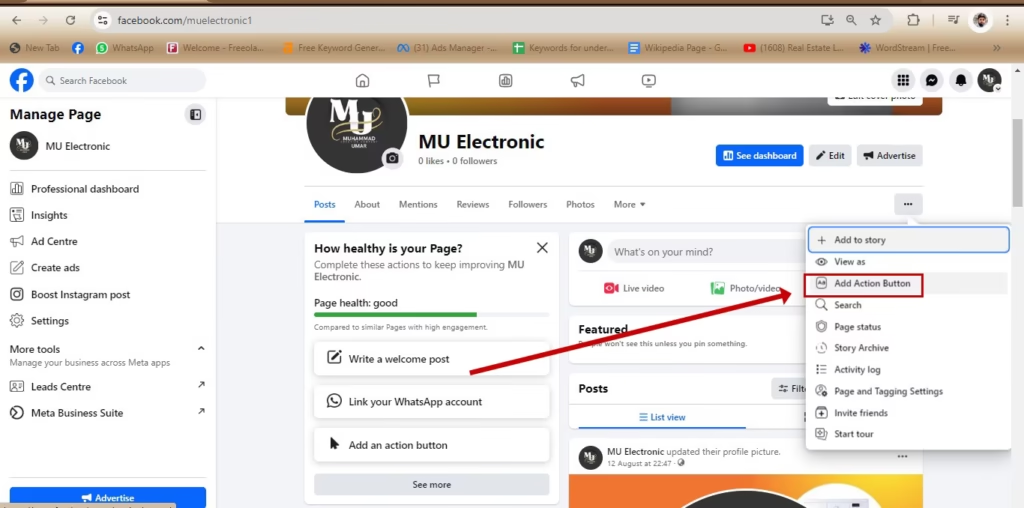
- Click Options (the three-dot menu), then Add action button, or Edit action button if the Page already has one.
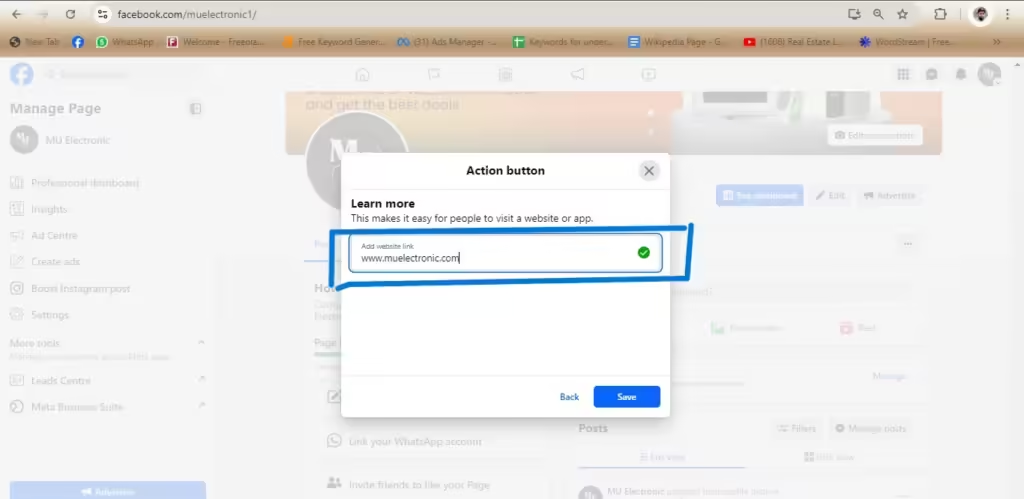
- Choose a button, click Next and follow the prompts, such as entering a web address or phone number.
- Click Save.
Pick the button that matches your main goal: a shop wants people on product pages, a clinic wants bookings. If the button points to your website, tag the link with our free UTM builder so Facebook clicks show up as their own source in analytics instead of blending into general social traffic.
About details: category, contact info and hours
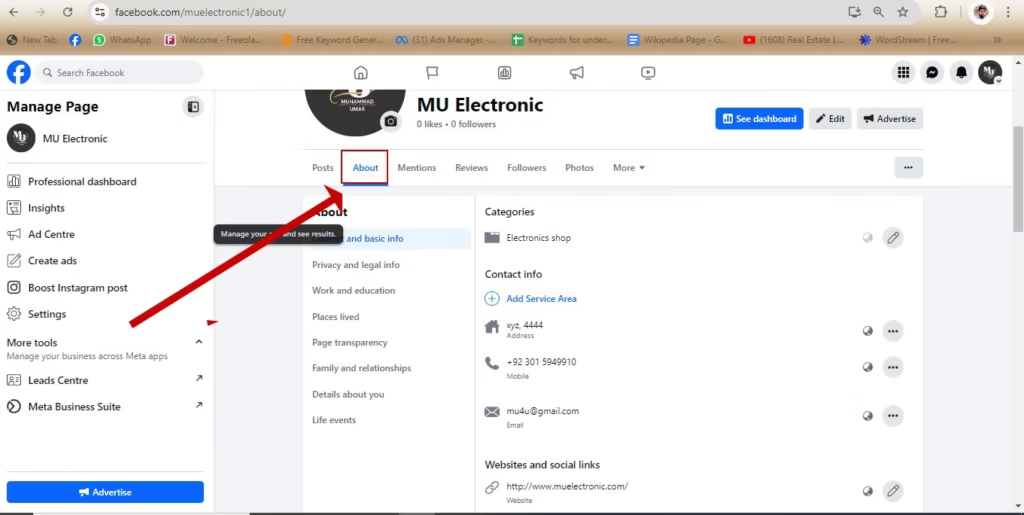
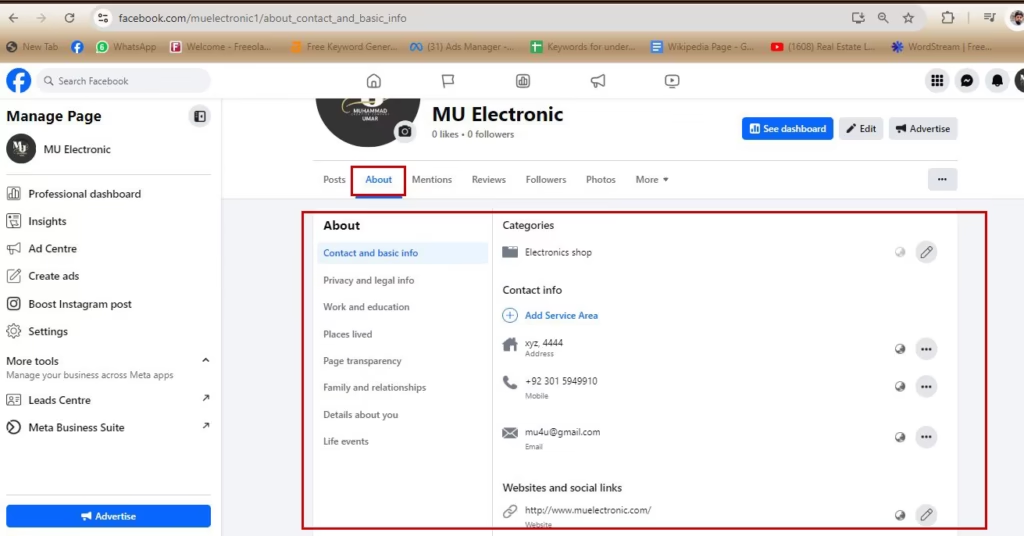
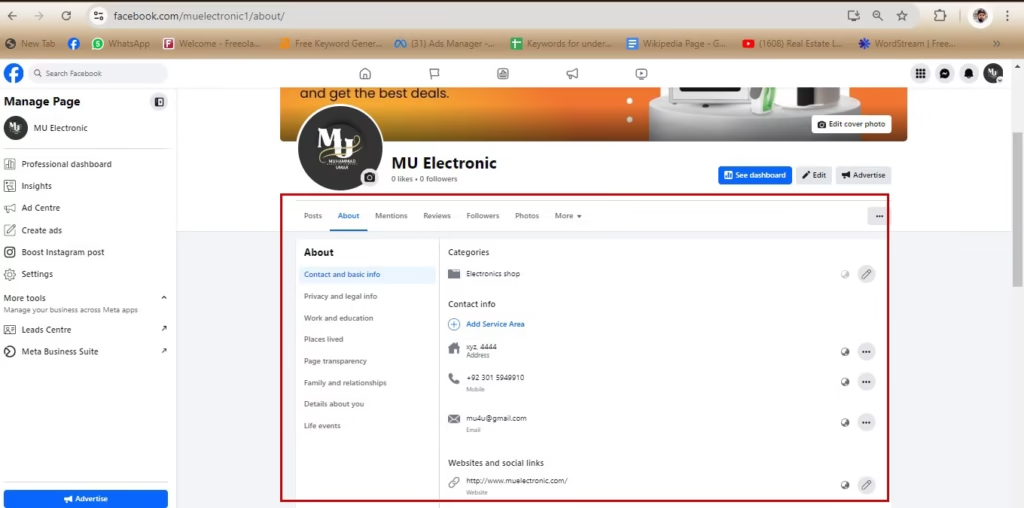
The About tab is where visitors decide whether you are a real business. Open your Page and click About; the fields you can fill in depend on your category.
- Category: About > Category > Edit. Meta lets you choose up to three categories and recommends specific ones (bakery rather than local business), because categories affect when you appear in Facebook search. You can edit them as often as you like.
- Contact details: phone, email and website. Use exactly the same details as your website and Google Business Profile so customers see consistent information everywhere.
- Address: About > Details > Edit address, then drag the map pin to the right spot. Your time zone comes from this location.
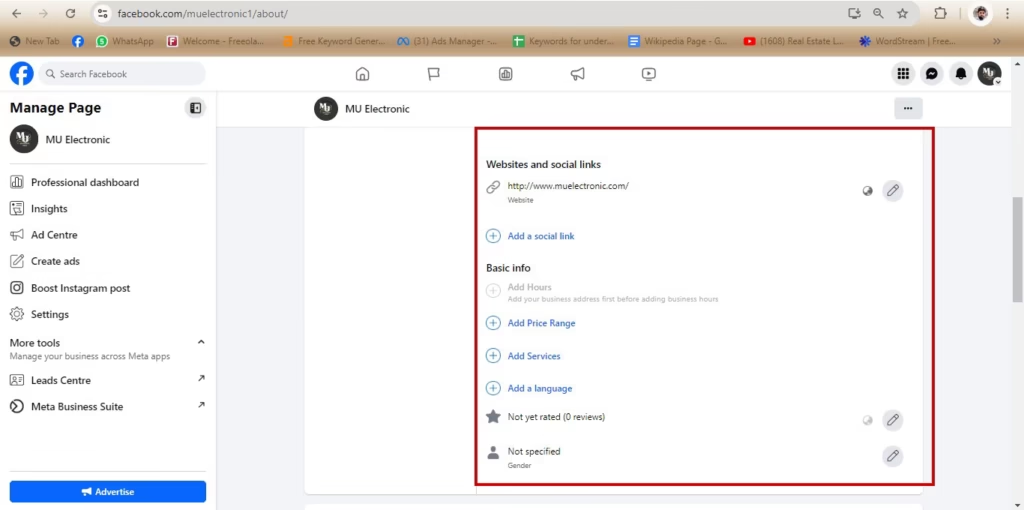
- Hours: About > Details > Hours, then Open on selected hours. If there is no Hours section, Meta suggests changing your Page category.
Advanced Page Settings: Privacy and Moderation
Advanced settings live in the Settings menu after you switch into the Page. Several need Facebook access with full control, so if an option is missing or will not save, check your access level before anything else.
How people find and contact you
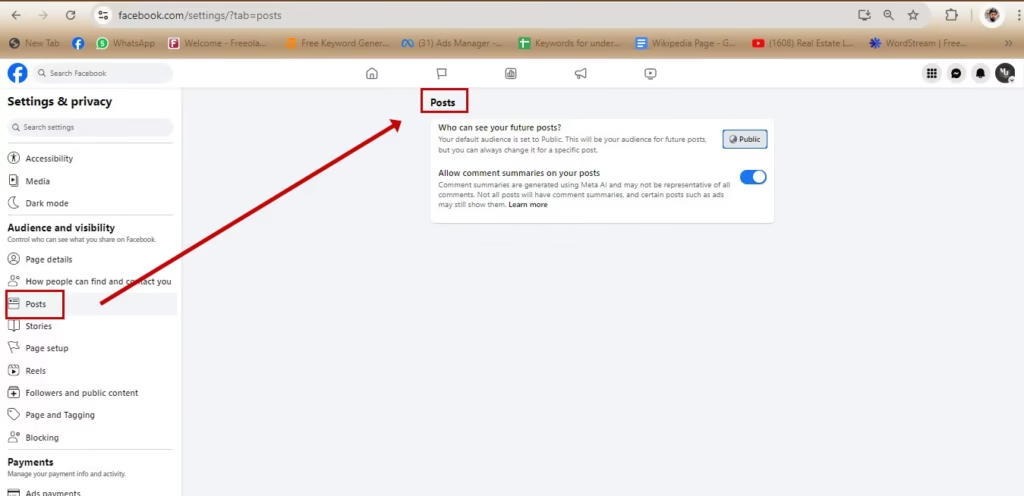
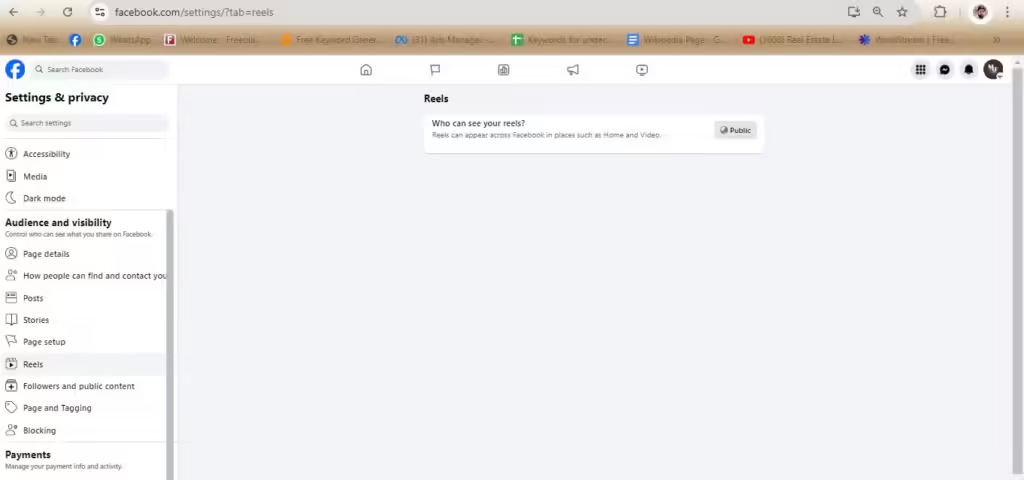
This is where the “Allow people to message your Page?” toggle sits. Turning messaging off removes the easiest way for customers to reach you, so leave it on unless nobody can answer the inbox. Changing it needs full Facebook access. In the older layout pictured further down, contact and tagging options sat under Audience and visibility, next to Page details and post and story sharing.
Followers and public content
- Country restrictions: hide the Page from, or show it only to, the countries you choose.
- Age restrictions: limit who can see the Page to a chosen age group.
- Hide comments containing certain words: up to 1,000 keywords, phrases or emoji in any language. Meta also hides common variations, such as misspellings and plurals, without them counting toward the limit.
- Hide posts and comments with profanity: one toggle that hides the words and phrases most often reported as offensive.
Restrictions have side effects that Meta lists in its country and age restrictions article: people who already like the Page but no longer qualify are removed and only come back if they like it again, nobody can see the Page while logged out, and sharing posts to external sites may stop working. Both need full control. Comments hidden by the blocked-words filter stay visible to the author and their friends, so a spammer rarely notices.
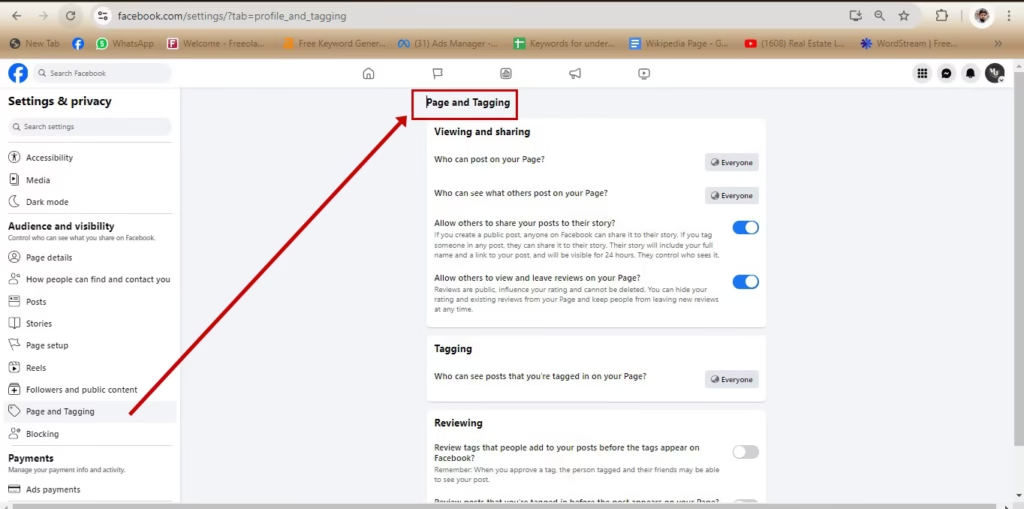
Page and tagging
Choose who can see posts your Page is tagged in (Everyone or Only me), and turn on the review toggles so that posts tagging your Page, and tags other people add to your Page’s posts, wait for your approval before they appear. Changing who sees tagged posts needs full control.
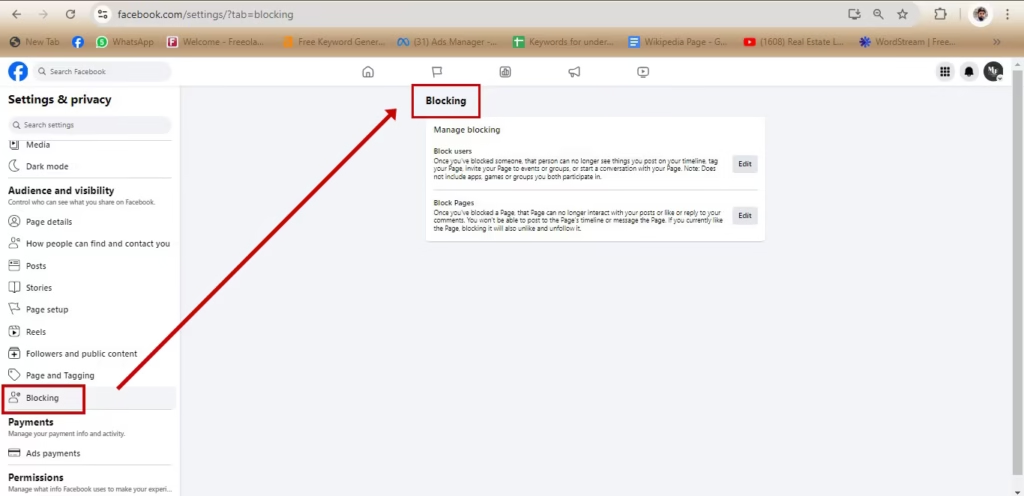
Blocking
A blocked profile or Page can no longer see your Page’s posts, tag it, invite it to events or groups, message it or find it in search, and it is removed as a follower. You can block from Page settings, your followers list or a comment. To undo a block, go to Settings > Blocking, click Edit next to Block profiles and Pages, open See your blocked list and click Unblock. Save it for persistent spammers rather than unhappy customers, whose complaints are better answered in public.
Preferences: notifications, reactions and media
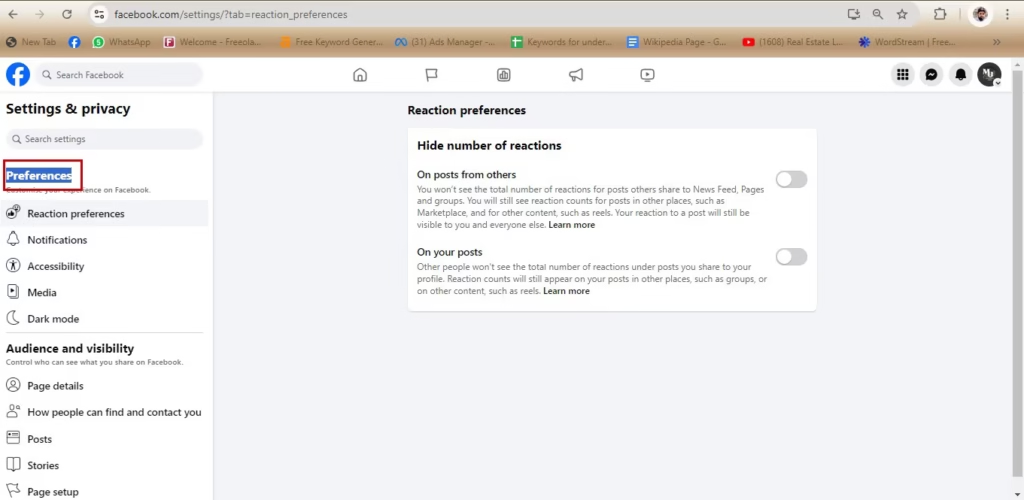
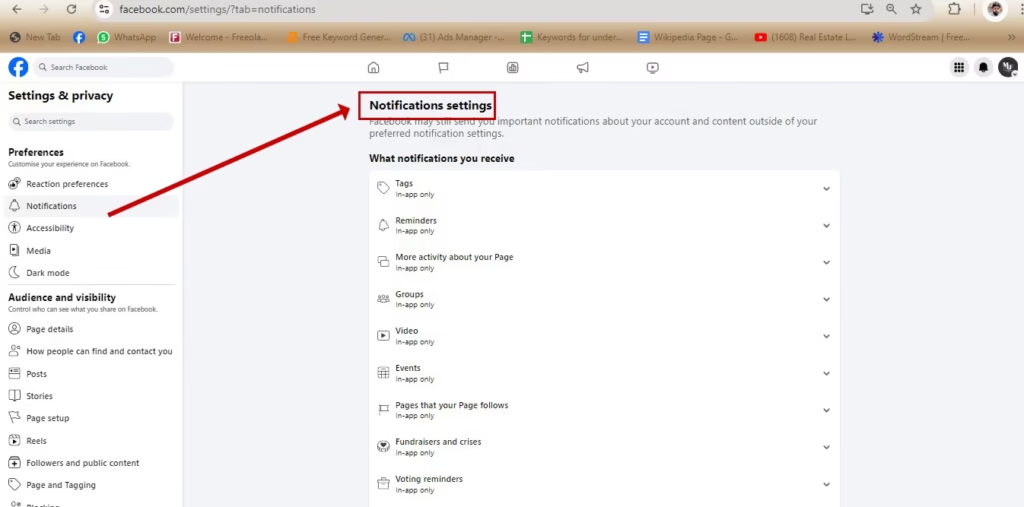
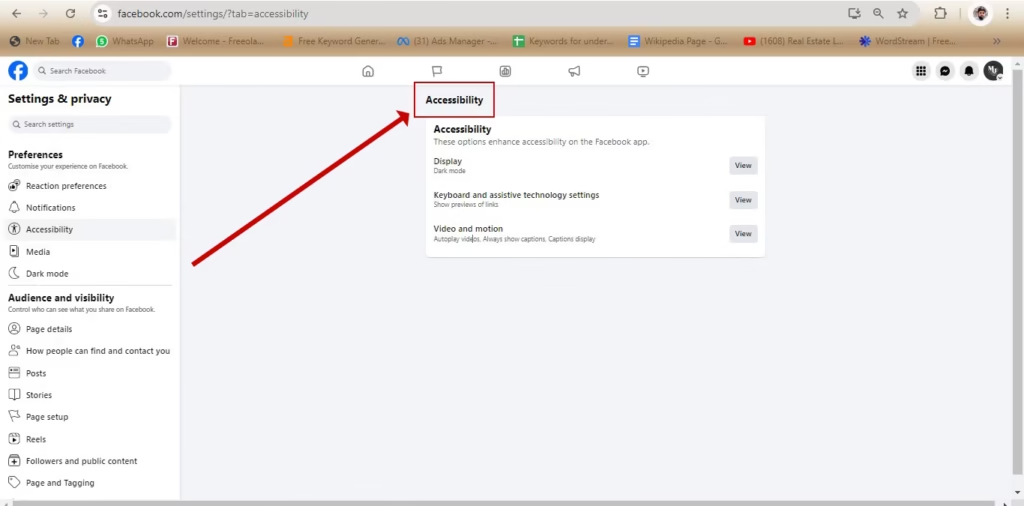
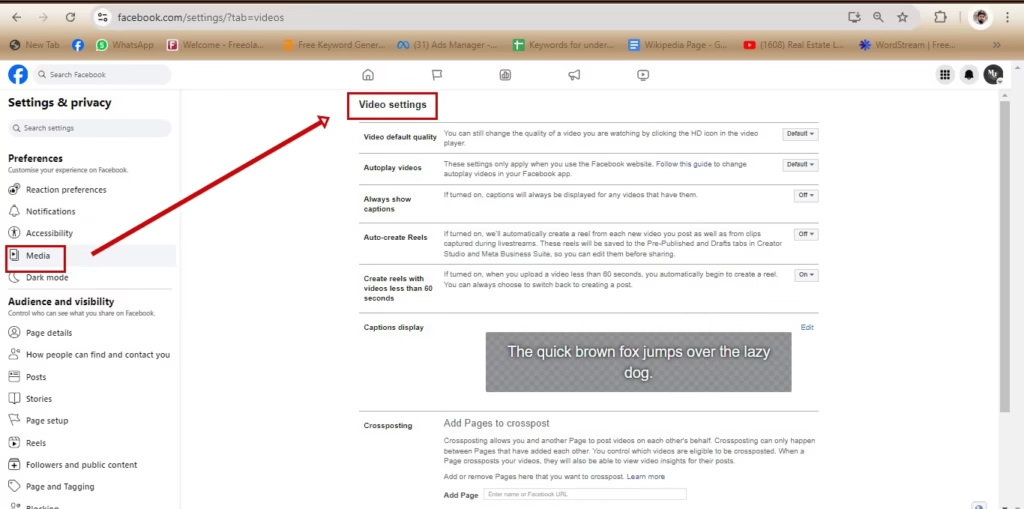
Preferences change how Facebook behaves for you while you use the Page: which activity sends you notifications, how reaction counts are shown, accessibility options and media playback. Meta may still send important notices about the account whatever you choose here. One caution on reactions: Meta’s help article on hiding reaction counts says the toggle for your own posts covers posts made from your profile or Feed, and that counts stay visible on posts created in places such as Pages. Treat it as a viewing preference, not a way to hide numbers from customers.
Messaging Automations in Meta Business Suite
A Page message is often a customer’s first contact with your business. Meta’s automated responses article describes replies that work across Facebook, Messenger and Instagram. Open Inbox in Meta Business Suite, go to the automations area and switch on only what you can honour:
- Instant reply: sent immediately as the first response when someone messages you.
- Away message: covers the times you are not working in the inbox.
- Frequently asked questions: suggested questions with saved answers, so common queries are handled without waiting for a person.
- Custom keywords: replies triggered by words in a message. Meta says these are available only in the desktop version of Business Suite.
Two details catch people out. If the away message is on and a keyword also matches, the away message is sent instead. And automations keep running until you change them, so review them whenever your hours change. An instant reply that promises a quick answer and is followed by two days of silence does more harm than no automation at all.
Page Access: Facebook Access vs Task Access
The old Admin, Editor and Moderator roles have been replaced by access types. Meta’s Page access article describes three. Facebook access lets a person switch into the Page and manage it on Facebook, with full or partial control. Task access lets them manage it only through tools such as Meta Business Suite or Ads Manager. Community manager access covers moderating live-stream chat and nothing else.
| Access type | Switch into the Page | Content, messages, ads, insights | Settings and Page access | Deactivate or delete |
|---|---|---|---|---|
| Facebook access, full control | Yes | Yes | Yes, including removing anyone | Yes |
| Facebook access, partial control | Yes | Yes, plus comments, linked accounts, events and bans | No | No |
| Task access | No (Business Suite and Ads Manager only) | Only the tasks granted | No | No |
| Community manager | No | Live-stream chat moderation only | No | No |
To add someone, switch into the Page and open Settings > Page setup > Page access (some layouts show Manage > Page access instead). Click Add new next to People with Facebook access, find the person, decide whether to allow full control, click Give access and confirm with your password; the person then has to accept. Our guide on how to add an admin to a Facebook page walks through each screen. Pages that belong to a business portfolio handle access differently, through Meta’s business tools.
Full control gives someone the same power as you, including the power to remove you. Meta also says a Page must always have at least one person with full control or it is automatically deactivated and scheduled for deletion, so keep two trusted owners. If an agency runs your Meta ads, task access for ads is usually all it needs.
Linking Instagram and WhatsApp
Both live under Settings > Permissions > Linked accounts. For Instagram, click Instagram > Connect account and follow the steps; Meta’s Instagram linking article says anyone with Facebook access or task access can do this. Linking lets you handle Instagram messages and comments alongside the Page’s inbox and share posts and ads across both apps. If the Page is managed in a business portfolio and the Instagram account is personal, you will be asked to switch it to a professional account, which makes it public.
For WhatsApp, click WhatsApp, choose your country code, enter your WhatsApp Business number, click Send WhatsApp code and finish the on-screen steps, as Meta’s WhatsApp linking article describes. To unlink, click Remove in the same place, but note that any ads sending people to WhatsApp are paused when you do.
Deactivate vs Delete a Facebook Page
Both options sit under Settings > Access and control, and both need Facebook access with full control. The difference is what happens next:
| Deactivate | Delete | |
|---|---|---|
| Effect | Page hidden from the public, including followers; nobody can edit it | Page deactivated at once, then permanently deleted |
| Permanent? | No, it stays offline until reactivated | Yes, after 14 days |
| How to undo | From your personal profile: Settings & privacy > Settings > Your activity > Reactivate a Page | Same path, but only within the 14 days |
| Best for | Seasonal closures, rebrands, pausing a business | A Page you are sure you will never need |
To do either, switch into the Page, click its profile photo, open Settings & privacy > Settings > Access and control, choose Deactivate Page or Delete Page, click Continue and follow the prompts; you may need to re-enter your password. Meta’s delete and deactivate articles both stress that reactivation happens from your personal profile, not from the Page. Deactivating a parent Page also takes its child Pages, such as store locations, offline until the parent returns.
Troubleshooting: Settings You Can’t Find or Change
- No Page settings at all: you are still on your personal profile, or you only have task access, which cannot switch into the Page. Use See all profiles, or manage the Page from Meta Business Suite.
- Name change refused: the name was changed recently, the Page has limits on it, it is a regional Page within a global Page, or the new name breaks Meta’s Page name guidelines.
- Username will not save: it is taken or not approved, the Page is too new, or you are on the app; the change has to be made on a computer.
- Delete Page or Deactivate Page missing: both need Facebook access with full control. Ask a full-control owner to upgrade your access or do it for you.
- No Hours section in About: your category does not support it. Meta suggests switching to a category that does.
- Followers suddenly dropped: check Followers and public content. New country or age restrictions remove existing followers who no longer qualify.
- Page disappeared: nobody with full control remains, so Meta deactivated it, or your own account was deactivated and took the Pages only you controlled with it. Reactivate your account first; if the last full-control owner has no active account, Meta points you to its Page admin dispute process.
Frequently Asked Questions
Why can’t I see Settings on my Facebook Page?
You are probably still acting as your personal profile. Click your profile photo, choose See all profiles and select the Page, then click the Page’s photo and open Settings & privacy > Settings. If you only have task access, you cannot switch into the Page; manage it through Meta Business Suite instead.
What is the difference between Facebook access and task access?
Facebook access lets a person switch into the Page and manage it on Facebook, with partial control (content, messages, comments, ads, insights) or full control (also settings, Page access and deletion). Task access limits a person to specific jobs through tools such as Meta Business Suite and Ads Manager; they cannot switch into the Page.
Can I change my Facebook Page name as often as I like?
No. You submit a request from Page setup > Name, and Meta can block it if the name was changed recently. You need Facebook access, the new name must follow Meta’s Page name guidelines, and the username stays the same until you edit it separately.
How do I change my Facebook Page username?
On a computer, switch into the Page and go to Settings & privacy > Settings > Page setup > Name, then click Edit next to the username, enter a new one and click Save changes. It must be available and follow Meta’s username guidelines, and very new Pages may have to wait.
What happens when I delete a Facebook Page?
The Page is deactivated immediately and permanently deleted after 14 days. Until then you can cancel from your personal profile under Settings & privacy > Settings > Your activity > Reactivate a Page. Only someone with Facebook access and full control can delete a Page.
How do I stop spam comments on my Facebook Page?
Open Settings > Followers and public content. Add up to 1,000 words, phrases or emoji under Hide comments containing certain words, and turn on Hide posts and comments with profanity. For repeat offenders, use Settings > Blocking, which also stops them messaging or tagging your Page.