
This free PDF splitter pulls the pages you need out of a PDF, or cuts it into one file per page or per group of pages, right in your browser. Use it to send a single chapter, separate a batch of scanned invoices or drop pages you don’t want. Nothing is uploaded, and there’s no sign-up, no watermark and no daily limit.
Merge PDF files
Combine PDFs and images into one PDF, in the order you choose.
Up to 25 files, 1 GB in total on this device.
Split PDF
Extract the pages you need, or split a PDF into one file per page or per group of pages.
One PDF up to 1 GB on this device. Several files download as one ZIP file.
Compress PDF
Reduce PDF file size by re-compressing images and cleaning up the file. Text stays sharp and searchable.
One PDF up to 1 GB on this device.
PDF to Word
Turn a PDF into an editable Word document (.docx) that keeps its tables, images and formatting, or into plain text (.txt).
One PDF up to 200 MB and 2,000 pages.
PDF to PNG or JPG
Save every page, or the pages you pick, as PNG or JPG images.
One PDF up to 1 GB on this device. Several pages download as one ZIP file.
PNG or JPG to PDF
Combine images into one PDF. JPGs keep their original quality.
Up to 25 images, 1 GB in total on this device.
HEIC to PDF
Turn iPhone HEIC photos into one PDF. JPG, PNG and WebP images can go in the same PDF.
Up to 25 photos, 1 GB in total on this device.
Your files stay on this device. They are processed in your browser and never uploaded or stored.
How to split a PDF for free (no upload)
To split a PDF for free, open Soft Learn Hub’s PDF splitter, add one PDF and choose how to split it: pick pages such as 1-3, 5, save every page as its own PDF, or cut it every N pages. Select Split PDF and download one PDF or a ZIP. It runs in your browser, so the file is never uploaded. Computers with 8 GB or more memory handle PDFs up to 1 GB.
- Price
- Free, no watermark
- Account
- Not needed
- Uploads
- None; the PDF stays on your device
- Split options
- Pick pages, Every page, Every N pages
- Output
- One PDF, or several PDFs in one ZIP
- Files per split
- Up to 2,000
- Quality
- Pages copied as they are, no re-compression
- Max size
- Up to 1 GB on computers with 8 GB+ memory; about 150 MB on phones
On this page
Split PDF in 5 steps
The PDF splitter above opens on the Split tab. Here’s how to split a PDF from start to finish.
- Add your PDF.
Choose one PDF or drop it onto the tool. It shows how many pages the file has and the size limit for your device.
- Choose how to split.
Under How to split, select Pick pages, Every page or Every N pages.
- Enter the pages or a group size.
For Pick pages, type pages and ranges such as 1-3, 5, 8-10, then set Save as to One PDF or A PDF per range. For Every N pages, type how many pages each file should have.
- Select Split PDF.
The split runs in a background Web Worker on your device, so the page stays responsive.
- Download or keep going.
One result downloads as a PDF; several download together as one ZIP file. A single PDF result can go straight to Compress, Merge, PDF to Word or PDF to images with Continue with another tool.
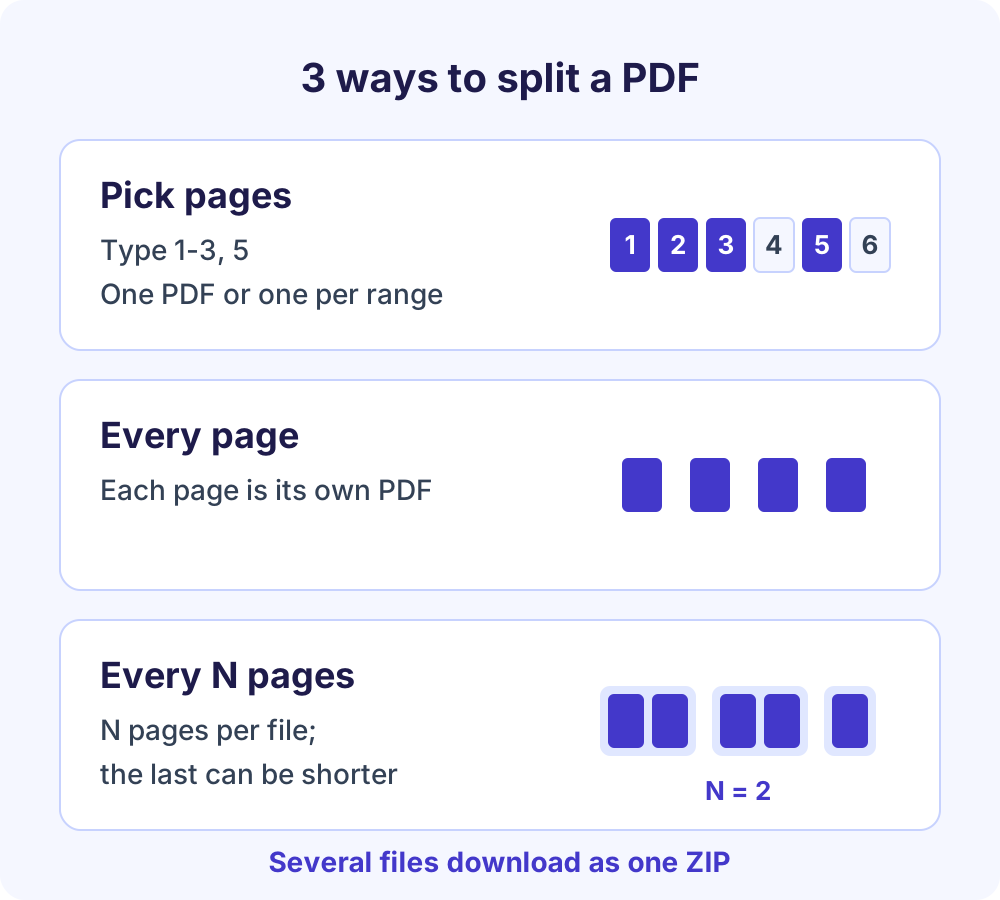
Three ways to split a PDF
Every split starts with one PDF. What changes is how its pages are grouped into new files.
Pick pages: extract pages from PDF files
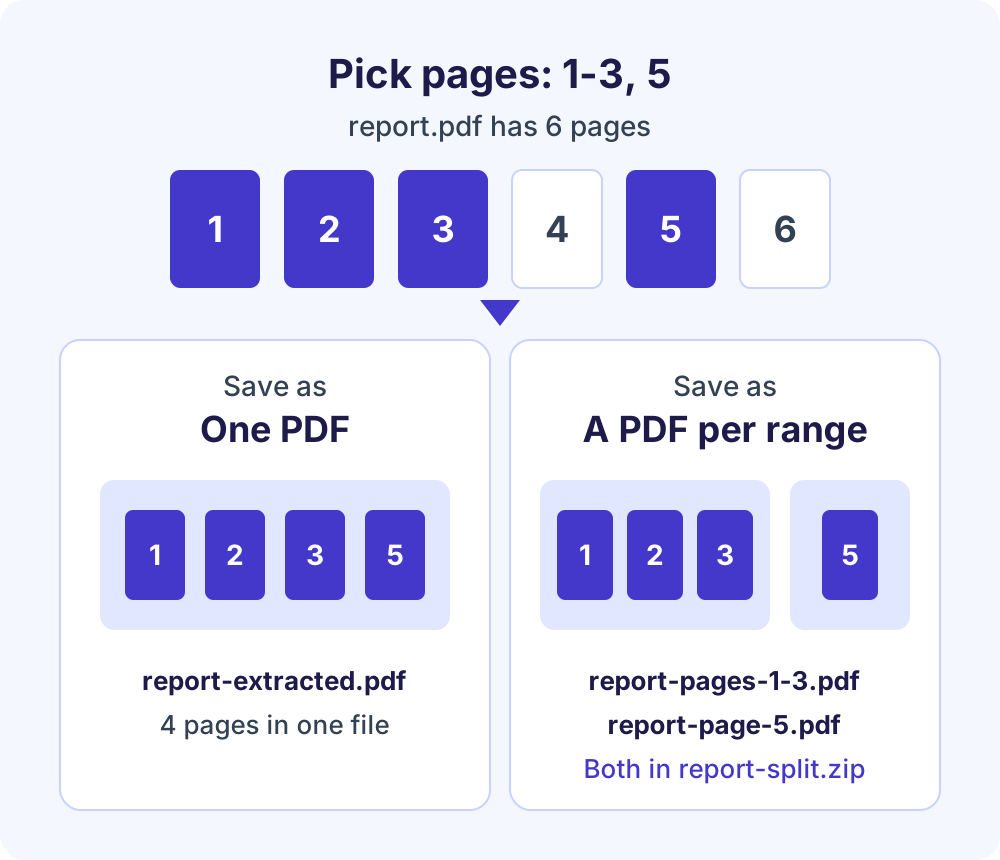
Type the pages you want, separated by commas: single pages like 5, ranges like 1-3, or an open range like 8-, which means page 8 to the end. Pages you don’t type are left out. Then choose how to save them:
- One PDF: all the picked pages in one file, in their original order, each page once. Typing 5, 1-3 still gives pages 1, 2, 3 and 5.
- A PDF per range: each range you typed becomes its own PDF, in the order you typed them.
Every page: separate PDF pages
Each page becomes its own PDF, the quickest way to separate PDF pages such as a scan of 20 receipts you need to file one by one. A 20-page PDF gives you 20 files in one ZIP.
Every N pages
Type a number and the PDF is cut into files of that many pages each. The last file can have fewer pages: a 25-page PDF split every 10 pages gives files of 10, 10 and 5 pages. Handy for batches of two-page forms.
Remove pages from a PDF
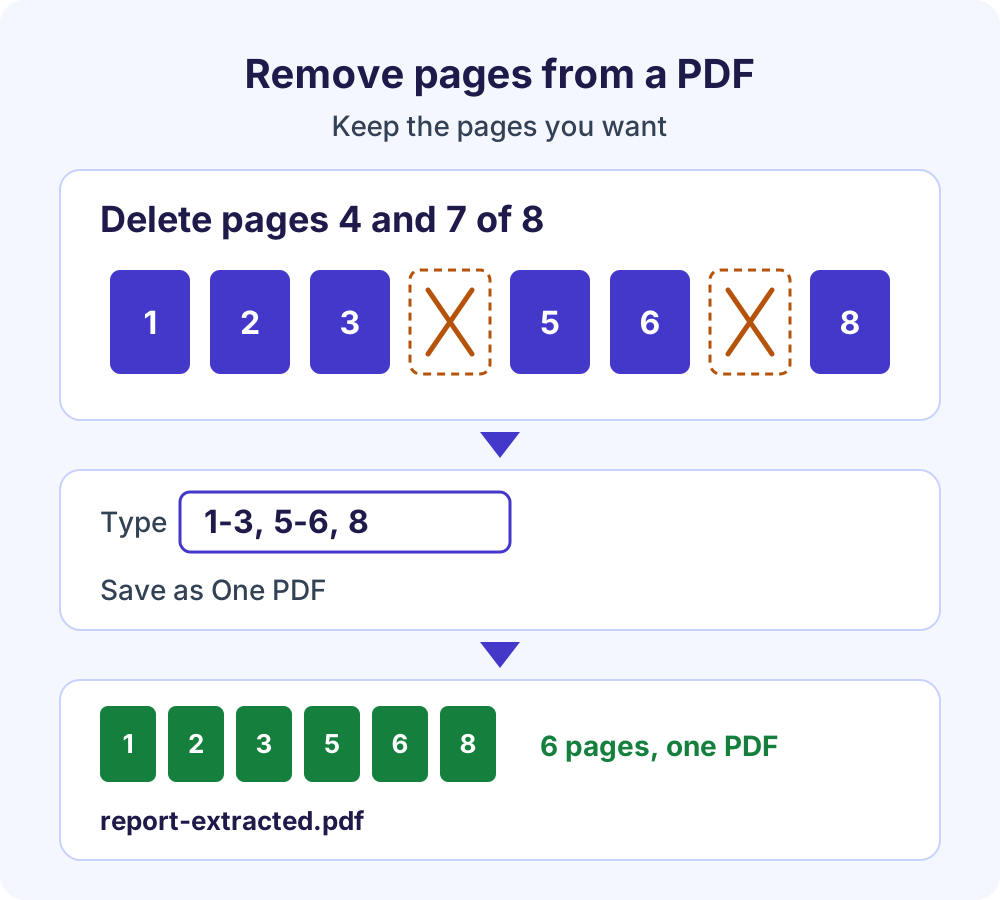
Looking for a PDF page remover? The PDF splitter does the same job the other way round: you pick the pages you want to keep, and everything else is left out. Choose Pick pages, type the pages to keep, set Save as to One PDF and select Split PDF.
For example, to delete pages 4 and 7 from an 8-page report.pdf, type 1-3, 5-6, 8. You get one 6-page PDF named report-extracted.pdf. Your original file isn’t changed, so you can try again if you miss a page.
File names and ZIP downloads
Each new file is named after your PDF and the pages it holds. For a file called report.pdf:
| What the file holds | File name |
|---|---|
| Pages 1 to 3 | report-pages-1-3.pdf |
| Page 5 on its own | report-page-5.pdf |
| Picked pages that aren’t one continuous range | report-extracted.pdf |
| Several files together | report-split.zip |
In PDFs with 10 or more pages, page numbers get leading zeros (report-page-007.pdf in a 120-page file) so the files sort in order. One split makes up to 2,000 files.
How to open the ZIP file
- Windows: right-click the ZIP and choose Extract All, as Microsoft’s zip guide explains.
- Mac: double-click the ZIP.
- iPhone and iPad: tap the ZIP in the Files app, which creates a folder of the files, as Apple’s guide describes.
- Android: in Files by Google, select the ZIP and tap Extract.
Why use a PDF splitter that runs in your browser
The PDFs people split are often private, like bank statements and contracts, yet an upload-based service sends the whole document to someone else’s server. This PDF splitter works on your device with pdf-lib, an open-source library (MIT licence) that copies pages between PDFs. It’s hosted on softlearnhub.com and loads only when you use the tool.
Your PDF is read into the browser’s memory, split in a background Web Worker and offered as a download. It’s never sent to Soft Learn Hub or anyone else, and nothing is stored. To check, press F12 in Chrome, Edge or Firefox, open the Network tab and run a split: you’ll see page requests and normal page analytics, but no request carrying your PDF.
Size limits by device
Your device’s memory sets the limit, and the tool shows yours.
| Device | Limit per PDF |
|---|---|
| Computers with 8 GB or more memory | Up to 1 GB |
| Devices with 4 GB memory | About 400 MB |
| Phones and tablets | About 150 MB |
What a split keeps, and what it doesn’t
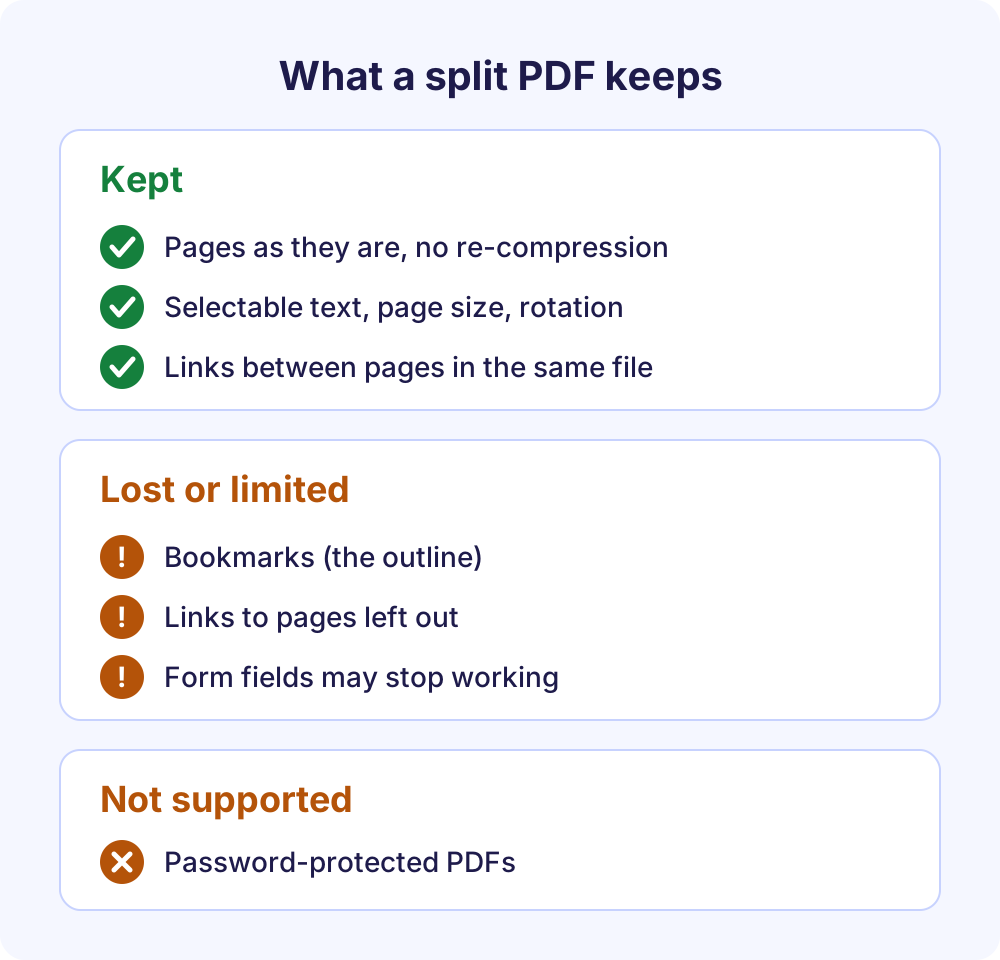
Pages are copied exactly as they are, with no re-compression, so splitting never lowers quality.
- Kept: page content, selectable and searchable text, page size and rotation.
- Links: links between pages in the same new file keep working; links to pages you left out stop working.
- Bookmarks: the bookmarks panel (the PDF’s outline) isn’t included.
- Fillable forms: form fields may not keep working, so typed-in values could be lost.
- Password-protected PDFs: not supported; remove the password first.
How to keep filled form values
Open the filled form, choose Print and pick a PDF printer such as Save as PDF or Microsoft Print to PDF. The copy has the values printed on the page as ordinary content, so they survive when you split it.
Free PDF splitter vs typical upload-based PDF websites
Services differ, so treat this as a general comparison.
| Feature | This free PDF splitter | Many upload-based PDF websites |
|---|---|---|
| Where the PDF is processed | In your browser, on your device | On the provider’s servers |
| Account | Never needed | Often required for larger files or more tasks |
| Watermark | None | Sometimes added on free plans |
| Daily limit | None | Free tiers often cap tasks per day |
| Ads inside the tool | None | Common on free versions |
| Size limit | Your device’s memory, up to 1 GB | Set by the provider’s plan |
Tips and troubleshooting
- Count from the first page of the file: page 1 is the PDF’s first page, even if a cover or contents page prints a different number.
- Getting under an email limit: personal Gmail accounts allow 25 MB of attachments. If a split part is still too big, run it through Compress PDF.
- Too many files: one split makes up to 2,000 files, so choose more pages per file or a page range.
- Reorder a short PDF: split every page, then add the pages to Merge PDF (up to 25 files) in the order you want.
- Send one invoice from a batch: made several in the free invoice generator? Pick that invoice’s pages and save them as one PDF.
- File too large on a phone: use a computer with 8 GB or more memory for PDFs up to 1 GB.
Frequently Asked Questions
Is this PDF splitter free to use?
Yes. The PDF splitter is free with no sign-up, no watermark, no daily task limit and no ads inside the tool. The only limits are 2,000 files per split and a size cap based on your device’s memory: up to 1 GB on computers with 8 GB or more.
How do I split a PDF into separate pages?
Add the PDF, choose Every page under How to split and select Split PDF. Each page becomes its own PDF, and they all download together as one ZIP file with names like report-page-1.pdf. For groups of pages, choose Every N pages instead.
How do I extract pages from a PDF?
To extract pages from PDF files, choose Pick pages, type the pages you want, such as 1-3, 5, 8-10, and set Save as to One PDF. Choose A PDF per range instead if each range should become its own file. Pages you don’t type are left out.
How do I remove pages from a PDF?
Pick the pages you want to keep and save them as one PDF. For example, to drop pages 4 and 7 from an 8-page file, type 1-3, 5-6, 8 and set Save as to One PDF. The new PDF has every other page, and your original file isn’t changed.
Does splitting a PDF reduce quality?
No. Pages are copied exactly as they are, with no re-compression, so images look the same, text stays selectable and page size and rotation don’t change. Bookmarks aren’t included, though, and links to pages you left out stop working.
Is my PDF uploaded when I split it?
No. The PDF is read into your browser’s memory, split on your device and downloaded without being sent to Soft Learn Hub or anyone else, and nothing is stored. To confirm, open developer tools (F12), select the Network tab and watch it while you split a file.
Can I split a password-protected PDF?
No. Encrypted, password-protected PDFs aren’t supported, and the tool tells you when it finds one. Open the file in an app where you know the password, save an unprotected copy and split that copy. Only remove passwords from documents you own or may change.
Can I split a PDF on my iPhone or Android phone?
Yes. The PDF splitter works in current Chrome, Edge, Firefox and Safari on mobile as well as desktop. Phones and tablets are capped at about 150 MB. If the result is a ZIP, open it in the Files app on iPhone or Files by Google on Android.
More free PDF tools
Like this PDF splitter, every tool below runs in your browser, and Continue with another tool moves a PDF result between them.
- All free PDF tools: seven tools on one page.
- Merge PDF: combine up to 25 PDFs and images.
- Compress PDF: reduce PDF file size.
- PDF to Word: get an editable .docx or .txt file.
- PDF to PNG or JPG: save pages as images.
- PNG / JPG to PDF: combine up to 25 images into one PDF.
- HEIC to PDF: turn iPhone photos into one PDF.
- Free business tools, including the letterhead maker and profit and loss statement generator.