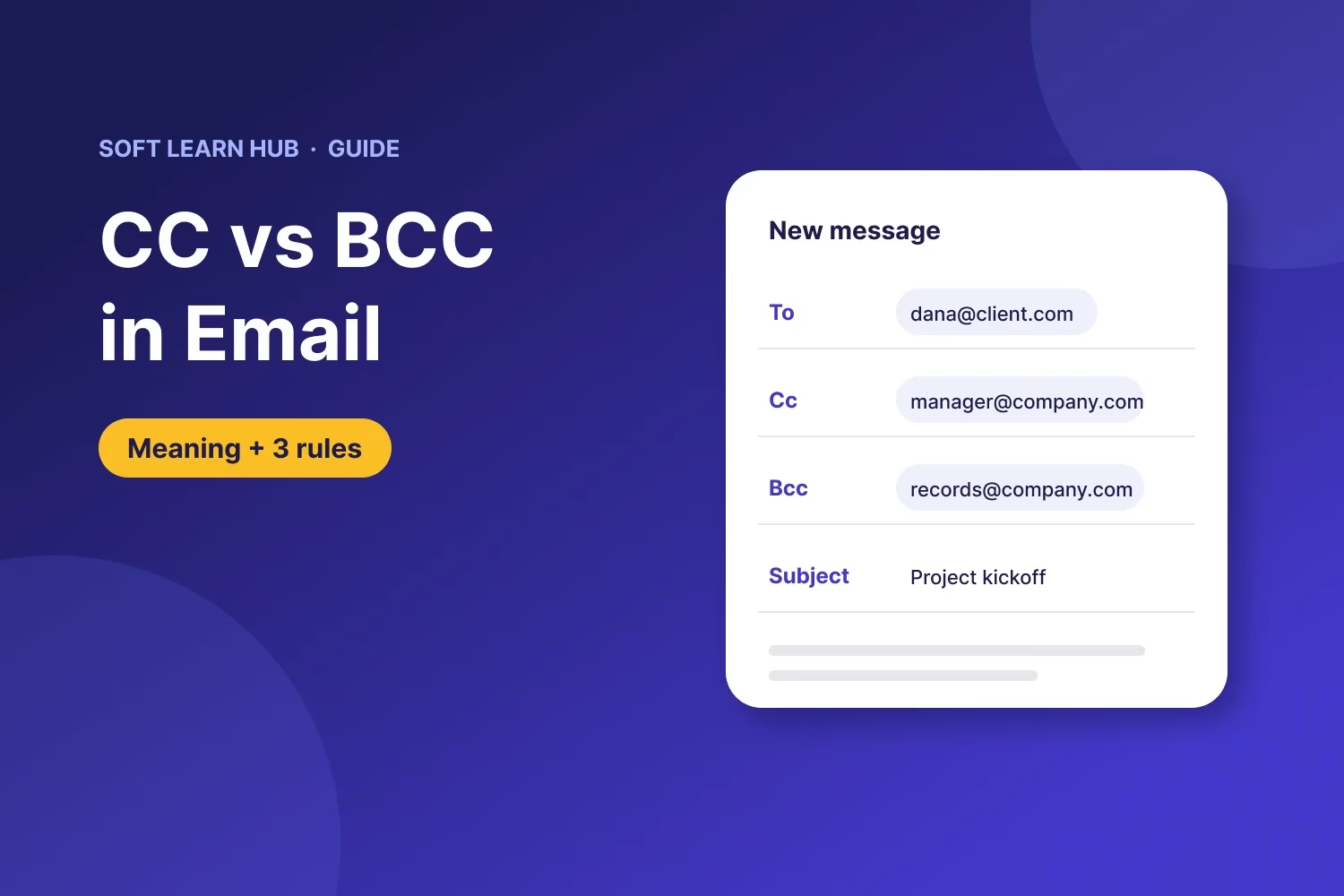
CC stands for “carbon copy.” In email, CC sends a copy of your message to someone who should stay informed but isn’t expected to act, and everyone on the email can see who was CC’d. That’s the CC meaning in email. BCC, or “blind carbon copy,” does the same thing, except the other recipients can’t see who was BCC’d.
If you freelance or run a small business, you probably email clients, vendors and partners all day. This guide covers what CC and BCC mean, a To vs CC vs BCC comparison table, when to use each one, the reply-all traps to avoid, and how to show the BCC field in Gmail and Outlook.
In this guide
Key takeaways
- To is for the people you expect to read the email and act on it.
- CC (carbon copy) is for people who should stay in the loop. Everyone can see CC addresses.
- BCC (blind carbon copy) hides recipients from each other. Use it to protect privacy when you email people who don’t know each other.
- Reply all reaches To and CC recipients, never BCC recipients. But a BCC recipient who hits reply all reveals that they got the email.
- For newsletters and promotions, use a proper email marketing tool instead of a long BCC list.
What does CC mean in email?
CC means “carbon copy.” The name goes back to typewriters, when people slipped carbon paper between two sheets to make a duplicate of a letter. Email kept the name for the field that sends an exact copy of your message to extra people.
When you CC someone, you signal that the message is for their information. They can read it, but the main request is aimed at the person in the To field. Everyone on the email can see the CC’d addresses, and CC recipients also get any reply-all responses.
A quick example: you send a project update to your client and CC your subcontractor. The client knows the subcontractor is informed, and the subcontractor sees the same message without you having to forward it later.
What does BCC mean in email?
BCC means “blind carbon copy.” It sends a copy of your email to people whose addresses stay hidden from everyone else on the message. The To and CC recipients have no way to tell that anyone was BCC’d.
Google’s help page on sending Gmail messages explains it from the BCC recipient’s side: they can see they were added with BCC, and they can see the To and CC recipients, but not anyone else in the BCC field. Google also notes that when people reply all, BCC recipients won’t see the reply.
So the BCC email meaning, in plain terms, is a private copy. It’s useful for privacy, for quietly keeping a record, and for moving people off a busy thread.
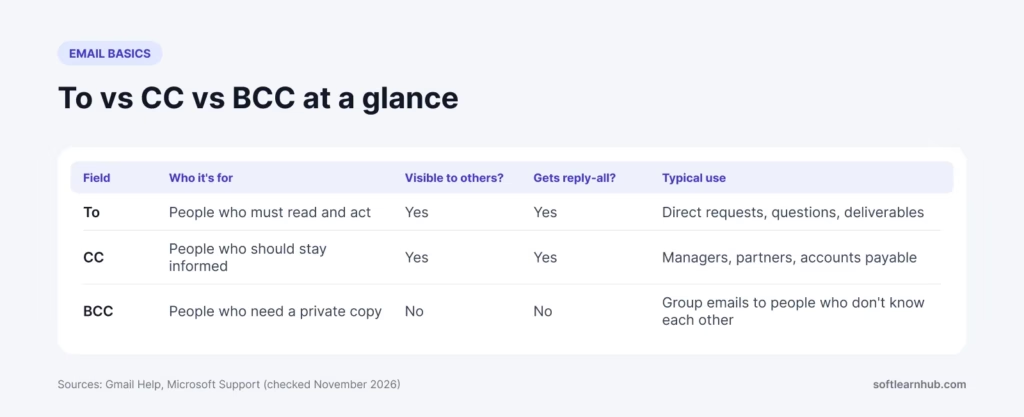
CC vs BCC vs To: comparison table
| Field | Who it’s for | Visible to others? | Gets reply-all? | Typical use |
|---|---|---|---|---|
| To | People who must read and act | Yes | Yes | Direct requests, questions, deliverables |
| CC | People who should stay informed | Yes | Yes | Managers, partners, an assistant, accounts payable |
| BCC | People who need a private copy | No | No | Group emails to people who don’t know each other, your own records, removing people from a thread |
The short version of CC vs BCC: CC is transparent and BCC is hidden. A good test is to ask how the To recipient would feel if they later learned someone else saw the message. If they’d feel misled, CC that person openly or forward the email afterward instead of using BCC.
When to use CC
CC works best when transparency helps everyone. Common situations for freelancers and small businesses:
- Keeping a decision-maker informed. You email the marketing coordinator about a deadline and CC the owner who approves budgets.
- Sharing billing details. When you send an invoice, CC the client’s accounts payable contact so payment doesn’t stall in one inbox. Our guide on how to invoice as a freelancer covers what else the email should include.
- Creating a shared record. CC a partner or colleague when you confirm scope, dates or prices, so everyone has the same version.
- Looping in a new contact. If a client hands you off to a colleague, CC the colleague on your next reply so the switch is visible.
Keep CC lists short. Every extra person is another inbox to fill and another chance for a sprawling reply-all chain. If someone doesn’t need the information, leave them off.
When to use BCC
BCC is the right choice when recipients shouldn’t see each other’s addresses, or when you want a quiet copy:
- Emailing a group who don’t know each other. For example, a note to ten past clients about your holiday hours. BCC keeps their addresses private.
- Saving a copy for your records. Some freelancers BCC their own address or a CRM logging address so every client email is stored in one place.
- Moving people off a long thread. Move people who no longer need updates into BCC and say so in your first line, for example: “Moving Sam to BCC to spare his inbox.”
- Replying to a distribution list. Microsoft’s Outlook help suggests putting a distribution list in the Bcc box to cut down on reply-all traffic.
Avoid using BCC to secretly copy someone on a sensitive conversation, such as a payment dispute with a client. If that person replies all, the secret is out and trust takes a hit.
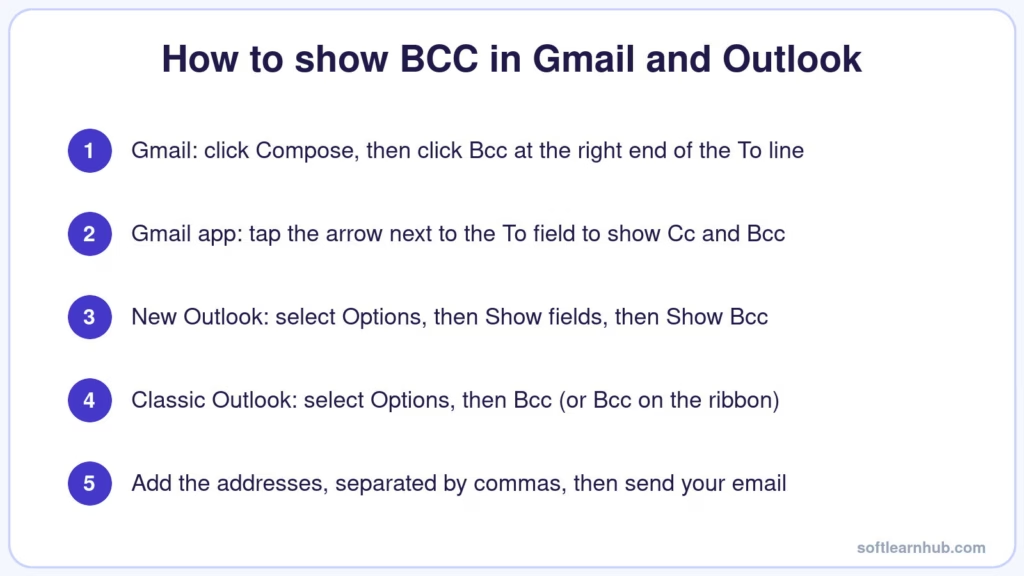
How to show BCC in Gmail and Outlook
Most email apps hide the BCC line until you ask for it. These steps follow Google’s and Microsoft’s own help pages.
Gmail on a computer
- Click Compose.
- At the right end of the To line, click Cc or Bcc to open that field.
- Add the addresses, separated by commas, write your message and click Send.
In the Gmail app on Android or iPhone, tap the small arrow next to the To field to reveal the Cc and Bcc lines.
New Outlook for Windows
- Open a new message or a reply.
- Select Options, then Show fields, then Show Bcc.
- Add the people you want to blind copy and send the message.
Classic Outlook for Windows
- Create a new message, or reply to or forward one.
- If the message opens in its own window, select Options and then Bcc. If it opens in the Reading Pane, select Bcc on the ribbon.
- Add recipients in the Bcc box. The box stays visible for future messages until you turn it off with the same button.
Microsoft’s article on showing the Bcc field in Outlook for Windows has the full details. If you’re on a Mac, Outlook for Mac lets you select Bcc at the right end of the To line, and you can turn it on by default in the composing settings.
How to see who you BCC’d
Only the sender can see BCC recipients. In classic Outlook, open the message in Sent Items and expand the header; a “+” number shows how many more recipients are listed. In Gmail, open the message in Sent and click the small arrow under your name to see the full recipient details.
Reply-all risks with CC and BCC
Reply all is where most CC vs BCC mistakes happen. Keep these rules in mind:
- Reply all goes to To and CC, never BCC. Gmail’s help confirms that BCC recipients won’t see reply-all responses.
- A BCC recipient who replies all exposes themselves. Their reply goes to everyone in To and CC, who now learn they were copied. When you BCC someone, it’s courteous to tell them so they reply only to you.
- Big CC lists invite reply-all storms. One “Thanks!” sent to 40 people becomes 40 unread messages. Use BCC or a mailing tool for large groups.
- Check the list before you hit Send. Before replying all, ask whether every person still needs the update. Trim the list or move people to BCC.
Privacy: why BCC matters for group emails
Putting dozens of addresses in To or CC shares every one of them with every recipient. That can annoy clients, expose personal addresses and hand a ready-made list to anyone who wants to misuse it.
For a one-off note to a small group, BCC is fine. For anything bigger or recurring, such as a newsletter, a promotion or a launch announcement, use a dedicated email marketing platform instead. Those tools send each person an individual copy, handle unsubscribes and manage bounced addresses for you.
There’s a legal side too. In the US, the FTC’s CAN-SPAM compliance guide says commercial emails need a valid physical postal address and a clear way to opt out, and opt-out requests must be honored within 10 business days. A BCC blast from your personal inbox makes that hard to manage. If you plan to email customers regularly, our content marketing strategy guide shows where a newsletter fits.
Email etiquette tips for CC and BCC
- Say why someone is copied when it isn’t obvious: “I’ve copied Maria, who handles our billing.”
- Don’t CC a client’s boss to apply pressure unless you’ve tried the direct route first. It can read as a threat.
- Respect the To line. If you’re only CC’d, you usually don’t need to reply unless someone asks you to.
- Use BCC when you thank an introducer. After someone introduces you, thank them and move them to BCC so they see you followed up without getting the rest of the thread.
- Double-check autocomplete. Email apps suggest addresses as you type, so it’s easy to pick the wrong “Chris.” Read the full address before you send.
- Don’t overuse BCC with your own team. Secret copies erode trust when they come to light.
Frequently asked questions
What does CC mean in an email?
CC means carbon copy. A CC’d person receives the same message as the main recipient, and everyone on the email can see they were included. Use CC for people who should stay informed but don’t need to act. CC recipients also receive replies when someone clicks reply all.
What does BCC stand for in email?
BCC means blind carbon copy. It sends a copy of your email to people whose addresses stay hidden from the other recipients, so the To and CC recipients can’t tell anyone was BCC’d. It works best for group emails to people who don’t know each other, or for quietly keeping a record.
Can BCC recipients see each other?
No. People in the BCC field can see the To and CC recipients, but not anyone else who was BCC’d. Google’s Gmail help says a BCC recipient can see that they personally were added with BCC, although people using other email services may not see that label.
Can CC recipients see BCC recipients?
No. To and CC recipients can’t see BCC addresses and can’t tell that BCC was used at all. Only the sender can see the full BCC list, by opening the sent message. The exception is when a BCC recipient replies all, which reveals that they received the email.
Should I use CC or BCC for a client email?
Use CC when the client should know who else is involved, such as your project partner or their accounts payable team. Use BCC for privacy, like emailing several clients at once, or to save a copy for your records. Secretly BCCing someone into a client conversation can backfire.
Is it rude to BCC someone?
Not usually. BCC is polite when it protects people’s addresses in a group email or moves someone off a thread they no longer need. It becomes a problem when you use it to hide a third person from a conversation the other side expects to be private. When in doubt, CC openly.
The bottom line
The CC vs BCC choice is simple once you know the rule. To is for whoever needs to act, CC keeps people visibly in the loop, and BCC sends hidden copies. Use CC for transparency, BCC for privacy, and a proper email tool for anything that looks like a mailing list. Once your client emails are in order, make your billing just as tidy with our free invoice generator, which creates a clean PDF invoice in a few minutes.