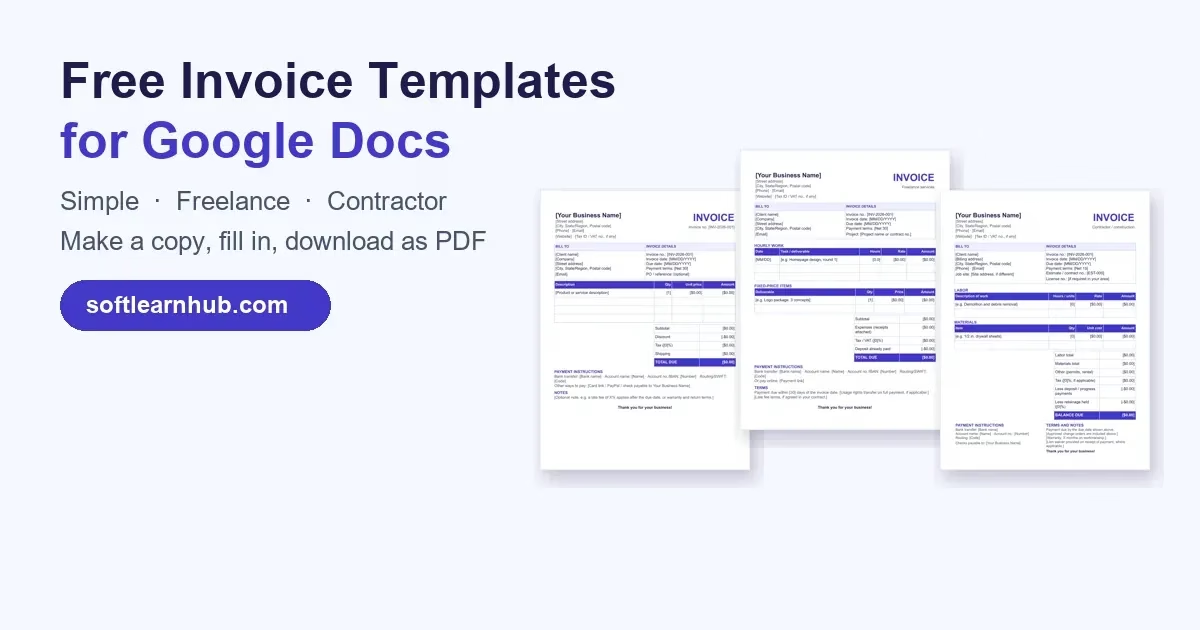
If you need an invoice template Google Docs can open right now, start here. Below are three free templates (simple, freelance and contractor) that you can copy into your own Google Drive in one click, each with a matching Word file. This guide is for freelancers, contractors and small business owners, and it shows how to fill one in, send it as a PDF, and when Google Sheets or an invoice generator is the better choice.
Free Google Docs invoice template
The fastest way to get a Google Docs invoice template is to copy a ready-made one: click Make a copy on one of the three free templates below (simple, freelance or contractor), replace every [bracketed] placeholder, then choose File > Download > PDF and email the file. Google Docs tables don’t calculate totals, so check the math yourself, or use Google Sheets or an invoice generator for automatic sums.
In this guide
Pick the layout that matches how you bill. Each card has a Make a copy button and a Word (.docx) download with the same layout. Not sure which fits? See the quick guide under the cards.
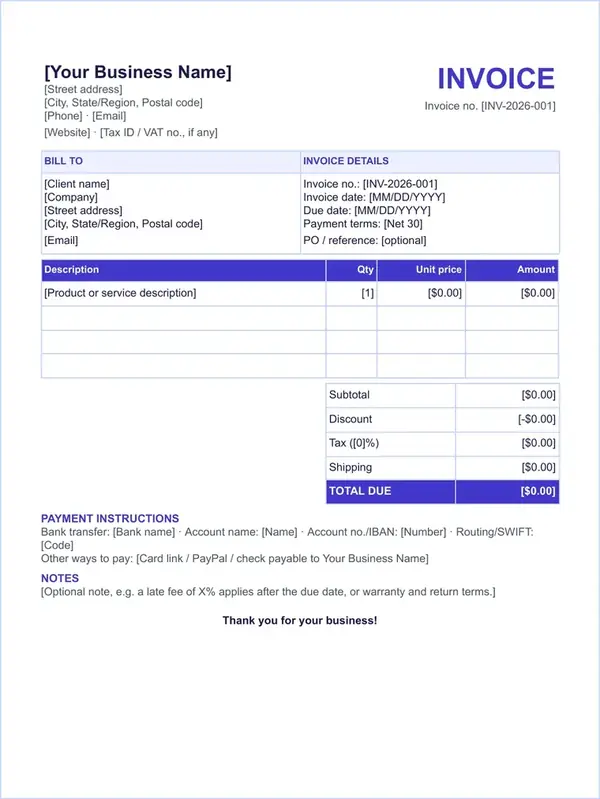
Simple invoice template
For product sales, flat-fee services and one-off jobs. One line-item table with subtotal, discount, tax, shipping and total due, plus payment instructions and a notes box.
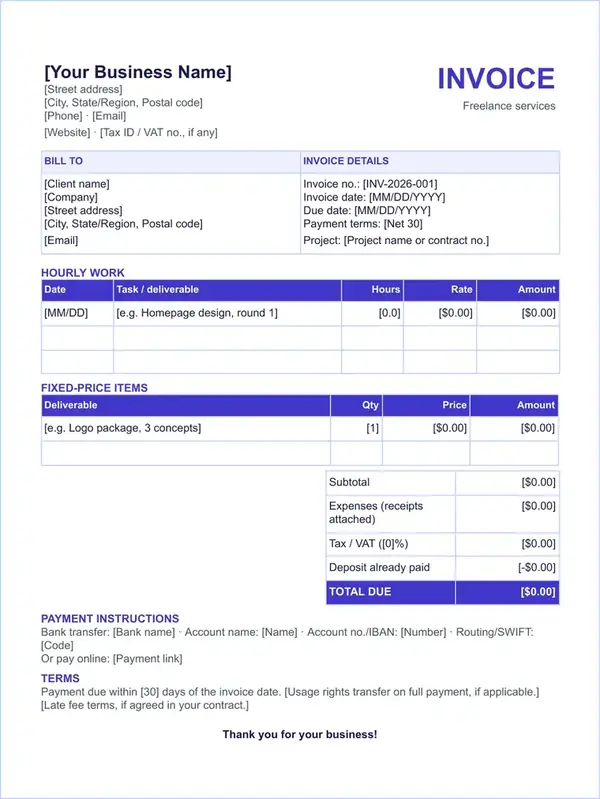
Freelance invoice template
For freelancers who bill by the hour, by the deliverable, or both. Separate hourly and fixed-price tables, a project field, expenses, a deposit line, an online payment link and usage-rights terms.
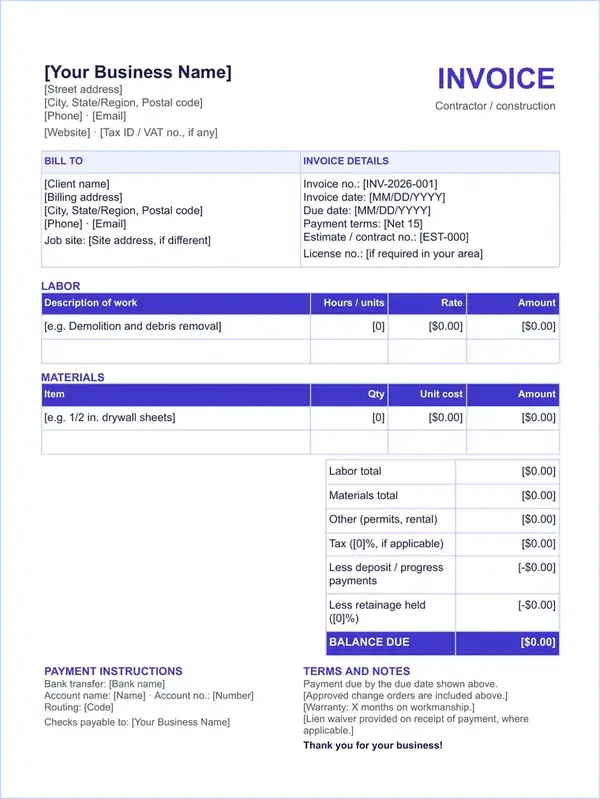
Contractor invoice template
For trades, remodeling and construction jobs. Job site and license fields, separate labor and materials tables, other charges, deposit and retainage lines, and terms for change orders, warranty and lien waivers.
“Make a copy” saves an editable Google Docs invoice template to your own Google Drive. You need to be signed in to a Google account (the link takes you to the sign-in page if you aren’t), and nothing you type is shared with us. The Word files open in Microsoft Word, LibreOffice, or Google Docs after you upload them to Drive.
All three are one-page documents in Arial with an indigo accent, and every field you change sits in [square brackets]. Working offline? The .docx is the same free invoice template Google Docs users get, ready for Word.
Which Google Docs invoice template should you use?
Choose by how you charge, not by your job title:
| Template | Best for | Line-item tables | Totals section |
|---|---|---|---|
| Simple | Products, flat-fee services, one-off jobs | Description, Qty, Unit price, Amount | Subtotal, discount, tax, shipping, total due |
| Freelance | Designers, writers, developers, consultants | Hourly work and fixed-price items | Subtotal, expenses, tax/VAT, deposit paid, total due |
| Contractor | Trades, remodeling, construction | Labor and materials | Labor, materials, other charges, tax, deposits, retainage, balance due |
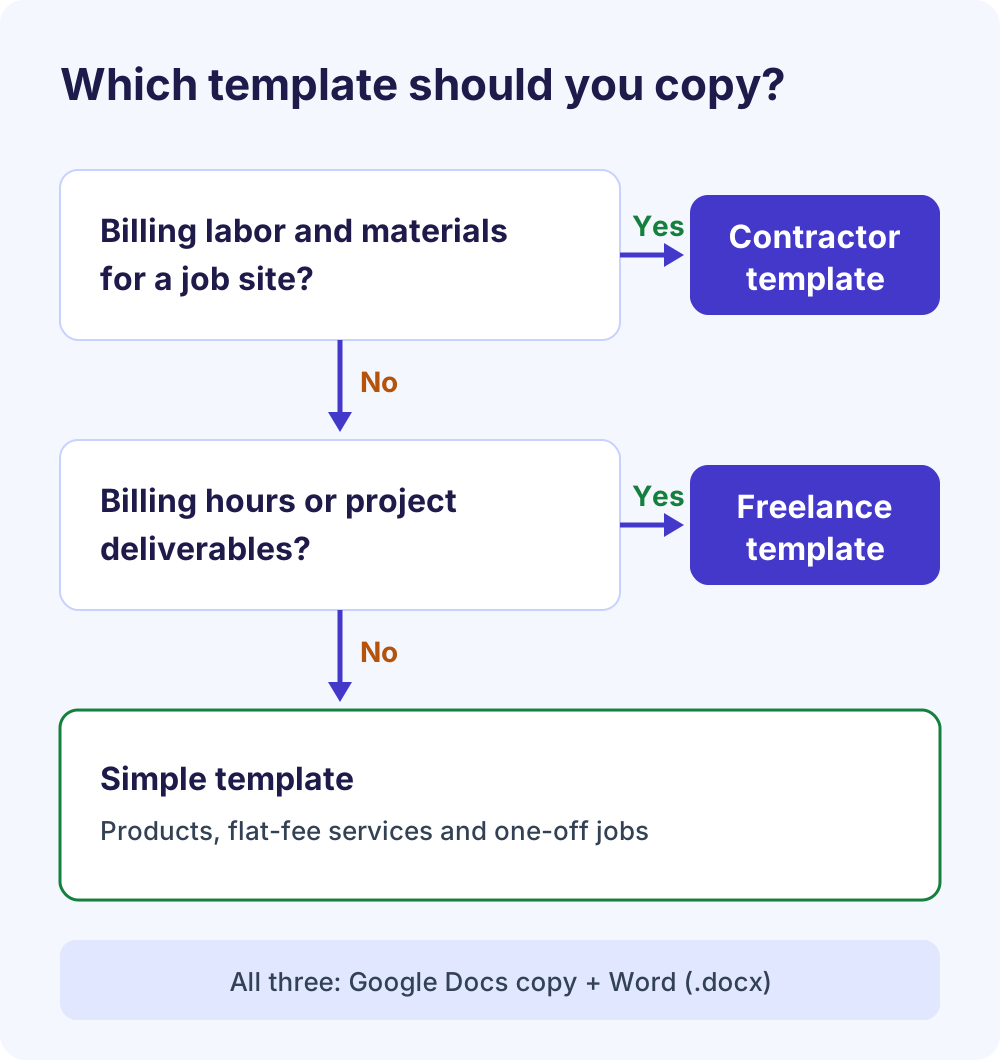
Construction jobs with progress billing and retainage have extra rules, so read our contractor invoice template guide for worked examples first.
How to fill in a Google Docs invoice template
Filling in a Google Docs invoice template is mostly typing, because every field you need to change is in square brackets. Work from the top down, then check the numbers last.
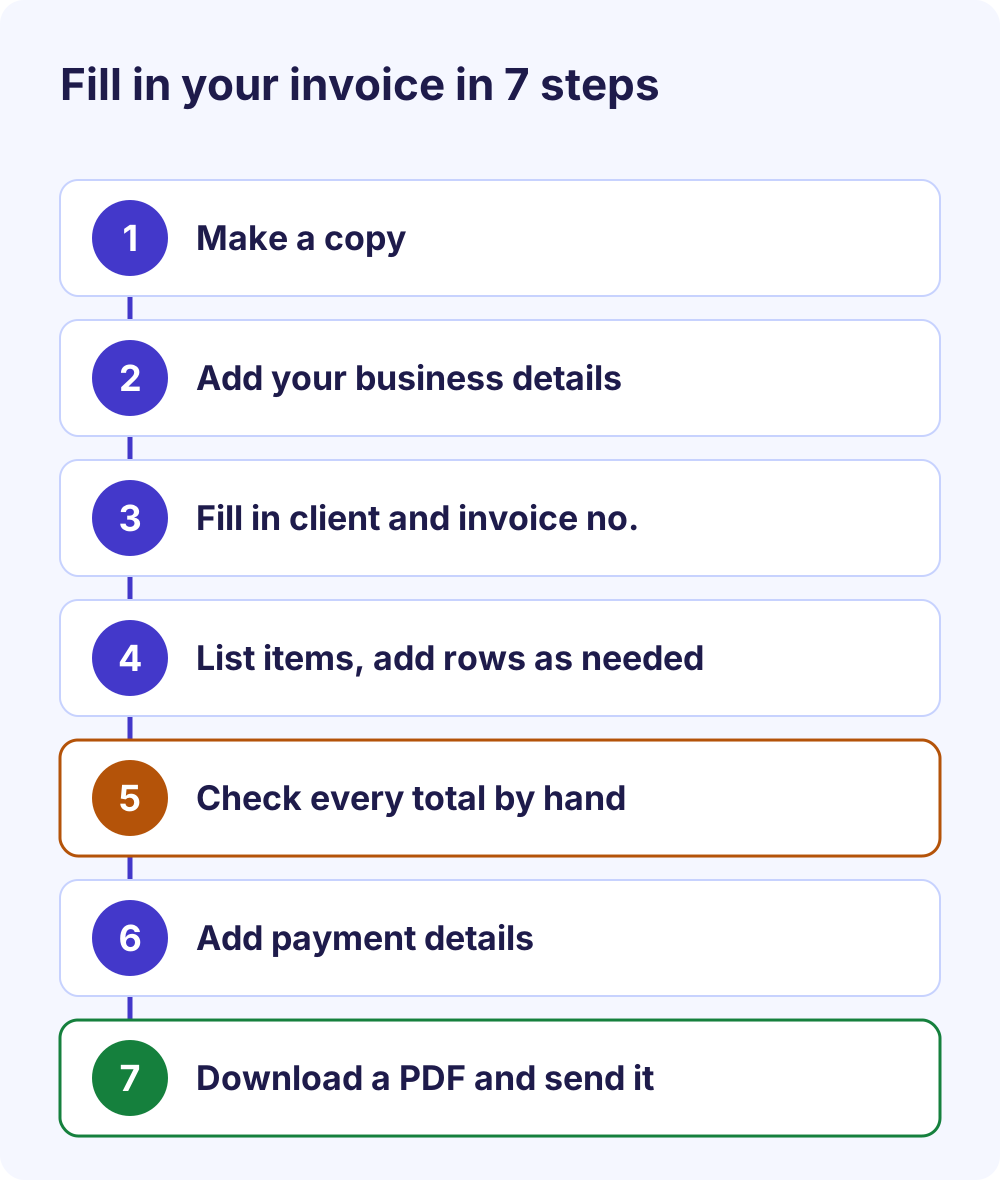
- Make your copy. Click Make a copy on a template card and confirm. With a file already open, File > Make a copy does the same and lets you name the file and pick a folder.
- Add your business details. Replace [Your Business Name], address, phone, email and website. For a logo, choose Insert > Image > Upload from computer. Delete the Tax ID line if you don’t have one.
- Fill in the client and invoice details: client name, company, billing address and email, then the invoice number, dates, payment terms and any PO number.
- List the work or items, one per line. To add a line, right-click a cell and insert a row below. Delete empty rows you don’t need.
- Work out the totals. Multiply quantity by rate, add the lines, then apply any discount, tax, shipping and deposit. Docs won’t do this for you (see invoice totals below).
- Add payment details and notes: bank details or a payment link, plus any late-fee or warranty terms you agreed in advance.
- Remove leftover brackets. Press Ctrl + F (⌘ + F on a Mac) and search for “[” to catch any placeholder you missed.
Letter or A4: set the paper size
The templates are set up on US Letter paper, the usual size in the US and Canada; most other countries use A4. To change it, open File > Page setup, choose the Pages tab, pick the paper size and click OK. Set as default applies it to new documents too. These options aren’t available in pageless format, so switch to pages format first.
Keep a reusable master copy
Once your details are in, that copy becomes your own Google Docs invoice template. Save it as a master, never send it, and make a copy for each new invoice so you only change the client, number, dates and lines.
Personal Google accounts can’t add files to the template gallery. Google’s templates help page says creating templates needs a work or school account, and custom templates are a Google Workspace feature (on editions such as Business Standard and Business Plus) that admins control. A master copy in a Drive folder works on any account, and the Google Docs app on Android, iPhone and iPad can duplicate it too: tap More next to the file, then Make a copy.
How to send your invoice as a PDF
Send the client a PDF, not a link to your editable Doc. A PDF keeps the layout fixed and doesn’t give anyone access to your Drive file. Google Docs gives you three ways to make one:
- Download: click File > Download, choose PDF, and attach the file to an email.
- Email from Docs: click File > Email > Email this file, pick PDF as the format, then add the client’s address and a message. Older Google help pages call this Email as attachment.
- Print to PDF: for a large document in Chrome, Google suggests File > Print, then Save as PDF next to Destination.
Name the file with the invoice number and client, such as INV-2026-014_ClientName.pdf, and use the same number in the email subject. Keep every PDF you send in one folder so you can find any invoice when a client or your accountant asks.
How to number your invoices
Every invoice needs its own number that you never reuse. The UK government lists a unique identification number first among what an invoice must include, and EU rules require a unique, sequential number on VAT invoices. The templates use a year-plus-sequence format, [INV-2026-001], but any consistent scheme works:
| Scheme | Example | Works well when |
|---|---|---|
| Year plus sequence | INV-2026-001, INV-2026-002 | You want each year grouped together |
| Simple sequence | INV-0001, INV-0002 | You’re just starting out |
| Client code plus sequence | ACME-001, ACME-002 | You bill a few repeat clients |
Copying last month’s invoice is the easiest way to reuse a number by accident, so change it first. If a sent invoice is wrong, don’t resend it under the same number; issue a credit note that refers to it, then a corrected invoice with a new number.
What to include on every invoice
Tax rules differ by country, but the core fields are the same almost everywhere, and all three templates have a place for each:
| Field | Why it matters | Where it is in the templates |
|---|---|---|
| Unique invoice number | Matches payments to invoices | Invoice details box |
| Your name, address and contact details | Shows who is billing | Header |
| Client name and address | Shows who owes the money | BILL TO box |
| Invoice date and date of the work | UK and EU rules ask for the supply date | Invoice date; add work dates to line descriptions |
| Description, quantity and price | Lets the client approve each line | Line-item tables |
| Tax rate and amount, if registered | Required on VAT invoices | Tax or Tax/VAT line |
| Total due and due date | Says what to pay and by when | TOTAL DUE or BALANCE DUE |
| How to pay | Removes a reason to delay | PAYMENT INSTRUCTIONS |
United Kingdom: GOV.UK’s guide to what an invoice must include matches the table, including the supply date and VAT if applicable. Sole traders show their own name plus any business name, and you must use VAT invoices if you and your customer are both VAT registered.
European Union: under the European Commission’s VAT invoicing rules, a full VAT invoice also shows the unit price excluding VAT, the VAT rate and amount broken down by rate, and the customer’s VAT number when the customer owes the tax. Under the reverse charge, it must say “reverse charge”.
United States: there’s no federal invoice format. The IRS says you can choose any recordkeeping system that clearly shows income and expenses, and it lists invoices among the records that support gross receipts, so keep a copy of each. Sales tax on services varies by state. If you charge GST elsewhere, check your tax authority’s rules. This is general information, not tax advice.
Can Google Docs calculate invoice totals?
No. Google Docs tables hold text, not formulas. Google’s help page on tables in Google Docs covers adding rows, resizing, sorting, merging cells and pinning header rows, but nothing that adds up numbers. Every amount on a Google Docs invoice template is typed by hand, and nothing updates when you change a quantity.
That’s fine for a few lines if you check the math in a fixed order. Here’s a worked example with an illustrative 8% sales tax:
| Step | Example |
|---|---|
| Line total = quantity × rate | 3 × $400.00 = $1,200.00 |
| Subtotal (all lines) | $1,200.00 |
| Discount | −$100.00 |
| Tax at 8% on $1,100.00 | $88.00 |
| Total due | $1,188.00 |
Whether tax applies before or after a discount, and to shipping, depends on your local rules.
Workaround: calculate in Sheets, paste into Docs
Google Sheets does the math with functions such as SUM. Build your line items in a sheet, select the cells and choose Edit > Copy. In your Doc, choose Edit > Paste and pick Link to spreadsheet. When a number changes in the sheet, click Update on the table. Google’s guide to linked tables from Sheets notes that tables over 400 cells paste unlinked.
To skip formulas altogether, our free invoice generator updates totals as you type, applies tax as a percentage or fixed amount after any discount, and downloads a PDF. There’s no sign-up, and invoices are saved in your own browser.
Google Docs invoice template vs Google Sheets vs a generator
A Google Docs invoice template gives you the most control over layout, Google Sheets gives you formulas, and an invoice generator does the math and the PDF for you. Here’s how they compare once you invoice every week:
| Criteria | Google Docs invoice template | Google Sheets | Our free invoice generator | Verdict |
|---|---|---|---|---|
| Automatic totals | No, you type them | Yes, with formulas you set up | Yes, as you type | Sheets or the generator |
| Tax math | Manual | A formula you write | Percentage or fixed, after discount | Generator is quickest |
| Branding and layout | Full control of fonts, colors and logo | Grid-based, harder to lay out | Logo upload, preset layouts | Docs for a custom look |
| File > Download | File > Download | Download PDF button | All three | |
| Recurring use | Copy a master file | Copy a master sheet | Saved history, duplicate, save as template | Generator or a master |
| Quotes and estimates | Retitle by hand | Retitle by hand | Quotation mode, converts to an invoice | The generator |
| Offline or Word | .docx opens in Word | Downloads as Excel | PDF and e-invoice XML, no Word file | Docs for Word users |
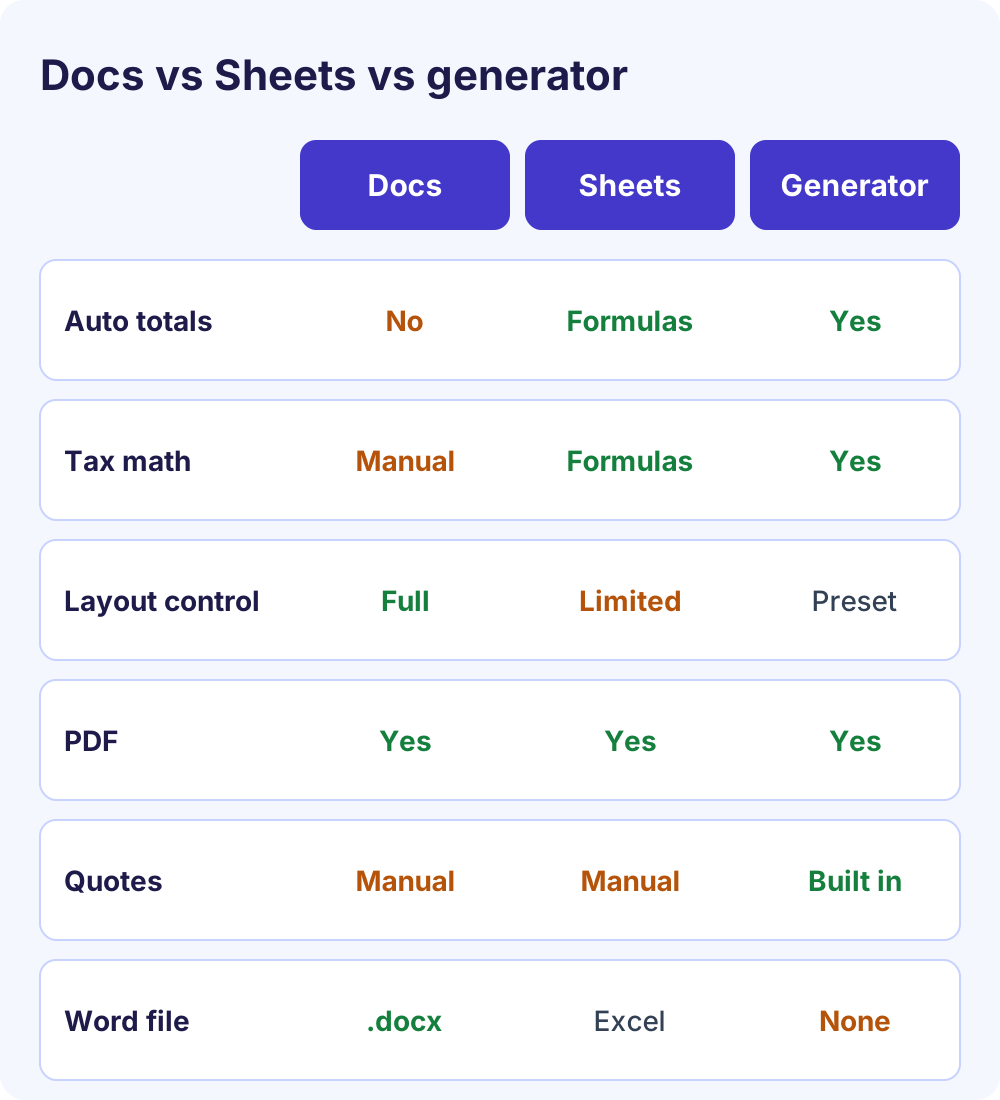
Use a Google Docs invoice template when you send a few invoices a month and care how they look. Move to Sheets or the generator once you invoice weekly, charge tax on most jobs, or retyping totals starts to feel risky.
Want a Google invoice template with formulas built in? Open Google Sheets, click Template gallery at the top right and look for an invoice; most guides list it under Work. Google doesn’t publish a fixed list of gallery templates, and some are only for work or school accounts, so what you see can vary.
Whichever route you choose, keep your branding consistent. Our free letterhead maker builds a matching header for letters and quotes.
Mistakes to avoid with a Google Docs invoice template
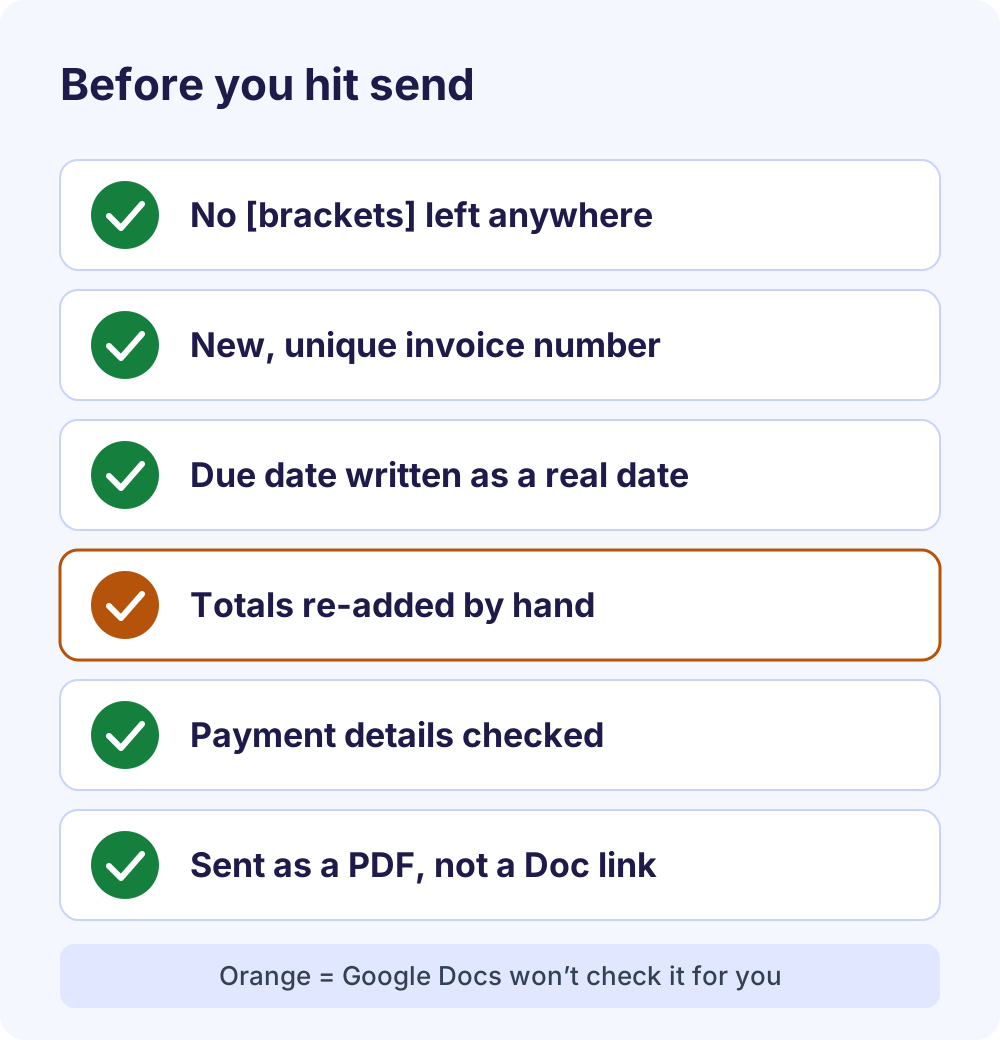
Most slow payments come from small, fixable slips, and nothing in Google Docs checks your work. Watch for these:
- Sharing the editable Doc instead of a PDF. The client could see or change your master.
- Leaving placeholders in. A stray [Client name] looks careless and invites questions.
- Reusing an invoice number after copying last month’s file.
- Totals that don’t match the lines because you edited a quantity and forgot to re-add.
- Charging tax you aren’t registered to collect, or leaving Tax at [0]% when you are.
- Writing “Net 30” without a date. Print the actual due date, such as November 30, 2026.
Tips to get paid faster
Send the invoice as soon as the work is done, or on a fixed day each month, with the invoice number and due date in the email subject. Offer a payment link next to your bank details, and agree any late fee before you start so it can go in the Notes or Terms box.
Each month, total what you invoiced and spent. Our free profit and loss statement generator turns those totals into a simple P&L for tax time.
Frequently Asked Questions
Does Google Docs have an invoice template?
Not one you can count on. Google doesn’t publish the contents of its Docs template gallery, which varies by language and account type, and invoicing guides widely report no dedicated invoice there. Google Sheets’ gallery usually has one. The quickest option is a free invoice template Google Docs can open, like the three on this page.
How do I make an invoice in Google Docs?
Copy a ready-made Google Docs invoice template, then replace the placeholders with your business details, the client’s details, an invoice number, the dates and your line items. Add up the totals by hand, add payment instructions, and send it as a PDF using File > Download or File > Email > Email this file.
Can Google Docs add up invoice totals automatically?
No. Tables in a Google Docs invoice template don’t support formulas, so subtotals, tax and the total due must be typed and checked by hand. For automatic math, build the line items in Google Sheets and paste them into Docs as a linked table, or use an invoice generator that updates totals as you type.
Is there a free invoice template in Google Sheets?
Usually, yes. If you want a Google invoice template with built-in math, open Sheets, click Template gallery at the top right and look for the invoice, which most guides list under Work. Gallery contents can vary by language and account, and Sheets formulas can break when you add rows, so check the totals.
How do I save an invoice as a PDF from Google Docs?
Open the invoice, click File > Download and choose PDF. The file saves to your computer, ready to attach to an email. You can also send it straight from Docs with File > Email > Email this file and pick PDF as the format. In Chrome, File > Print with Save as PDF also works.
Can I use this invoice template in Word?
Yes. Each card has a Download for Word (.docx) button with the same layout, so you get an invoice template Word, LibreOffice and Google Docs can all open. As in Docs, the Word tables in these templates don’t calculate totals, so check the math before you send the invoice to a client.
How do I number invoices?
Give every invoice a unique number in a sequence you never reuse, such as INV-2026-001, then INV-2026-002. A year-plus-sequence format keeps each year together. If an invoice is wrong after you send it, issue a credit note that refers to it and a corrected invoice with a new number.
Is the Google Docs invoice template really free?
Yes. All three templates and their Word versions are free to copy, edit and use for your business, with no sign-up on our site. You need a Google account to make a copy in Google Docs, and the copy is saved to your own Drive, so nothing you enter is shared with us.
Next steps
You now have a free invoice template Google Docs can open, three ways to send it as a PDF, and a checklist for every send. When you want automatic totals, quotes and saved history, open our free invoice generator. For payment terms, deposits and late payments, read how to invoice as a freelancer, and for trade jobs see our contractor invoice examples.
Need totals that add up on their own?
Add your logo and details, list your work, and download a PDF invoice with tax and totals calculated for you. Free, no sign-up.
Open the free invoice generator