
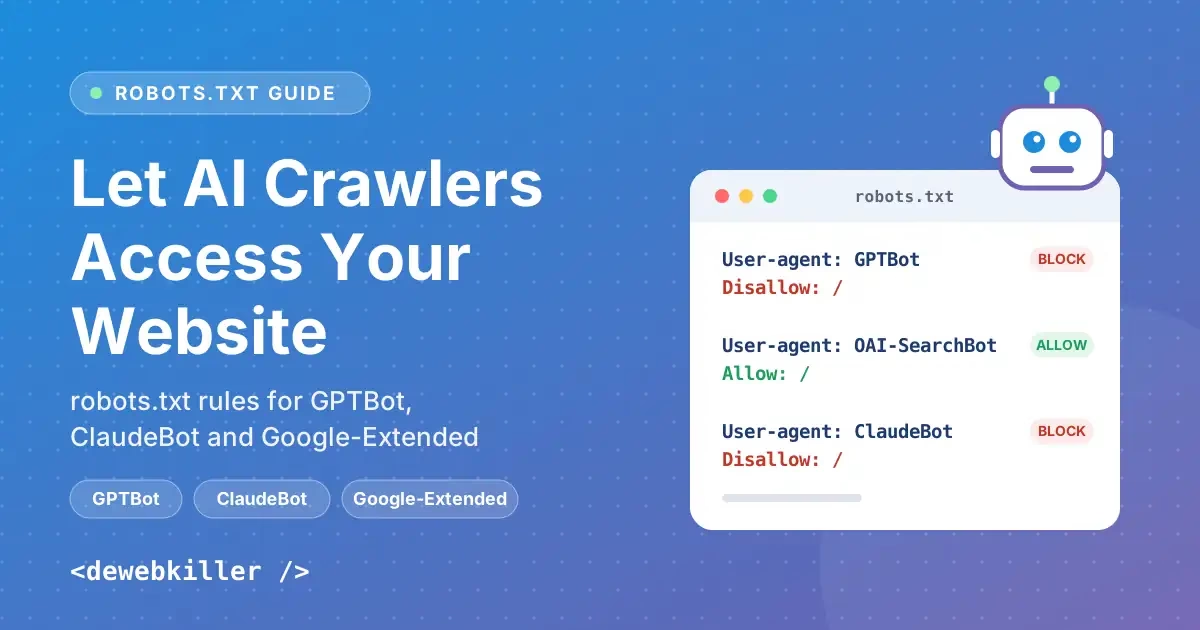
AI assistants now answer questions by reading the web. If their crawlers cannot reach your site, your content will not show up in those answers. On the other hand, you may not want your articles used to train AI models. The good news is that robots.txt lets you make both choices separately.
This guide explains how to let AI crawlers access your website, or block them, using robots.txt. You will learn what GPTBot, OAI-SearchBot, ClaudeBot and Google-Extended actually do. You will also get a WordPress walkthrough, copy-paste rules, and a testing checklist that catches CDN and firewall mistakes. If you build or manage sites for a living, our web design resources offer more guides like this one.
In this guide
Quick answer
- To appear in AI search answers: allow search crawlers such as OAI-SearchBot and Claude-SearchBot.
- To keep your content out of model training: disallow training crawlers such as GPTBot, ClaudeBot and Google-Extended.
- Google-Extended does not affect Google Search. It does not change your rankings or how your pages appear in results.
- robots.txt is only a request. A CDN or firewall can still block a crawler you allowed, so always test.
Search crawlers vs. AI training crawlers
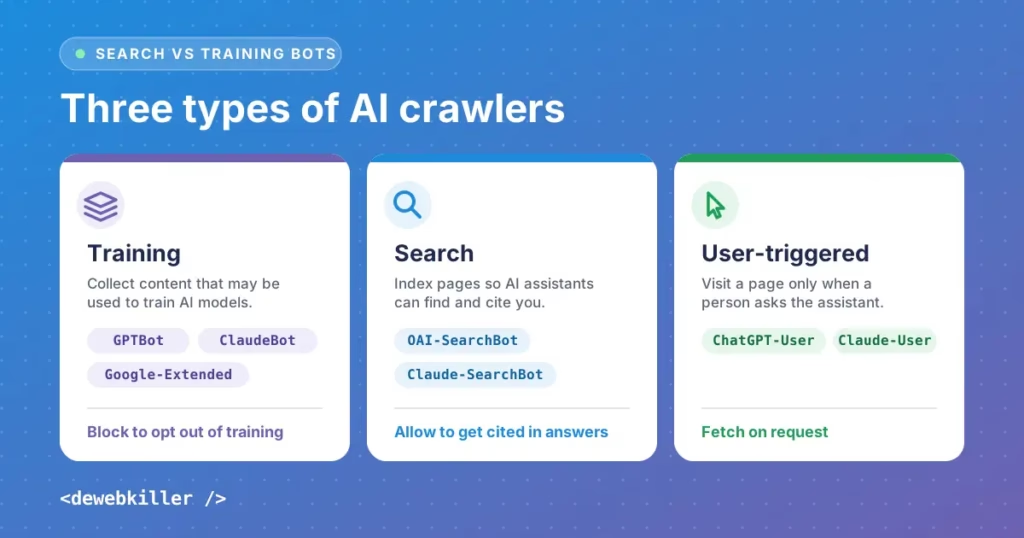
Many site owners treat “AI crawler” as one category. It is not. The big AI companies now run separate bots for separate jobs, and each bot has its own robots.txt name (called a user-agent token).
There are three types:
- Training crawlers collect content that may be used to train or improve AI models.
- Search crawlers build an index so an AI assistant can find your pages and cite them in answers.
- User-triggered fetchers visit a page only when a person asks the assistant to open it.
This split matters because blocking one bot does not block the others. For example, if you disallow GPTBot, OpenAI’s search crawler can still visit your site. That is a feature, not a bug. It lets you opt out of training while staying visible in ChatGPT search.
GPTBot vs. OAI-SearchBot
OpenAI uses three main user-agents:
- GPTBot collects content that may be used to train OpenAI’s models.
- OAI-SearchBot indexes pages for ChatGPT search results and citations. It is not used for training.
- ChatGPT-User fetches a page when a ChatGPT user asks for it. Because a person triggers it, robots.txt rules may not apply in the same way.
If you want ChatGPT to cite your content, allow OAI-SearchBot. You can block GPTBot at the same time without losing that visibility. OpenAI explains each bot in its official crawler documentation.
ClaudeBot and the other Anthropic bots
Anthropic also splits its crawlers by role:
- ClaudeBot collects web content that may be used for model training.
- Claude-SearchBot helps improve the quality of search results in Claude.
- Claude-User fetches pages when a Claude user asks for them.
Older names such as anthropic-ai and Claude-Web are legacy tokens. Keeping them in your file does no harm, but ClaudeBot is the name to rely on. For the full details, read Anthropic’s help center article on its crawlers.
Crawler reference table
| User-agent token | Operator | Purpose | Respects robots.txt |
|---|---|---|---|
| GPTBot | OpenAI | Model training | Yes |
| OAI-SearchBot | OpenAI | ChatGPT search index and citations | Yes |
| ChatGPT-User | OpenAI | User-requested page visits | Partially |
| ClaudeBot | Anthropic | Model training | Yes |
| Claude-SearchBot | Anthropic | Claude search index | Yes |
| Claude-User | Anthropic | User-requested page visits | Yes |
| PerplexityBot | Perplexity | Perplexity search index | Yes |
| Google-Extended | Gemini and Vertex AI training control | Yes |
Vendors change these names over time. Therefore, check each company’s official crawler documentation before you publish new rules.
Google-Extended does not affect Google Search
Google-Extended confuses a lot of people, so here is the plain version.
Google-Extended is a robots.txt control token, not a separate crawler. It lets you tell Google whether content it already crawls can be used for Gemini and certain AI training uses. You will not see it as a user-agent in your server logs.
Google’s list of common crawlers states that Google-Extended does not affect inclusion in Google Search and is not a ranking signal. Blocking it will not remove your pages from search results, lower your rankings, or change how your site appears in Google Search.
Two related points are worth knowing:
- Googlebot is the crawler that matters for Search. Never disallow Googlebot unless you want to disappear from Google.
- AI features in Search follow Search controls. Google documents separate controls, such as snippet limits, for how your content appears in Search features. Google-Extended is not one of them.
How to view and edit robots.txt in WordPress
WordPress handles robots.txt in one of two ways. First, find out which one your site uses. For more step-by-step guides, browse our WordPress tutorials.
Step 1: View your current robots.txt
Open this address in your browser:
https://yourdomain.com/robots.txtIf you see rules, your site already has a file. If you see a short default, WordPress is generating a virtual one. A basic default looks like this:
User-agent: *
Disallow: /wp-admin/
Allow: /wp-admin/admin-ajax.php
Step 2: Choose how to edit it
Option A: Use an SEO plugin (easiest).
- Yoast SEO: go to Yoast SEO, then Tools, then File editor. Edit the robots.txt box and save.
- Rank Math: go to Rank Math, then General Settings, then Edit robots.txt.
- All in One SEO: go to All in One SEO, then Tools, then Robots.txt Editor.
The exact menu names can shift between plugin versions. Nevertheless, the editor is always inside the plugin’s Tools or General Settings area.
Option B: Upload a physical file.
Create a plain text file named robots.txt and upload it to your site’s root folder using FTP, SFTP or your host’s file manager. A physical file overrides the virtual one WordPress generates. Consequently, your SEO plugin editor may stop working once you do this.
Option C: Add rules with code.
If you prefer code, use the robots_txt filter in a small plugin or your child theme’s functions.php file:
add_filter( 'robots_txt', function ( $output, $public ) {
    $output .= "\nUser-agent: GPTBot\nDisallow: /\n";
    $output .= "\nUser-agent: ClaudeBot\nDisallow: /\n";
    $output .= "\nUser-agent: Google-Extended\nDisallow: /\n";
    return $output;
}, 10, 2 );
This approach works only when no physical robots.txt file exists in your root folder. The WordPress developer reference documents the robots_txt filter in detail.
WordPress gotchas
- The Search Engine Visibility setting: if “Discourage search engines from indexing this site” is checked under Settings, then Reading, WordPress adds a blanket disallow. Uncheck it on live sites.
- Caching: clear your page cache and CDN cache after editing, or visitors and bots may see an old version.
- Subdomains and multisite: each host needs its own robots.txt file.
Copy-paste robots.txt examples
Each example below is a complete block. Paste the ones you need into your file. Keep your existing User-agent: * rules in place.
Example 1: Allow every AI crawler
If you want maximum AI visibility and do not mind training use, this is the simplest setup.
User-agent: GPTBot
Allow: /

User-agent: OAI-SearchBot
Allow: /

User-agent: ChatGPT-User
Allow: /

User-agent: ClaudeBot
Allow: /

User-agent: Claude-SearchBot
Allow: /

User-agent: Claude-User
Allow: /

User-agent: PerplexityBot
Allow: /

User-agent: Google-Extended
Allow: /
Note that crawlers are usually allowed by default. Explicit allow rules mainly help you document your intent and override broader disallow rules.
Example 2: Block training, allow AI search (the balanced choice)
Most publishers who want citations but not training choose this setup.
# Block AI training crawlers
User-agent: GPTBot
Disallow: /

User-agent: ClaudeBot
Disallow: /

User-agent: Google-Extended
Disallow: /

# Allow AI search and citation crawlers
User-agent: OAI-SearchBot
Allow: /

User-agent: Claude-SearchBot
Allow: /

User-agent: PerplexityBot
Allow: /
Example 3: Block all AI crawlers
Use this only if you do not want any AI visibility. Keep in mind that you will not be cited in AI search answers.
User-agent: GPTBot
Disallow: /

User-agent: OAI-SearchBot
Disallow: /

User-agent: ChatGPT-User
Disallow: /

User-agent: ClaudeBot
Disallow: /

User-agent: Claude-SearchBot
Disallow: /

User-agent: Claude-User
Disallow: /

User-agent: PerplexityBot
Disallow: /

User-agent: Google-Extended
Disallow: /
Example 4: Block or allow one crawler at a time
GPTBot only:
User-agent: GPTBot
Disallow: /
ClaudeBot only:
User-agent: ClaudeBot
Disallow: /
Google-Extended only:
User-agent: Google-Extended
Disallow: /
Example 5: Allow AI crawlers on some folders only
You can open your public content and protect private areas. The more specific rule wins.
User-agent: GPTBot
Allow: /blog/
Allow: /tutorials/
Disallow: /

User-agent: ClaudeBot
Allow: /blog/
Allow: /tutorials/
Disallow: /
Rules to remember
- Each
User-agentline starts a new group. Leave a blank line between groups. - Names are not case sensitive, but paths are.
- A crawler follows only the most specific group that matches its name.
- robots.txt is a request. Reputable crawlers follow it, but unidentified scrapers can ignore it.
How to test your rules
Writing the rules is only half the job. Next, confirm that crawlers can actually reach you.
Step 1: Check the file itself
Open yourdomain.com/robots.txt in a private browser window. Confirm your new rules appear and no SEO plugin or cache is serving an older copy.
Step 2: Test with curl
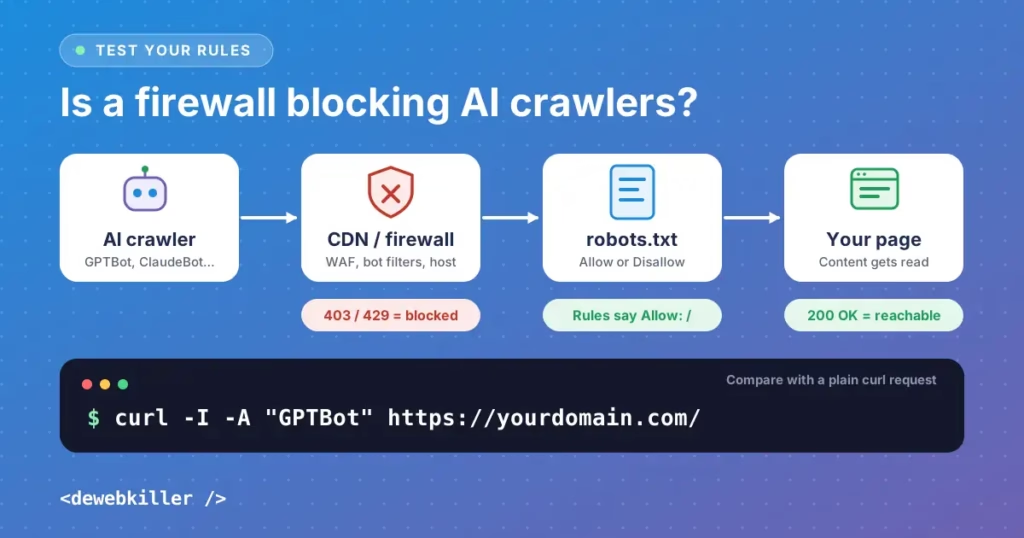
Send a request that mimics each crawler’s user-agent. This checks whether your server, CDN or firewall treats it differently from a normal visitor.
curl -I -A "GPTBot" https://yourdomain.com/
curl -I -A "OAI-SearchBot" https://yourdomain.com/
curl -I -A "ClaudeBot" https://yourdomain.com/
curl -I -A "Claude-SearchBot" https://yourdomain.com/
Look at the first line of each response:
- 200 OK means the page loaded normally.
- 403 Forbidden or 429 Too Many Requests means something is blocking or rate limiting that user-agent.
- A challenge or CAPTCHA page means a bot filter is stepping in.
Compare the result against a plain curl -I https://yourdomain.com/ request. If the plain request returns 200 and a crawler returns 403, a rule is targeting that bot.
Step 3: Check your server logs
Search your access logs for each user-agent name. For example, grep -i "OAI-SearchBot" access.log shows every visit and its status code. Real visits that return 403 prove that something is blocking a crawler you meant to allow.
Google-Extended will not appear in logs because it is not a separate crawler. Look for Googlebot instead.
Step 4: Use Google Search Console
The robots.txt report in Search Console shows which version of your file Google fetched and whether it found errors. This helps you confirm that Google reads your updated rules.
How to confirm a CDN or firewall is not blocking crawlers
This is the most common reason an “allowed” crawler never shows up. Your robots.txt says yes, but a security layer in front of your site says no. Check each layer below.
Cloudflare and other CDNs
- Review any setting that blocks AI bots or scrapers. Cloudflare, for example, offers one-click AI bot blocking and tools to manage AI crawler access.
- Check whether your CDN manages or overwrites robots.txt for you. Some services prepend their own AI rules to your file, which can contradict your intent.
- Review Bot Fight Mode, Super Bot Fight Mode and similar features. They can challenge or block legitimate crawlers.
- Look at your firewall and WAF rules for user-agent matches, country blocks and rate limits.
Cloudflare explains these controls in its managed robots.txt guide and its AI Crawl Control documentation.
WordPress security plugins
- Check Wordfence, Sucuri, Solid Security and similar plugins for rate limiting and bot blocking rules.
- Review the plugin’s live traffic or firewall logs for blocked requests from the crawler names above.
Hosting-level protection
- Ask your host whether server-level bot protection is on. Some managed hosts block unknown bots by default.
- Check
.htaccessor Nginx rules for user-agent blocks that someone added earlier.
Verify real crawlers by IP
Anyone can fake a user-agent string. If you want to allow the genuine crawler and block impostors, use IP ranges instead of the user-agent alone. OpenAI publishes IP ranges for its crawlers, and other vendors document their own verification methods. Check each vendor’s official documentation for the current lists, then allowlist those ranges in your firewall.
In addition, if a page must stay truly private, do not rely on robots.txt. Use authentication or server-level access control.
Common mistakes to avoid
- Blocking GPTBot and assuming no OpenAI bot can reach you. OAI-SearchBot and ChatGPT-User are separate.
- Blocking Googlebot when you meant Google-Extended. One removes you from search. The other only controls AI training use.
- Using outdated bot lists. Names change, so review your file every few months.
- Forgetting subdomains. Your blog on
blog.yourdomain.comneeds its own file. - Leaving a staging rule in place. A leftover
Disallow: /underUser-agent: *blocks everything. - Skipping the firewall check. Perfect rules mean nothing if a WAF returns 403.
Frequently asked questions
Does blocking GPTBot remove my site from ChatGPT search?
No. GPTBot is the training crawler. ChatGPT search relies on OAI-SearchBot, so you can block GPTBot and still allow OAI-SearchBot.
Does blocking Google-Extended hurt my Google rankings?
No. Google says Google-Extended does not affect inclusion in Google Search and is not a ranking signal.
Should I block ClaudeBot?
That depends on your goals. ClaudeBot relates to training. If you want Claude to cite you in search answers, allow Claude-SearchBot even if you block ClaudeBot.
Do AI crawlers always follow robots.txt?
Reputable crawlers from OpenAI, Anthropic, Google and Perplexity document support for robots.txt. User-triggered fetchers such as ChatGPT-User may behave differently, and unidentified scrapers can ignore it. For strong protection, add firewall rules.
How long do robots.txt changes take to work?
Crawlers usually refetch the file within a day or so, although timing varies by vendor. Clear your caches first so they see the new version.
Where is robots.txt in WordPress?
It lives at the root of your domain, for example yourdomain.com/robots.txt. WordPress creates a virtual file by default, and you can edit it with an SEO plugin or replace it with a physical file.
Final thoughts
Letting AI crawlers access your website is no longer an all-or-nothing choice. Decide first whether you want your content used for training. Then decide, separately, whether you want AI search tools to find and cite you. For most sites, blocking training bots and allowing search bots is the best balance.
Finally, test everything. A correct robots.txt file protects nothing and promotes nothing if a CDN or firewall quietly overrides it. Run the curl checks, read your logs, and review your security settings each time you change your rules. Planning your next project? Try our free website tools, including the Website Cost Calculator.
Related reading on Soft Learn Hub: Generative Engine Optimization best practices explains what to do once AI crawlers can reach your pages.
