
The fastest way to change photo background color is to cut the subject out with an AI background remover and place it on a new solid color. This guide is for online sellers, job seekers, and anyone fixing a profile, product, or team photo. You get a free 3-step method, exact hex codes, the official background rules for passports and Amazon, and fixes for hair, halos, and shadows.
How to change photo background color in 3 free steps
To change a photo’s background color, upload it to a free AI background remover such as the Soft Learn Hub tool, pick White or Color (any shade via the color picker), and export a PNG or JPG. Use a hex code for an exact match, like #FFFFFF for Amazon’s pure white. Don’t recolor US, UK, or Canadian passport photos: those authorities reject digitally changed backgrounds, so reshoot instead.
In this guide
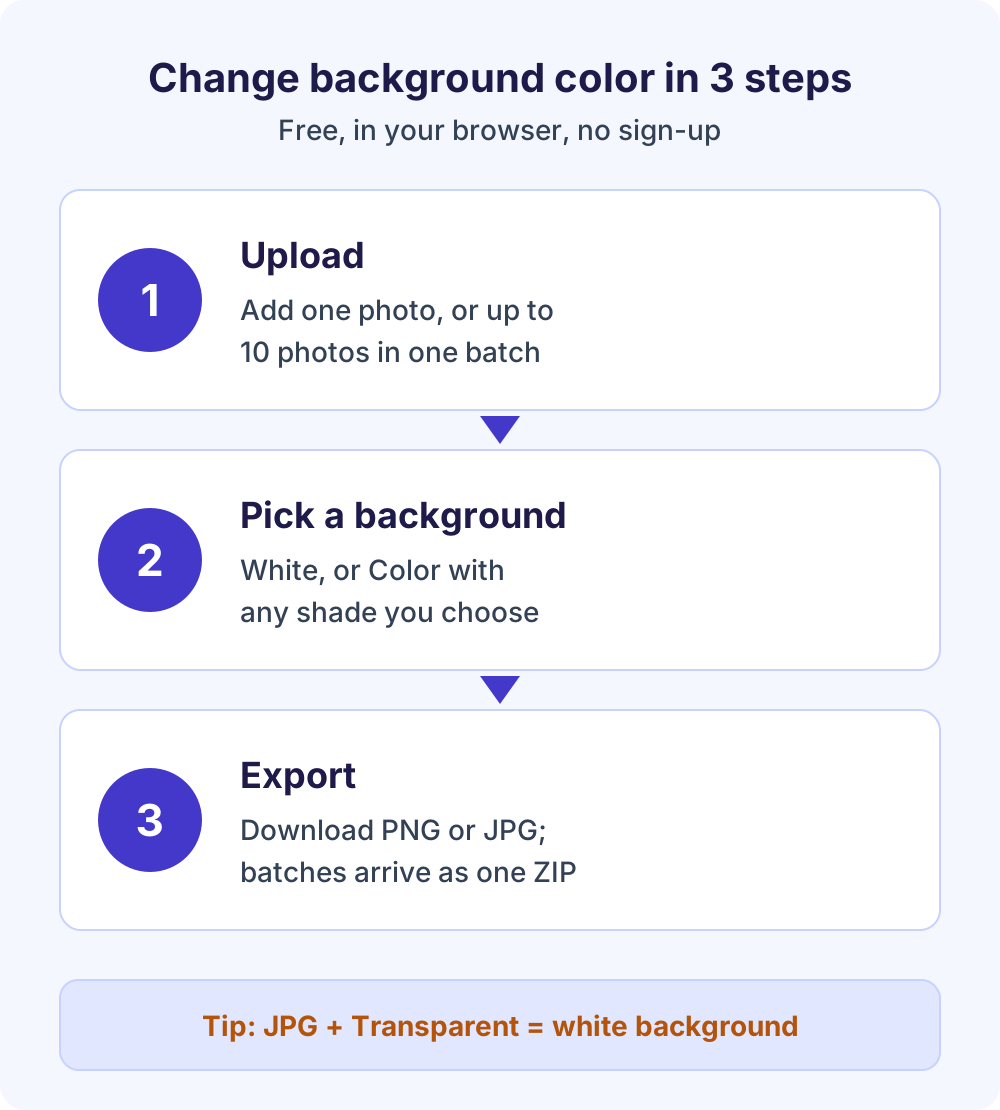
Step by step: change photo background color with the free tool
- Upload your photo. Open the free background remover and add one image, or up to 10 photos in one batch. It runs in your browser, with no sign-up and no watermark.
- Let the AI cut out the subject. The tool separates the person or product from the old background and refines the edges, including fine hair.
- Choose the new background. Select White, or Color to pick any shade with the color picker. Transparent and Blur are there too.
- Export. Download a PNG or JPG. A batch downloads as one ZIP file.
One detail saves a lot of confusion: JPG files can’t store transparency. If you choose Transparent and export a JPG, you get a white background instead, so pick PNG when you need the see-through version.
Which background option should you choose?
| Option | What you get | Best for |
|---|---|---|
| Transparent | The subject on a see-through background (PNG) | Logos, overlays, and designs |
| White | A clean white backdrop | Product listings and any white background photo for a marketplace |
| Color | Any solid shade from the color picker | Brand colors, team pages, blue or gray headshots |
| Blur | The original scene, softened | Portraits where the setting adds context |
Need a transparent master file? See how to make a background transparent for free. Prefer to keep the scene? Our guide to blurring a photo background explains when that works better than a solid color.
Can you change the background color of a passport or ID photo?
Usually not. The US, UK, and Canadian passport authorities all require an original photo that hasn’t been altered by software, and a photo background change counts as an alteration. If your passport photo has the wrong background, retake it against a plain wall instead of editing it.
US passport photo background
The US Department of State’s passport photo page asks for a plain white or off-white background with no shadows, texture, objects, or lines. It says to submit the original photo without filters or digital changes, and it shows a background cropped with a retouching tool as an unacceptable example.
Its fix is to correct your lighting and background, then take a new photo. A white sheet over a colored wall works if you stand several feet in front of it. For online renewal, the digital photo upload page accepts JPG, JPEG, PNG, HEIC, or HEIF files from 54 KB to 10 MB.
UK passport digital photo background
GOV.UK’s passport photo rules require a plain light-colored background, clear contrast with the background, and no shadows on your face or behind you. The digital photo must be unaltered by computer software, at least 600 pixels wide and 750 pixels tall, between 50 KB and 10 MB, and taken in the last month.
Canadian passport photo background
Canada’s passport photo requirements call for a plain white or light-colored background, shot by a commercial photographer or studio. Canada is the most explicit: its definition of an altered photo includes pasting your image onto a white background and changing the background, even just to remove shadows. Altered photos get the application rejected.
Visas, work badges, and other ID photos
Rules differ by country and issuer, and they change. Read the current photo page of the embassy, employer, or school first, and only change background color if it allows edits. If it asks for blue or red, use the exact shade it names.
Background color requirements by use case
Before you change photo background color for anything official, check the rule. This table was checked against each official page in October 2026; always confirm your own authority’s latest version.
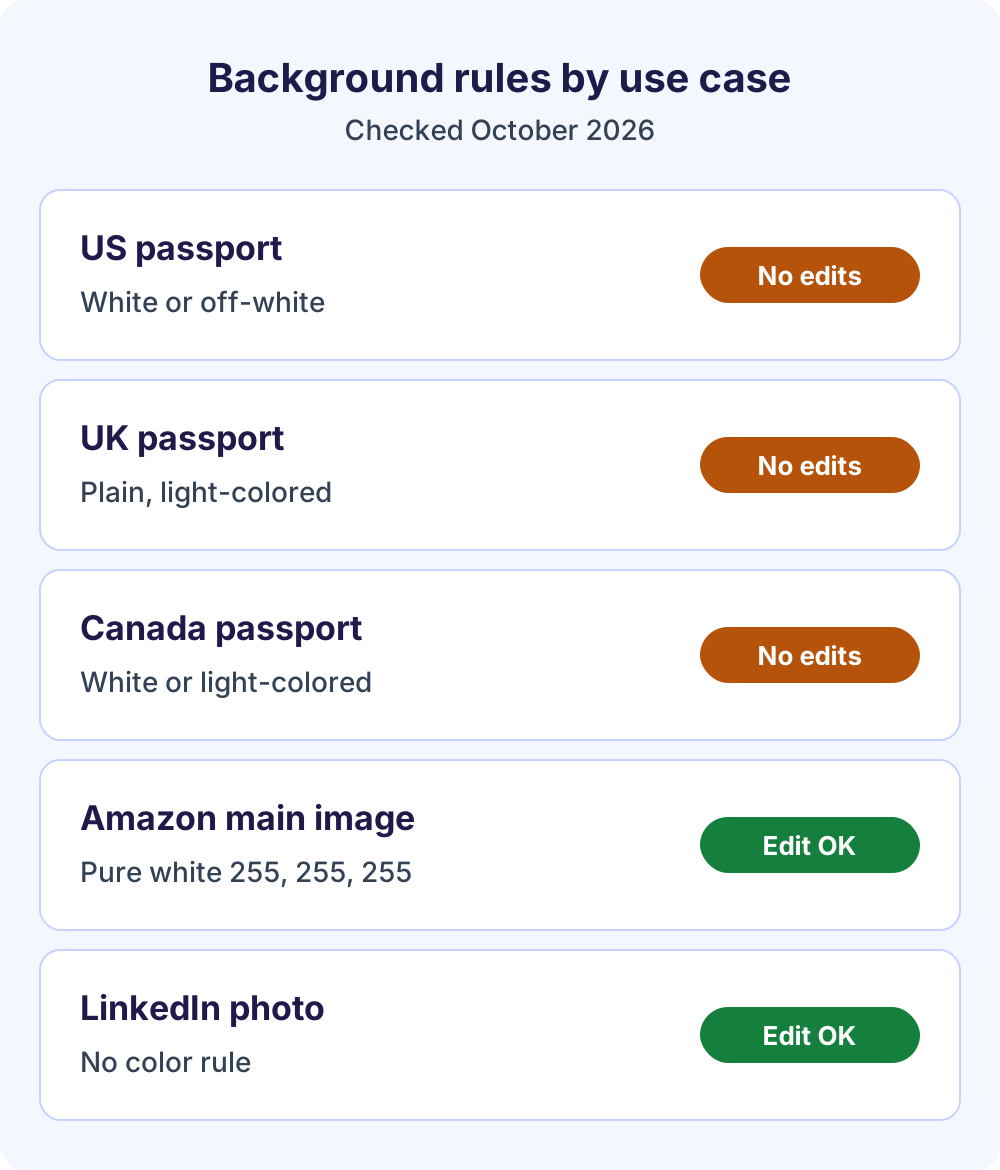
| Use case | Background rule | Edits allowed? | File notes |
|---|---|---|---|
| US passport | White or off-white, plain, no shadows | No, retake | Online renewal: JPG, PNG, HEIC, or HEIF, 54 KB to 10 MB |
| UK passport (digital) | Plain light-colored, no shadows | No, retake | At least 600 x 750 px, 50 KB to 10 MB |
| Canadian passport | Plain white or light-colored | No, retake | Commercial photographer |
| Amazon main image | Pure white, RGB 255, 255, 255 | Yes, if the product stays accurate | At least 500 px on the longest side |
| LinkedIn profile photo | No color rule published | Yes | PNG or JPG, up to 8 MB |
| School or work ID | Set by the issuer | Ask the issuer | Follow its instructions |
Background color codes: hex and RGB
Use a hex code whenever you change background color, because “white” and “blue” aren’t single colors and automated checks read exact pixel values. The neutral, blue, and red values below are standard named colors from the W3C CSS Color specification.
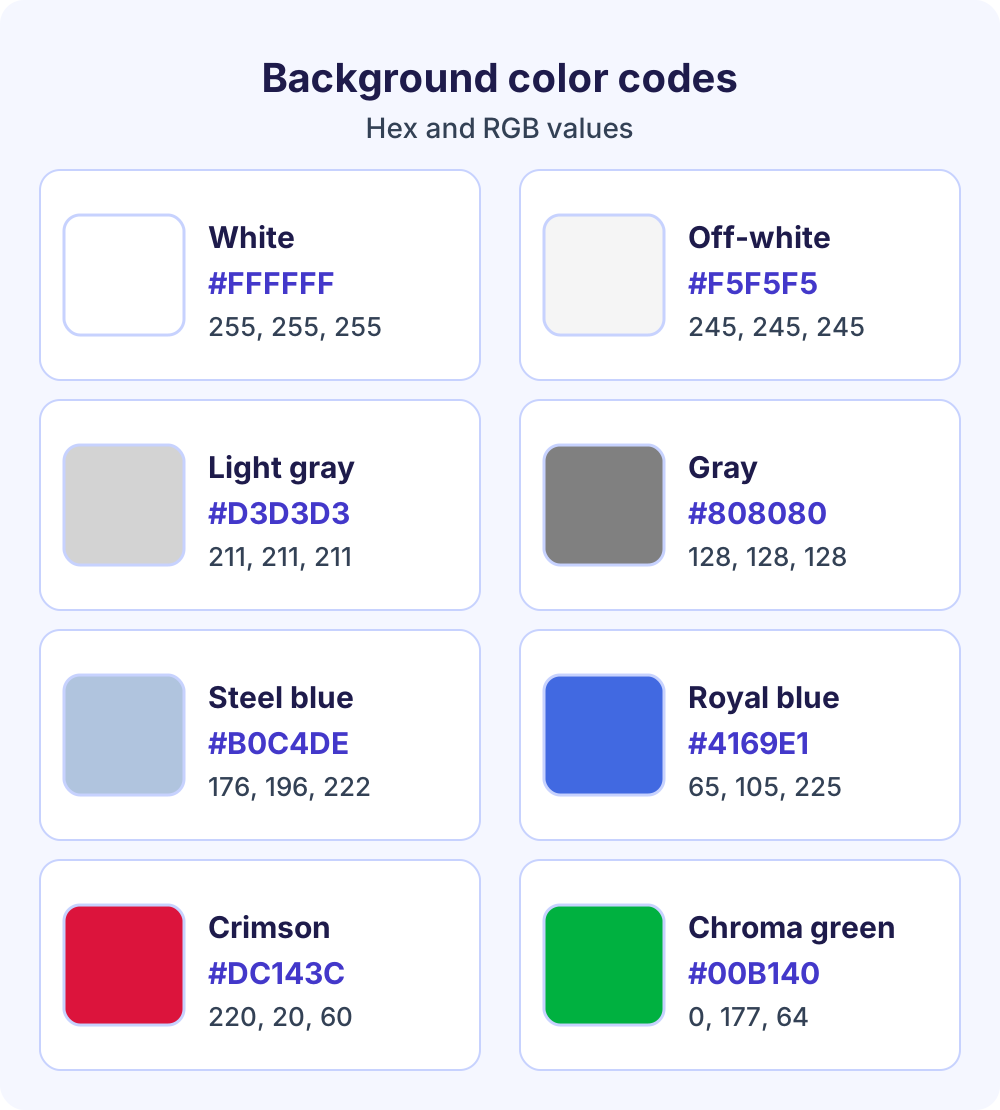
| Color | Hex | RGB | Typical use |
|---|---|---|---|
| Pure white | #FFFFFF | 255, 255, 255 | Amazon main images |
| Off-white | #F5F5F5 | 245, 245, 245 | Soft product backdrops |
| Light gray | #D3D3D3 | 211, 211, 211 | Headshots, team pages |
| Gray | #808080 | 128, 128, 128 | Contrast for light hair |
| Light steel blue | #B0C4DE | 176, 196, 222 | Professional headshots |
| Royal blue | #4169E1 | 65, 105, 225 | Bold avatars, banners |
| Crimson | #DC143C | 220, 20, 60 | Eye-catching promos |
| Chroma-key green | #00B140 | 0, 177, 64 | Green screens (commonly quoted) |
How to pick the exact shade
- Copy, don’t guess. Take hex values from your brand guide or the rule you follow, and type them into a hex field where your color picker has one.
- Sample an existing color. To match a website or earlier photo, use any eyedropper tool and copy the value it reports.
- Verify after export. Sample a background pixel in the exported file. For Amazon it must read 255, 255, 255; #F5F5F5 looks white but isn’t.
- Keep contrast. Blond hair or a white shirt disappears on white, so pick light gray or soft blue unless a rule requires white.
For chroma-key green, the right value is whatever your keying software removes, so match the software rather than a generic swatch.
How to make a white background photo for product listings
A white background photo is the marketplace standard because it keeps search results uniform. Amazon’s product image guide sets these main-image rules:
- A pure white background, RGB 255, 255, 255.
- The product taking up about 85% of the image, shown whole and only once.
- 500 to 10,000 pixels on the longest side, with 1,000 pixels or more recommended to enable zoom.
- JPEG, TIFF, PNG, or non-animated GIF, with JPEG recommended.
To make a white background photo, upload the product shot, choose White, export a JPG, and check a corner pixel. Then crop so the product fills most of the frame. Other marketplaces have their own policies, so don’t assume Amazon’s numbers apply everywhere. For a catalog, process up to 10 photos at once and download the set as a ZIP.
Change background color to blue, red, gray, or a brand color
Colored backgrounds work best where you set the rules: profile pictures, team pages, social posts, and ads. To change background color to any of these, use the same workflow, pick the shade in the Color option, and export.
- Blue: light steel blue (#B0C4DE) looks soft and professional; royal blue (#4169E1) is bolder for avatars.
- Red: crimson (#DC143C) grabs attention, but a strong color exposes any leftover fringe, so check edges closely.
- Gray: light gray (#D3D3D3) suits headshots and keeps light hair or white clothing visible.
- Brand colors: use the exact hex from your brand guide so photos match your website and ads.
For profile photos, the LinkedIn headshot background guide has more on choosing a professional backdrop.
How to turn a blue background white
Upload the photo, let the tool remove the blue backdrop, choose White, and export a JPG. Then zoom to 200% around hair and shoulders, because blue backdrops often leave a thin blue rim that shows on a white background photo. If it’s a passport photo, retake it on white instead.
Lighting and shadows that look natural
A photo background change looks fake when the light on the subject doesn’t match the new backdrop. Fix the light before you shoot, then make small subject-only tweaks in any photo editor.
- Shoot in even, soft light. Face a window or use two lights at equal angles to avoid deep shadows.
- Match the color temperature. A subject shot under warm bulbs looks orange against pure white, so cool the subject slightly.
- Match the brightness. On a bright background, lift the subject’s exposure a little.
- Add a contact shadow for products. Removing the background removes the shadow too, so products can look like they float. A soft, low-opacity shadow under the item restores weight.
- Skip added shadows on ID photos. Passport rules ban shadows behind you.
Edges and hair: get a clean cut-out
When you change photo background color, the new solid color exposes every flaw along the edge. The free tool uses AI edge refinement for hair, which handles most portraits, and a quick zoom check catches the rest.
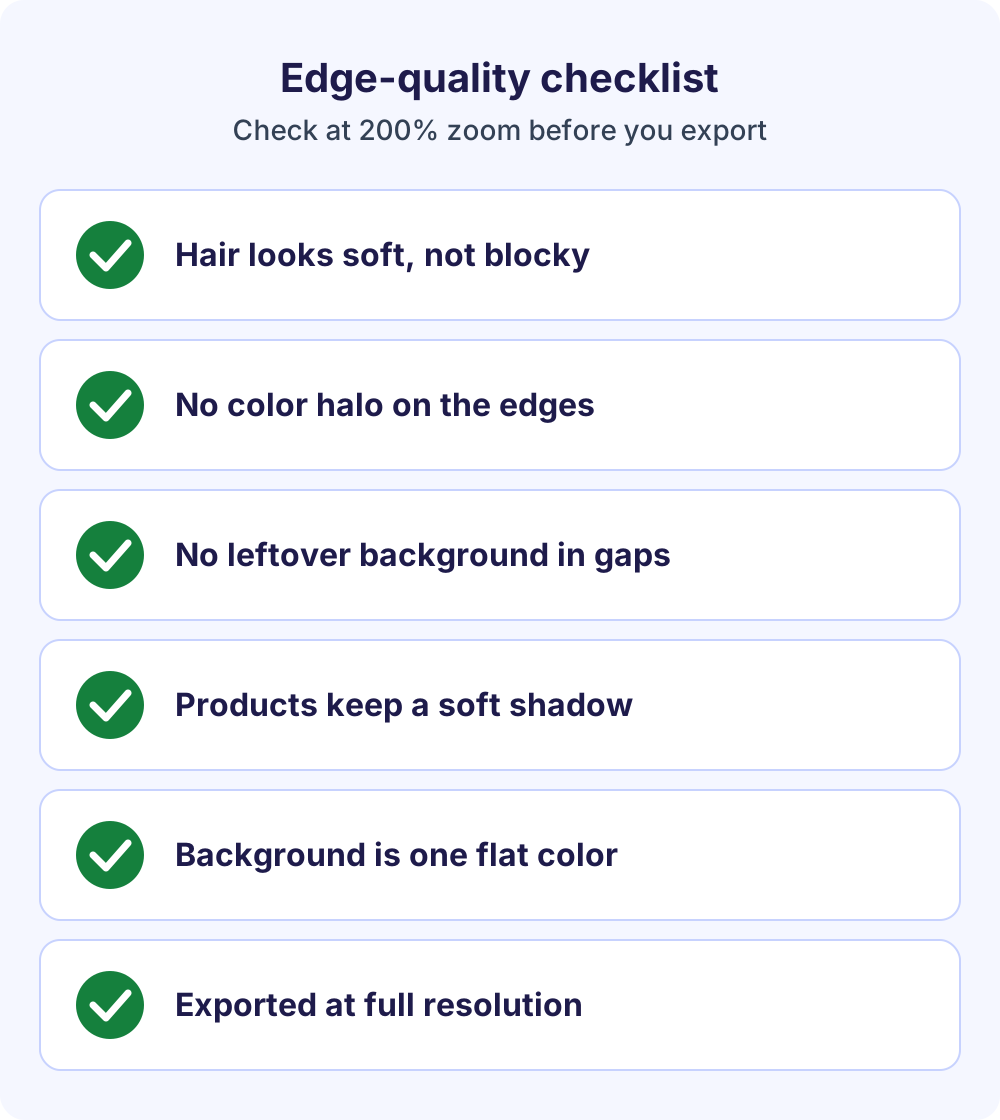
- Hair and fur. If strands look blunt or blocky, re-run the removal on the original, higher-resolution file instead of painting hair back in.
- Color halo. A thin rim of the old color can cling to edges. A subject shot against green shows a green rim on white. Many editors offer a defringe or decontaminate colors option; otherwise, shrink the mask by one or two pixels.
- Leftover background. Gaps between an arm and the body, or between strands of hair, can keep patches of the old scene. Fill them with the new color.
- Soft vs. crisp edges. Product edges should be crisp and hair soft. Over-sharpening makes halos stand out.
Start from the best original you have. If noise is the problem, clean it up first with our guide to fixing grainy photos.
Export sizes and file formats
After you change background color, pick the format, then check the size. Use JPG for solid backgrounds, since it makes smaller files and is accepted almost everywhere. Use PNG for transparency, and keep a transparent PNG master so you can re-export onto another color without redoing the cut-out.
| Destination | Pixel size | Format and file size |
|---|---|---|
| Amazon main image | 500 to 10,000 px longest side; 1,000+ for zoom | JPEG recommended; TIFF, PNG, GIF accepted |
| LinkedIn profile photo | 400 x 400 to 7680 x 4320 px | PNG or JPG, up to 8 MB |
| UK passport, digital (unedited) | At least 600 x 750 px | 50 KB to 10 MB |
| US passport renewal (unedited) | Crop inside the application | JPG, PNG, HEIC, or HEIF; 54 KB to 10 MB |
The LinkedIn figures come from LinkedIn Help’s photo upload page. Export at the highest resolution you have. Enlarging a small image doesn’t add detail, and Amazon says not to artificially enlarge small images.
Common mistakes to avoid
Most failed uploads after a photo background change come down to a few avoidable slips.
- Editing a passport or visa photo that must stay unaltered. Retake it instead.
- Using a near-white such as #F5F5F5 when a rule says pure white.
- Recoloring a low-resolution screenshot instead of the original, which exaggerates jagged edges.
- Leaving a faint shadow, gradient, or patch of the old background.
- Uploading a transparent PNG where a site expects a solid color; see-through areas may turn black when the site flattens the file.
- Choosing a background close to the hair or clothing color, so the subject blends in.
If you design in Canva, our walkthrough on removing a background in Canva covers that route.
Frequently Asked Questions
How can I change photo background color for free?
Upload the photo to a free in-browser background remover, let the AI cut out the subject, then choose White or Color and pick your shade. Export a JPG for a solid background or a PNG for a transparent master. The Soft Learn Hub tool needs no sign-up, adds no watermark, and handles up to 10 photos per batch.
Can I change my passport photo background to white?
Not for a US, UK, or Canadian passport. All three require an unaltered photo, and Canada names pasting your image onto a white background as an alteration. The US State Department’s advice is to fix your lighting and background and take a new photo, standing several feet in front of a plain white wall or sheet.
How do I change photo background color to blue?
Remove the background, select the Color option, and pick blue. For an exact shade, use a hex code: #B0C4DE (light steel blue) is soft and professional, while #4169E1 (royal blue) is bolder. Check the edges at 200% zoom afterward, because a strong color makes leftover fringe from the old background easy to spot.
Can I change background color in a JPG?
Yes. A JPG has no separate background layer, so run it through a background remover to isolate the subject, choose the new color, and export again. If you pick Transparent and still export a JPG, you get white. Work from the original file, since every JPG re-save loses a little quality.
What is the hex code for a white background photo?
Pure white is #FFFFFF, or RGB 255, 255, 255, the value Amazon requires for main product images. Off-whites such as #F5F5F5 look white on most screens but fail a strict pure-white check. Sample a background pixel in the exported file with an eyedropper to confirm before you upload.
Does a photo background change reduce quality?
Not if you start from the original file. The subject stays as it was; only the background and its outline change. Quality drops when you begin with a screenshot, re-save a JPG many times, or upscale a small image. Keep a transparent PNG master so you can recolor later without another cut-out.
What background color is best for a LinkedIn profile photo?
LinkedIn doesn’t publish a background color rule. Its help center covers file specs instead: 400 x 400 to 7680 x 4320 pixels, PNG or JPG, up to 8 MB, and the photo must reflect your likeness. Plain light gray, soft blue, or white keeps attention on your face; choose one that contrasts with your hair and clothes.
Can I change background color for several photos at once?
Yes. The free Soft Learn Hub background remover accepts up to 10 photos per batch and downloads the results as one ZIP file. Use one hex code for every image so a product set or team page matches exactly, and check the edges of each photo before you publish.
Next steps
Ready to change photo background color? Open the free background remover, upload up to 10 photos, choose White or Color, and download a PNG or JPG with no sign-up. Want to weigh other tools first? Our comparison of the best free background remover tools covers the main options.