

A Facebook business page gives your business its own public presence on Facebook, separate from your personal profile. This guide shows how to create a Facebook business page on a computer and in the Facebook app, following the steps in Meta’s current Help Center, with screenshots from setting up a real Page for a small electronics shop. It ends with a first-week checklist and a troubleshooting table for the Page creation errors Meta lists.
How do you create a Facebook business page?
To create a Facebook business page, log in to Facebook on a computer, click Pages in the left menu, then Create Page. Select Public Page, click Next and Get started, enter your Page name and category, add an optional bio and click Create Page. It is free, and Facebook then guides you through contact details and photos.
The steps below match the official Facebook Help Center guide to creating a Page. Facebook updates its layout often, so your screens may look slightly different from our screenshots, but the fields you fill in are the same.
What you need before you start
- A Facebook account in good standing, confirmed with a valid email address or phone number. Meta says new accounts or accounts with restrictions may not be able to create Pages.
- The right to represent the business. Only official representatives can create a Page for a business, brand, organisation or public figure.
- A computer or the Facebook app for iPhone, iPad or Android. You cannot create a Page in a mobile browser or in Facebook Lite.
- A Page name and up to three categories. These are the only required fields; everything else can be added later.
- A square logo (320 x 320 px gives the best quality) and a cover image (851 x 315 px loads fastest).
- Optional details: website, business email, phone number, address, opening hours and the WhatsApp number you use for the business.
Why a Facebook business page is still worth having
Meta no longer reports Facebook-only user numbers, but its family of apps, which includes Facebook, Instagram, Messenger and WhatsApp, averaged 3.60 billion daily active people in June 2026, up 3% year over year, according to Meta’s second-quarter 2026 results. The same release reports ad impressions up 14% and the average price per ad up 12%, so paid reach is getting more expensive. A Page costs nothing to create and gives your business its own identity, with contact details, opening hours, an action button, insights and the option to advertise when you are ready.
Step 1: Log in to Facebook and open Pages
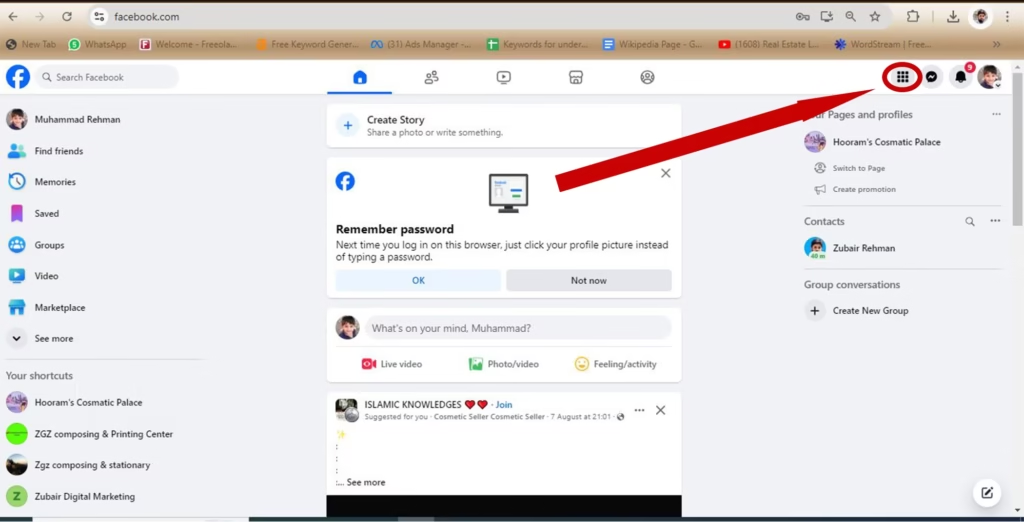
Log in to Facebook on your computer and click Pages in the left-hand menu. If you do not see it, click See more to expand the list. Our screenshots show a second route: the Menu icon, a grid of nine dots in the top right corner.
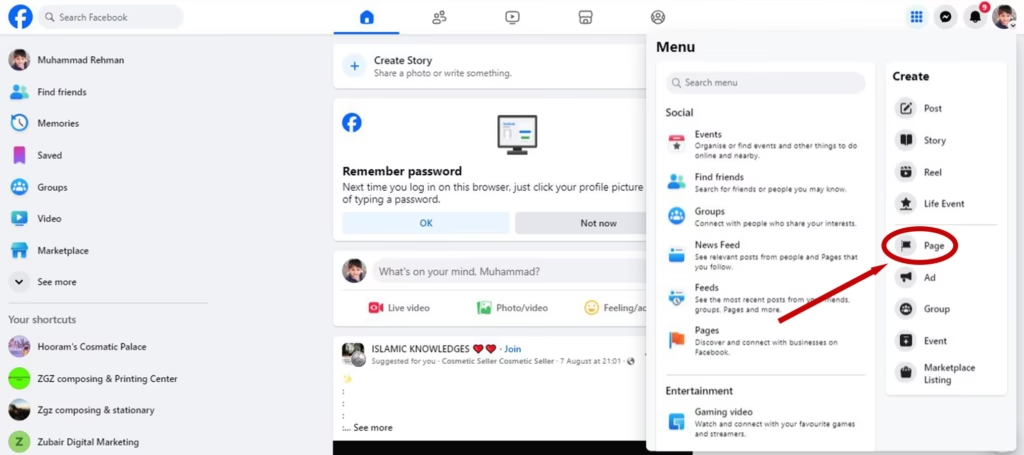
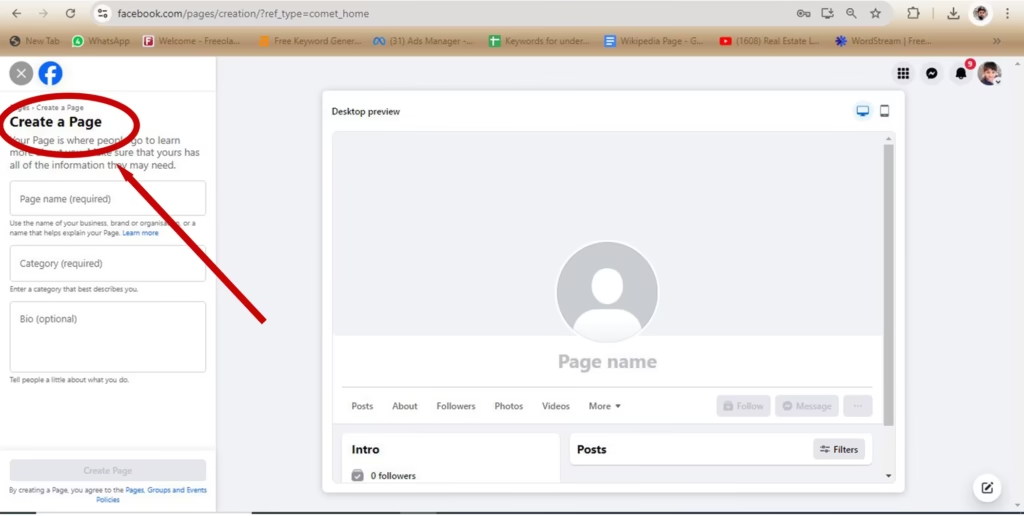
The Menu panel lists Pages under Social and a Page option under Create. From the Pages screen, Meta’s current steps are: click Create Page, select Public Page, click Next, then click Get started. That opens the setup form shown in the next screenshots.
Step 2: Enter your Facebook Page name and category
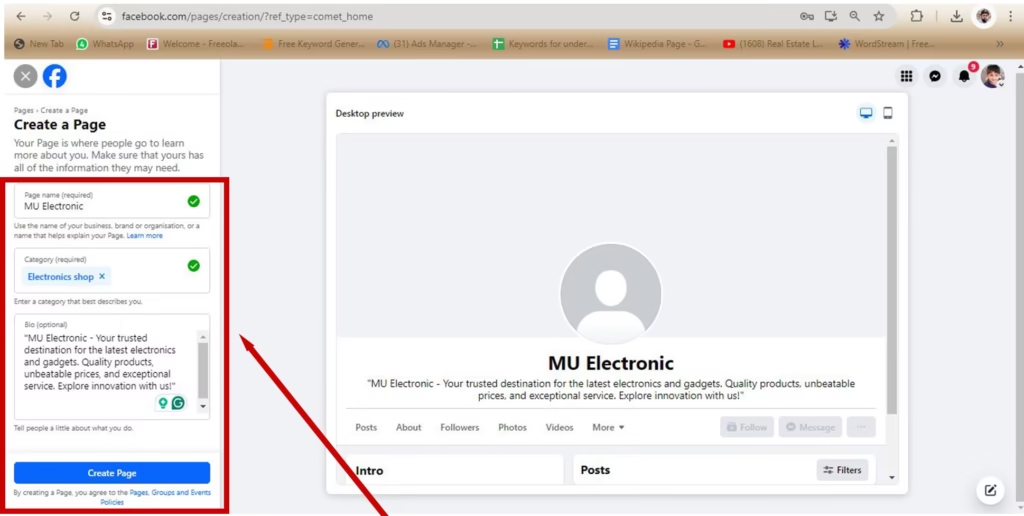
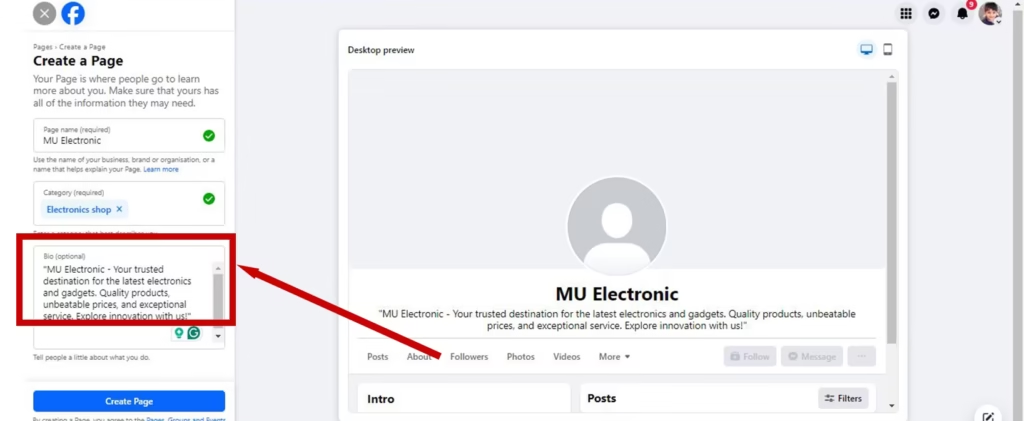
Type your business name exactly as customers know it. For a shop called MU Electronic, the Page name is simply “MU Electronic”. Meta’s Page name guidelines rule out slogans and descriptions, symbols such as ®, unusual capitalisation, the word “official” on an unofficial Page, and names that are only a single general word such as “pizza”. You can change your Facebook Page name later, but a name change is a request rather than an instant edit, and Facebook may limit how often you can make one.
Next, start typing a category and pick the closest match from the suggestions; our example shop chose “Electronics shop”. You can add up to three categories. Meta’s category best practices recommend specific choices, such as “bakery” rather than “local business”, because your main category appears under your Page name and categories help people find you in Facebook search and recommendations.
Step 3: Add a bio
The bio is optional but worth two minutes. Write one or two plain sentences that say what you sell, who it is for and where you are. Example: “Phones, laptops and home appliances, with delivery across the city. Visit our shop or order online.” The bio is also the right home for the slogan that is not allowed in your Page name.
Step 4: Click Create Page
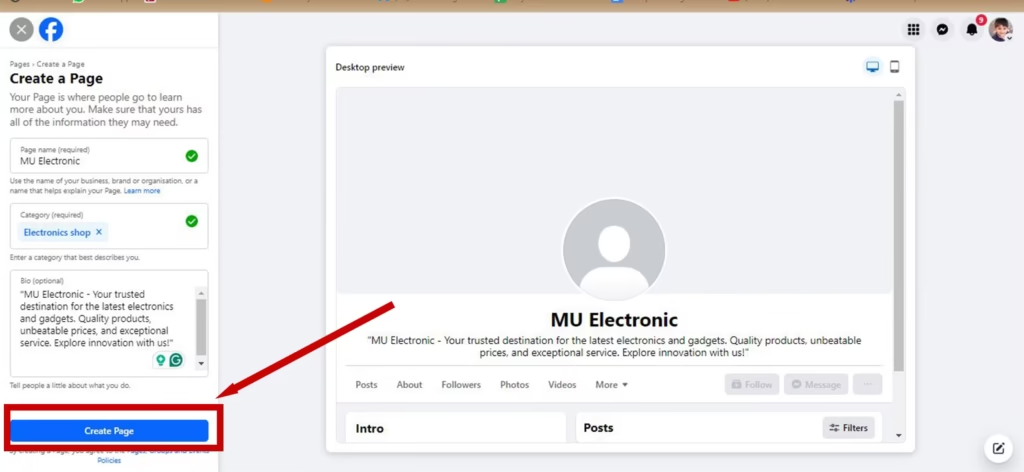
The form marks Page name and category as required. Once both are filled in, the Create Page button becomes active; click it. Your Page now exists, but it is empty, so carry on through the setup screens rather than stopping here.
Step 5: Complete your Facebook business page setup
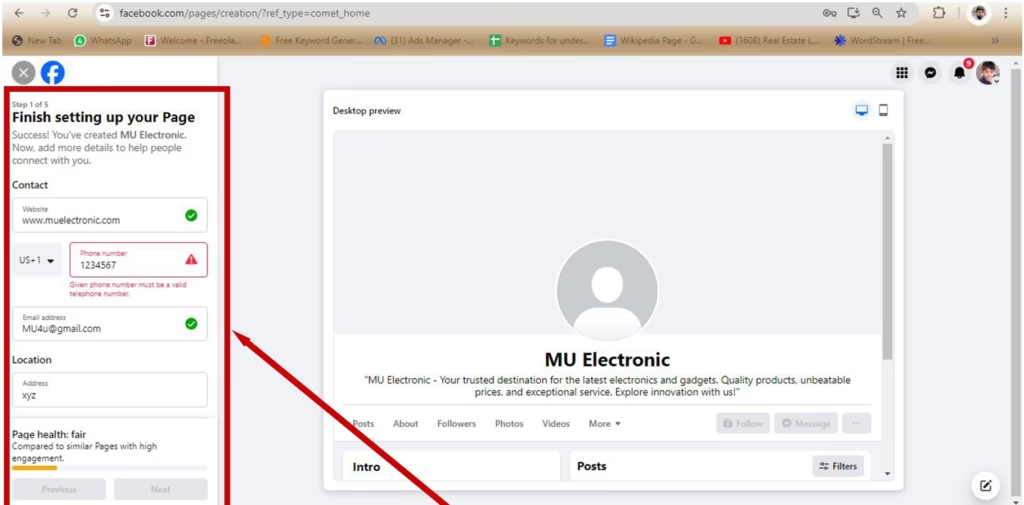
Facebook now shows “Finish setting up your Page”, a sequence of five short screens: contact details, photos and action button, WhatsApp, inviting friends and notifications. Each one can be skipped, but a Page with complete details looks more trustworthy and is easier to find.
Add contact information
- Website: your full address, for example www.example.com.
- Phone number: a number someone actually answers, with the country code, for example +1 555 010 0123. Leave it blank if you do not take calls.
- Email address: a monitored business inbox such as hello@example.com, not a personal address.
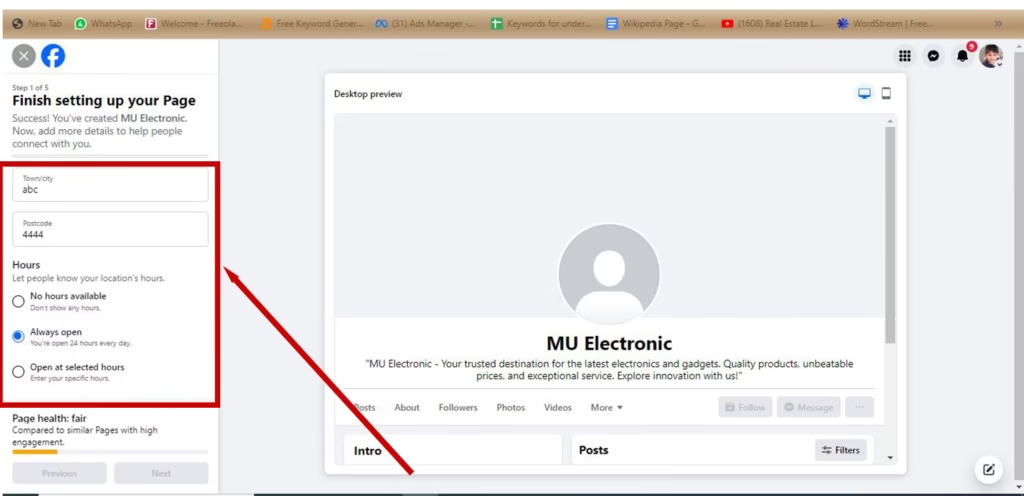
- Location: add a street address only if customers visit in person. Online businesses can leave it empty.
- Hours: choose No hours available, Always open, or Open at selected hours and set each day.
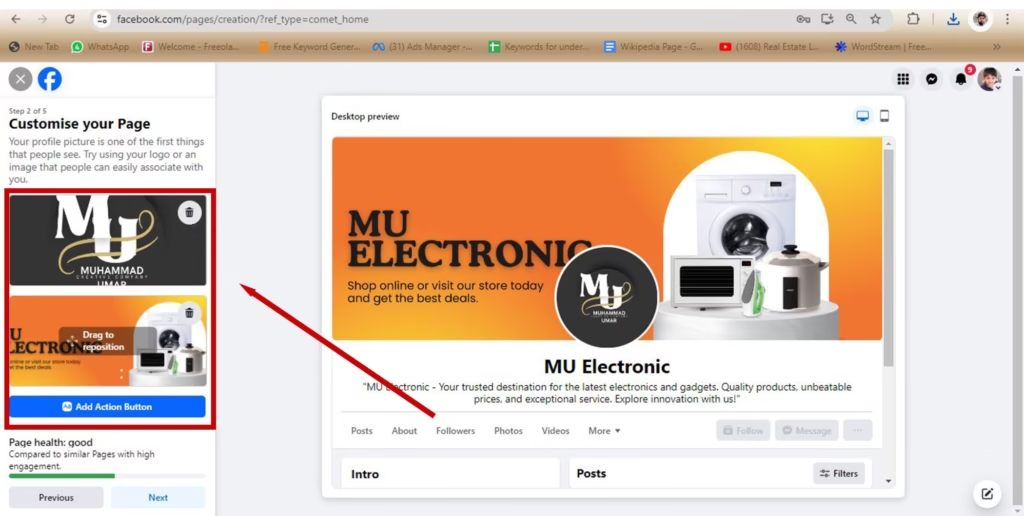
Add a profile picture, cover photo and action button
Upload your logo as the profile picture. Facebook’s official Page photo dimensions recommend 320 x 320 px for the best quality. It displays at 176 x 176 px on computers and 196 x 196 px on smartphones and is cropped to a circle, so keep the logo centred with some padding.
The cover photo must be at least 400 x 150 px and loads fastest as an sRGB JPG that is 851 x 315 px and under 100 KB; for a cover with a logo or text, a PNG may look sharper. Facebook shows the cover at a 16:9 ratio on computers and 2.4:1 on mobile, and on mobile the profile picture overlaps it by about 40 px. Our Facebook cover photo size guide goes into more detail.
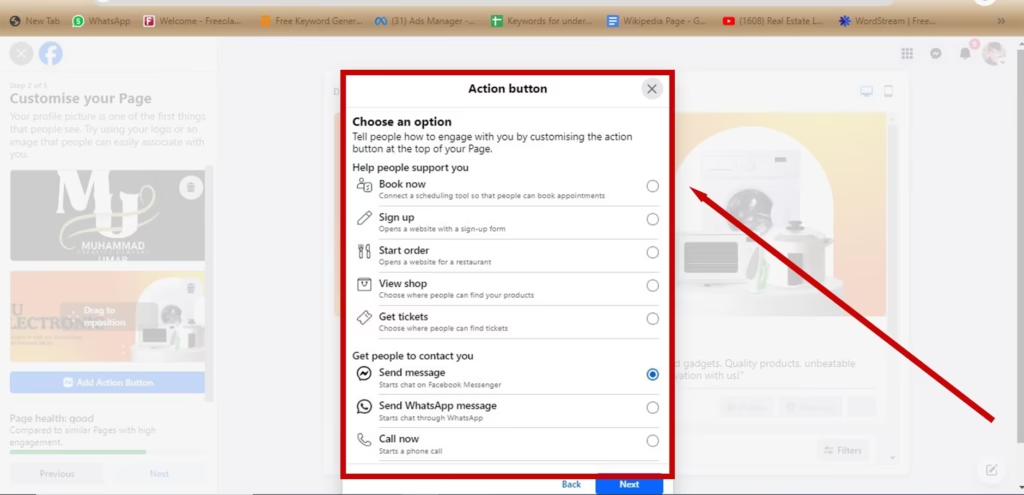
On the same screen, click Add Action Button. When we set up our example Page, Facebook offered Book now, Sign up, Start order, View shop and Get tickets under “Help people support you”, and Send message, Send WhatsApp message and Call now under “Get people to contact you”. Pick the one thing you most want visitors to do: a local shop usually wants Call now or Send WhatsApp message, and an online store wants View shop. You can change it later from your Page’s Options menu.
Connect WhatsApp (or skip)
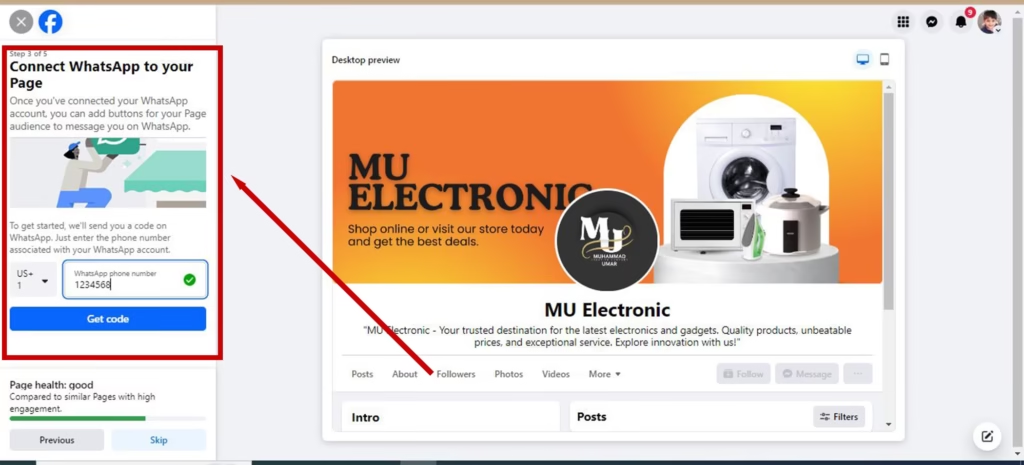
Choose your country code, enter the phone number of the WhatsApp account you use for the business, click Get code and enter the code WhatsApp sends you. Once connected, you can add buttons that let people message you on WhatsApp. If you do not use WhatsApp for business, click Skip; you can connect it later from your Page’s Settings under Linked accounts.
Step 6: Invite friends to grow your audience
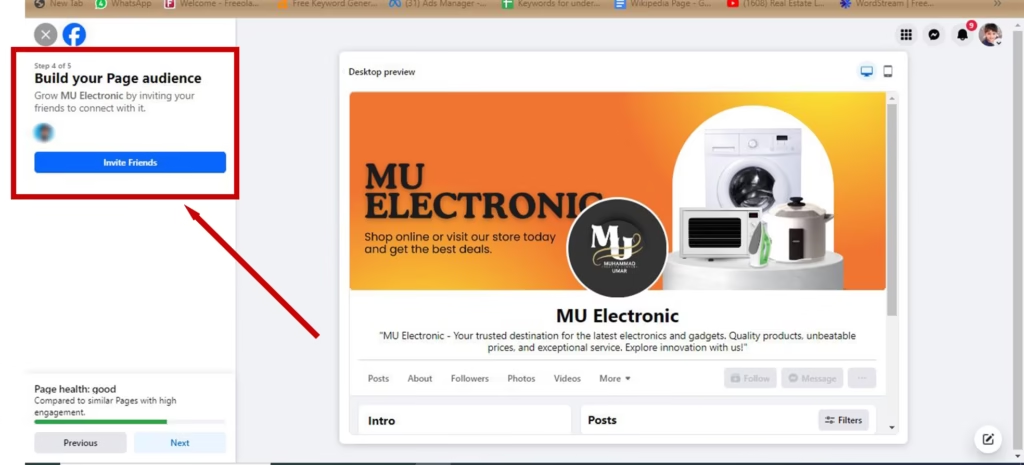
Facebook now offers to invite your friends to connect with the Page. Invite the people who would genuinely care; a small, engaged first audience is more useful than a large, indifferent one. For the longer game, read how to get more followers on Facebook.
Step 7: Choose notification settings and click Done
The last screen, “Stay informed about your Page”, has two switches. Page notifications on your profile keeps you updated about the Page while you are using your personal profile; leave it on, because slow replies can cost you enquiries. Marketing and promotional emails about your Page is optional.
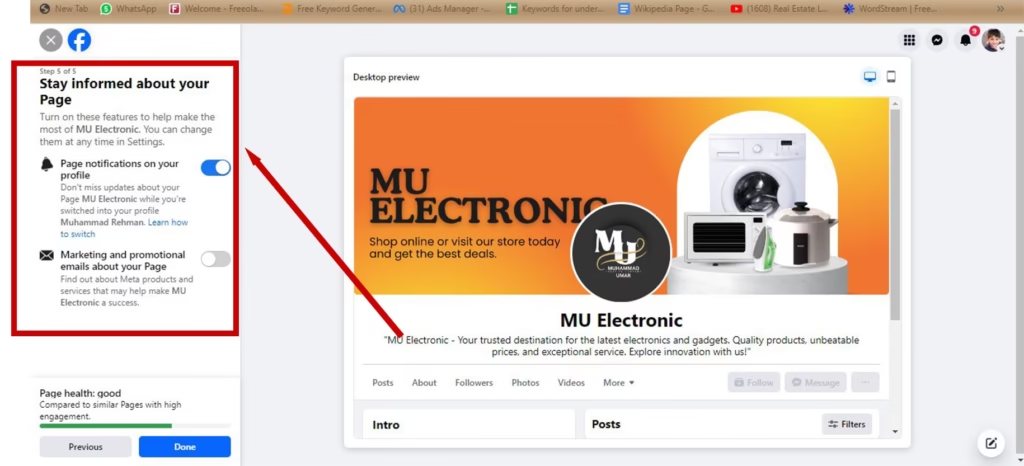
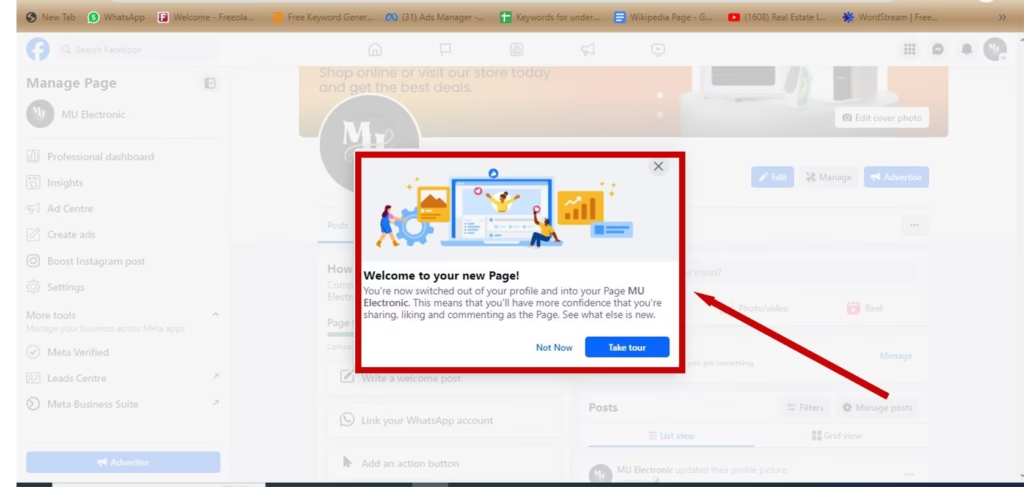
Click Done. Facebook switches you into your new Page and shows a “Welcome to your new Page!” message. To move between your profile and the Page later, click your profile photo in the top right, then See all profiles.
How to create a Facebook business page on your phone
The Facebook app for iPhone, iPad and Android uses the same fields in a slightly different order: the bio and contact details come after the Page is created. Based on Meta’s Help Center and its five-step video guide:
- Open the Facebook app and tap Menu. Its position depends on your device and app version, so look in the top left or bottom right.
- Tap Pages, then Create. If asked, choose to create a new Page and tap Next or Get Started.
- Enter your Page name and tap Next.
- Select one or more categories and tap Create.
- Add a bio, contact details, location and hours, then tap Next.
- Add a profile picture and cover photo, edit the action button if offered, then tap Next.
- Invite friends, choose your notification settings, then tap Done.
You cannot create a Page in a mobile browser or in Facebook Lite. Meta’s Help Center says to use a computer or the Facebook app for iOS or Android instead.
Business page vs pro mode profile vs business portfolio
Meta’s own rule of thumb is simple: create a Page if your goal is to represent a business, brand or product, and turn on pro mode if you want to share updates with a wider audience from your own profile. A business portfolio is not a public profile at all; it is the management layer in Meta Business Suite that brings your Pages, Instagram accounts and ad accounts together in one place.
| Feature | Personal profile | Profile with pro mode | Facebook business page | Business portfolio |
|---|---|---|---|---|
| What it is | Your personal account for friends and family | The same profile with professional tools turned on | A separate public presence for a business, brand, organisation or public figure | A private management layer in Meta Business Suite |
| Followers | Friends only (up to 5,000) | Unlimited followers, up to 5,000 friends | Unlimited followers | Not public |
| Insights | No | Content and audience insights | Page, post and ad insights | Not applicable |
| Team access | Only you | Only you | Facebook access (full or partial control) or task access | People added with only the access each asset needs |
| Best for | Personal use | Creators and individuals building a public audience | Businesses, brands and organisations | Teams, agencies and several ad accounts or Pages |
| Cost | Free | Free | Free to create | Free to create |
Start with a Page. Add a business portfolio when you advertise regularly, need to give staff or an agency access to several assets, or want Meta Business Suite features that require one. Meta notes that a new portfolio or ad account may not have every advertising feature straight away. If you would rather have specialists run your campaigns, see our Meta ads management service.
Who should have access to your Page?
Facebook describes Page permissions as types of access. According to Meta’s guide to Page access, Facebook access lets someone switch into the Page and manage it on Facebook, with full or partial control. Task access lets them create content, answer messages and comments, run ads and view insights from tools such as Meta Business Suite or Ads Manager, without switching into the Page.
Full control gives someone the same power as you, including removing you, so give it only to people you trust completely. Do add a second trusted person with full control early: Meta says a Page left with nobody holding full control is automatically deactivated and scheduled for deletion. Our guide on how to add an admin to a Facebook Page shows the exact clicks.
First-week checklist
- Claim a username so your Page gets a short link such as facebook.com/muelectronic. Switch into the Page, then go to Settings and privacy, Settings, Page setup, Name, and click Edit next to the username. Meta says new Pages may not be able to create one straight away, so try again later if it fails.
- Publish a few useful posts: an introduction, your best products or services, and how to contact you.
- Set up an automatic reply for new messages in Meta Business Suite, so every enquiry is acknowledged even when you are busy.
- Check your details: website, hours and phone number on both the desktop and mobile view of the Page.
- Secure your personal account with two-factor authentication, because it controls the Page.
- Consider Meta Verified for business only if impersonation is a real risk in your market. It is an optional paid subscription that adds a verified badge, impersonation monitoring and account support.
Troubleshooting: Facebook Page creation problems and fixes
If Facebook will not let you finish, match what you see to the table below. The causes and fixes come from Meta’s troubleshooting guide for creating a Page and the related name, category and username rules.
| What you see | Likely cause | What to do |
|---|---|---|
| “You can’t create more Pages at this time” or “You have made too many attempts to create a Page recently” | You have reached the limit on how many Pages you can create in a set period | Wait and try again later. For several branches of one business, add stores to a Page structure instead of creating unrelated Pages. |
| No option to create a Page, or creation fails without a clear reason | A new or restricted account, a past policy violation, or an account not confirmed by email or phone | Confirm your email or phone number, check your notifications for restriction notices, and use an established account in good standing. |
| Page name rejected | Symbols, unusual capitalisation, all capitals, a slogan, the word “official”, or a single general word or place name | Use your plain business name with normal capitalisation and move the slogan into your bio. |
| Create Page button stays inactive | The Page name or category is missing | Fill in both required fields; the bio is optional. |
| A category will not add | It may be a general category already included in a more specific one you picked | Choose the most specific categories, up to three in total. |
| No way to create a Page on your phone | You are using a mobile browser or Facebook Lite | Use the Facebook app for iPhone, iPad or Android, or a computer. |
| Username cannot be saved | The Page is very new, or the username is taken or breaks the username guidelines | Try again later or choose a different username. |
| Buttons do nothing or screens fail to load | A browser or app glitch | Try another browser or device, clear your cache and cookies, update the app or browser, and check your connection. |
Frequently Asked Questions
Do I need a personal Facebook account to create a business page?
Yes. You create and manage a Page while logged in to your Facebook account, and Meta says anyone with a Facebook account can create one. The Page has its own name, photos and followers, separate from your profile. If you do not have an account yet, see how to create a Facebook personal account, then turn on two-factor authentication.
Is it free to create a Facebook business page?
Yes. Creating a Page and using its built-in tools, such as posting, messaging, the action button and insights, costs nothing. You pay only if you choose to boost posts, run ads or subscribe to Meta Verified for business.
Can I create a Facebook business page on my phone?
Yes, in the Facebook app for iPhone, iPad or Android: tap Menu, then Pages, then Create, and follow the prompts for name, category, contact details and photos. You cannot create a Page in a mobile browser or in Facebook Lite, so use the app or a computer instead.
What size should the profile picture and cover photo be?
Use a 320 x 320 px profile picture for the best quality; Facebook crops it to a circle. The cover photo must be at least 400 x 150 px and loads fastest as an 851 x 315 px sRGB JPG under 100 KB. It shows at 16:9 on computers and 2.4:1 on mobile.
How many categories can a Facebook Page have?
Up to three. Choose the most specific ones that describe your business, because your main category appears under your Page name and categories help people find you in Facebook search and recommendations.
What is the difference between a Facebook business page and a business portfolio?
A Facebook business page is the public profile customers follow, message and review. A business portfolio is a private management layer in Meta Business Suite that brings your Pages, Instagram accounts and ad accounts together and controls who on your team can use them. Start with a Page; a portfolio becomes useful when you advertise regularly or share access with a team or agency.

2 Comments
An outstanding blog
Thank you for your kind words.