Here’s how to post on Instagram from your phone: tap Create (+) at the top of your feed, choose Post, Reel or Story, pick a photo or video, edit it, add a caption and tap Share. On a computer, open instagram.com, click Create, choose Post and upload a file from your device.
This guide is for anyone posting for the first time, and for small business owners who want a routine they can repeat every week. You’ll learn how to post on Instagram step by step for a single photo, a carousel, a Reel and a Story, how to post from a computer, what to add before you hit Share, and how to schedule posts ahead of time.
In this guide
Key takeaways
- Every post type starts from the same place: the Create (+) button in the app or the Create menu on instagram.com.
- A carousel holds up to 20 photos and videos, and one crop orientation applies to all of them.
- Stories disappear after 24 hours unless you add them to a Highlight.
- You can post from a computer at instagram.com without any extra software.
- Public accounts can schedule posts and Reels in the app, up to 25 a day and up to 30 days ahead.
How to post on Instagram from your phone
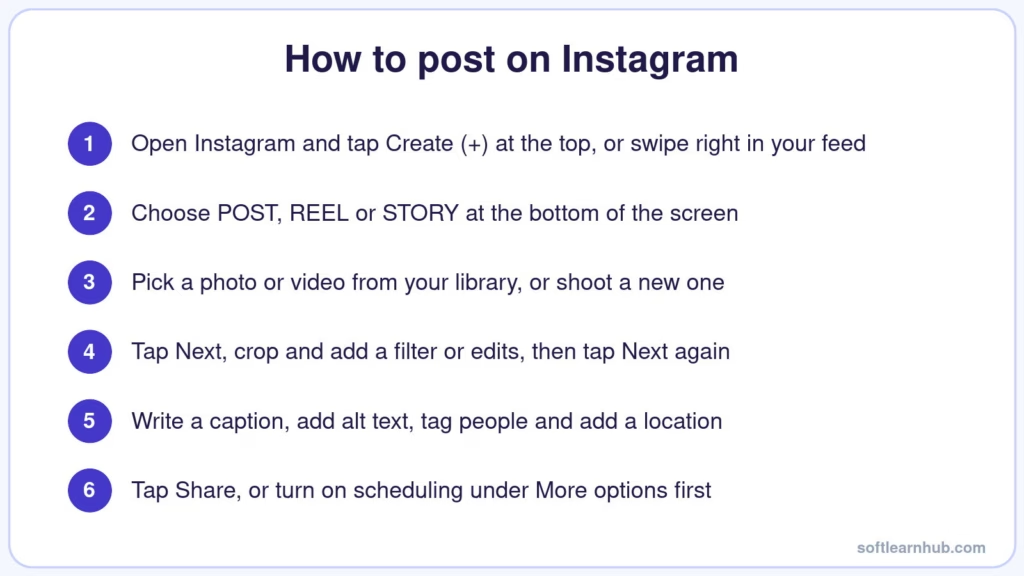
Most people learn how to post on Instagram on their phone first. The steps below follow Instagram’s own Post a photo on Instagram help article. Button positions can shift a little between iPhone, Android and app versions, but the flow stays the same.
- Open the Instagram app and tap Create (+) at the top, or swipe right anywhere in your feed.
- Tap POST at the bottom of the screen.
- Pick a photo or video from your library, or tap Take photo to shoot a new one.
- Tap Next, apply a filter or adjust the edit if you like, then tap Next again.
- Write a caption, add a location and tag people.
- Tap Share.
Your post now appears on your profile grid and in your followers’ feeds. If you spot a typo afterward, you can still edit the caption, location, tags and alt text. What you can’t do is swap the photo itself. For that, delete the post and share it again.
How do I post on Instagram if I can’t find the Create button?
Instagram moves this button around in updates. In the current app it usually sits at the top of the feed, and swiping right from your feed opens the camera too. You can also go to your profile and tap the + (Create new) icon in the top right. If none of these appear, update the app from the App Store or Google Play and restart it.
How to post on Instagram with multiple photos (carousel)
A carousel lets you share several photos and videos in one post that people swipe through. Instagram’s carousel help page puts the limit at 20 items per post.
- Tap Create (+), then tap POST.
- Tap SELECT MULTIPLE.
- Choose up to 20 photos and videos, then tap Next.
- Apply one filter to everything, or tap a single item to edit it on its own. Tap Next.
- Choose Single caption or Multiple captions, add a location and tag people on each slide.
- Tap Share.
The crop you choose (square, portrait or landscape) applies to every item in the carousel, so prepare your images in the same ratio before you start. After posting, you can reorder or remove slides from the Edit menu, but you can’t add new ones. One more catch: videos inside a carousel are not treated as Reels, so they won’t show in your Reels tab.
How to post on Instagram Reels
Reels are short vertical videos with their own tab on your profile. Instagram notes in its Record a reel article that Reels may not be available to every account yet, so update the app if you can’t see the option.
- Tap your profile picture, tap Create new (+) in the top right, then tap Reel. You can also tap Create from the feed and pick Reel.
- Tap and hold the record button to film a clip, or tap your camera roll in the bottom left to add a video you already have.
- Use the tools on the left to add audio, effects or a layout.
- Tap Next, then add audio, text, stickers or effects. Tap Edit video to trim and reorder clips on the timeline.
- Tap Next again, choose a cover with Edit cover, write your caption and add a location.
- Tap Share.
Pick a cover frame that still makes sense when it’s shrunk to a thumbnail, because that’s how most people first see it on your profile. Put any on-screen text early in the video too, since plenty of people scroll with the sound off.
How to post on Instagram Stories
Stories sit in the circles at the top of the feed and vanish after 24 hours. Here’s the flow from Instagram’s Stories help article:
- Tap Create at the top or swipe right anywhere in your feed.
- Scroll to Story at the bottom.
- Tap the record button to take a photo, or tap and hold to record a video. Swipe up to pick something from your camera roll.
- Add text, a drawing or stickers. Drag anything onto the trash icon to remove it.
- Tap Your story in the bottom left to share it.
Want a Story to stay on your profile? Add it to a Story Highlight. Videos up to 60 seconds post as one clip, while longer videos are split into several clips.
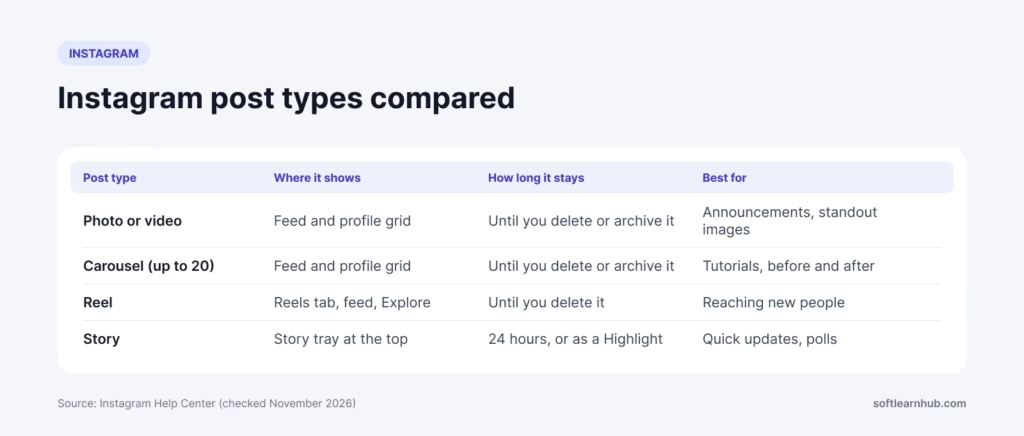
Which type of Instagram post should you use?
| Post type | Where it shows | How long it stays | Best for |
|---|---|---|---|
| Single photo or video | Feed and your profile grid | Until you delete or archive it | Announcements and standout images |
| Carousel (up to 20 items) | Feed and your profile grid | Until you delete or archive it | Tutorials, before and after, product sets |
| Reel | Reels tab, feed and Explore | Until you delete it | Reaching people who don’t follow you yet |
| Story | Story tray at the top of the feed | 24 hours, or longer as a Highlight | Quick updates, behind the scenes, polls |
How to post on Instagram from computer (Mac or PC)
You can post from a desktop or laptop without any third-party tool. Instagram’s help center lists these steps for the browser version at instagram.com:
- Go to instagram.com and log in.
- Click Create in the left menu.
- Click Post, then Select from computer, or drag a file into the window. Supported photo formats are JPG, PNG and HEIC/HEIF.
- Choose the crop size and click Next.
- Click Filters or Adjustments to edit, then click Next.
- Write a caption, add a location and click Accessibility to write alt text. Advanced settings lets you turn off commenting.
- Click Share in the top right.
Instagram’s carousel article also has a Computer help tab, so multi-photo posts work in the browser as well. Feed posts are easy on a big screen, especially when your photos already live on your laptop. For Stories and Reels, the phone app is still the better place, because the camera, stickers and timeline editor are built around it.
Captions, alt text and tags: what to add before you share
The last screen before Share is where a post gets its context. A minute spent here does more for your results than another round of filters.
Writing a caption that works
You add the caption on the final screen by tapping Add a caption (see Instagram’s caption guide). Lead with the point, because only the start of a caption shows in the feed before people tap more. End with one clear prompt, such as a question or a nudge to save the post, and keep hashtags to a few relevant ones instead of a wall of tags.
Adding alt text
Instagram creates automatic alt text with object recognition, but you can replace it with a better description for people who use screen readers. On your phone, after editing tap Next, then More options, then Write alt text. To fix alt text on an older post, open it, tap the three-dot menu, tap Edit, then Edit alt text. The steps are in Instagram’s alt text article.
Good alt text describes what matters in one plain sentence. Barista pouring latte art into a white cup on a wooden counter is useful. Image of coffee is not.
Tagging people and adding a location
On the final screen, tap Tag people to tag accounts and Add location to attach a place. In a carousel you can tag different people on each slide. Tagged accounts get notified, so only tag people who appear in the content or helped make it.
How to schedule Instagram posts
Scheduling lets you write a batch of posts in one sitting and publish them at the right time. You have two official options.
Schedule in the Instagram app
If your account is public, you can schedule photos, carousels and Reels right in the app. Instagram’s scheduling help page allows up to 25 scheduled posts a day, up to 30 days in advance.
- Tap Create, then tap Post or Reel.
- Select your photo or video and tap Next, then add your caption and edits.
- Tap More options.
- Turn on Schedule this post (or Schedule this reel) and choose a date and time.
- Tap Done, tap Back, then tap Schedule.
To change or cancel a scheduled post, go to your profile, tap the menu and open Scheduled content under Your insights and tools. Product tags, collaborative posts, sponsored posts and fundraisers can’t be scheduled at this time.
Schedule with Meta Business Suite on a computer
Meta Business Suite works better if you plan content in batches at a desk or post to Facebook and Instagram together. Your Instagram account has to be connected to Business Suite first. According to Meta’s Business Help Center, the flow is:
- In Meta Business Suite, go to Content, then Create post.
- Choose where to post (your Instagram account, your Facebook Page or both), then add media and a caption.
- Turn on the Scheduling options toggle.
- Pick a date and time, or click Active times to see when your audience is most active.
- Click Schedule.
Scheduled posts appear in the Planner tab and in the Scheduled list under Content, where you can reschedule them if plans change.
Instagram posting best practices
Knowing how to post on Instagram is the easy part. Posting well, week after week, is what grows an account. These habits make the biggest difference for small teams:
- Size images for the feed. Instagram keeps photos at full quality when they are 1,080 pixels wide with an aspect ratio between 1.91:1 and 3:4, per its image resolution guide. Anything outside that range gets cropped.
- Plan the week, not the day. A simple calendar beats a daily scramble. Our content marketing strategy guide shows how to pick themes and a rhythm you can keep.
- Make product shots clean. A plain background keeps attention on the product. Our free background remover does it in your browser.
- Track your link clicks. If your bio link points to your website, tag it with our free UTM builder so Instagram traffic shows up clearly in Google Analytics.
- Reply to comments. Conversations under a post build loyalty, and many of the community habits in our guide to getting more Facebook followers work on Instagram too.
Why can’t I post on Instagram? Common problems and fixes
| Problem | Likely cause | What to try |
|---|---|---|
| Post stuck on posting or fails | Weak connection or a large video | Switch to Wi-Fi, keep the app open until it finishes, then retry |
| No Reel option | Feature not available for your account yet, or an old app version | Update the app and check again |
| Can’t schedule a post | Private account or an incompatible feature | Switch to a public account, or remove product tags and collaborators |
| Desktop upload rejected | Unsupported file type | Save photos as JPG, PNG or HEIC/HEIF |
| Carousel crop looks wrong | One orientation applies to every item | Crop all images to the same ratio before uploading |
If uploads keep failing on one device, log out and back in, or reinstall the app. If the problem follows you to a second device, it’s usually an account-level issue, and Instagram’s help center is the place to report it.
Frequently asked questions
How do I post on Instagram for the first time?
Tap Create (+) at the top of your feed, choose POST, pick a photo, tap Next twice, write a caption and tap Share. Start with a single photo so you learn the flow, then try a carousel or a Story. Fill in your profile photo and bio first, so new visitors know who you are.
How do I post on Instagram from my computer?
Open instagram.com in any browser, log in, click Create in the left menu, then Post, and select a file from your computer or drag it in. You can crop, add filters, write a caption, add alt text and share. If you manage a business account, you can also post and schedule from Meta Business Suite.
How many photos can I put in one Instagram post?
Up to 20 photos and videos in a single carousel post, according to Instagram’s help center. All items share one crop orientation, so prepare them in the same ratio. You can reorder or delete items after posting, but you can’t add new ones to an existing carousel.
Can I edit an Instagram post after sharing it?
Yes, partly. Tap the three dots on the post and choose Edit to change the caption, location, tags and alt text, or to reorder and remove carousel items. You can’t replace the photo or video itself. For that, delete the post and share a new one.
Why can’t I schedule posts on Instagram?
In-app scheduling needs a public account, and you can schedule up to 25 posts a day, up to 30 days ahead. Product tagging, collaborative posts, sponsored posts and fundraisers aren’t compatible with scheduling. If none of that applies, update the app or schedule from Meta Business Suite instead.
Do Instagram Stories stay on my profile?
No. Stories disappear from your profile, feed and inbox after 24 hours. To keep one visible, add it to a Story Highlight, which sits under your bio. If your story archive is turned on, expired Stories are also saved privately, so you can reshare them later.
The bottom line
Now you know how to post on Instagram, and it all comes down to one button, Create, and four formats. Use feed posts and carousels for content people should find later, Reels to reach new people, and Stories for quick updates. Once posting feels routine, put your energy into a plan: our content marketing strategy guide shows how to build one. If you’d rather hand off paid promotion, see how a paid social media agency can help.