
This guide shows you how to remove background from logo files, GIFs and PNGs without paying for software. It’s for business owners, marketers and designers who need a transparent logo for a website, letterhead, favicon or sticker, and for anyone stuck with a GIF that has a white box around it. You’ll get the fastest method, fixes for white edges, and honest notes on which tools handle animated GIFs.
How to remove background from logo files
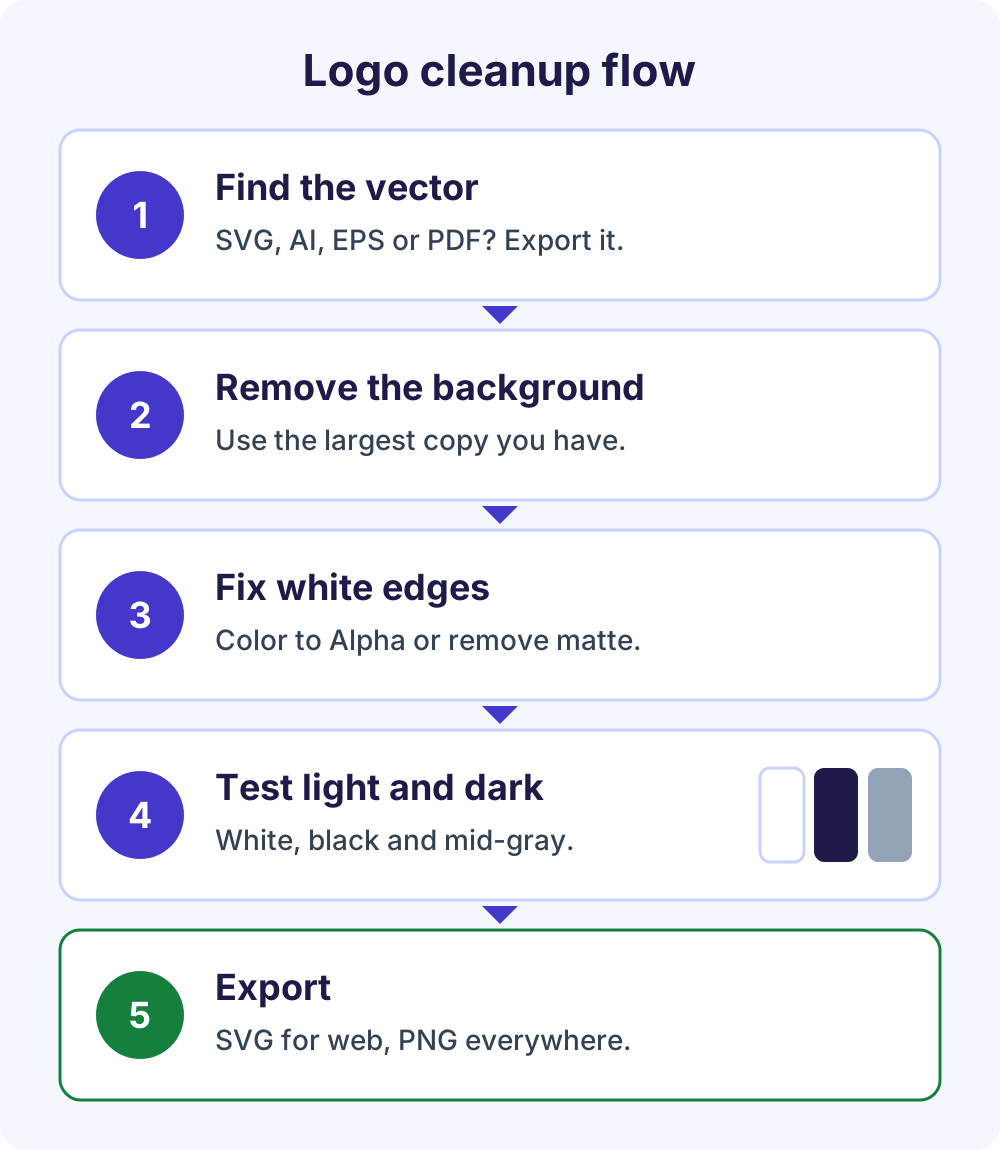
To remove background from logo files, start with the original vector (SVG, AI, EPS or PDF) and export a transparent PNG or SVG. If you only have a JPG or PNG, run the largest copy through a free AI background remover, choose Transparent, touch up the edges and download a PNG. For animated GIFs, use a frame-based tool such as ezgif, Photopea or GIMP instead.
In this guide
Logos are simpler than photos, which helps an AI cutout, but they hide a few traps: thin lines, small text, the holes inside letters like O and A, and soft shadows. The steps below handle those, and the GIF sections further down cover animation.
Step by step with a free logo background remover
- Find the largest copy. Use the biggest PNG or JPG you have. A logo cut out at 2,000 pixels wide and scaled down stays crisp, while a 200-pixel copy saved from a website looks soft at any size.
- Upload it. Open the free logo background remover and drop in the file. It accepts JPG, PNG or WebP up to 25 MB each, and up to 10 images at once, so you can do the color, black and white versions together.
- Pick Transparent. The AI cuts out the logo. You can also preview it on white, blur or any custom color.
- Check the edges. Zoom in and use Touch up edges: Erase removes leftover background, and Restore brings back thin lines or letter details the AI dropped.
- Download a PNG. PNG keeps the transparency, while JPG fills it with the background you picked. For several files, Download all (ZIP) saves them in one go.
The cutout runs on your device, so the logo isn’t uploaded to a server, and there’s no sign-up or watermark. That’s useful for unreleased brand work you’d rather not send anywhere.
If the logo sits on a busy photo, such as a storefront sign or a T-shirt, expect extra cleanup: AI removers look for a main subject and can drop pieces that match the texture. A cleaner source usually saves time.
Start from the original vector file
The cleanest transparent logo usually comes from exporting, not removing. Vector formats such as SVG, AI, EPS and many PDFs store shapes rather than pixels, and they normally have no background at all unless the designer added a colored box. If the logo only exists inside a PDF, save that page as an image with our free PDF to PNG converter, then remove the white background.
Before you remove background from logo artwork, check your brand folder, the designer’s handoff files, your print shop’s proofs or your website builder’s media library. From a vector file you can export a PNG at any size, or an SVG for your website, with perfectly sharp edges.
No vector file? Recreate one
For simple logos, the free editor Inkscape can trace a PNG into vector paths with Path > Trace Bitmap (Shift+Alt+B), as shown in the Inkscape Beginners’ Guide. Use the Brightness cutoff mode for a one-color mark and Color quantization for a multi-color logo.
Tracing works best on clean, high-contrast artwork, so cut out the background first, trace the largest copy you have, then delete stray nodes. Detailed emblems, gradients and photo elements rarely trace well; for those, a clean transparent PNG is the better final file.
Got a “transparent” logo with a checkerboard?
If a logo shows a gray-and-white checkerboard everywhere you place it, the pattern is part of the image itself. This “fake transparency” often turns up in JPGs and in logos copied from previews or mockups.
The fix is to get the real file from the brand owner, or cut the checkerboard out like any other background. Photopea’s fake transparency tutorial uses Select > Magic Cut and then File > Export As > PNG. Check the edges closely afterward, because checkerboard squares often survive inside letters.
How to fix white edges on a transparent logo
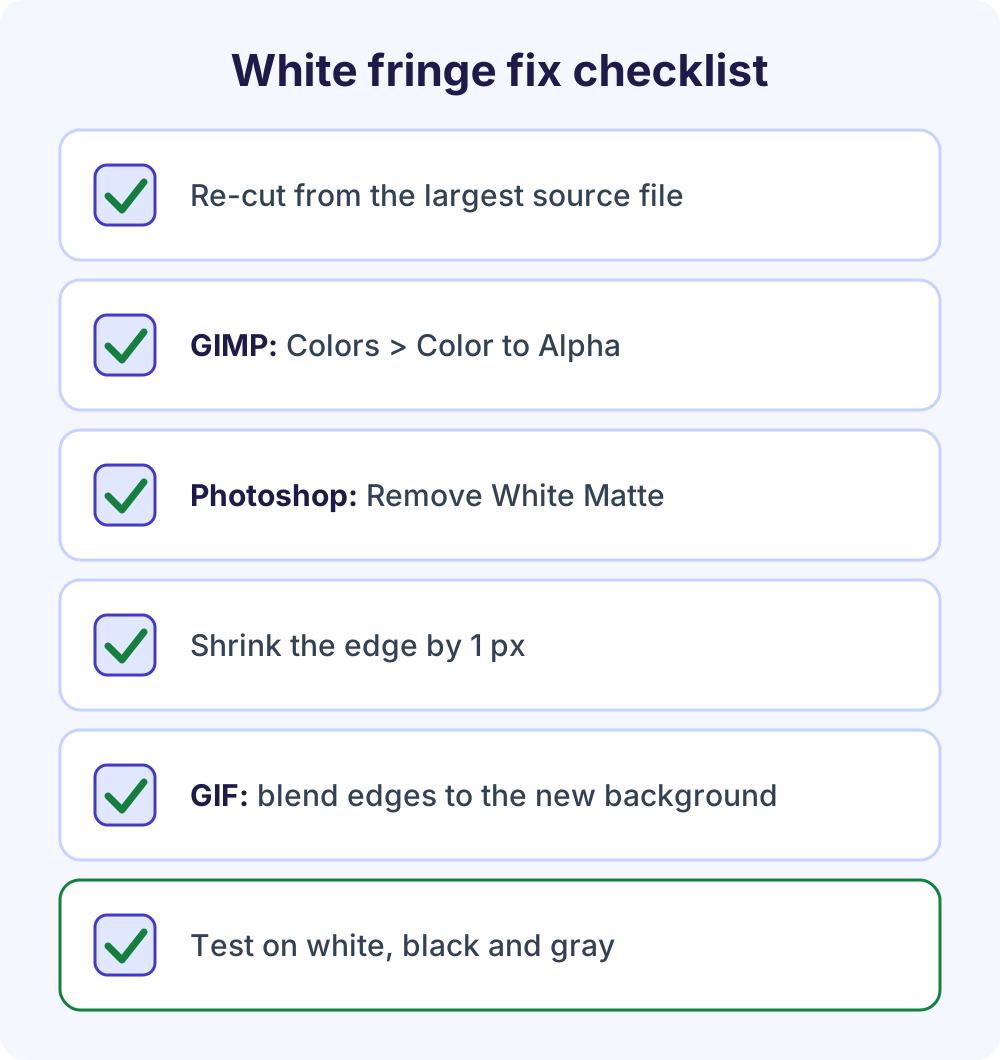
A white fringe, or halo, appears because the logo’s edge pixels were blended with the old white background when the file was saved. On white they’re invisible; on a dark header they show up as a thin light outline. Try these fixes in order.
- Re-cut from a bigger source. On a larger image, the blended edge is a smaller share of each shape, so the halo is far less visible once you scale the logo down.
- Use Color to Alpha in GIMP. Colors > Color to Alpha turns a chosen color, such as white, into transparency. The GIMP manual explains that it preserves anti-aliasing by turning weak color into weak alpha, so edges become semi-transparent instead of light.
- Remove the matte in Photoshop. Adobe’s Photoshop help documents Layer > Matting > Remove White Matte (and Remove Black Matte) for exactly this problem on anti-aliased edges.
- Shrink the edge by 1 pixel. In GIMP, choose Layer > Transparency > Alpha to Selection, then Select > Shrink by 1 px, invert the selection and delete. This trims the outer ring on bold logos but can thin out fine lines.
- Erase what’s left. In our background remover, the Erase brush under Touch up edges cleans small leftover patches between letters.
- Redraw as a vector. For a logo you’ll use everywhere, a traced or redrawn SVG has no fringe at any size.
Why GIF logos get the worst halos
GIF can’t store partial transparency, as the GIMP GIF export docs point out. Every edge pixel is either fully solid or fully clear, so soft anti-aliased edges have to be blended against some color. If that color is white, you get a white halo on a dark page.
The usual fix is a matte: put a layer in the destination color behind the logo, merge them, then delete only the flat background. The edge pixels are then blended with the color they’ll actually sit on. If you don’t know the final background, use PNG or WebP instead.
Test on light and dark backgrounds
Before you use a transparent logo anywhere, place it on white, black, a mid-gray and your main brand color. Problems that hide on one background jump out on another.
- Halos: a thin light line around shapes on dark backgrounds.
- Missing parts: dark text or a black outline that vanishes on a dark header.
- Baked-in shadows: a soft gray smudge left from a drop shadow in the original background.
- Filled holes: the inside of letters like O, A and B still showing the old background.
- Size problems: thin strokes that break up when the logo is shown small.
A quick test without design software: in the background remover, switch the background from Transparent to a custom color such as navy or charcoal to preview the cutout, then switch back to Transparent before you download.
If the logo fails on dark colors, you probably need a second, light version for dark backgrounds, which is why many brand guidelines include full-color, all-white and all-black versions. To see how your transparent logo works on a printed page, drop the PNG or SVG into the free letterhead maker, which accepts PNG, JPG, WebP or SVG files up to 2 MB.
PNG vs SVG vs WebP: which format to export
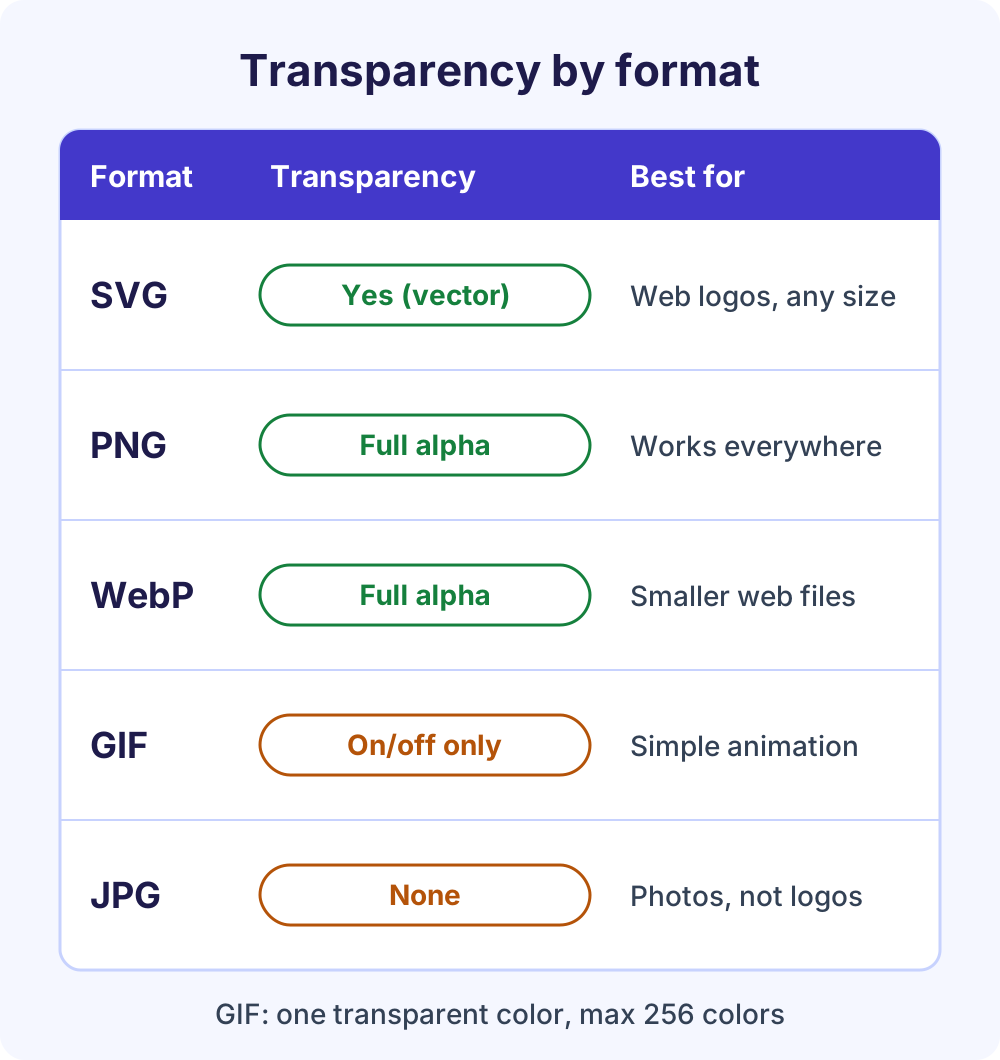
Export an SVG for websites when you have vector artwork, a PNG as your universal transparent logo file, and a WebP when you need a smaller raster file for the web. Avoid JPG, which has no transparency, and avoid GIF for static logos.
| Format | Transparency | Animation | Best logo use |
|---|---|---|---|
| SVG | Yes (vector, no pixels) | Possible with CSS | Website headers and icons at any size |
| PNG | Full alpha (soft edges) | Only as APNG | The safe default for documents, email, social profiles and print mockups |
| WebP | Full alpha | Yes | Smaller files for web pages |
| GIF | On/off only, one transparent color | Yes | Simple animations, not static logos |
| JPG | None | No | Photos; transparency becomes a solid color |
These capabilities match MDN’s image file type guide. MDN also recommends lossless encoding for logos and line art, because blur and colored fringes stand out on sharp edges, and suggests the SVG version of an icon whenever one exists.
Export PNGs at about twice their display size so they stay sharp on high-density screens: a header logo shown 200 pixels wide can be exported at 400. Keep a master PNG of 2,000 pixels or more, and keep a PNG copy even if your website uses WebP or SVG, because some apps and email tools still expect PNG.
GIF background remover: static vs animated GIFs
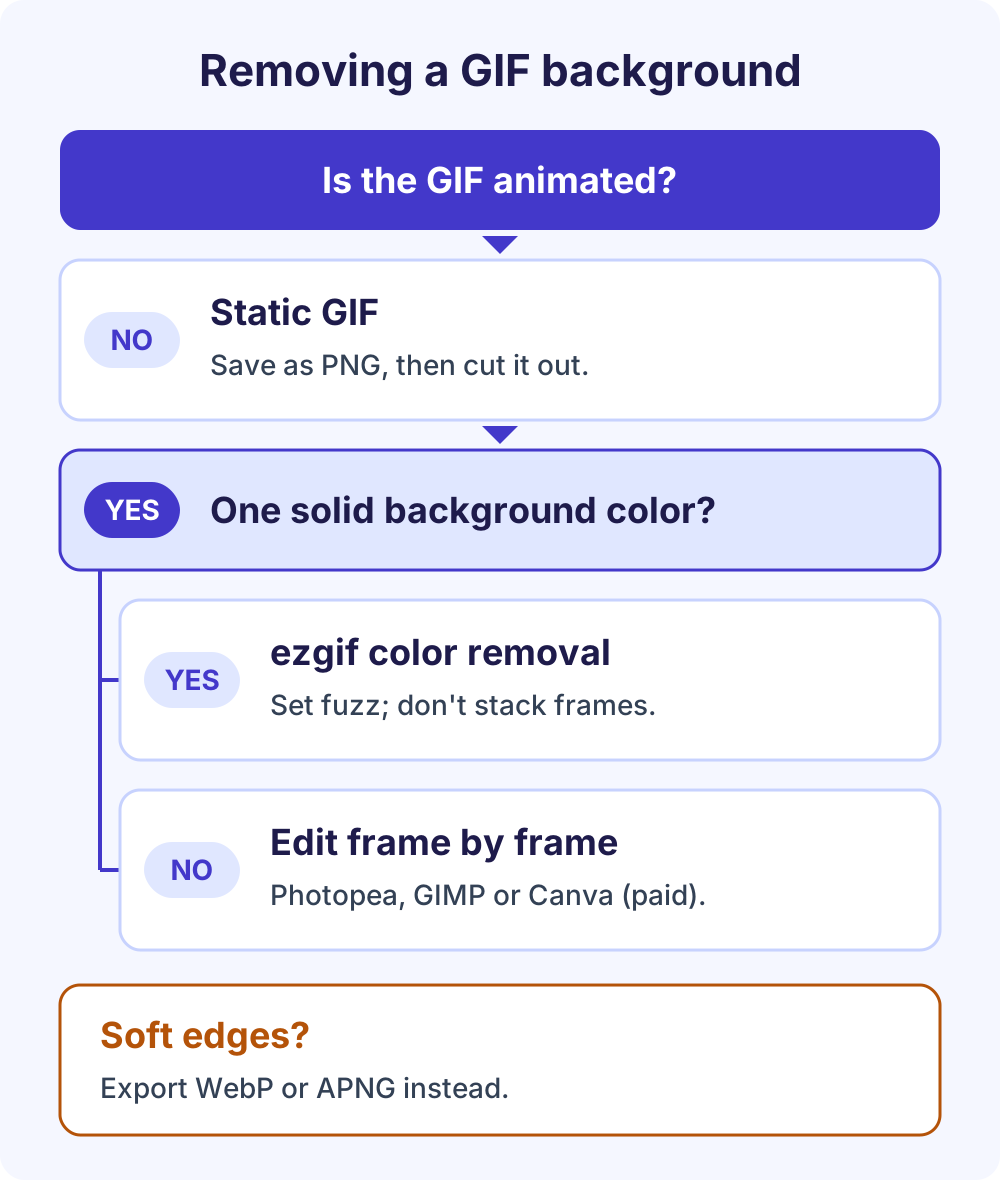
Which GIF background remover you need depends on one question: does the GIF move? A static GIF is just a still image and takes the normal route. An animated GIF needs every frame cut out and put back together, and the result still has hard edges.
That’s because each GIF pixel points to a palette of at most 256 colors, and only one palette color can be fully transparent. With no semi-transparent pixels, soft shadows and smooth edges can’t survive in a transparent GIF.
How to remove background from GIF stills
Our background remover accepts PNG, JPG and WebP, not GIF, so convert the still first. Open the GIF in a free editor such as Photopea and use File > Export As > PNG, or take a full-size screenshot of it. Then drop the PNG into the background remover and download a transparent PNG.
You can also stay in Photopea: open the GIF, choose Select > Remove BG and export as PNG, as shown in Photopea’s background removal tutorial. Not sure whether a GIF is animated? If it moves when you open it in a browser tab, treat it as animated.
How to remove background from GIF animations for free
Three free tools handle animated GIFs, each in a different way. Choose based on the background.
ezgif: best for solid-color backgrounds. The ezgif Remove background tool makes one chosen color transparent in every frame. It’s color-based rather than AI, free, needs no sign-up and adds no watermark. It takes files up to 200 MB and deletes them an hour after upload.
- Upload the GIF, or paste its URL.
- If the GIF is optimized, click the “unoptimize” link first; ezgif says optimized GIFs can cause ghosting.
- Pick the background color: white, black, or any custom color by hex code or color picker.
- Raise Fuzz until near-matching shades disappear, and lower it if parts of your subject vanish.
- Tick don’t stack frames so old frames don’t show through, and use edge cleanup to trim leftover edge pixels.
- Submit, play the preview and save the new GIF.
The catch: if your subject contains the background color, such as a white logo on a white background, those parts turn transparent too. In that case, use a frame editor instead.
Photopea: best for detailed backgrounds. When you open an animated GIF in Photopea, each frame becomes its own layer, according to Photopea’s animation guide. Layers whose names start with _a_ are frames, the default delay is 100 ms, and adding ,500 to a layer name holds that frame for half a second.
Cut out the subject on each frame layer with Select > Remove BG or Select > Magic Cut, keep the layer names, then use File > Export As and choose GIF, or PNG or WebP for an animated file with soft edges. It’s slow for long animations, but it’s the most precise free option.
GIMP: best if you already use it. GIMP treats each layer as one frame of an animation. Open the GIF, run Filters > Animation > Unoptimize so every layer holds a full frame, then use Colors > Color to Alpha for solid backgrounds, or manual selections, on each layer. Preview with Filters > Animation > Playback.
To export, choose File > Export As, name the file with a .gif extension and tick As animation. Set frame disposal to “One frame per layer (replace)” so earlier frames don’t show through transparent areas. GIMP’s GIF export is limited to 256 colors, and its manual notes that it can also export animated WebP.
Split and rebuild with any cutout tool. The ezgif frame splitter saves every frame as a PNG inside a ZIP file. Cut out the frames in any background remover (ours takes 10 images per batch), then upload a ZIP of the finished frames to the ezgif GIF maker with “don’t stack frames” ticked.
Two cautions with this route. Keep the files named in frame order, and expect small edge differences between frames, because an AI cutout treats each image separately. Play the result back frame by frame before you publish it.
GIF, WebP or APNG for the finished animation?
Export a GIF when a platform only accepts GIF, and blend its edges against the background it will sit on. When you control the page, an animated WebP or APNG keeps soft, semi-transparent edges and far more than 256 colors. MDN notes that APNG supports a range of color depths, while animated GIF is limited to 8-bit indexed color.
Can Canva, Adobe Express or Kapwing remove background from GIF files?
Canva can, on its paid plans. Adobe Express ties GIF background removal to its Premium plan, and Kapwing’s image remover accepts GIFs but exports transparent results as PNG stills. Here’s what each company’s own pages say, current as of October 2026.
Canva GIF background remover
Canva’s GIF background remover page says the tool detects the subject, erases the background frame by frame and lets you download a transparent GIF. The Canva Help Center says Background Remover is included with paid plans.
Canva treats a GIF upload as a video file, alongside MOV, MP4, MPEG, MKV and WEBM, with a 1 GB limit. Video background removal works on clips with an original length under 10 minutes, and if you trimmed the clip in Canva, you need to download and re-upload it first. Select the GIF, choose BG Remover on the editor toolbar, wait for processing, then download it as a GIF.
For photos and free-plan workarounds, see our guide on how to remove a background in Canva.
Adobe Express
Adobe’s GIF Background Remover page says an Adobe Express Premium plan removes a GIF’s background in one click, and it describes replacing the background with a color, image or design before you download the new GIF. The page doesn’t say the download keeps a transparent background, so test it before relying on it for an overlay. Adobe’s video background remover is also a Premium feature and takes videos up to two minutes long.
Kapwing
Kapwing’s image background remover accepts GIF, JPG, PNG and HEIC files, but Kapwing says it exports transparent images only as PNG. The Magic Wand and Eraser are free; automatic AI removal needs a Pro account. Its video background remover targets formats like MP4, MOV and WebM, and free exports carry a watermark. We found no documented way to get a transparent animated GIF out of Kapwing.
What happened to Unscreen?
Unscreen.com, an AI tool for removing video backgrounds, closed on June 29, 2026, according to Canva’s shutdown notice. Canva, which owns Unscreen, now points users to its own video background remover. Videos you exported from Unscreen before it closed can still be used.
| Tool | Animated GIFs? | How it removes | Cost | Transparent GIF out? |
|---|---|---|---|---|
| ezgif | Yes | One color plus fuzz | Free, no sign-up | Yes |
| Photopea | Yes, frames as layers | AI or manual, per frame | Free web app | Yes (also APNG, WebP) |
| GIMP | Yes, frames as layers | Color to Alpha or manual, per frame | Free, open source | Yes (also WebP) |
| Canva | Yes | AI, frame by frame | Paid plans | Yes, per Canva |
| Adobe Express | Yes | AI | Premium plan | Not stated |
| Kapwing | No documented route | AI (Pro) or manual | Free or Pro | No, PNG only |
| Our background remover | No (PNG, JPG, WebP only) | AI, in your browser | Free | No, PNG or JPG |
| Unscreen | Closed June 29, 2026 | Not available | Not available | Not available |
Turn a transparent logo into a sticker-style cutout
A sticker look is a transparent logo with a solid outline, usually white, around the whole shape. It reads well on busy photos, social posts and merch mockups, and it hides small edge flaws.
- Open your transparent PNG in GIMP and choose Layer > Transparency > Alpha to Selection.
- Use Select > Grow to expand the selection by the outline thickness you want, for example 15 px on a 1,000 px logo.
- Add a new layer below the logo and fill the selection with white or a brand color.
- Optionally add a soft shadow on another layer underneath, then export as PNG to keep the transparency.
Any editor with an outline or stroke effect can do the same job. For printed die-cut stickers, ask your print shop which file they need; many want a high-resolution PNG or a vector file with a separate cut line.
Make a favicon from your transparent logo
A favicon is the small icon in browser tabs and next to your site in Google results. Use the symbol from your logo rather than the full wordmark, because text becomes unreadable at tab size.
Google Search’s favicon guidelines require a square image of at least 8×8 pixels and recommend going larger than 48×48 pixels. Supported formats include ICO, PNG and GIF, and Google uses one favicon per hostname.
- Start square. Center the mark on a square transparent canvas with a little padding, and export it from your largest master file.
- Test both tab colors. Browsers in dark mode show a dark tab bar, so a black mark on transparency can disappear. A solid rounded-square background behind the mark avoids this.
- Simplify. Thin outlines, taglines and small details vanish at 16 pixels. Thicken strokes or use a simplified mark.
What our free background remover can and can’t do
Our background remover is a free logo background remover for still images. Here’s exactly what it handles, so you pick the right tool first time.
- Accepts: JPG, PNG and WebP, up to 25 MB each and 10 at a time.
- Does: an AI cutout in your browser, Erase and Restore touch-ups, and transparent, white, blur or custom-color backgrounds.
- Exports: PNG (keeps transparency) or JPG, singly or as a ZIP.
- Doesn’t: open GIF files, keep animation or export SVG.
For more on transparency, read how to make a background transparent for free. For white or colored backgrounds, see how to change a photo’s background color, and our free background remover comparison covers Adobe, remove.bg, Picsart and GIMP.
Frequently Asked Questions
Can Canva remove background from GIF files?
Yes, on Canva’s paid plans. Canva says its GIF background remover detects the subject, removes the background frame by frame and lets you download a transparent GIF. Canva handles GIFs as video uploads, and video background removal works on clips under 10 minutes long. If you trimmed the GIF inside Canva, download and re-upload it before using BG Remover.
Is there a free GIF background remover without a watermark?
Yes. The ezgif Remove background tool is free, needs no sign-up and adds no watermark, but it removes one chosen color rather than detecting a subject, so it suits solid backgrounds. For detailed backgrounds, Photopea and GIMP are free and open each frame as a layer, which you cut out one by one and export as an animated GIF.
Why does my transparent logo have a white outline?
The edge pixels were blended with the old white background when the logo was saved, so they stay light after the cutout. Fix it with GIMP’s Color to Alpha, Photoshop’s Remove White Matte, or by shrinking the selection by one pixel. Re-cutting from a larger source or redrawing the logo as an SVG gives the cleanest result.
Does removing a GIF’s background keep the animation?
Only if the tool processes every frame. ezgif, Photopea, GIMP and Canva’s GIF remover all work frame by frame and can export an animated GIF. Still-image removers, including ours, work on single images, so you’d have to split the frames first. Remember that a transparent GIF can’t have soft edges, because GIF pixels are fully on or off.
Should I save a transparent logo as PNG or SVG?
Use SVG on websites when you have vector artwork, because it stays sharp at every size and is usually small. Use PNG everywhere else: documents, email signatures, social profiles and tools that don’t accept SVG. Keep a large PNG master at least 2,000 pixels wide, plus a WebP copy if your site needs smaller raster images.
Is Unscreen still available for removing GIF backgrounds?
No. Canva’s notice says Unscreen.com closed on June 29, 2026, and Canva now points users to its own video background remover, which is part of its paid plans. Videos exported from Unscreen before the closure can still be used. For free alternatives, try ezgif for solid-color backgrounds, or Photopea and GIMP for frame-by-frame edits.
What resolution should a logo be before removing its background?
Use the largest version you can find, ideally 1,000 pixels wide or more. When you remove background from logo files, no detail is added, so a small logo still looks soft after the cutout, and enlarging it blurs the edges. If only a tiny copy exists, recreating the logo as a vector is usually faster than repairing it.
Next steps: make your transparent logo now
Ready to remove background from logo files? Grab the largest copy you have and run it through the free background remover, which works in your browser with no sign-up or watermark. Then test the PNG on light and dark backgrounds before you use it in your letterhead, website header and favicon.