UI/UX design trends for 2026 are easier to judge than they look, because the ones that last come from platform owners and standards bodies, not mood boards. This guide is for small-business owners, marketers and product teams who need to decide what to change. For each trend you get what it is, the official evidence, who should adopt it, how to apply it in Figma or code, and the accessibility or performance risk.
What are the UI/UX design trends for 2026?
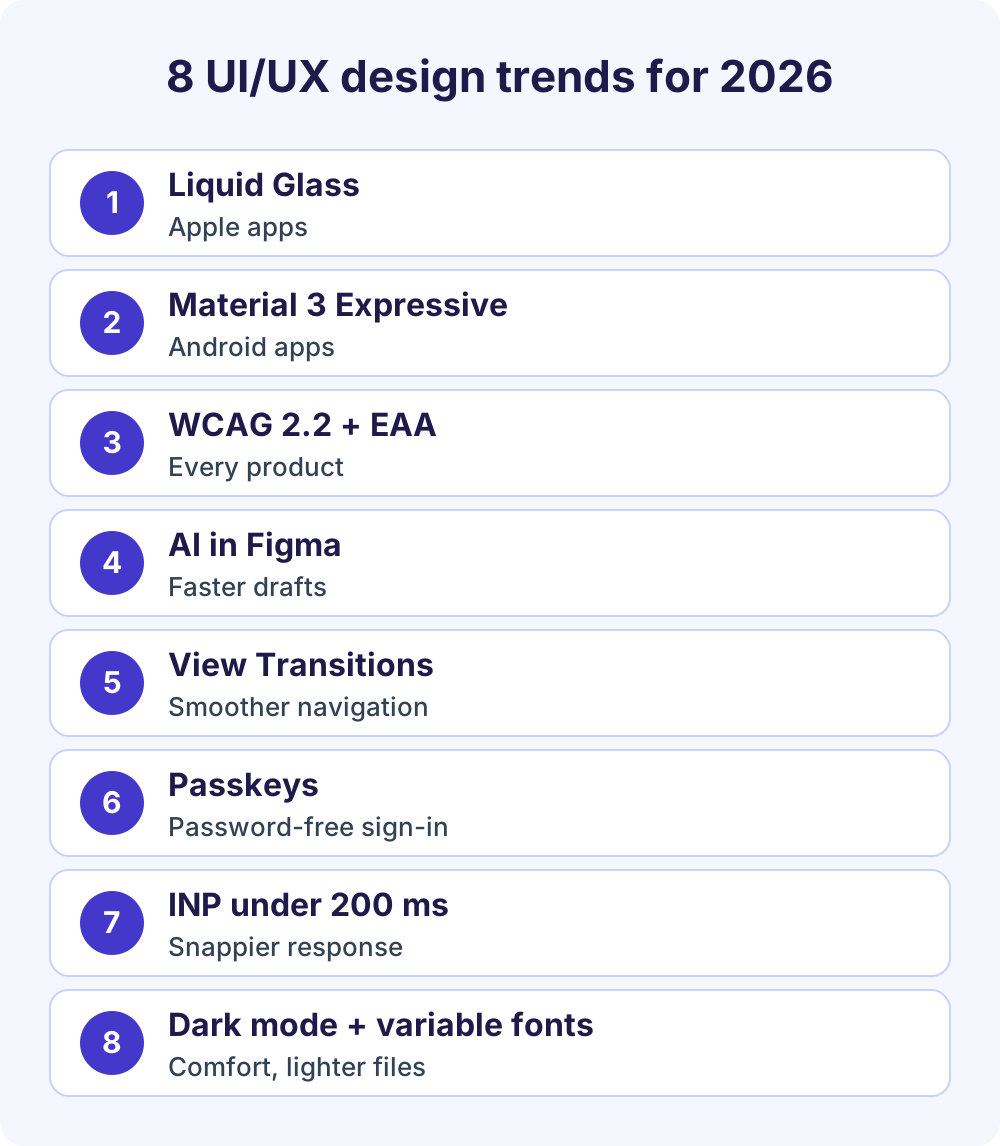
The UI/UX design trends for 2026 backed by official sources are Apple’s Liquid Glass, Google’s Material 3 Expressive, WCAG 2.2 with the European Accessibility Act, AI features in Figma, the View Transitions API, passkeys, INP as the responsiveness Core Web Vital, and mature dark mode with variable fonts. Adopt accessibility, INP and passkeys first, and treat glass effects and expressive motion as optional extras you test for contrast and reduced motion.
In this guide
Every trend below links to the company or standards body behind it, and the details are current as of October 2026. Where other lists of UI/UX design trends quote survey figures we could not trace to a primary source, such as how many designers use AI, we left them out.
Apple Liquid Glass: the new look of Apple platforms
Liquid Glass is the translucent material Apple introduced on June 9, 2025 across iOS 26, iPadOS 26, macOS Tahoe 26, watchOS 26 and tvOS 26. Apple describes it as a material that reflects and refracts its surroundings and adapts between light and dark environments.
Unlike many UI/UX design trends, it is not a one-season experiment. Apple kept it for iOS 27, and its iOS 27 page promises more uniform refraction, improved contrast and a new slider that sets Liquid Glass anywhere from “ultraclear to fully tinted.” Your app has to stay readable at both ends of that slider.
- Who should adopt it: teams shipping native iPhone, iPad and Mac apps. Apple says standard SwiftUI, UIKit and AppKit controls pick up the material automatically when you build with the latest Xcode. Websites and Android apps should not imitate it.
- How to apply it in Figma: start from Apple’s design kits for iOS, iPadOS and macOS 27, which Apple released for Figma and Sketch on June 23, 2026 with Liquid Glass updates. Keep glass on tab bars, sidebars and toolbars.
- How to apply it in code: rely on system components first, and use
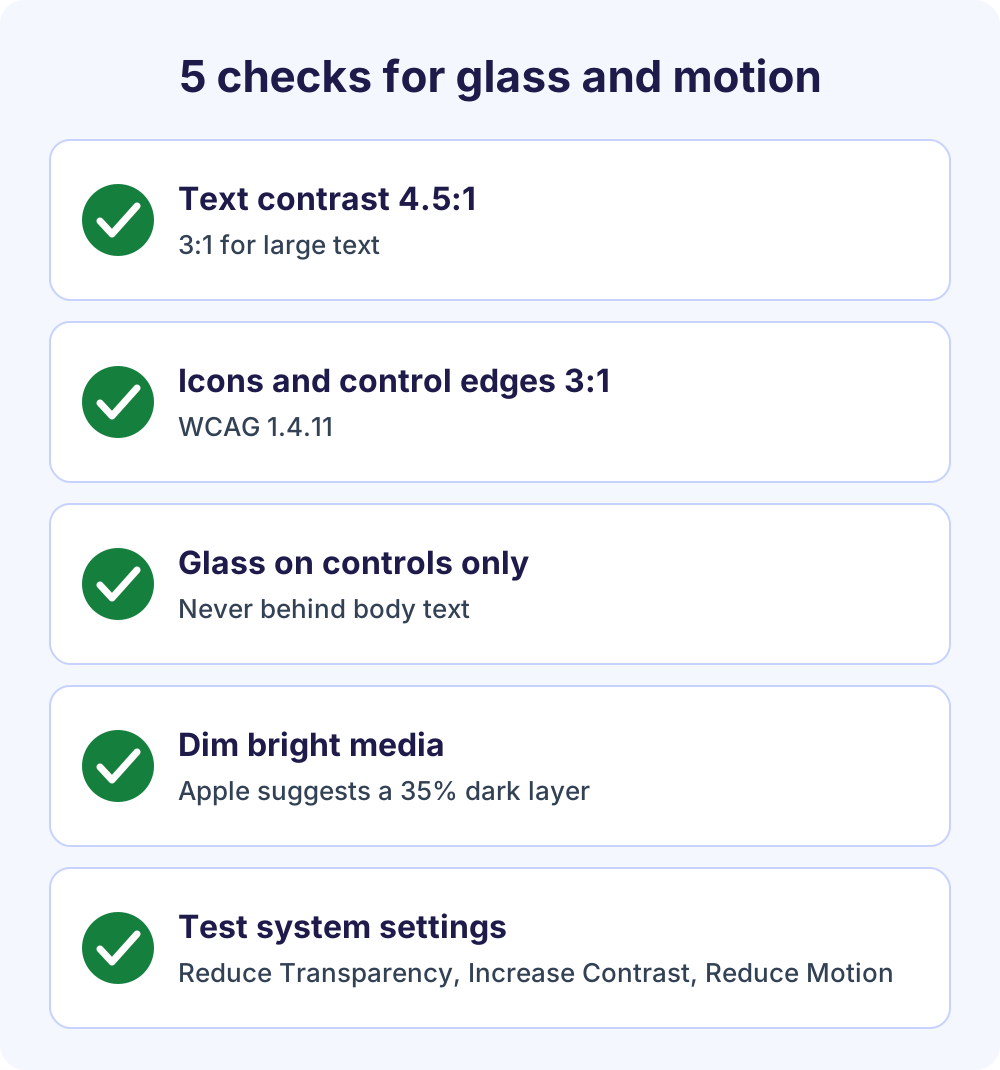
glassEffect()on custom controls sparingly. Apple’s Materials guidelines say plainly: don’t use Liquid Glass in the content layer. - Risk: text over bright or busy content. Apple suggests a dark dimming layer of 35% opacity when clear glass sits over bright media, and the material changes when people turn on Reduce Transparency or Increase Contrast. Test every combination.
Material 3 Expressive: Google’s bolder, springier Material
Material 3 Expressive is the Material Design update Google announced in May 2025 for Android 16 and Wear OS 6. It builds on Material You with springy, natural motion, shape morphing, emphasized typography, updated dynamic color and more responsive components.
Of all the UI/UX design trends here, this one comes with the most published research. Google says it ran 46 studies with more than 18,000 participants, and people found key elements up to four times faster in expressive layouts. The same write-up is honest about the limits: a redesign that broke standard patterns hurt usability, and a notable share of users preferred calmer designs.
- Who should adopt it: Android and Wear OS app teams, and brands that want more personality inside a Material-based product. Web teams can borrow the type and shape ideas without chasing every component.
- How to apply it in Figma: Google points designers to the updated Material 3 Expressive design kit for Figma. Redesign one high-traffic screen, such as home or checkout, before touching the rest.
- How to apply it in code: in Jetpack Compose, expressive components arrived behind an experimental opt-in. Several, including buttons, menus and top app bars, were promoted out of it in the 1.5.0 alpha releases during 2026, so check the Compose Material 3 release notes before you depend on an API.
- Risk: bouncy motion and big shape changes. Tie them to the reduced-motion setting and keep standard patterns where people expect them.
WCAG 2.2 and the European Accessibility Act
WCAG 2.2 is the current W3C accessibility standard, published as a Recommendation on October 5, 2023, and the European Accessibility Act (EAA) has applied since June 28, 2025. Together they turn accessible UI from a nice extra into a legal and commercial requirement for many digital products sold to EU consumers.
The EAA, Directive (EU) 2019/882, covers products placed on the market and services provided to consumers after June 28, 2025. Its scope includes e-commerce services, consumer banking, e-books, electronic communications and parts of passenger transport. Microenterprises that provide services, meaning fewer than 10 staff and an annual turnover or balance sheet of no more than EUR 2 million, are exempt. This is a summary, not legal advice.
The Act describes outcomes, such as websites and apps that are perceivable, operable, understandable and robust, rather than naming a WCAG version. The EU’s existing web accessibility standard, EN 301 549, includes WCAG 2.1 Level AA, so designing to WCAG 2.2 AA covers both. These are the new WCAG 2.2 criteria that change everyday UI:
- 2.4.11 Focus Not Obscured (Minimum), AA: sticky headers, chat widgets and cookie banners must not completely hide the element that has keyboard focus.
- 2.5.7 Dragging Movements, AA: anything people drag, such as sliders, sortable lists or maps, needs a single-pointer alternative like tap or click.
- 2.5.8 Target Size (Minimum), AA: pointer targets of at least 24 by 24 CSS pixels, or enough spacing around smaller ones. Apple’s default iOS control size is 44×44 pt and Android recommends 48dp, so platform defaults already pass.
- 3.2.6 Consistent Help, A: help links, chat or contact details sit in the same place on every page.
- 3.3.7 Redundant Entry, A: don’t make people retype information they already gave in the same process.
- 3.3.8 Accessible Authentication (Minimum), AA: no memory test or puzzle to sign in without an alternative. Letting password managers fill the field and allowing paste both count.
One old criterion, 4.1.1 Parsing, was removed as obsolete. The contrast rules stay: 4.5:1 for normal text, and 3:1 for large text, icons and control boundaries. In Figma, build visible focus states and 24px-plus hit areas into your components once, and use Auto Layout padding so those hit areas survive every resize.
AI inside design tools: Figma Make and the Figma agent
AI now lives inside the design tool instead of a separate app. Figma describes Figma Make as an “AI-driven, prompt-to-app tool” that turns ideas and existing designs into interactive apps, and its AI overview lists a Figma agent that generates and remixes designs, automates routine tasks and gives design feedback.
Usage runs on monthly AI credits. As of October 2026, Figma’s credit guide lists 3,000 credits a month for a Full seat on the Professional plan and 500 on the Starter plan, which also has a 150-credit daily cap. AI search and Rename layers cost nothing, while generating an app from scratch in Make costs roughly 100 credits or more.
- Who should adopt it: small teams that need faster first drafts, copy variations or a clickable prototype to put in front of users. Full use of Figma Make needs a Full seat on a paid plan, although other seats can try it.
- How to apply it: use AI for the blank-canvas stage: layout options, placeholder copy, layer names and quick prototypes. Then rebuild the chosen direction with your real components and variables so it stays maintainable. Our Figma wireframe guide covers that structured step.
- Risk: generic, look-alike screens and unchecked accessibility. Figma also reminds Make users that they are responsible for having the rights to fonts, code packages and images before they publish.
View Transitions: app-like page changes on ordinary websites
Of the web design trends in this guide, this is the cheapest to try. The View Transition API animates the change between two states of a page, or between two pages, without a heavy animation library. Same-document view transitions became Baseline Newly available on October 14, 2025, when Firefox 144 shipped, so they now work in every major browser engine.
Cross-document transitions, the kind that animate an ordinary link click on a multi-page site, work in Chrome and Edge 126 or later and Safari 18.2 or later, while Firefox support is still partial. They only run on same-origin navigations, and both pages opt in with one CSS rule. Add a reduced-motion override at the same time:
@view-transition {
  navigation: auto;
}

@media (prefers-reduced-motion: reduce) {
  ::view-transition-group(*),
  ::view-transition-old(*),
  ::view-transition-new(*) {
    animation: none !important;
  }
}- Who should adopt it: content sites, online stores and marketing sites that want smoother navigation, and single-page apps that currently ship a large animation library for the same effect.
- How to apply it: decide in the design which elements should morph between screens, such as a product photo and its title, and give each one a unique
view-transition-namein CSS. Keep durations short. - Risk: motion sickness and distraction. Chrome’s documentation notes that a reduced-motion preference does not always mean no motion, so a quick fade is a fine alternative. Browsers without support simply navigate as normal.
Passkeys: sign-in without passwords
A passkey is a sign-in credential based on FIDO standards, stored on a phone, computer or security key, that replaces the password with a cryptographic key pair. People approve sign-in the same way they unlock their device, with a fingerprint, face, PIN or pattern, and the FIDO Alliance describes passkeys as phishing-resistant.
Passkeys can sync across a person’s devices through a passkey provider or stay bound to one device. The FIDO Alliance’s passkey page cites Google reporting a 4x improvement in sign-in success rate over passwords. Passkeys also help with WCAG 2.2’s Accessible Authentication criterion, whose W3C guidance uses signing in with WebAuthn instead of a username and password as an example.
- Who should adopt it: any product with accounts, including stores, SaaS tools, membership sites and client portals.
- How to apply it in code: add
autocomplete="username webauthn"to the username field and callnavigator.credentials.get()withmediation: 'conditional', so passkeys appear in the browser’s autofill, as web.dev’s passkey autofill guide shows. Keep the password form working and offer to create a passkey right after a password sign-in. - How to apply it in Figma: design the create, sign-in, fallback and manage-in-settings states together. The FIDO Alliance publishes passkey design guidelines on Passkey Central.
- Risk: backend work and account recovery. Plan for people who lose a device, and don’t rely on SMS codes alone.
INP: responsiveness is a design decision
Interaction to Next Paint (INP) is the Core Web Vital that measures how quickly a page responds to clicks, taps and key presses across a whole visit. It is the least visual of these UI/UX design trends and the one users feel most. It replaced First Input Delay. A good score is 200 milliseconds or less at the 75th percentile of real visits, and anything over 500 milliseconds is poor.
Google Search Central says good Core Web Vitals align with what its core ranking systems seek to reward, which is not a promise of higher rankings. The clearer win is trust: a button that reacts instantly feels reliable, and one that freezes for half a second feels broken.
- Who should adopt it: every website, and especially stores and lead-generation sites loaded with tracking, chat and testing scripts.
- How to apply it in design: specify an instant visual response for every control, such as a pressed state, an inline spinner or an optimistic update, and avoid giant DOMs like mega menus with hundreds of links. Our guide to SEO website design basics covers the other page-experience checks.
- How to apply it in code: web.dev recommends yielding to the main thread, breaking up long tasks, avoiding layout thrashing and updating the visible UI first, then deferring the rest.
- Risk: heavy animation and third-party scripts that block the main thread during interactions.
Dark mode and variable fonts, done properly
Dark mode is the oldest of these UX design trends and now an expectation rather than a novelty. What changed is the method: design tokens instead of inverted colors. Apple’s Dark Mode guidelines ask for a contrast ratio of at least 4.5:1 in both appearances and suggest striving for 7:1 with custom colors, especially in small text.
Apple also advises against an app-specific appearance setting, because people expect apps to follow their system choice. On the web, set color-scheme: light dark on the root element and use the CSS light-dark() function, which works in all current major browsers, to define both colors in one line.
Variable fonts pack many weights, widths and styles into one file. MDN notes that a single variable file is usually smaller than, or about the same size as, the four static files you might load for body text. The registered axes are weight, width, slant, italic and optical size.
- How to apply it in Figma: create a color variable collection with Light and Dark modes (modes are available on Education and paid plans), and adjust a variable font’s axes in the type settings panel under the Variable tab. The same tokens theme data-heavy components, like the ones in our guide to creating a table in Figma.
- Risk: product photos with white backgrounds that glow in dark mode, which Apple suggests softening, and a variable version of a font that lacks a style you used in the static version.
UI/UX design trends compared: effort vs payoff
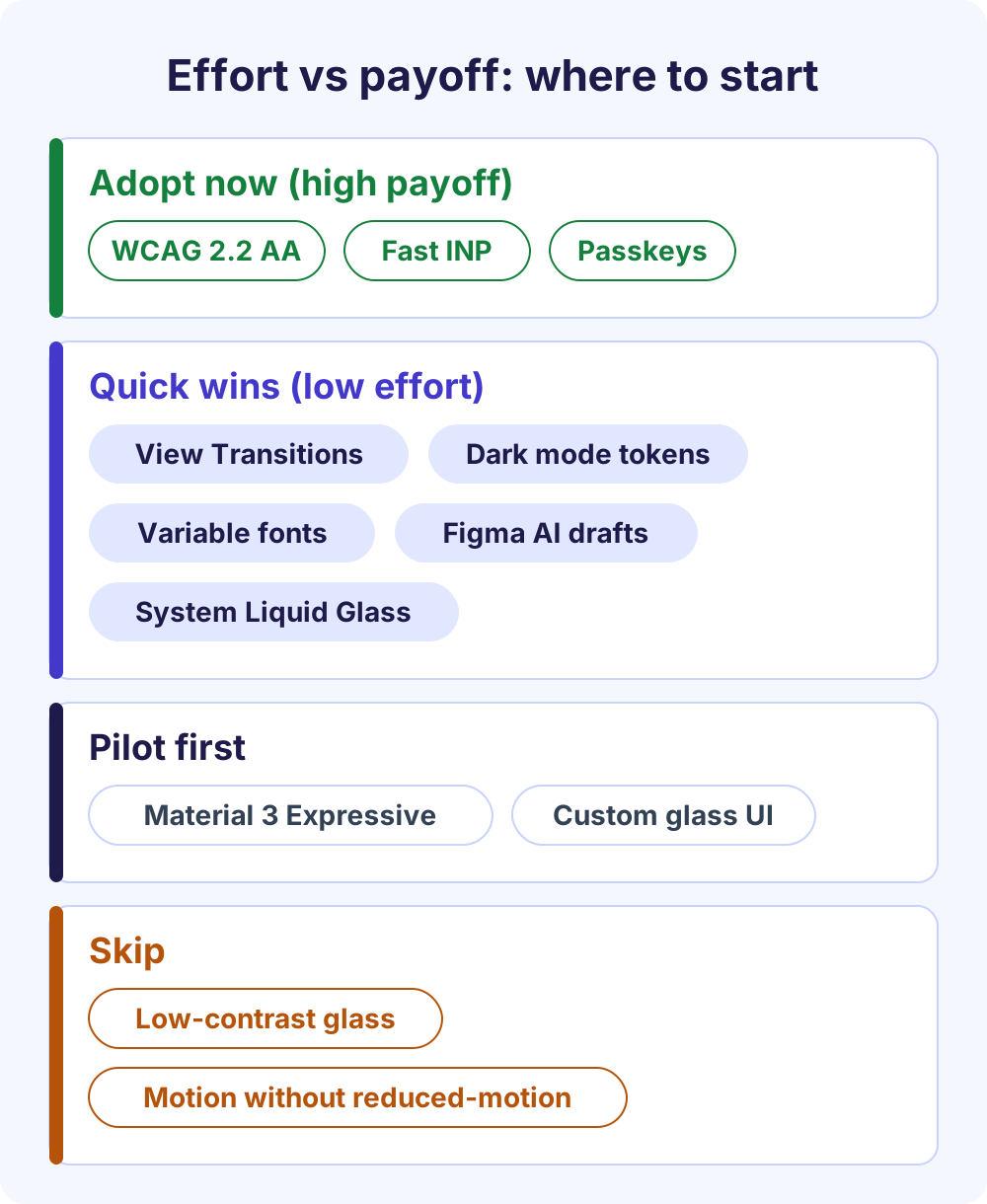
Use this table to turn the UI/UX design trends above into a roadmap. Effort assumes a small team with an existing site or app, and payoff weighs user benefit, legal exposure and how many people it reaches.
| Trend | Best for | Effort | Payoff | Verdict |
|---|---|---|---|---|
| WCAG 2.2 AA | Every site and app, especially anyone selling to EU consumers | Medium | High | Adopt now |
| INP of 200 ms or less | Every website, especially stores | Medium | High | Adopt now |
| Passkeys | Products with user accounts | Medium to high | High | Adopt, keep a fallback |
| View Transitions | Content sites, stores, single-page apps | Low | Medium | Add as an enhancement |
| Dark mode tokens and variable fonts | Apps and sites with long sessions | Low to medium | Medium | Adopt with tokens |
| AI features in Figma | Small teams, early exploration | Low | Medium | Use for drafts, not decisions |
| Liquid Glass | Native Apple apps | Low with system controls, high for custom UI | Medium | Adopt through system components |
| Material 3 Expressive | Android and Wear OS apps | Medium | Medium | Pilot one flow first |
UI design trends 2026: what to skip or use carefully
Some of the looks that UI design trends 2026 roundups push are fine in moderation and harmful by default. These are the ones to use carefully or skip.
- Low-contrast glass on websites. Of all the web design trends borrowed from Apple, frosted panels cause the most trouble. They look great in mockups, but text over a busy photo often fails the 4.5:1 contrast rule, and Apple itself keeps glass off content. The prefers-reduced-transparency media query has limited browser support, so it can’t be your only fallback.
- Motion that ignores reduced motion. Springy transitions, parallax and auto-playing carousels make some people dizzy. Major operating systems have a reduce-motion setting that browsers expose through prefers-reduced-motion, so honor it. Apple’s accessibility guidance suggests tightening springs and swapping slides for fades, and WCAG requires a pause control for anything that moves on its own for more than five seconds.
- AI-generated screens shipped without review. Treat AI output as a first draft. Check it against your components, your brand and WCAG before anyone sees it.
- Borrowing another platform’s look. Glass effects in an Android app or Material shapes in an iPhone app feel wrong to people who know their platform. Follow each platform’s own system.
- Placeholder-only labels and tiny icon buttons. They look clean, but the label disappears as soon as someone types, and icons smaller than 24 by 24 CSS pixels without spacing fail WCAG 2.2.
- Style fashions with no job. Bento grids, scroll-jacked storytelling and huge 3D hero art can work, but run them through the filter below before you commit.
How to adopt a trend without breaking your product
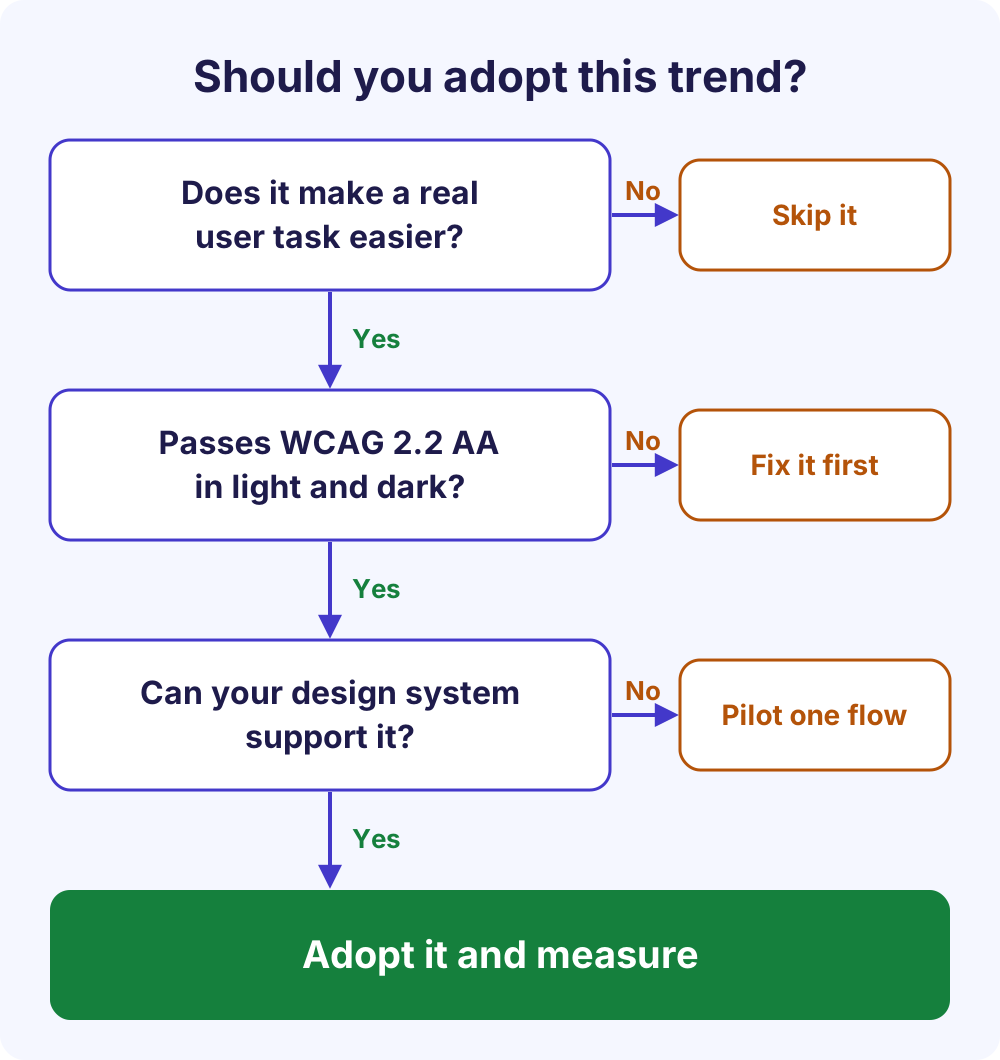
Run each of these UI/UX design trends through three questions. Does it make a real user task easier? Can your design system support it for the next few years? Does it still work for people using assistive technology, reduced motion or an older phone? A trend that passes all three is an investment, and one that only looks good is a fad that ages quickly.
- Pick one flow with real traffic, such as sign-in, checkout or a contact form.
- Write down the number you expect to move: task completion, sign-in success, INP or support tickets.
- Design the change in Figma with your existing components, in both light and dark modes.
- Check contrast, focus visibility, target size and reduced motion before handoff.
- Ship it to part of your traffic or a test group, and compare against the old version.
- Add it to the design system only if the number moved. Otherwise, roll it back and keep what you learned.
Frequently Asked Questions
Which UI/UX design trend should a small business adopt first?
Accessibility to WCAG 2.2 AA, because it helps every visitor, reduces legal exposure if you sell to EU consumers, and is cheapest to build into components early. Next, check INP on your busiest page. Add passkeys if customers sign in. Visual trends like glass effects or expressive motion can wait until those basics are solid.
Should my website copy Apple’s Liquid Glass look?
Usually not. Liquid Glass is a material for native Apple apps, and Apple’s own guidance keeps it on controls and navigation, never on content. On a website, a light frosted header can work if text keeps 4.5:1 contrast over every background, but a glass-heavy layout mostly adds legibility problems and rendering cost without helping users finish a task.
Does the European Accessibility Act apply to my website?
It can if you provide a covered service, such as e-commerce or consumer banking, to consumers in the EU. Microenterprises that provide services, with fewer than 10 staff and no more than EUR 2 million in annual turnover or balance sheet, are exempt. The Act has applied since June 28, 2025. Check your national law or a lawyer for your specific case.
What changed in WCAG 2.2?
WCAG 2.2 added nine success criteria and removed 4.1.1 Parsing. The ones that change most interfaces are focus not hidden by sticky content, alternatives to dragging, pointer targets of at least 24 by 24 CSS pixels, help in a consistent place, no retyping of information already given, and sign-in without memory or puzzle tests.
Will AI replace UI/UX designers?
No. Tools like Figma Make and the Figma agent speed up drafts, prototypes and routine tasks, but someone still has to judge whether a design solves the user’s problem, fits the brand, meets WCAG and can be maintained. AI shifts designers’ time from production toward research, decisions and quality control rather than replacing that judgment.
Are passkeys better than passwords for users?
For most people, yes. A passkey is phishing-resistant, there is nothing to remember or retype, and sign-in works like unlocking the phone. It also helps you meet WCAG 2.2’s accessible sign-in rule. Keep a password or other fallback during the transition, and give users a clear recovery path if they lose a device.
Do web design trends affect SEO?
Indirectly. Google says good Core Web Vitals, including INP, align with what its ranking systems reward, but no design trend guarantees rankings. Web design trends that add heavy scripts, hide text in images or slow down interaction can hurt, while clear structure and fast pages help. Our technical SEO basics guide covers crawling and indexing.
How often should you redesign a product’s UI?
Rarely all at once. Most products do better with steady improvements to one flow at a time, measured against a clear number, than with a full redesign every year or two. Platform changes such as Liquid Glass or Material 3 Expressive are a good moment to refresh shared components, not to rebuild everything.
Next steps: put one trend to work
Start with the high-payoff UI/UX design trends in the table: an accessibility pass to WCAG 2.2 AA, an INP check on your busiest page, and passkeys if you run accounts. If you want a second opinion, our UI/UX design service starts with a research-first audit, or get in touch to talk it through.
Want us to do this for you?
We design websites and apps that are clear, accessible and easy to use.
See UI/UX design servicesFeatured image: Photo by Amélie Mourichon on Unsplash.