
The Free Invoice Generator is a browser-based tool from Soft Learn Hub that creates professional invoices and quotations and downloads them as PDF files. Add your logo, line items, tax or VAT, discounts and a payment-link QR code, in 14 document languages. It is free with no sign-up and no watermark, and invoices are saved only in your own browser.
What is an invoice generator?
An invoice generator is a tool that turns your business details, your client’s details and a list of products or services into a professional invoice you can send as a PDF, with the subtotal, tax, discounts and balance due calculated for you. This free invoice generator also adds a payment QR code, saves reusable templates and keeps your invoice history, and it runs entirely in your browser, so your data is never uploaded. Switch to quotation mode to send a quote with a validity period first, then convert it into an invoice when the client accepts.
- Price
- Free, no watermark
- Account
- Not needed
- Output
- PDF or print
- Currencies
- 35, with tax and discounts
- Modes
- Invoice or quotation
- Languages
- 14, including Arabic, Urdu and Hindi
- Privacy
- Saved on your device
- Extras
- VAT and TRN check, invoice scan, e-invoice XML
On this page
How to Create an Invoice in 5 Steps
- Add your business details and logo.
Enter your business name, address, email and, if you’re registered, your tax or VAT number in the “From” box. Click “Add your logo” to upload a PNG, JPG, WebP or SVG file.
- Add your client.
Fill in “Bill To” with your client’s name or company and billing address. Use “Ship To” only if goods are delivered to a different address.
- Set the invoice number, dates and payment terms.
Every invoice needs a unique number. The generator suggests the next one for you, for example INV-0002 after INV-0001. Choose payment terms such as Net 30 and the due date fills in automatically.
- List what you’re charging for.
Add a line for each product or service with a quantity and rate. The generator multiplies them and adds up the subtotal. Add tax as a percentage or a fixed amount, plus an optional discount or shipping charge.
- Download, print or save it.
Click “Download PDF” to get a print-ready file you can email to your client, or “Print” to print it or save it through your browser. Every invoice is kept in History, so you can reopen, duplicate or update it later.
What to Include on an Invoice
A clear invoice gets paid faster because your client has nothing to query. Make sure yours shows:
- Your business name, address and contact details
- Your client’s name and billing address
- A unique invoice number
- The invoice date and the due date, or payment terms such as Net 30
- A description, quantity and price for each product or service
- The subtotal, plus any discount, tax and shipping
- The total due and any amount already paid
- How to pay you: bank details, a payment link or accepted payment methods
If you’re registered for VAT, GST or sales tax, your country may require extra details on a tax invoice, such as your tax registration number and the tax rate and amount charged. Check your local tax authority’s rules before you send your first invoice.
Why Use This Free Invoice Generator
- PDF and print
Download a clean, print-ready PDF, or print straight from your browser.
- Tax, discounts and shipping
Add tax and discounts as a percentage or a fixed amount. Totals update as you type.
- 35 currencies
Bill in dollars, euros, pounds, rupees, dirhams and more, with the right symbol and decimals.
- Payment QR code
Paste a PayPal.Me, Stripe or Wise payment link and a scannable QR code appears on the invoice.
- Templates and history
Save repeat invoices as templates. Every invoice is kept in History to reopen or duplicate.
- Private, with dark mode
No account and nothing stored on our servers. Switch to dark mode for late-night invoicing.
- Invoice or quotation
Switch to quotation mode for a validity period and QUO- numbering, then convert the accepted quote to an invoice in one click.
- 14 document languages
Labels in English, Arabic, Urdu, Hindi, Spanish, French and more. Right-to-left scripts print correctly.
- Scan a paper invoice
Turn a photo, image or PDF of an invoice into an editable invoice. It’s read on your device and never uploaded.
- VAT and TRN check
Add a tax ID and check its format for 38 countries, with a live EU VAT check through VIES.
- E-invoice XML
Export a UBL file in the Peppol BIS 3.0 or UAE PINT AE format, checked field by field before download.
Need a Quote First? Switch to Quotation Mode
Quotation mode turns this free invoice generator into a quotation generator: click “Quotation” above the editor and the document title becomes QUOTATION, the number starts with QUO-, and the payment terms and due date are replaced by a validity period and a “Valid Until” date (30 days by default). Everything else works exactly as it does for invoices: your logo, line items, tax, discounts, templates, history and the PDF download.
- Validity period: type or pick “Valid for 7, 14, 30, 60 or 90 days” and the valid-until date is calculated for you.
- Quotation number: quotes use their own QUO- sequence, so your invoice numbering stays unbroken.
- Quote terms: the Terms & Conditions box is where you state acceptance, deposit and delivery timeline; the starter templates fill in sensible defaults.
- Convert to invoice: once the client accepts, click “Convert to invoice”. A new invoice is created with the same client, line items and reference and the next INV- number, and the original quotation stays in History.
Amount Paid, Balance Due and the payment QR code are hidden on quotations, because nothing is owed yet. You can switch back to Invoice at any time without losing what you typed.
Invoices and quotations in 14 languages
Pick a document language in the sidebar and every label on the invoice or quotation is translated: English, Arabic, Urdu, Hindi, Bengali, Spanish, French, German, Portuguese, Italian, Indonesian, Turkish, Russian and Chinese. Each label stays editable, so you can match the wording your clients expect. Arabic and Urdu documents are laid out right to left and are saved as PDF through the print view, which keeps every character exactly as typed.
Quotation vs Invoice: What’s the Difference?
A quotation is an offer: it states the price you will charge for the described work or goods and how long that price holds, and it creates no obligation until the client accepts. An invoice is a request for payment for work that has been agreed or delivered, with a due date and the balance owed. In practice the quote comes first, the invoice follows acceptance, and the two usually carry the same line items.
| Detail | Quotation | Invoice |
|---|---|---|
| Purpose | Proposes a price before work starts | Requests payment for agreed or delivered work |
| Key date | Valid until (price expiry) | Due date (payment deadline) |
| Number | QUO-0001, its own sequence | INV-0001, sequential and never reused |
| Totals shown | Subtotal, tax, total | Subtotal, tax, total, amount paid, balance due |
| Legal effect | An offer, binding only once accepted | A record of the sale, kept for tax and accounting |
Because the layout, logo and numbering rules are shared, you only set up your business details once. Create the quotation, send the PDF, and convert it to an invoice the moment the client says yes.
Scan a Paper, Photo or PDF Invoice
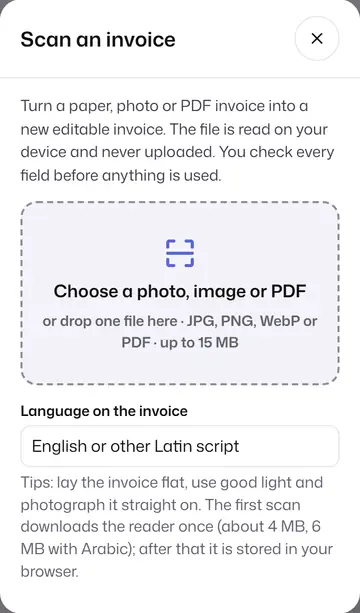
Click “Scan invoice” above the editor, choose one photo, image or PDF, and the generator reads it on your device with OCR (optical character recognition). It fills in the invoice number, dates, seller, client, tax IDs, line items, tax rate and total, marks anything it is unsure of with “Please check”, and lets you correct every field before it creates a new editable invoice.
- Digital PDFs made by accounting or invoicing software are read straight from their text, so the numbers come through exactly.
- Photos and scanned PDFs are read with Tesseract, an open-source OCR engine that runs inside your browser. Choose “Arabic and English” for Arabic invoices.
- Review before you create: your scan sits next to the fields, selecting a field highlights where it was found, and a totals check tells you whether the lines and tax add up to the total on the scan.
- One file at a time: JPG, PNG, WebP or PDF up to 15 MB. For a PDF, the first page is read.
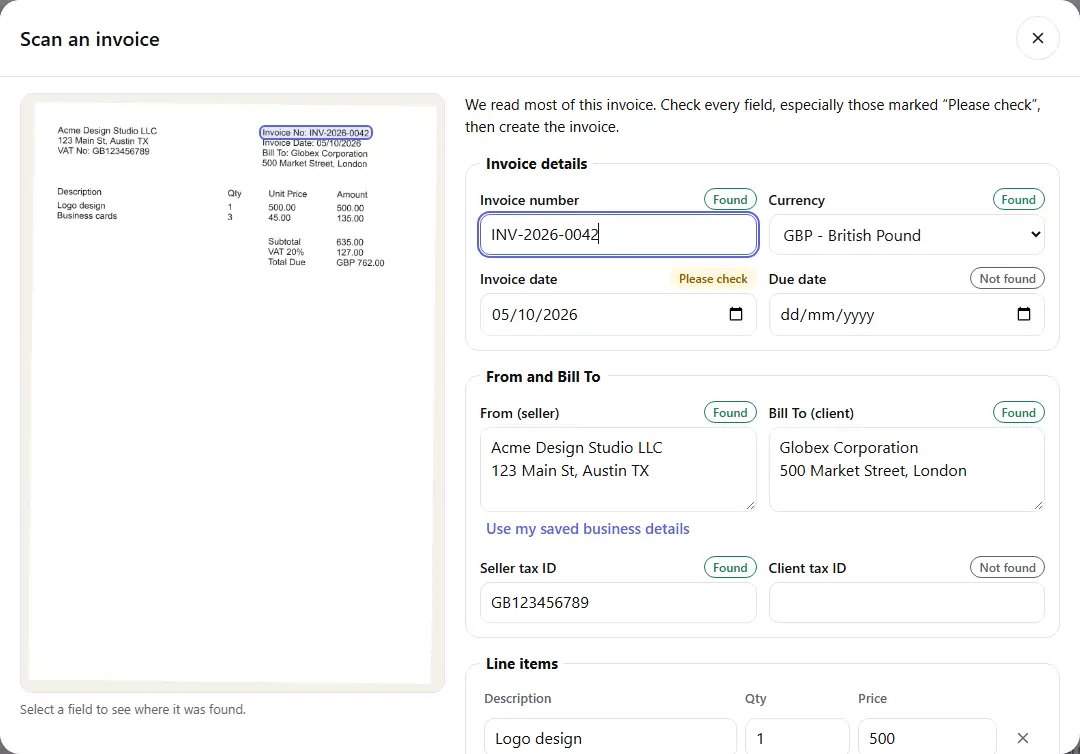
Unlike most OCR invoice processing services, nothing is sent to a server: the file, the text read from it and the new invoice stay in your browser. The first scan downloads the reader once (about 4 MB, or 6 MB with Arabic), then your browser keeps it. OCR is never perfect, so compare the new invoice with the original before you send it.
Check a VAT Number or UAE TRN Before You Invoice
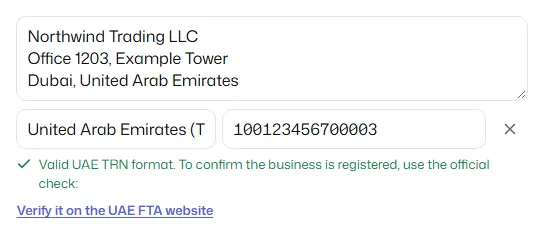
Click “+ Tax ID” under From or Bill To, pick the country and type the number. The generator checks its format, and its check digits where the country uses them, for 38 countries. EU VAT numbers are also confirmed live with the European Commission’s free VIES service, and for the UK, the UAE, Saudi Arabia and others it links to the official lookup.
| Tax ID | What the generator checks | Official check |
|---|---|---|
| EU VAT number (27 member states, plus XI for Northern Ireland) | Format and check digits, then a live VIES check that shows the registered name and address when the member state shares them | VIES VAT number validation |
| UK VAT number | Format and HMRC check digits | Check a UK VAT number on GOV.UK |
| UAE TRN (15 digits) | Format: starts with 1 and ends with 03 | Federal Tax Authority (TRN verification) |
| Saudi VAT number (15 digits) | Format: starts and ends with 3 | ZATCA VAT registration lookup |
| India GSTIN, Australia ABN, Canada BN | Format and check digits | Linked in the tool |
| Bahrain, Oman, Pakistan, US EIN | Format (and the IRS prefix list for an EIN) | Linked in the tool where a public lookup exists |
Checking matters most for business customers in the EU: a valid VAT number is one of the conditions for zero-rating a cross-border sale to them or applying the reverse charge. The live check sends only the country code and the number to VIES, through our server, and nothing is stored. To confirm a UAE TRN officially, use the TRN verification service on the Federal Tax Authority website; it asks you to complete a CAPTCHA, so the generator links to it instead of checking for you. Once added, the tax ID prints under the business name with its local label, such as TRN, VAT No. or GSTIN.
Create an E-Invoice XML File (Peppol and UAE PINT AE)
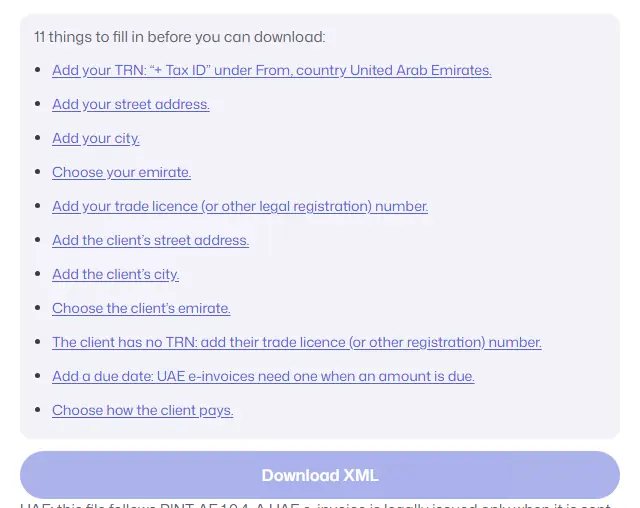
An e-invoice is an invoice in a structured format, usually UBL XML, that accounting software can read without retyping. Click “e-Invoice (XML)” below Download PDF and the generator builds a UBL 2.1 file in the Peppol BIS Billing 3.0 format or the UAE PINT AE format. A checklist shows what is still missing, and the download unlocks only when every required field is filled in.
- Peppol BIS Billing 3.0 is the European standard (EN 16931) format used on the Peppol network. The generator asks for the Peppol IDs of both parties and a buyer reference or order number.
- UAE PINT AE is the format for the UAE electronic invoicing system. The generator asks for your TRN, the emirate and your legal registration, and adds the AED totals when you invoice in another currency.
- Checked before download: the checklist follows the published Peppol BIS 3.0 (EN 16931) and PINT AE validation rules, and sample files from the generator pass the official validators.
- Remembered for next time: your e-invoice business details are saved with your other business details, in your browser.
- Looking for a UBL invoice example? Create a sample invoice and download the XML. It is a complete UBL 2.1 invoice built from your own data.
Important: a downloaded XML file is not a legal e-invoice on its own. In the UAE, electronic invoices must be issued and received through an Accredited Service Provider (ASP) under the UAE e-invoicing mandate. Businesses with revenue of AED 50 million or more must appoint an ASP by 30 October 2026 and start on 1 January 2027; businesses with lower revenue must appoint one by 31 March 2027 and start on 1 July 2027 (Ministry of Finance, May 2026 update). In Europe, Peppol invoices are sent through a Peppol access point. Use the XML file to check your data, test with your provider or import into software that accepts UBL. Saudi Arabia’s ZATCA (FATOORA) e-invoices are not supported, and Greek sellers need a myDATA mark, which this tool can’t add.
Free Invoice Templates for Your Business
Start from a template with example line items for your type of work. Your logo and business details are kept, and you can replace the example prices with your own.
Freelance invoice template
List each deliverable or the hours you worked, say how many revisions are included, and set clear payment terms such as Net 14 or Net 30.
Consulting invoice template
Bill your hours or a fixed project fee, reference the client’s purchase order or engagement, and describe what the fee covers.
Contractor invoice template
Separate labor from materials, describe the job site and the work completed, and record any deposit you’ve received as Amount Paid.
Cleaning service invoice template
Describe the service and the property, list add-ons such as deep cleaning on their own lines, and note the date of the visit.
Auto repair invoice template
List parts and labor on separate lines, and add the vehicle’s make, model, year and mileage so the invoice matches your work order.
Prefer to edit in Google Docs or Word? Copy our free invoice templates for Google Docs: simple, freelance and contractor layouts, each with a matching .docx file.
How to Number Your Invoices
Use a simple sequence that never repeats, such as INV-0001, INV-0002 and so on. Quotations keep their own sequence (QUO-0001, QUO-0002), so switching between modes never leaves a gap in your invoice numbers. Some businesses add the year (2026-001) or a client code (ACME-001) to make invoices easier to find. Avoid reusing numbers: a clean, continuous sequence keeps your records tidy and makes tax time easier. When you start a new invoice, the generator suggests the next number in your sequence automatically.
Payment Terms Explained
| Term | What it means |
|---|---|
| Due on receipt | Payment is expected as soon as your client receives the invoice. |
| Net 7 / Net 15 | Payment is due 7 or 15 days after the invoice date. |
| Net 30 | Payment is due 30 days after the invoice date. A common default for business clients. |
| Net 60 | Payment is due 60 days after the invoice date, often requested by larger companies. |
Type or pick one of these in the Payment Terms field and the due date is calculated for you from the invoice date.
More help with invoicing: read our step-by-step guide on how to invoice as a freelancer, or see what to include on a contractor invoice, with labor, materials and deposits.
If you also send letters, design a matching letterhead with the free letterhead maker, using the same logo and brand colours as your invoices. At the end of the month, bring your paid invoices into a free profit and loss statement to see what you actually earned.
Frequently Asked Questions
Is there a free invoice generator I can use without signing up?
Yes, the one on this page. Add your logo and business details, list your products or services, apply tax, discounts and shipping, then download a PDF or print it. There is no sign-up, no subscription and no watermark, and your invoices are saved only in your own browser. Switch to quotation mode when you need to send a price first.
Is this invoice generator really free?
Yes. You can create, download and print as many invoices as you need for free. There’s no sign-up, no subscription and no watermark.
Where are my invoices saved?
In your own browser, using its built-in storage. Nothing is uploaded to our servers, so only you can see them. They stay until you delete them or clear your browser data, so keep a PDF copy of every invoice you send for your records.
Can I add my logo?
Yes. Click “Add your logo” and choose a PNG, JPG, WebP or SVG image up to 5 MB. It’s saved with your invoice and copied to new invoices automatically.
How do I add tax or VAT to an invoice?
Enter the rate in the Tax field, for example 20 for 20%. Click the % button to switch to a fixed amount instead. Tax is calculated on the subtotal after any discount, and you can rename the label to VAT, GST or Sales Tax by clicking on it.
Can clients pay by scanning the invoice?
Yes. Paste a payment link, such as a PayPal.Me, Stripe Payment Link or Wise link, into the Payment link field. A QR code appears on the invoice and in the PDF, and the link is clickable in the PDF.
Can I use it on my phone?
Yes. The generator works in any modern mobile browser, and you can download the PDF straight to your phone to share it.
Is a PDF invoice legally valid?
In most countries an invoice doesn’t need a special format, and PDF invoices are widely accepted. What matters is the information on it. If you’re registered for VAT, GST or sales tax, check your tax authority’s rules for the details a tax invoice must include.
Can I create a quotation instead of an invoice?
Yes. Click “Quotation” in the bar above the editor. The title changes to QUOTATION, the number becomes QUO-0001 and a validity period replaces the payment terms. When the client accepts, click “Convert to invoice” to create the matching invoice with the next INV- number.
How long should a quotation be valid?
Thirty days is the common default and the one this generator suggests. Use 7 or 14 days when your costs change quickly, for example materials or currency-sensitive work, and 60 or 90 days for large projects where the client needs time for approvals. Always print the valid-until date on the quote so there is no dispute later.
Can I make an invoice or quotation in Arabic, Urdu or another language?
Yes. Choose a document language in the sidebar and the labels on the document are translated. Fourteen languages are included and every label stays editable. Arabic and Urdu documents are laid out right to left and are saved as PDF through the print view, so every character is kept.
How do I check if a VAT number is valid?
Add it with “+ Tax ID” under From or Bill To and choose the country. The generator checks the format straight away, and for EU VAT numbers it runs a live check with the European Commission’s VIES service and shows the registered name when the country shares it. For a UK number, use GOV.UK’s Check a UK VAT number service; for a UAE TRN, use the Federal Tax Authority’s TRN verification.
Is the e-invoice XML file a legal e-invoice in the UAE?
Not on its own. Under the UAE e-invoicing system, invoices must be issued and exchanged through an Accredited Service Provider. The PINT AE file from this generator follows the official format, so you can use it to check your data or to test with your provider, but it doesn’t replace the provider.
Is a scanned invoice uploaded to your servers?
No. Scanning runs in your browser: the photo or PDF, the text read from it and the invoice you create stay on your device. Only the reading engine is downloaded from our site, once, and your browser keeps it for the next scan.
What does HMRC require on a UK VAT invoice?
According to VAT Notice 700, a VAT invoice must show a unique sequential number, the time of supply (tax point), the issue date if different, your name, address and VAT registration number, your customer’s name and address, a description of the goods or services, and for each line the quantity, unit price, VAT rate and amount excluding VAT, plus the total excluding VAT, any cash discount rate and the total VAT in pounds sterling. In this generator, add your VAT number with “+ Tax ID”; it applies one VAT rate per invoice, and a different tax point or the VAT total in pounds can go in Notes.
Need something else? Browse our other free tools for small businesses, including a background remover and a UTM link builder.