
You can remove background in Canva with a few clicks using BG Remover, or for free with a short workaround if you’re on Canva Free. This guide is for anyone designing in Canva. You’ll get the exact desktop and mobile steps, a Free vs Pro comparison, fixes for rough edges and stubborn backgrounds, and tips for product and profile photos.
How to remove background in Canva
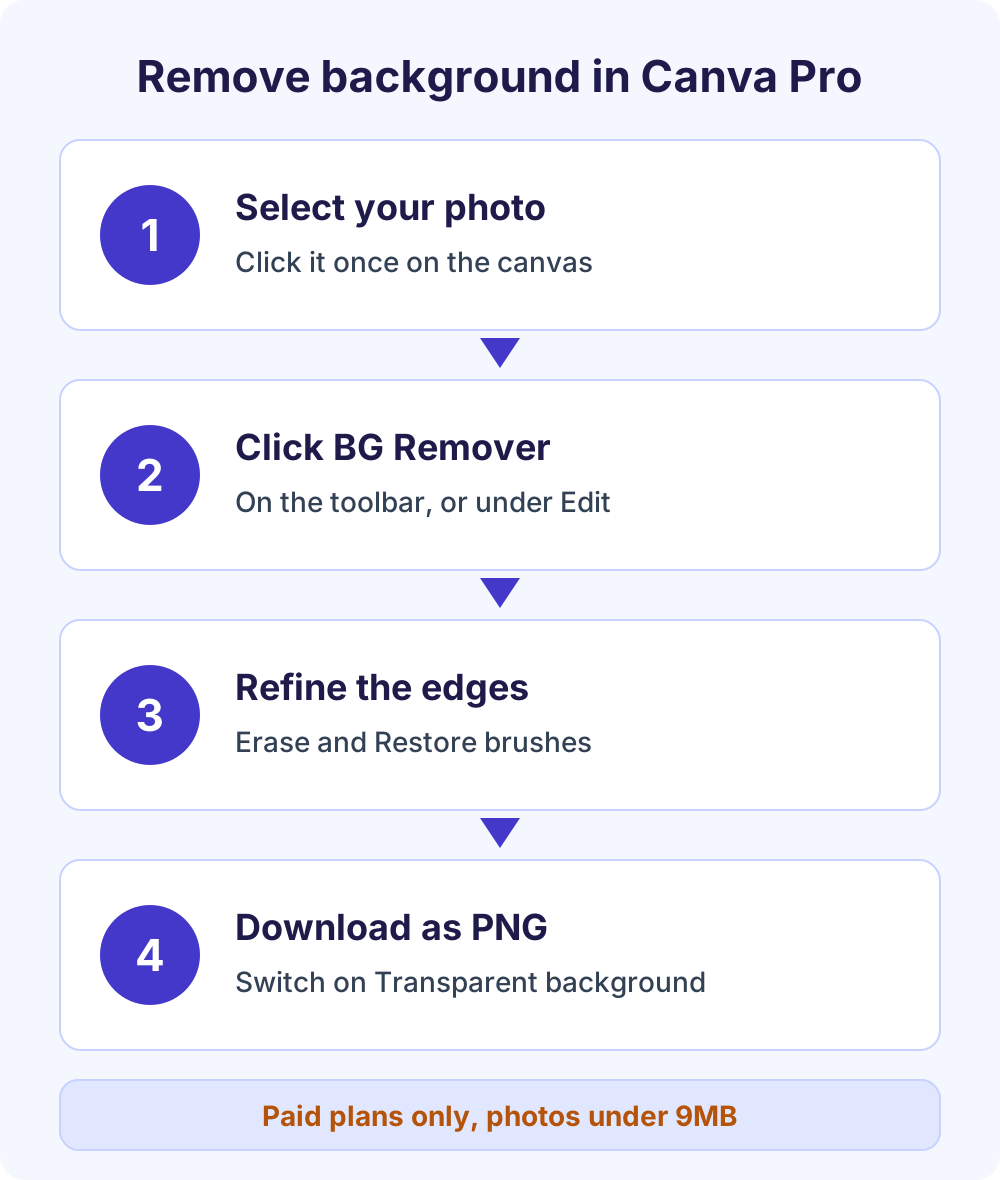
To remove background in Canva, select the photo in the editor and click BG Remover on the toolbar (or open Edit, then BG Remover). Canva isolates the subject in seconds, and the Erase and Restore brushes fix missed edges. BG Remover is a paid feature (Canva Pro, Business, Education and Nonprofits) and works on photos under 9MB. On Canva Free, cut the photo out with a free remover and upload the transparent PNG.
In this guide
Menu names, plans and limits are current as of October 2026 and checked against Canva’s Help Center. If a label looks slightly different, look for the same tool on the toolbar or in the Edit panel.
Canva remove background steps on desktop and web
On a paid plan, the background remover Canva builds into its editor sits right on the toolbar. The steps are the same in a web browser and in the Canva desktop app.
- Add your photo. Open a design, go to Uploads, upload the image and drag it onto the page. JPG, PNG and HEIC photos all work.
- Select it. Click the photo once so the toolbar shows the image options.
- Click BG Remover. If you don’t see it on the toolbar, click Edit and pick BG Remover from the photo editor tools.
- Wait a few seconds. Canva detects the subject and removes everything behind it.
- Refine if needed. Click BG Remover again to open the Erase and Restore brushes.
- Download. Go to Share > Download, choose PNG and switch on Transparent background.
Changed your mind? Use Undo at the top of the editor to bring the original photo back.
Clean up edges with the Erase and Restore brushes
Automatic cutouts sometimes clip a strand of hair or leave a sliver of wall. Canva’s Pixel Eraser brushes fix that after BG Remover has run.
- Select the image and click BG Remover again.
- Choose Erase to delete leftover background, or Restore to paint back parts of the subject.
- Set the Brush size slider: small for hair and fingers, large for big patches.
- Zoom in and drag over the area. Turn on Show original image to compare, and use the Undo and Redo icons to step back a stroke.
- Click Done to save.
How to remove background in Canva on mobile
The Canva app for iPhone, iPad and Android uses the same BG Remover, with taps instead of clicks. It needs a paid plan, just like on desktop.
- Open your design in the Canva app and tap the photo.
- On the editor toolbar, tap BG Remover. Swipe along the toolbar if it isn’t visible at first.
- Wait for the background to be processed.
- To touch up edges, tap BG Remover again, pick Erase or Restore, set the brush size and tap Done.
- Tap the Share icon, then Download, choose PNG and toggle Transparent background on.
Remove background in Canva in bulk or with Canva AI
Paid plans also offer three shortcuts that skip the design editor.
From the Projects tab
On the homepage, go to Projects > Images, hover over a photo and open the More menu. Choose Edit image, then select BG Remover under Tools.
Remove backgrounds from a whole folder
In Projects, hover over a folder, open More and select Remove background. Canva processes every uploaded photo and saves the results in a new folder named “[folder name] – Edited”, leaving your originals untouched. To process only some images, open the folder, tick their checkboxes and select BG Remover in the bottom toolbar.
The Canva remove background option for folders has firm limits: no more than 50 images per folder, one folder at a time, and only photos you uploaded. Canva library photos and designs are skipped.
Ask Canva AI
Open Canva AI from the homepage sidebar, upload a photo and type a prompt such as “Remove background”. In the editor, select an image, choose Ask Canva on the floating toolbar and use the same prompt. Canva AI doesn’t handle video backgrounds yet.
How to remove background in Canva videos
Video Background Remover comes with the same paid plans as the photo tool. Select the clip in the editor, click BG Remover on the toolbar and wait for the background to be processed.
Two rules trip people up. The clip’s original length must be under 10 minutes, and if you trimmed it inside Canva, you need to download and re-upload it first. On mobile, upload the video through the Uploads tab, not straight from your Camera Roll or Gallery. Our free tool handles still photos only.
How to remove background in Canva for free
The background remover Canva includes is a paid-plan feature, so on Canva Free you’ll see an upgrade prompt. You still have two free routes, and the first gives a cleaner result with less effort.
Option 1: cut it out first, then upload to Canva
Do the removal outside Canva, then bring the finished cutout in. A transparent PNG layers over any color, photo or shape in your design.
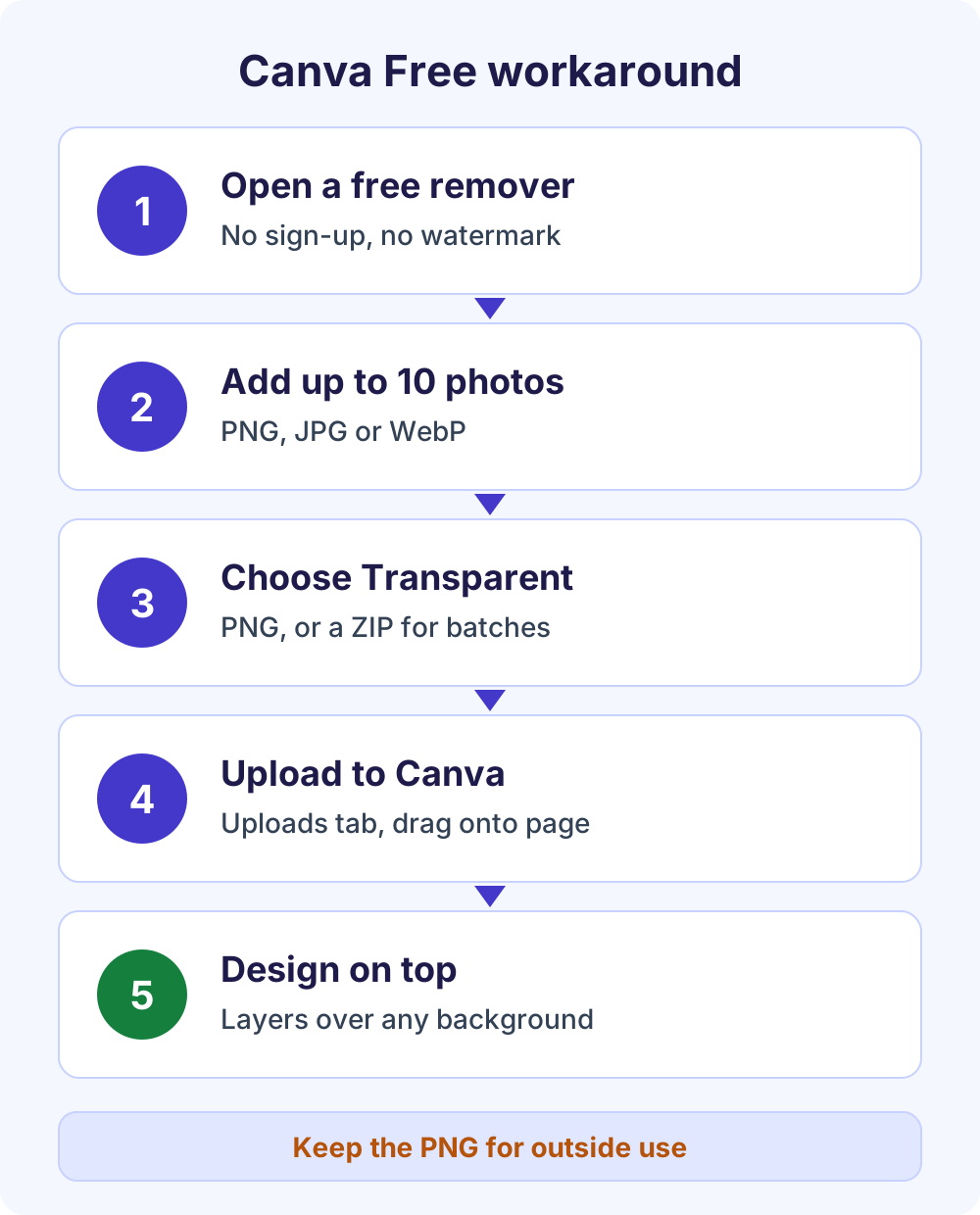
- Open our free background remover. It runs in your browser with no sign-up and no watermark.
- Add your photo, or up to 10 photos at once. It accepts PNG, JPG and WebP, so export iPhone HEIC shots as JPG first.
- Choose Transparent as the background. The AI cut-out refines edges around hair for you.
- Download a PNG. Batches download as one ZIP file.
- In Canva, open Uploads, upload the PNG and drag it onto your design.
The same tool can also swap in a white, blurred or custom color background when you need a finished photo rather than a cutout. For a deeper walkthrough, see our guide on how to make a background transparent for free.
Option 2: erase it by hand with Pixel Eraser
Canva’s Pixel Eraser is available to all users, including Canva Free. Select the image, choose Eraser (on mobile, tap Edit first), then Pixel Eraser. Set the brush size and drag over the background; the Restore brush brings back anything you erase by mistake. Click Done to apply.
It’s fully manual, so it suits simple shapes like a mug or a logo on a plain backdrop, not curly hair. It works on JPG and PNG images, not vector graphics or Canva elements, and it won’t appear on premium images while you’re on the free plan.
Prefer another editor? See our roundup of the best free background remover tools or our Pixlr background removal guide.
The catch: transparent downloads need a paid plan
Canva lets only Pro, Teams, Business, Education and Nonprofits accounts download a design with a transparent background. On Canva Free, your cutout looks transparent inside the editor, but the exported file includes the page background, which is white by default.
So if you need a transparent file for a website, a store listing or another app, use the PNG from Option 1 directly. Inside Canva, the cutout works normally on the free plan.
Canva Free vs Pro for background removal
If you use the Canva remove background tool every week, a paid plan saves real time. For a handful of images a month, the free route does the job.
| Feature | Canva Free | Canva Free + free remover | Canva Pro and other paid plans |
|---|---|---|---|
| One-click BG Remover for photos | No (upgrade prompt) | Done before upload | Yes |
| Erase and Restore touch-ups | Pixel Eraser only | Pixel Eraser only | Yes, after BG Remover |
| Several images at once | No | Up to 10 photos per batch | Up to 50 images per folder |
| Video background removal | No | No | Yes, clips under 10 minutes |
| Transparent PNG file | No transparent download | Yes, from the remover | Yes, with the Transparent background toggle |
| Magic Grab and Magic Eraser | No | No | Yes |
| Cost | $0 | $0 | Paid subscription; a free trial is offered once per account |
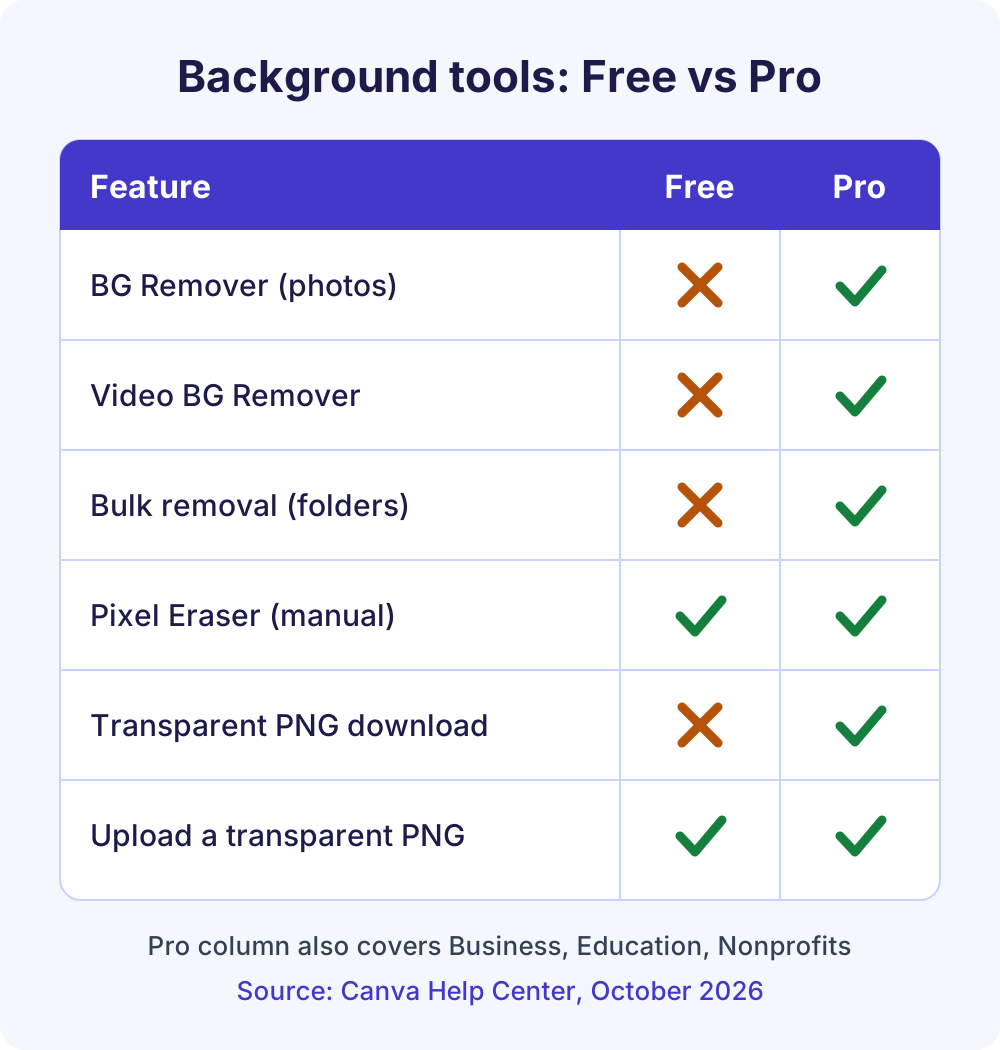
“Paid plans” means Canva Pro, Business, Enterprise, Education and Nonprofits; registered nonprofits get all Pro features at no cost. Prices vary by country and billing cycle, so check Canva’s pricing page for the current rate in your currency.
Where Magic Grab and Magic Eraser fit
Magic Grab lifts an object out so you can move or resize it while the background stays. Magic Eraser brushes away unwanted objects, like a stray cup or a passer-by. Both are paid tools under Edit > Tools; use BG Remover when you want the subject on its own.
How to download a transparent PNG from Canva
Removing the background is only half the job; your download settings decide whether the transparency survives. On a paid plan:
- Delete the page background (select it and click the trash icon) or set its color to white.
- Go to Share > Download.
- Choose PNG as the file type and set the size.
- Switch on Transparent background.
- Pick the pages (All, This page or Custom) and click Download.
JPG can’t store transparency, so a JPG export always fills the empty area. Canva Docs can’t be downloaded with a transparent background at all. Full details are in Canva’s transparent background download guide.
Canva remove background limits
Most failed Canva remove background attempts come down to one of these limits from Canva’s background remover help article. Check them before you remove background in Canva on a big batch.
| Limit | What it means for you |
|---|---|
| Photos under 9MB | Larger files won’t process, so compress or resize first. |
| 10MP output | Photos above 10 megapixels are downscaled to 10MP after removal. |
| No vector images | Vector graphics can’t use BG Remover. |
| Video under 10 minutes | Measured on the original upload, not a clip trimmed in Canva. |
| 50 images per folder | Bigger folders show the option greyed out. |
| Uploads under 50MB | A photo can upload fine and still be too big for BG Remover. |
Canva remove background problems and fixes
BG Remover is greyed out or missing
Start with your plan, since BG Remover only works on paid plans. Canva’s fixes for missing premium features are mostly account issues:
- Wrong account or team: sign in with the email tied to your subscription, then switch to the team with the paid plan.
- School account: Education accounts can show as “Free” until you switch to your school’s team.
- App store purchase: in the app, open Account settings and tap Restore purchases.
- Brand controls: if the Edit button is missing, a team admin may have restricted it.
- Unsupported file: vector images and photos over 9MB can’t use the tool.
- Stale session: clear your browser cache and cookies, then sign in again.
Edges look rough or hair is choppy
Reopen BG Remover, zoom in and run a small Restore brush along the hairline, then a small Erase brush over leftover halos. If a thin outline of the old background remains, start again from the highest-resolution original. Busy or same-color backdrops cause most rough cutouts, so a reshoot against a plain wall can save time.
The background still shows in the download
Check three things: you chose PNG, not JPG; Transparent background is switched on; and the page has no background color or image behind the cutout. Canva says a failed transparent download usually means the page background wasn’t deleted or set to white. On Canva Free, use the transparent PNG from a free remover instead.
Remove background is greyed out for a folder
The folder holds more than 50 images, so move some out. If photos are missing from the “- Edited” folder, they were Canva library items or Canva couldn’t detect a clear subject; those stay in the original folder.
Product photos and profile photos
These are the two most common reasons people remove background in Canva, and each has its own tricks.
Product photos for a store or marketplace
Shoot the product on a plain surface that contrasts with it, such as a white mug on a dark board, so the cutout gets clean edges. Then place the item on a white or soft-color page for a consistent catalog look.
Many marketplaces set their own main-image rules, often a plain white background, so check your platform’s guidelines before exporting. For a batch, the free remover processes up to 10 photos at once with a white background and gives you one ZIP. Logos need a different approach, covered in our guide to removing the background from a logo, GIF or PNG.
Profile photos and headshots
For LinkedIn, Slack or a team page, cut out the headshot, drop it onto a solid brand color or a soft gradient, and crop to a square. Leave space above the head, because many platforms crop profile photos into a circle.
Our guide to a professional LinkedIn headshot background covers colors that read well, and you can change a photo’s background color to white, blue or a brand shade once it’s transparent.
Checklist for a clean cutout
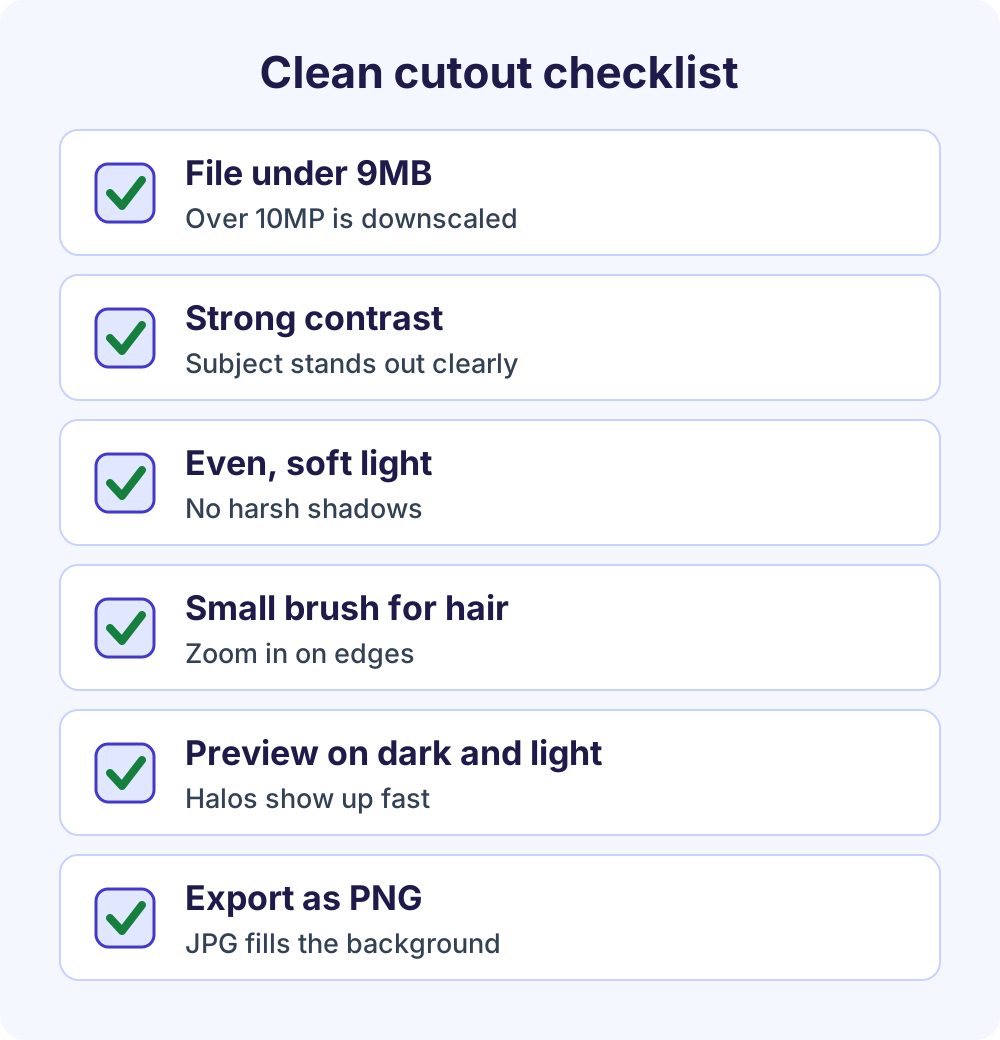
The source photo decides most of the quality. Run through this list before you remove background in Canva or any other tool.
- Size: keep the file under 9MB; Canva downscales anything above 10MP anyway.
- Contrast: a green shirt on a green wall cuts badly; pick a backdrop that differs from the subject.
- Light: even, soft light with no harsh shadows behind the subject.
- Focus: sharp edges give the AI a clear line; motion blur leaves halos.
- Preview: check the cutout on a dark and a light background before exporting.
Frequently Asked Questions
Is the background remover in Canva free?
No. The background remover Canva offers, BG Remover, is included only with paid plans: Canva Pro, Business, Enterprise, Education and Nonprofits. Free users see an upgrade prompt, and a Pro free trial is offered once per account. On the free plan, remove the background with a free browser tool and upload the transparent PNG to Canva instead.
How do I remove background in Canva without Pro?
Cut the photo out with a free background remover first, download a transparent PNG and upload it to Canva through the Uploads tab. It sits on top of colors, photos or shapes like any cutout. For simple objects, you can also erase the background by hand with Canva’s Pixel Eraser, which works on the free plan.
How do I remove background in Canva on my phone?
In the Canva app, tap the photo, tap BG Remover on the editor toolbar and wait a few seconds. Tap BG Remover again to open the Erase and Restore brushes for touch-ups, then tap Done. It needs a paid plan, the same as on desktop. For video, upload the clip through the Uploads tab first.
Can Canva make background transparent for free?
Not in the download. The Transparent background option for PNG downloads is limited to Pro, Teams, Business, Education and Nonprofits plans, so on Canva Free a design exports with its page background. If you need a transparent file, keep the PNG you made with a free remover and use it directly outside Canva.
Can I remove the background from a video in Canva?
Yes, on paid plans. Select the video, click BG Remover and wait for processing. The clip’s original length must be under 10 minutes, so a video trimmed inside Canva has to be downloaded and re-uploaded first. On mobile, upload the clip through the Uploads tab rather than from your Camera Roll or Gallery.
How do I remove a background color in Canva?
If you mean the design’s page color, click the background and use the trash icon to delete it, or set it to white. If the color is part of a photo, use BG Remover on a paid plan or a free remover before uploading. Then download as PNG with Transparent background switched on.
Does Canva’s BG Remover reduce image quality?
Only on very large photos. Canva downscales any image above 10 megapixels to 10MP after removing its background, and the tool only accepts photos under 9MB. That is plenty for social posts, slides and most web use. For large print jobs, check the output size before you commit to the cutout.
Will using BG Remover label my post as AI-generated?
It shouldn’t. Canva treats Background Remover as an editing tool, not a content generator, so it doesn’t add AI-generated content metadata to your design. Canva adds that metadata only for features that create or significantly change content, such as Magic Media or Magic Edit. If a platform still flags your post, contact Canva Support.
Next steps
On a paid plan, open your design, select the photo and click BG Remover. On Canva Free, run your photos through our free background remover tool, download the transparent PNGs and upload them to Canva. Either way, you end up with a clean cutout you can reuse in any design.
Canva is a registered trademark of Canva Pty Ltd; this guide is independent and not affiliated with or endorsed by Canva.